
This guide is part of the Content Types. We show you how to create content in general under Creating and Editing Content.
Please note that we only explain here how the individual modules work. This assumes that you have already created a page on which the content can be displayed. It is also assumed that you have already reached the window for creating content.
Display Language Switcher
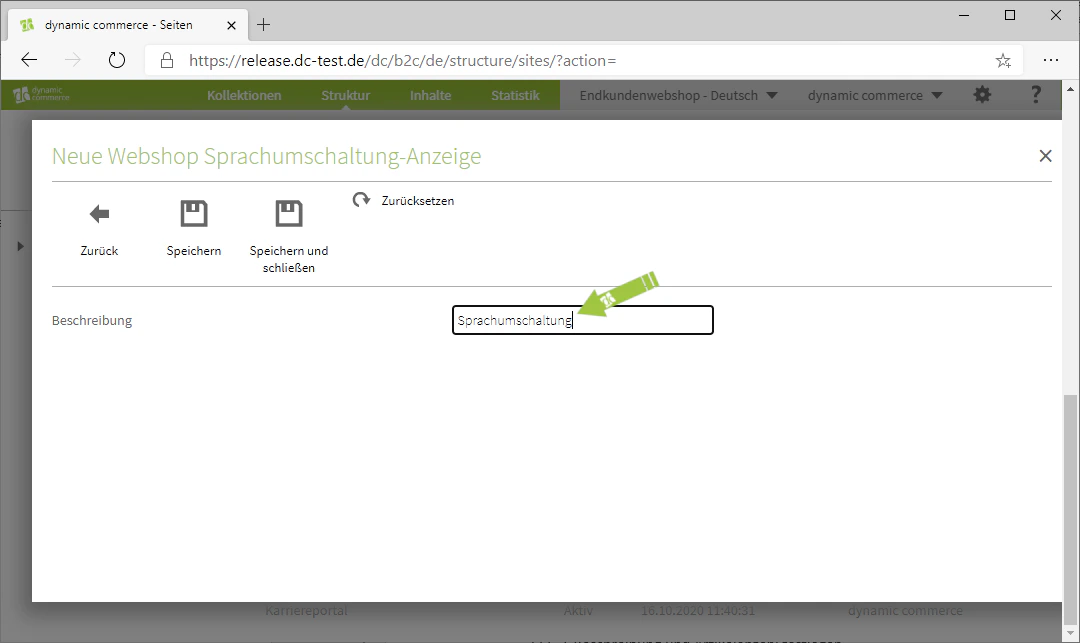
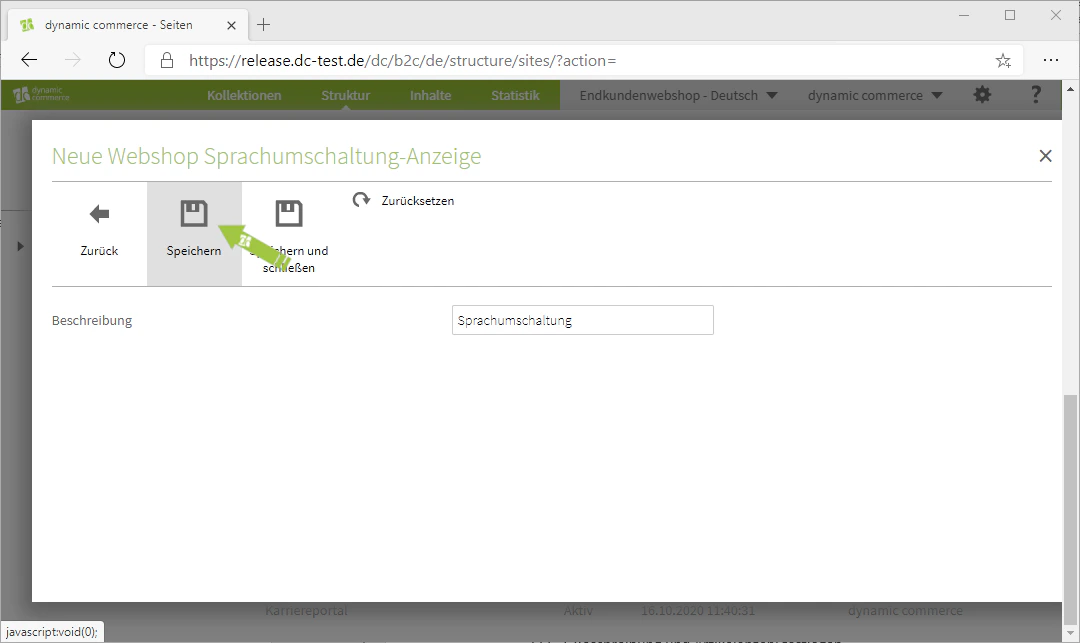
You have the option to display a language switcher on one of your pages. This shows the visitor a drop-down menu that gives them the option to switch between the maintained languages on the page. To display this language switcher, first select the content type “Language Switcher” when creating content. This should open a new window with the heading “New Webshop Language Switcher Display”. There you select a description. This is only for clarity and will not be displayed on the selected page. Then save the settings and the language switcher is already created.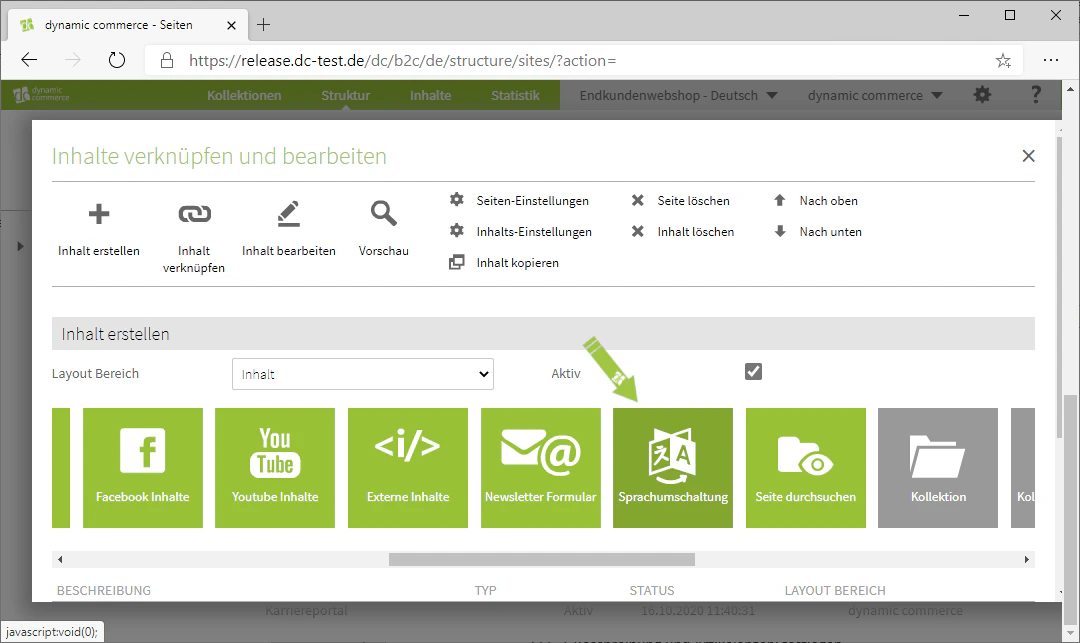
Display Page Search Field
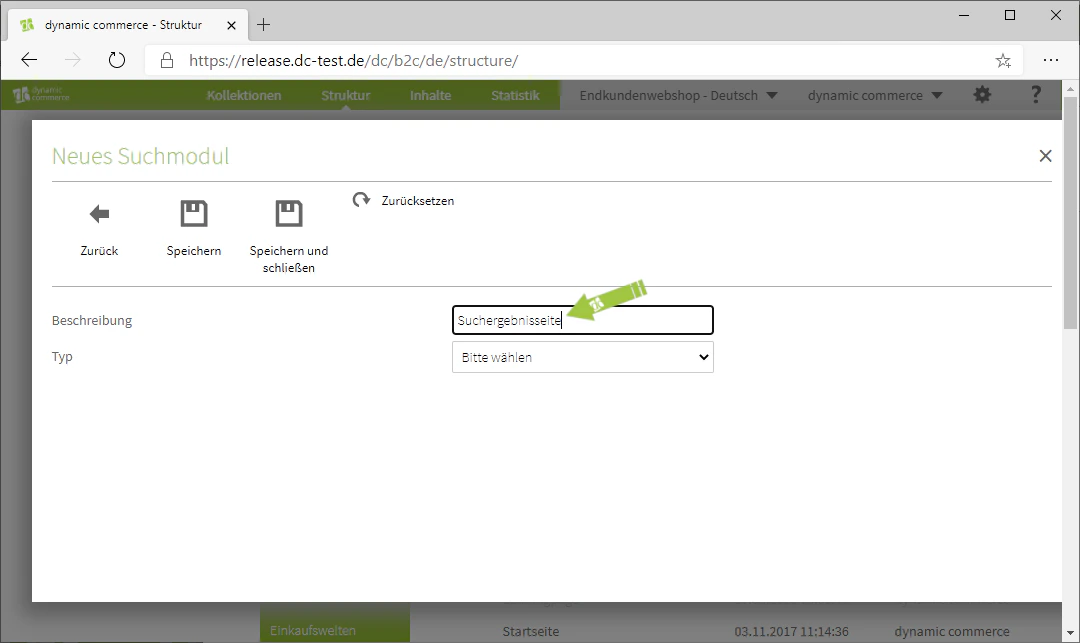
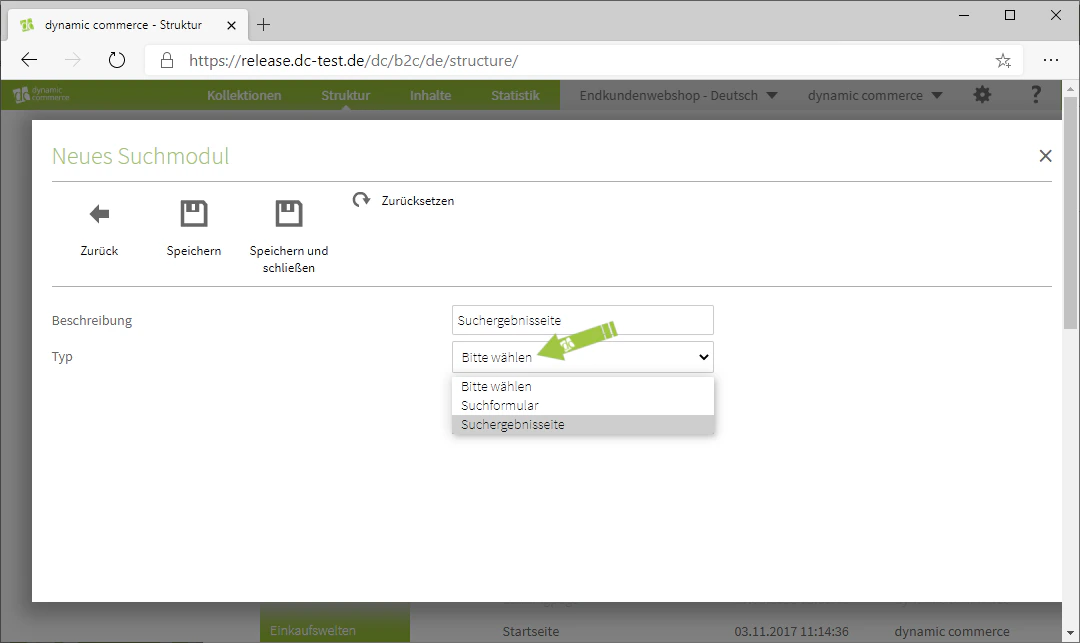
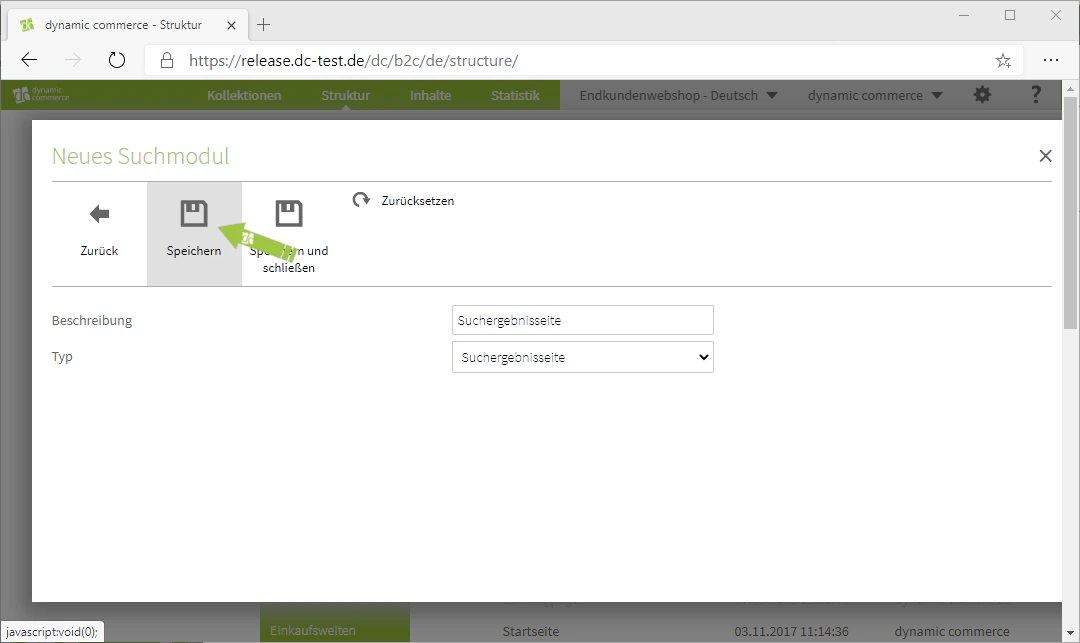
Next, we will show you how to display a page search field. This shows the visitor a typical “Search” field into which they can type keywords to search for them on the page. To create a search field — that is, both a search form and a search results page — select the “Search Page” module when creating content. This should open a window with the heading “New Search Module”. There you first select a description. This will not be displayed on the selected page. You can then define the type. As already explained, you have the choice between search form and search results page. Finally, do not forget to save the settings. You have now created either a search form or a search results page.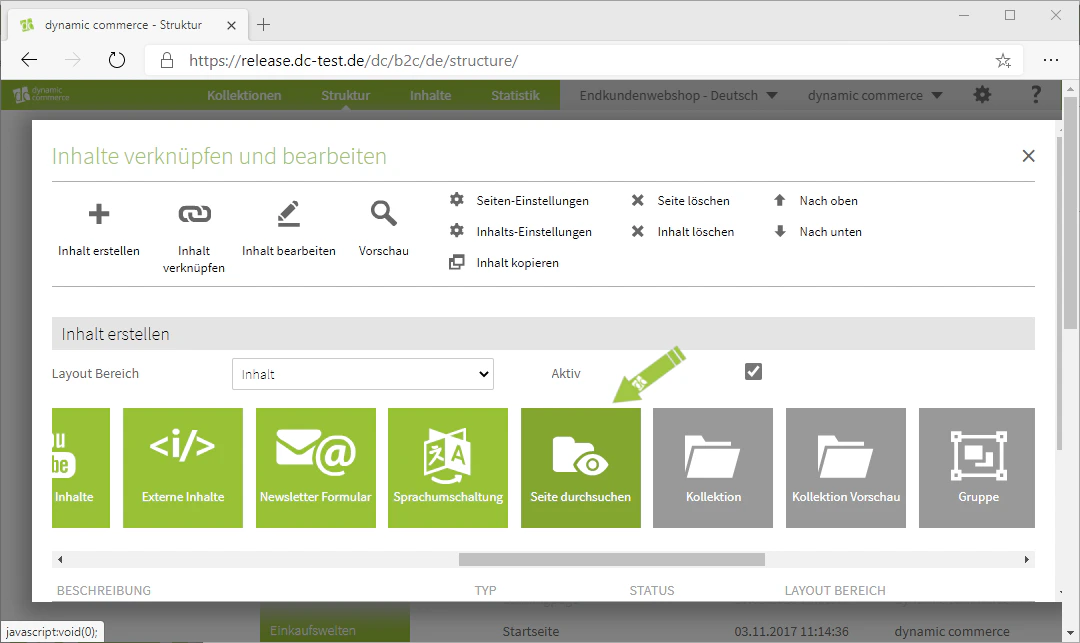
Creating Groups
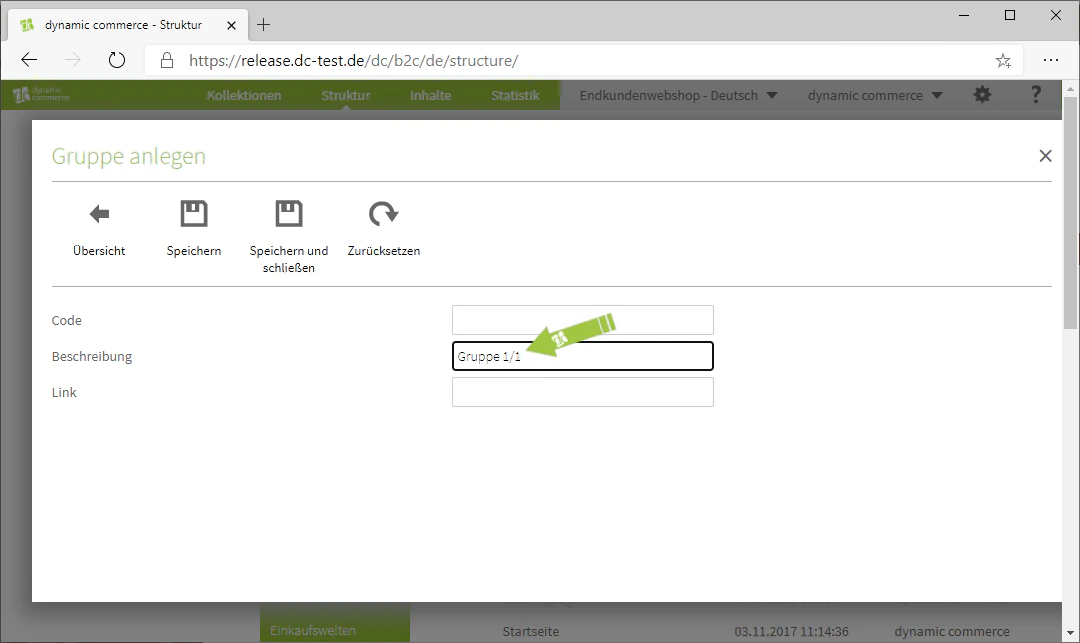
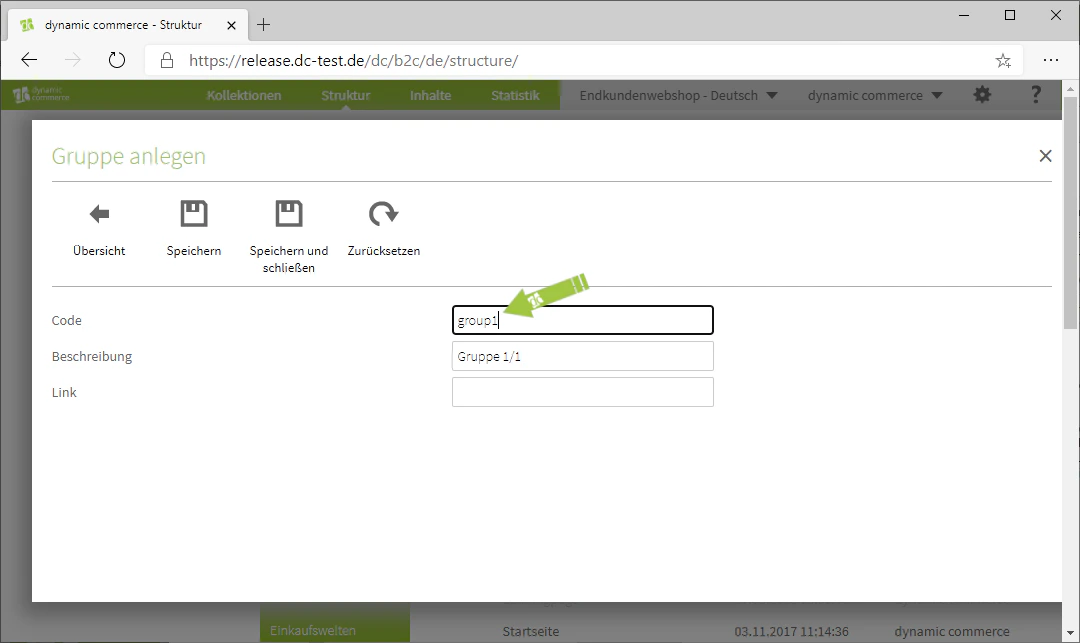
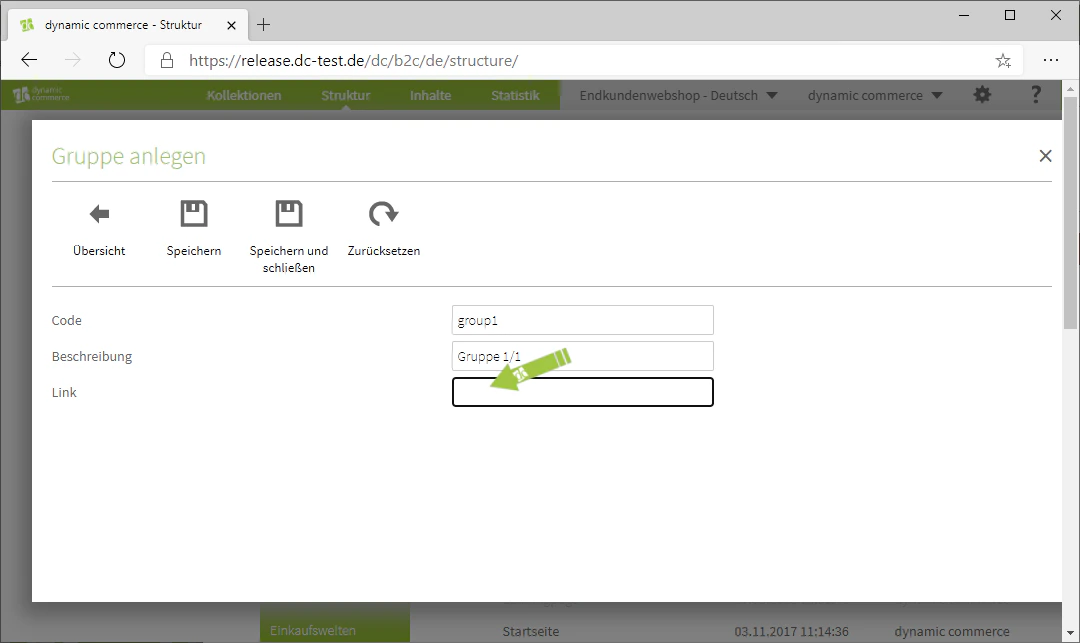
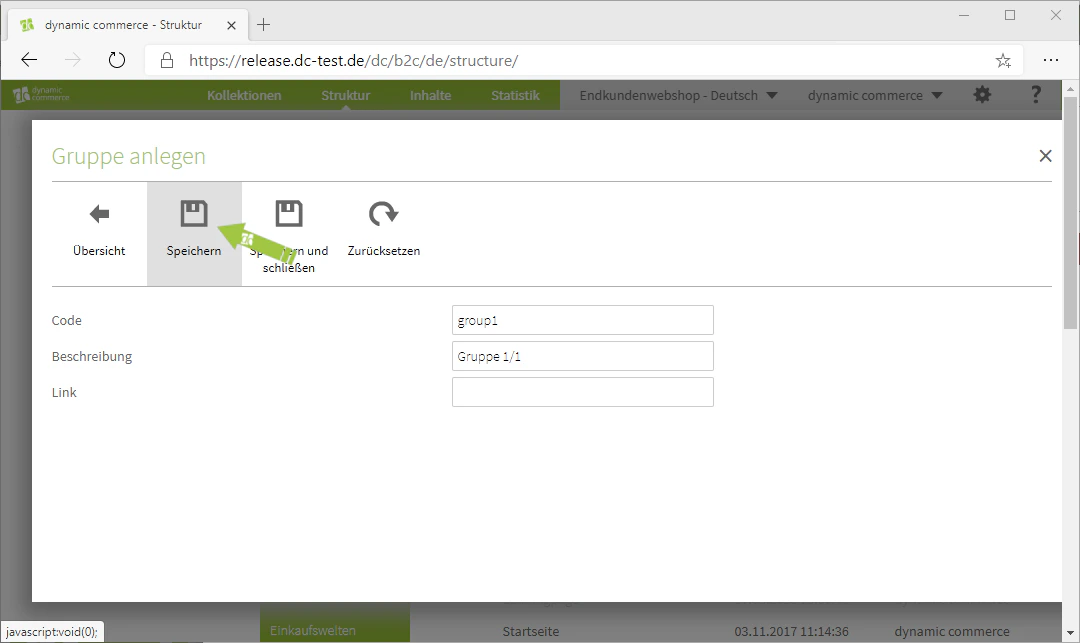
Now we will show you how to create groups. These are not displayed on your pages as such, since they only serve to group created content. Nevertheless, it is advisable to work with these groupings, as they allow you to assign content settings to multiple content items within a group. Within these content settings, you can assign layout classes to the group. To create a group, select the “Group” module when creating content. This should open a window with the heading “Create Group”. In this window, you first define a code and a description. The description is again only for clarity. You also have the option to maintain a link for the entire group. The visitor will then be redirected to the linked page when they click on any content item within this group. You can now save the settings and have successfully created a group.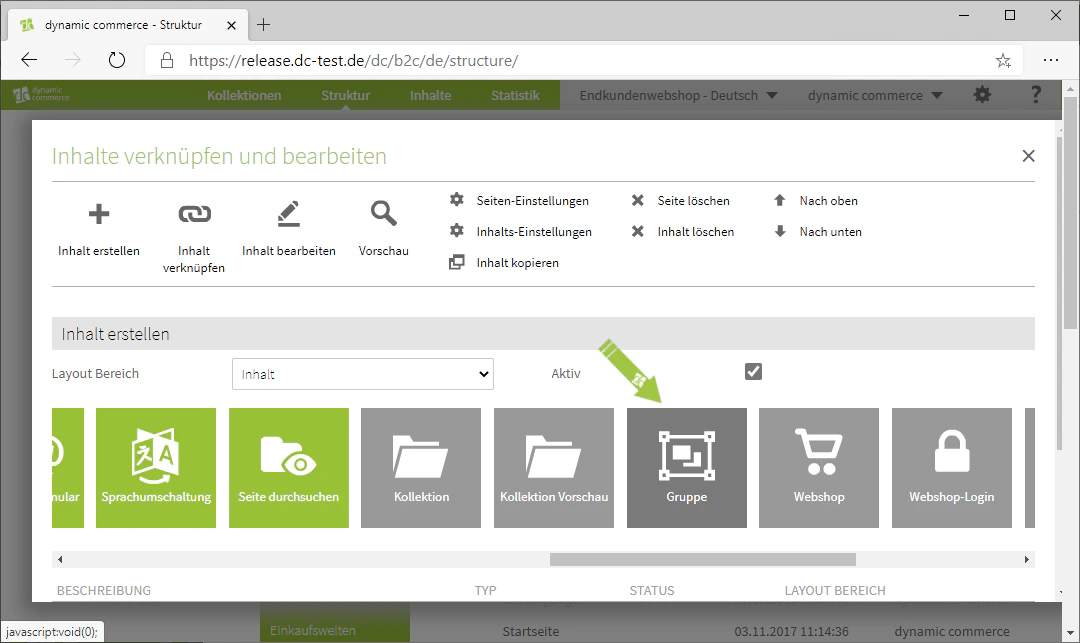
Related Topics
Content Types
Overview of all available modules.
Creating and Editing Content
Creating content on pages.
Webshop Siteparts
Integrate webshop content such as login, top articles, or dealer search.
External Content
Integrate external sources via the content module.