
We will show you which individual content types you can create and how each of them works under Content Types.
In addition, you must have previously created a page on which you can manage the content. Further information on creating a page can be found under Create Pages.
Step 1: Navigate to the Pages Menu
First, navigate to the Pages menu by clicking on the Structure tab. There, select the item “Pages” from the list on the left side.You should now have arrived at the Pages menu.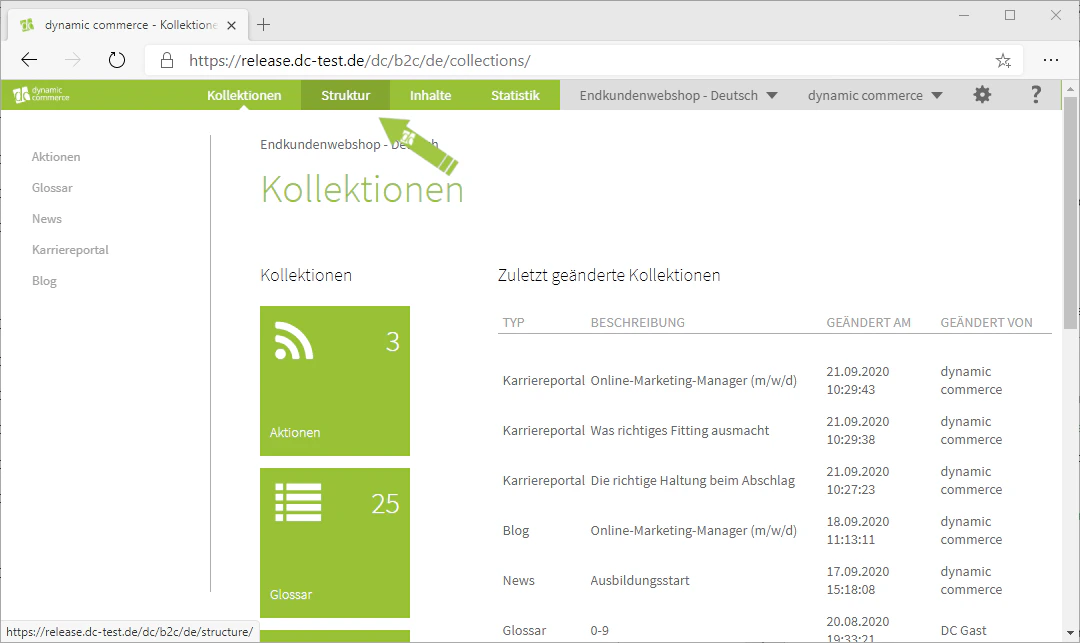
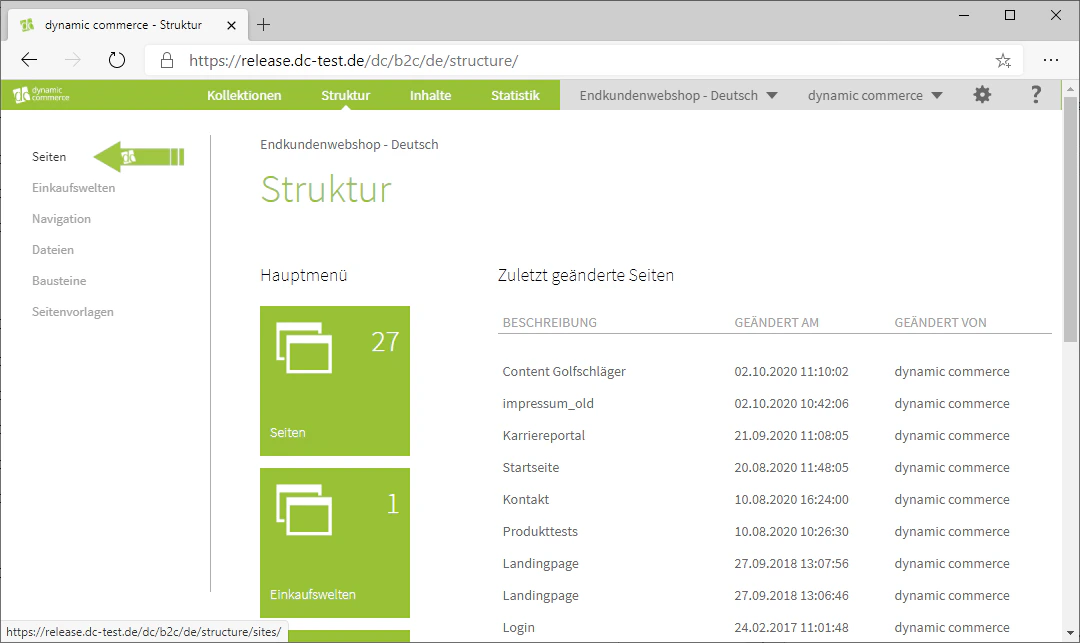
Step 2: Select and Edit a Page
Once in the Pages menu, you have the option to create and edit pages.We will show you exactly how this works under Create Pages.
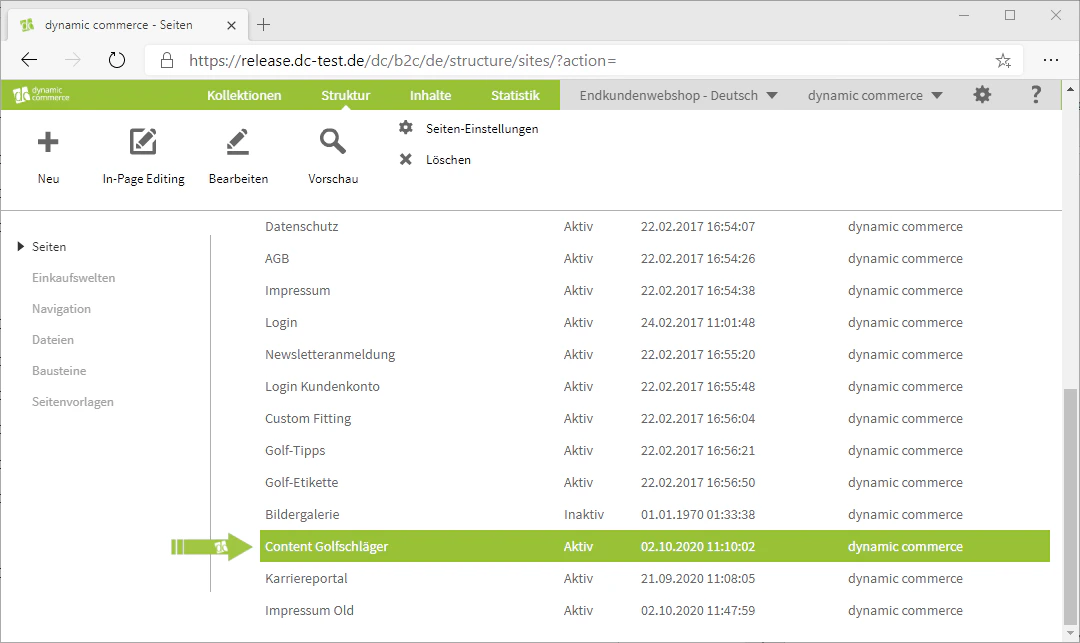
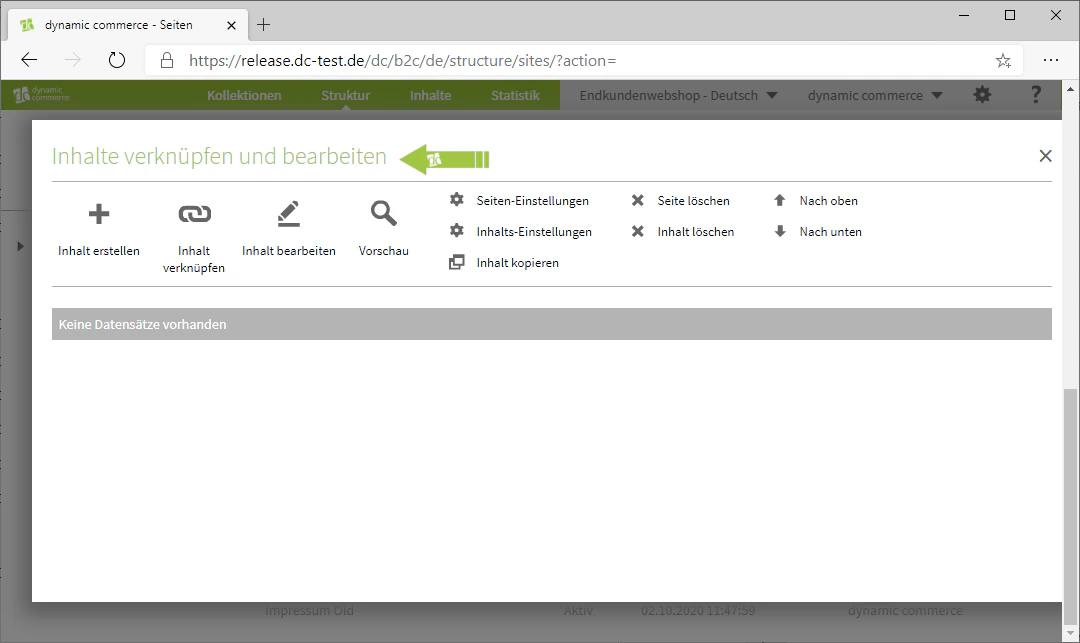
Step 3: Create New Content
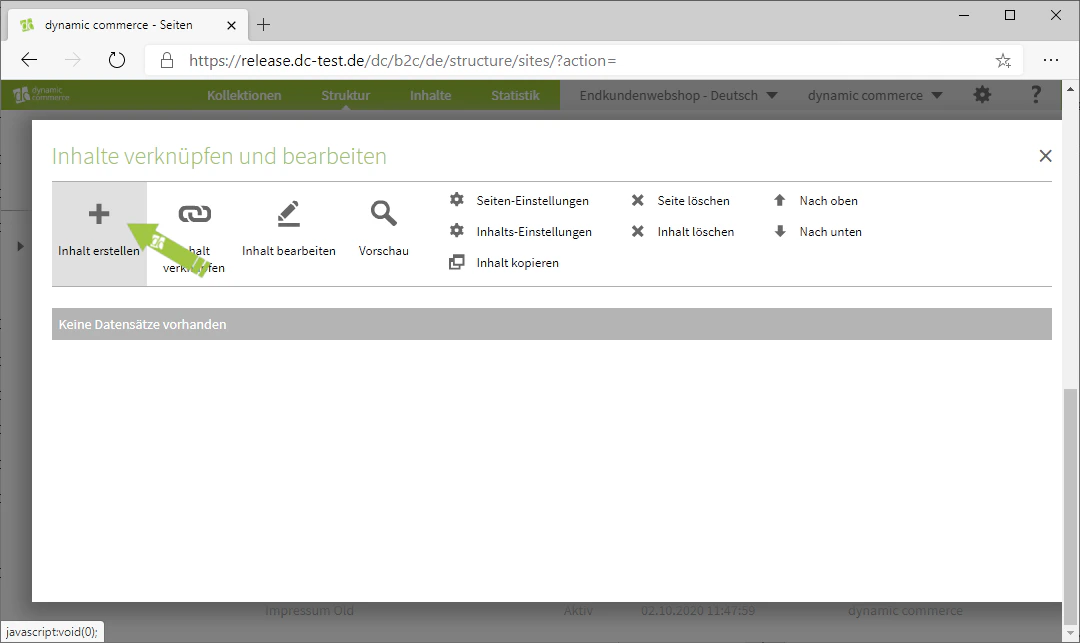
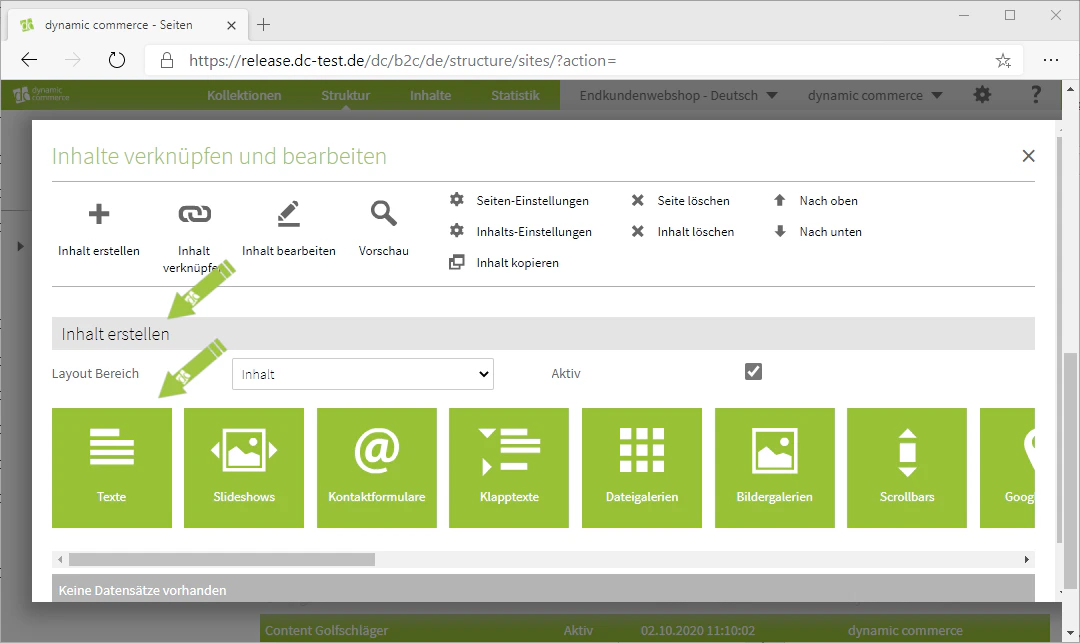
If you now want to create new content, click on the “Plus” icon with the label “Create Content” below it.This opens a list below it containing all content types and modules.A detailed explanation of each module can be found under Content Types.
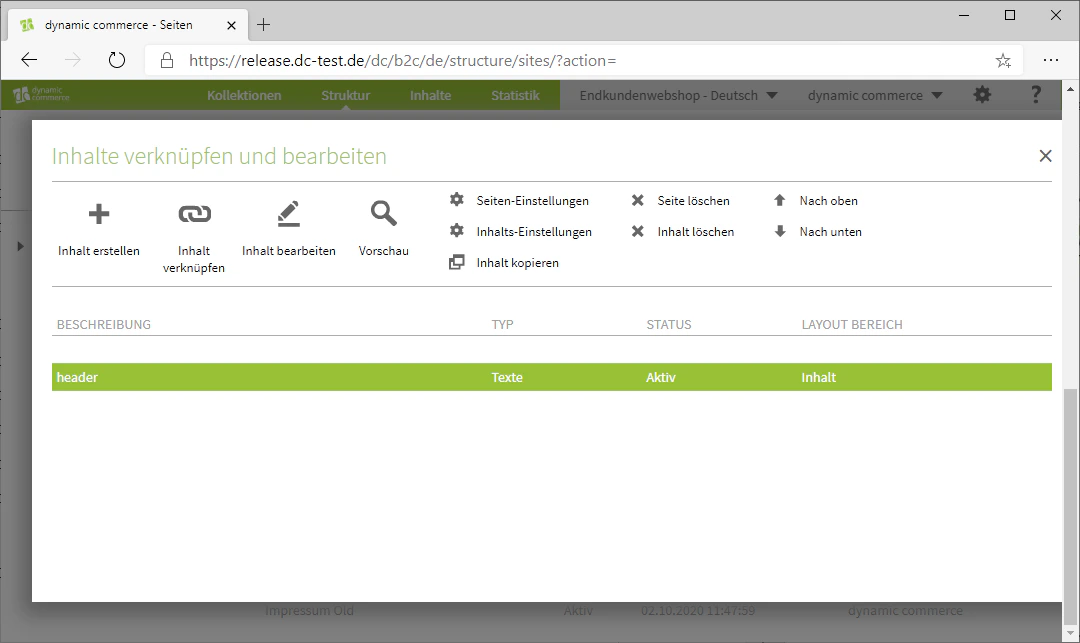
We have now created the heading.
Step 4: Edit Layout
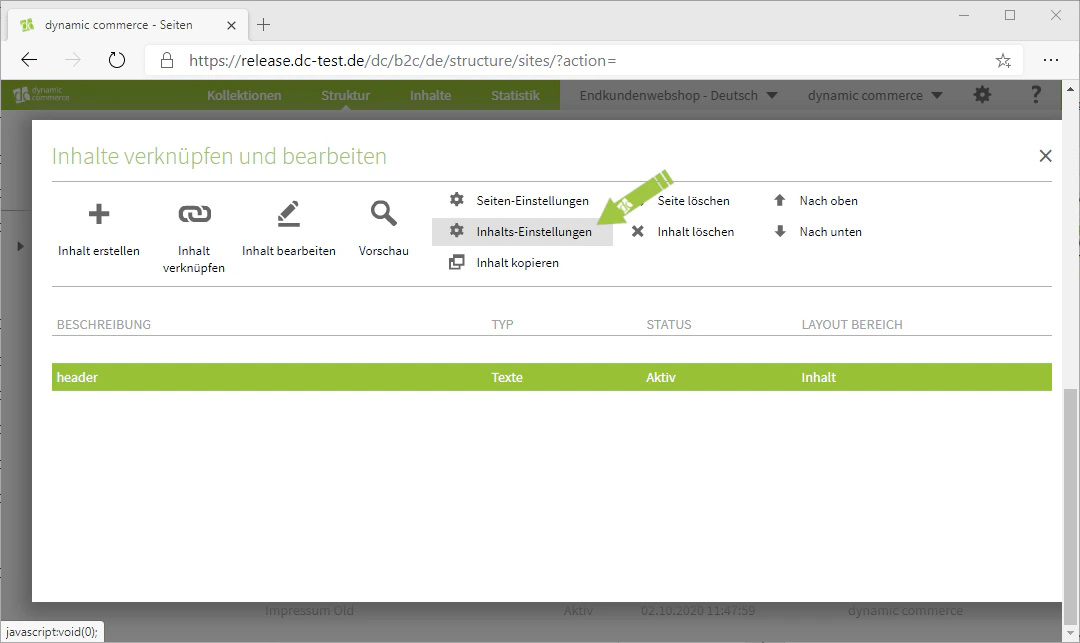
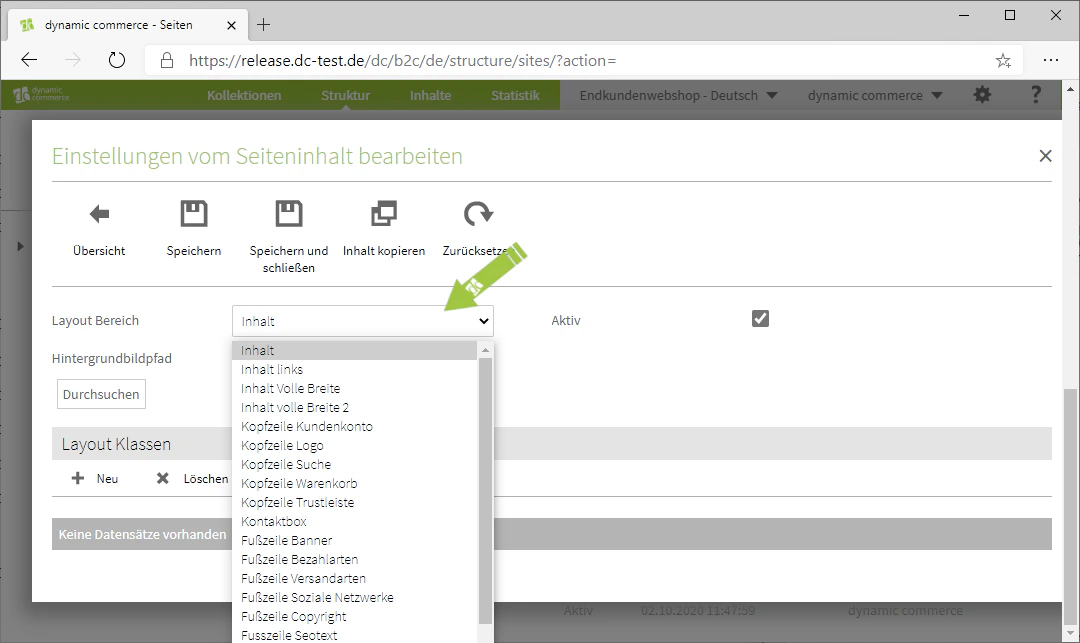
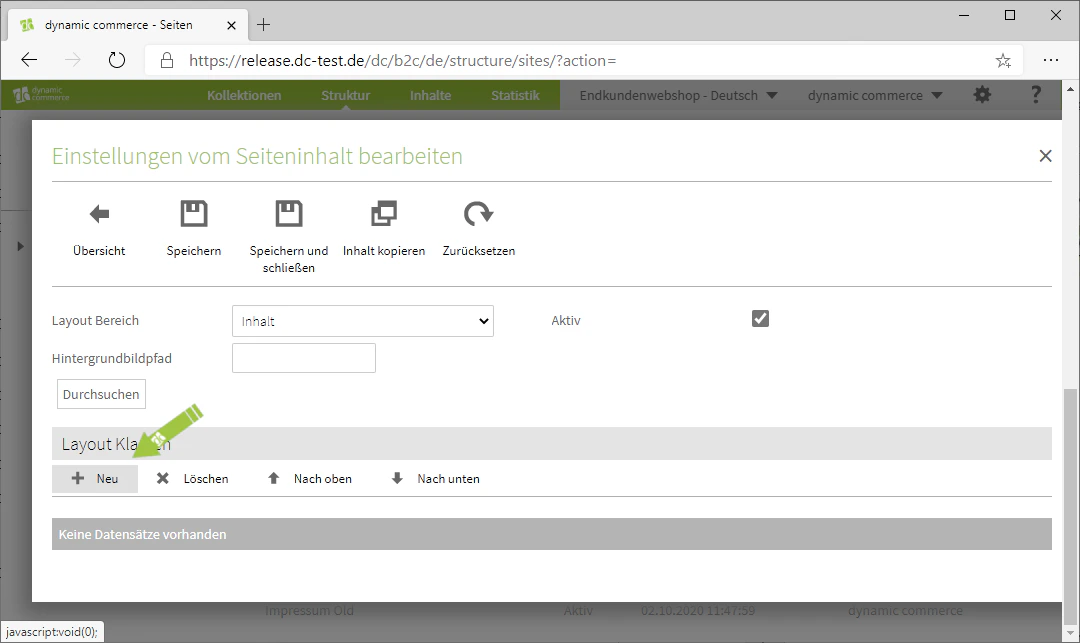
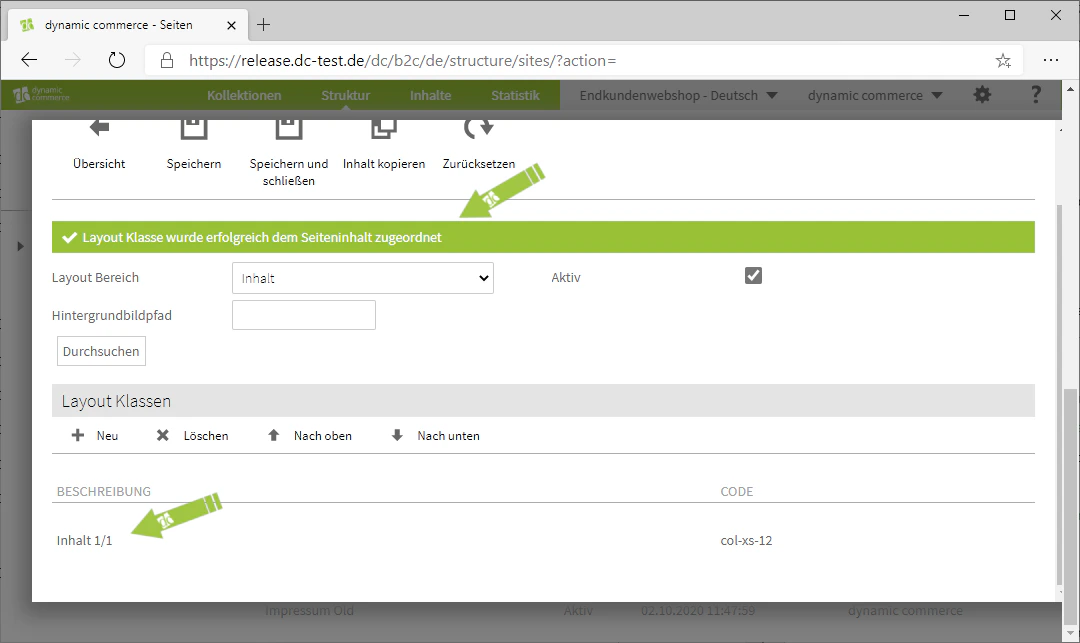
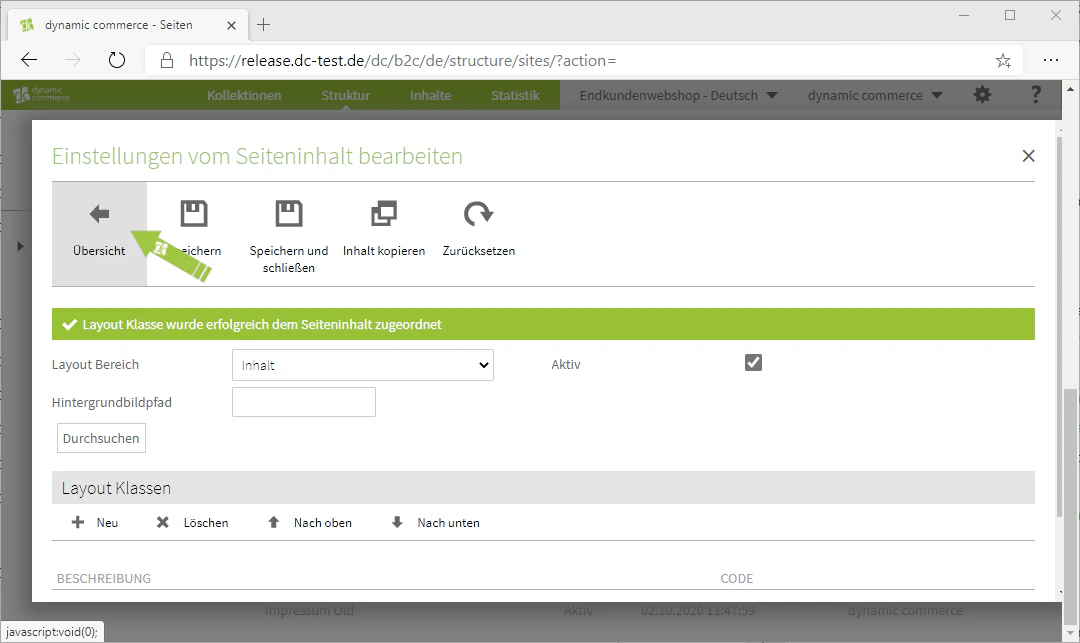
You also have the option to influence the layout of the respective content item.To do so, select the content item whose layout you want to adjust with a single click. Then click on “Content Settings” in the menu at the top of the window.There, you initially have the option to select the layout area from the drop-down of the same name. However, our heading should remain in the preset layout area “Content”, which is why we leave it selected.Using the “Browse” button, you can select the background of the content item.When you click the button, our file browser opens, which we explain to you under Upload and Manage Files.
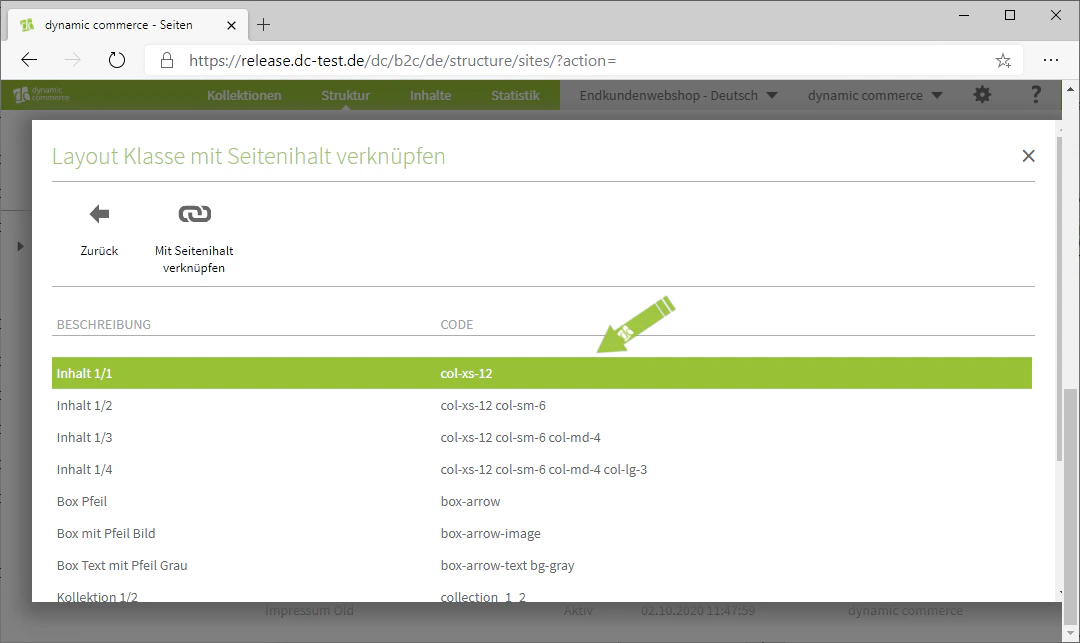
Further information on layout classes can be found under Layouts. Please note that you may have different layout classes configured on your websites.
Step 5: Edit Existing Content
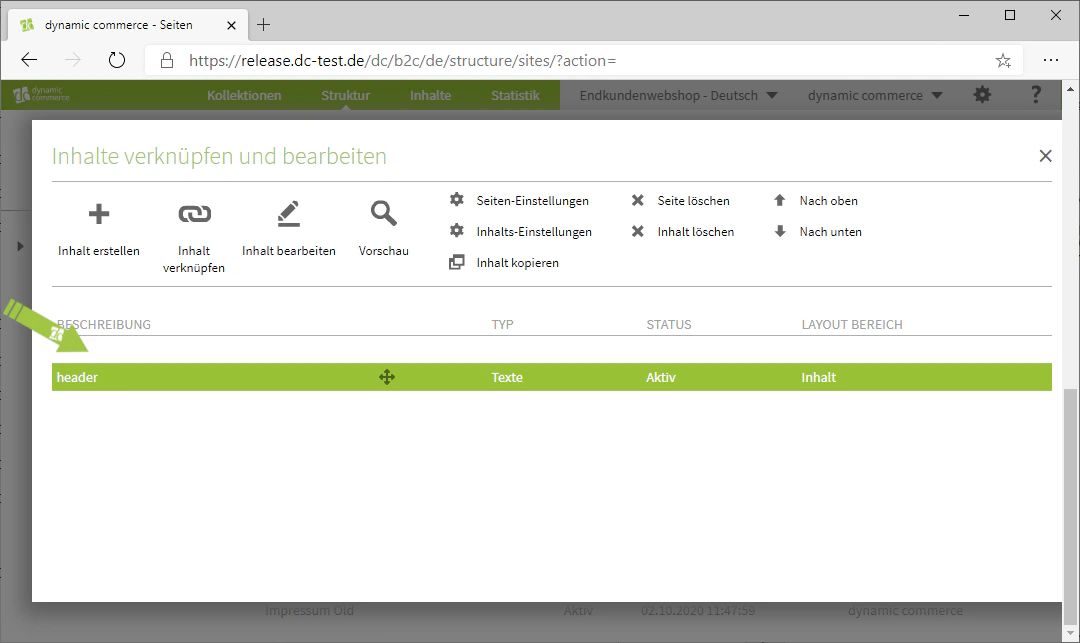
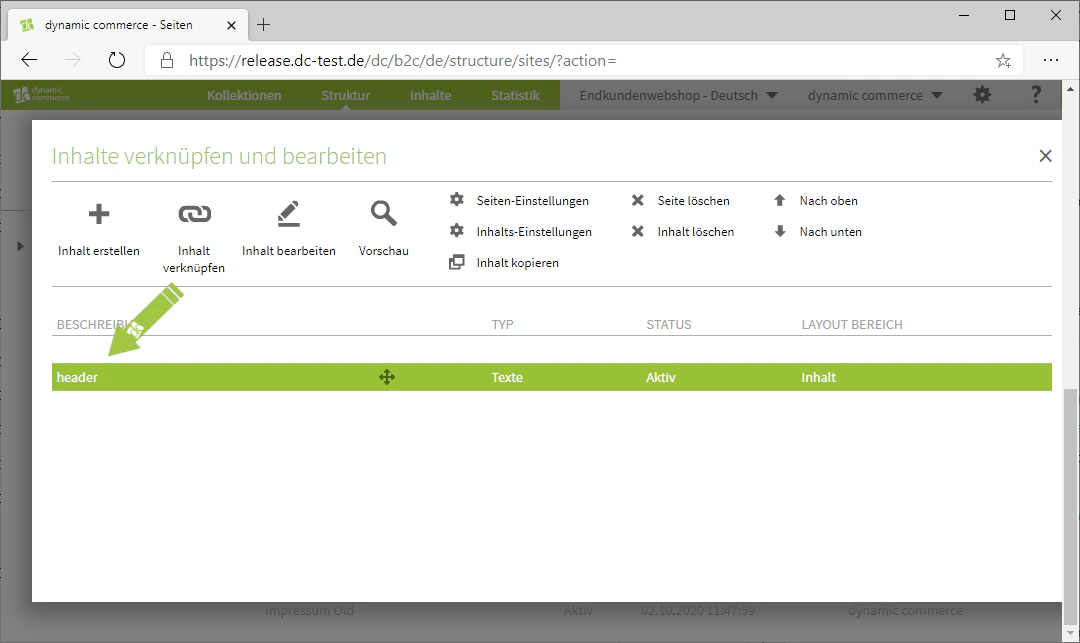
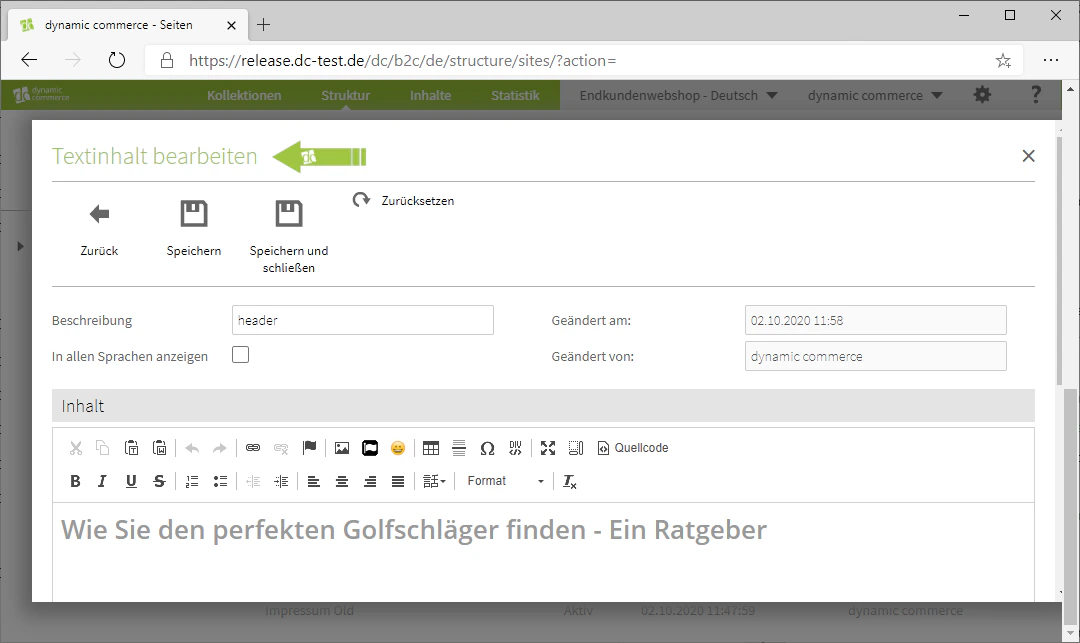
You can also edit existing content at any time. This is done by double-clicking on the respective content item.This opens a window for editing the content.You can read about how to edit the individual content modules in detail and what effect the settings in this window have on the appearance of the page under Content Types.
Related Topics
Content Types
Overview of all available content modules.
Create Pages
Create new pages before managing content.
Layouts
Design layout classes for content.
Upload and Manage Files
Provide files and images for content.