
This guide is part of the Content Types. We show you how to create content in general under Create and Edit Content.
Step 1: Select the Content Type
First, select the content type “Google Maps” when creating a content item. A window with the heading “New Google Maps Map” should then open.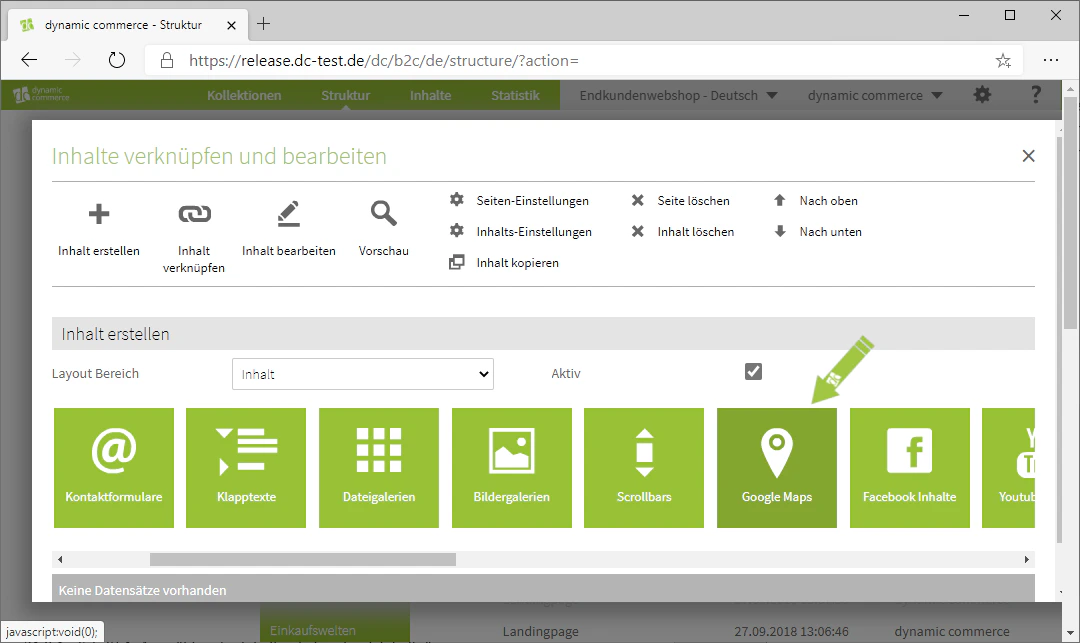
Step 2: Choose a Description and Save
Start by defining a description for the map. This is only for organisational purposes and will not be displayed on the selected page.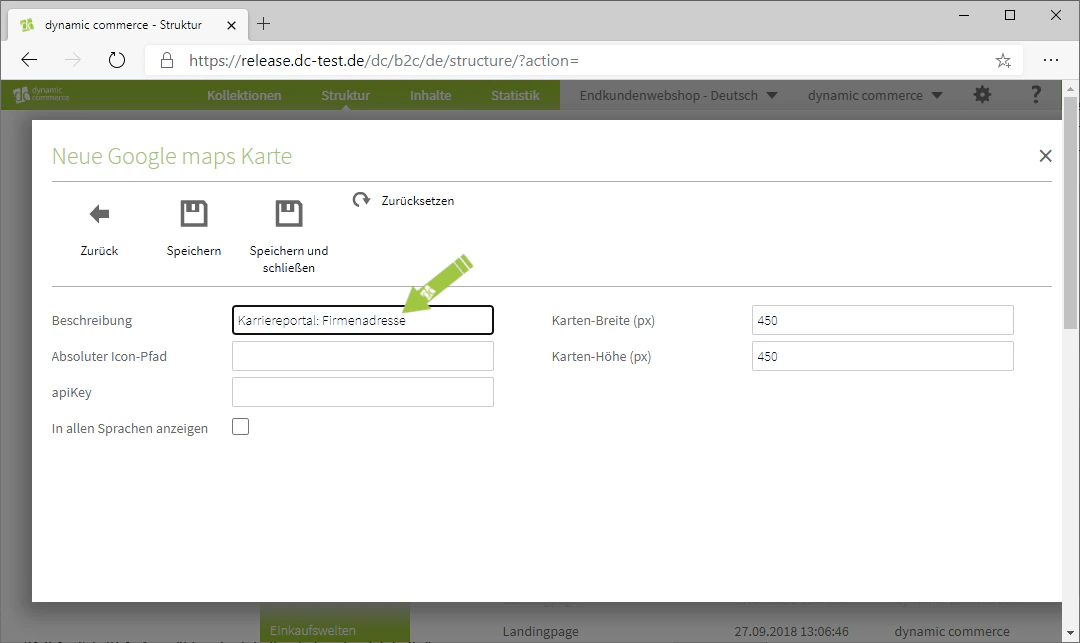
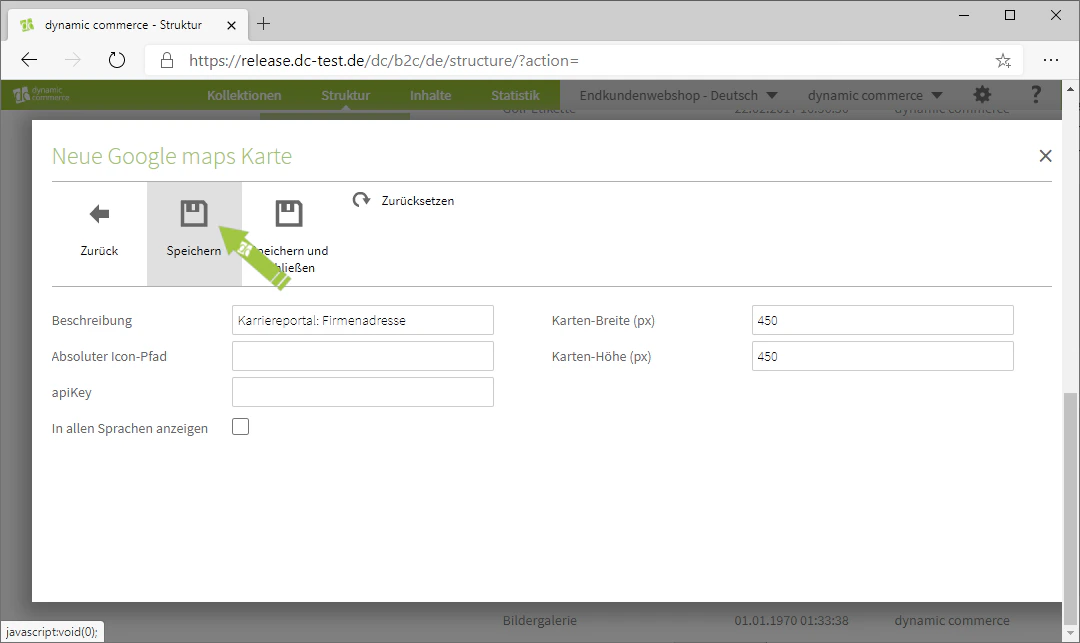
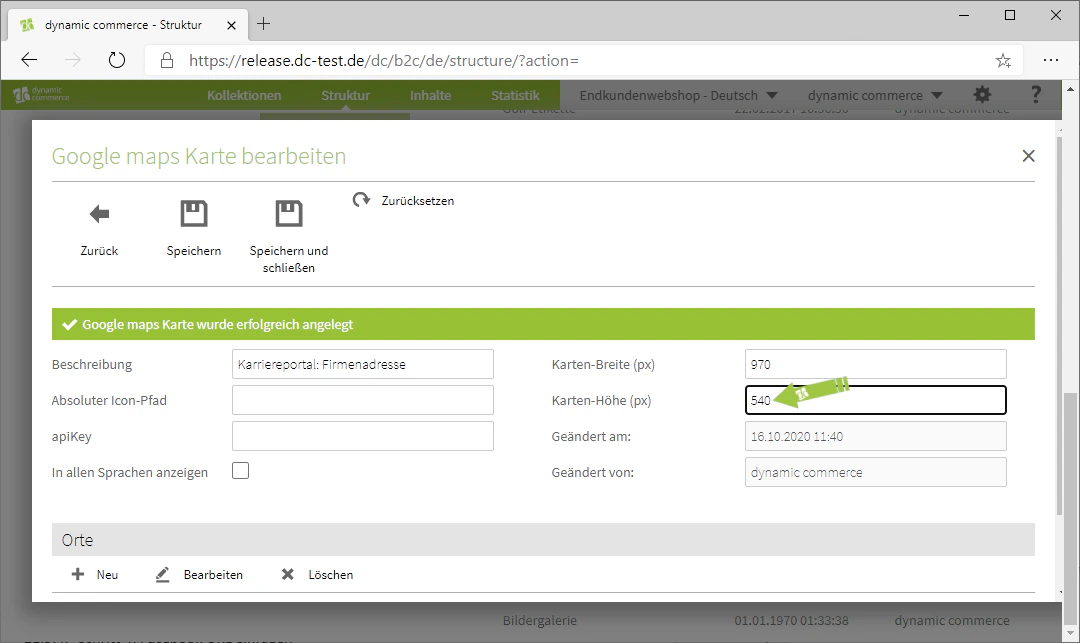
Step 3: Set the Map Size
Next, set on the right-hand side how large your map should be displayed on the page. To do this, specify both the map width and height in pixels.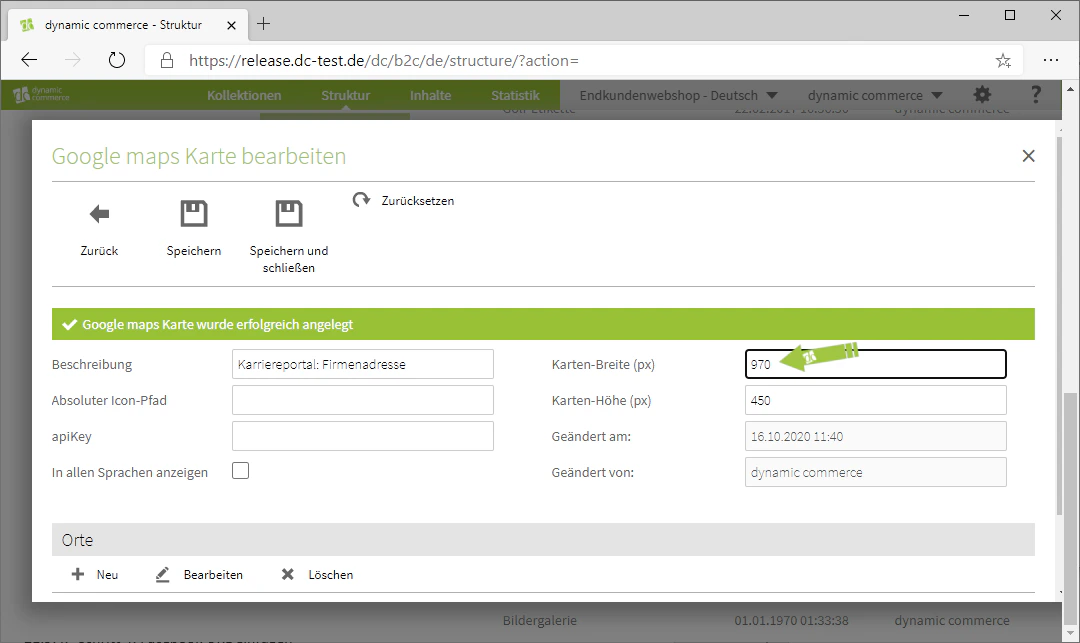
Step 4: Enter API Key and Icon Path
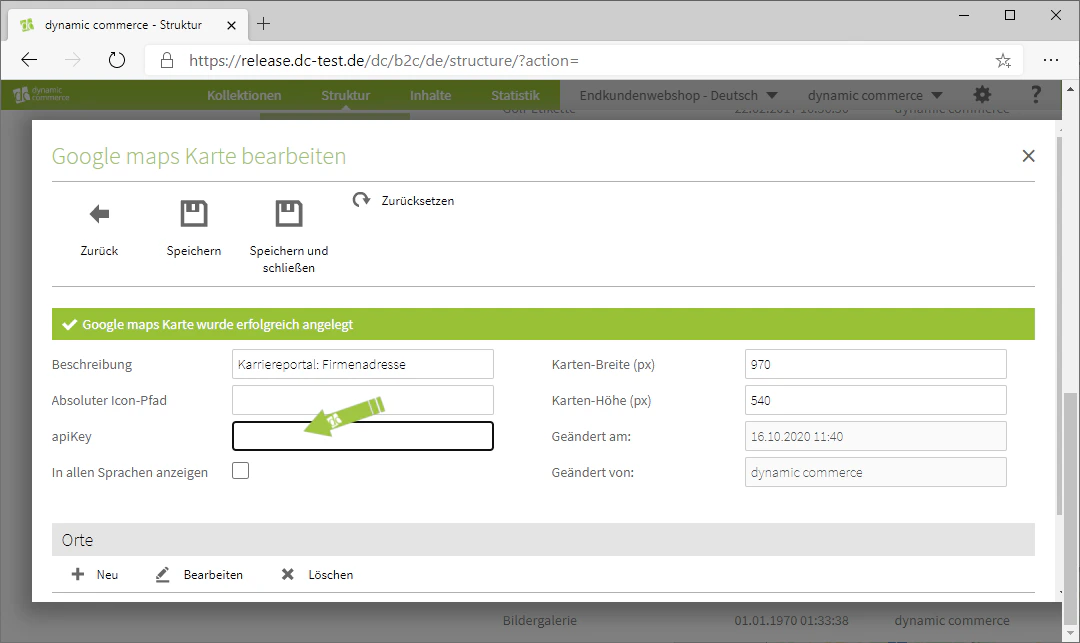
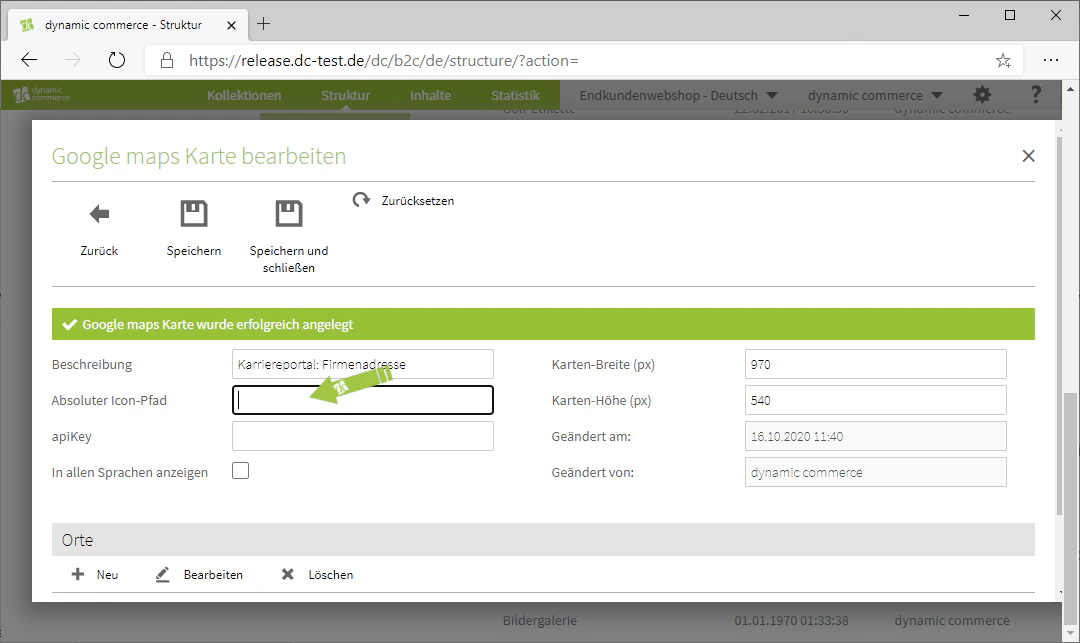
Next, enter your Google API key in the “apiKey” field. You will need to create or request this API key from Google Maps yourself.Optionally, you can customise the displayed marker icon via the absolute icon path. If no path is specified, the default Google Maps marker will be used.
Step 5: Add Locations
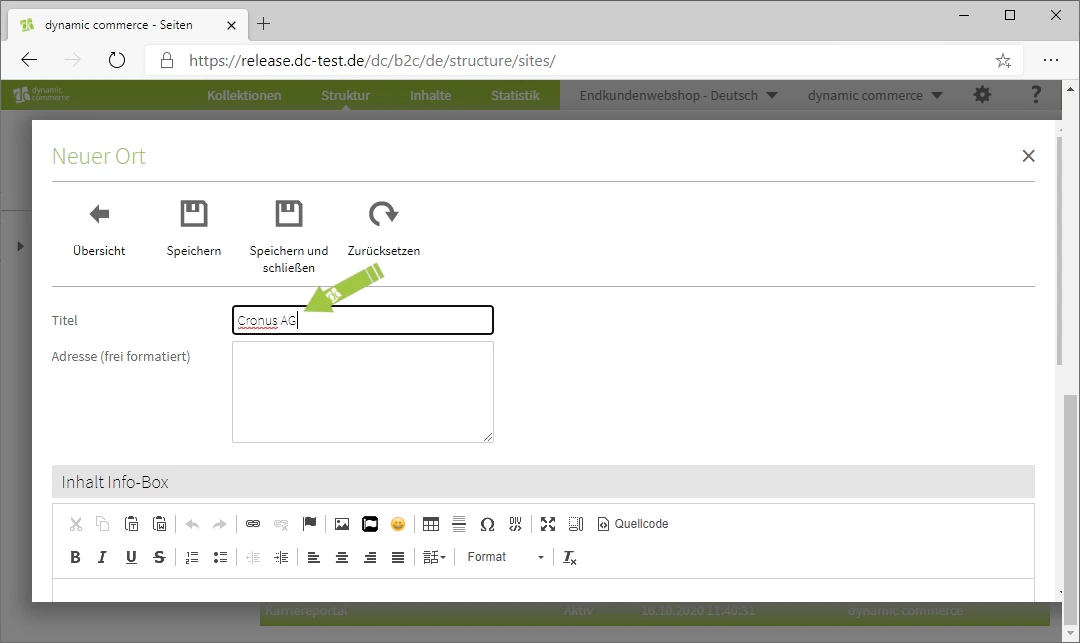
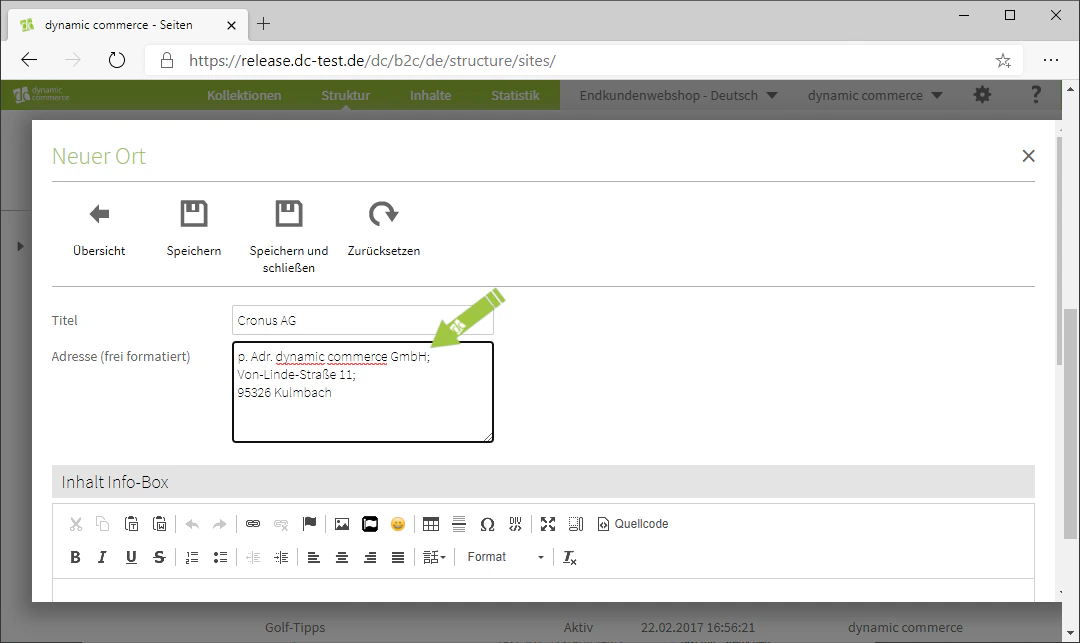
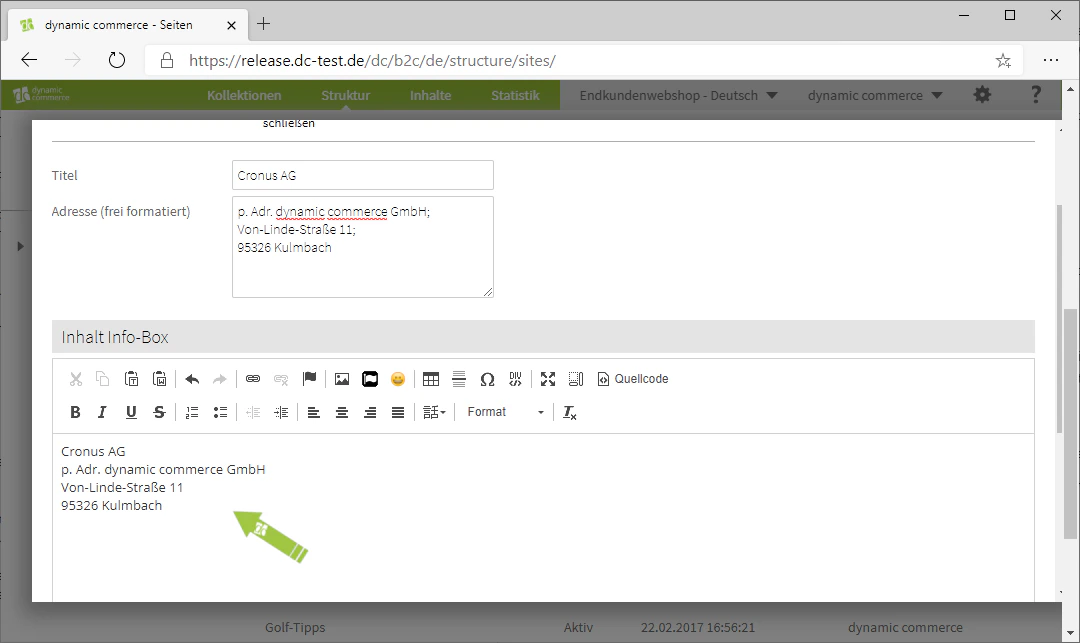
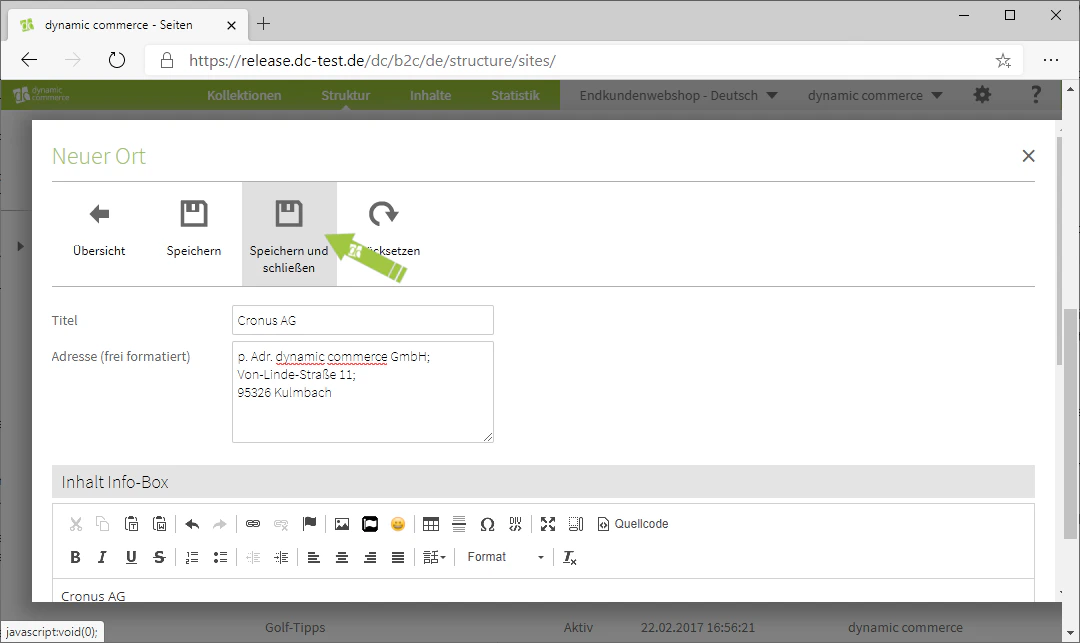
Now that you have configured the settings for the map itself, you can begin adding the displayed location. Enter the name of the location in the “Title” field. Below that, enter the freely formatted address in the “Address” field.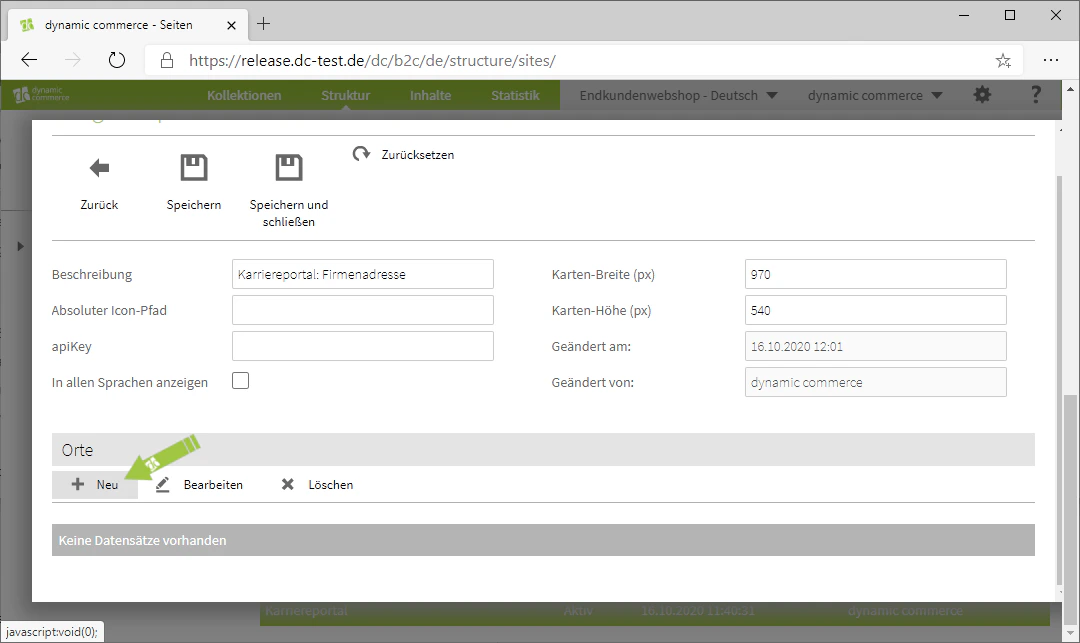
Related Topics
Content Types
Overview of all available modules.
Create and Edit Content
Create content on pages.
External Content
Embed content from external sources.
Contact Forms
Create forms for contact requests.