
1
Step 1: Open the Webshop Language Overview
Navigate to the Webshop Language Overview section by entering “Webshop Sprachübersicht” in the search.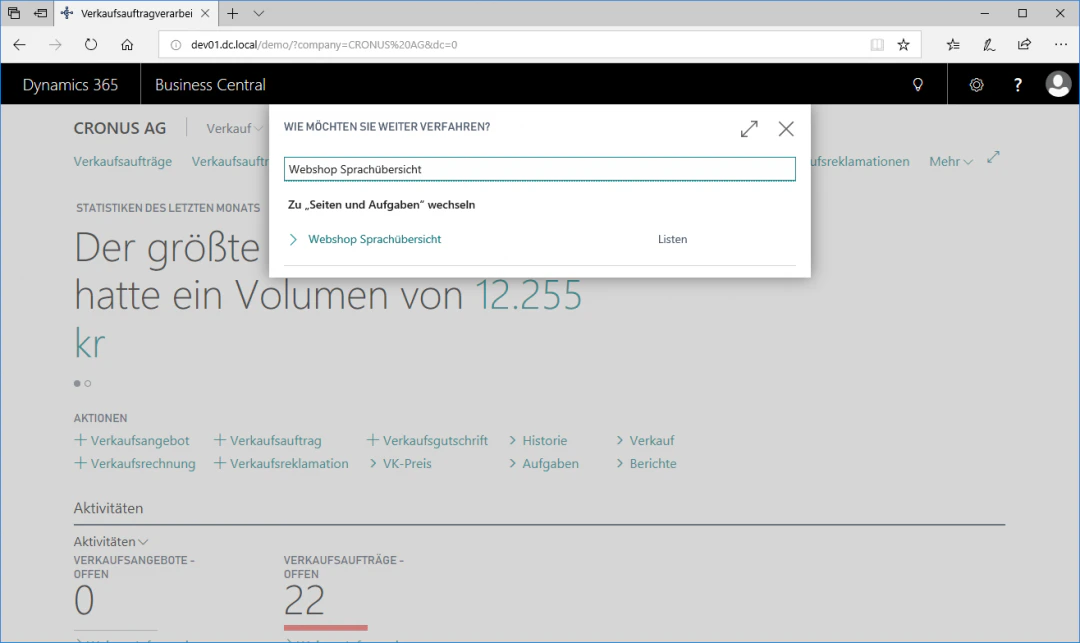
2
Step 2: Open the Webshop Payment Options
Click the “Zahlungsoptionen” FastTab in the “Einstellungen” ribbon to open the webshop payment options.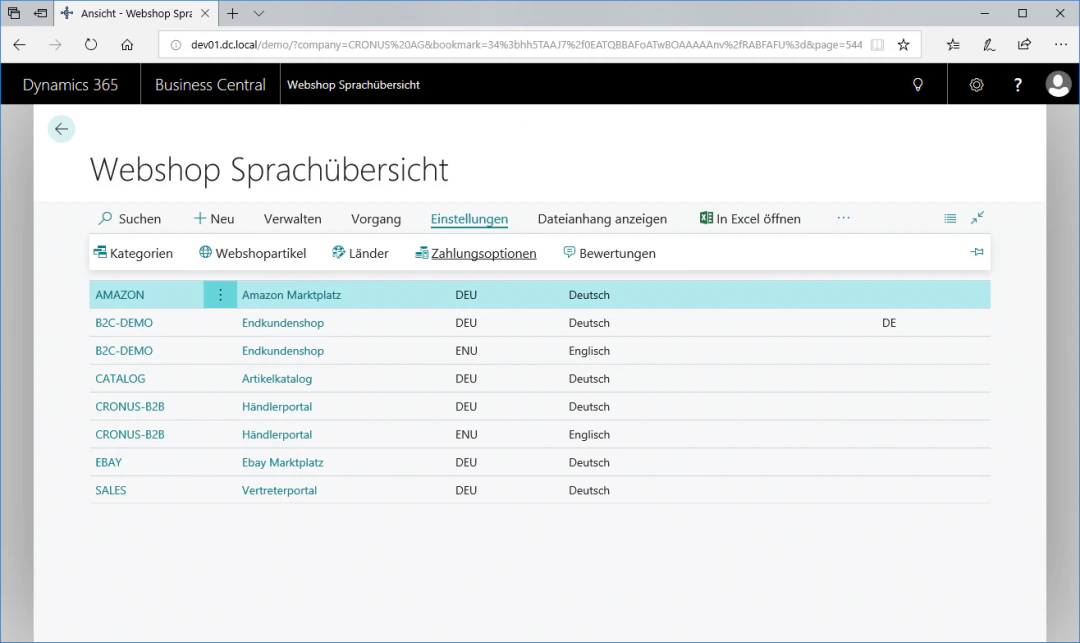
3
Step 3: Create a Payment Option
To create a new payment option, select the “Neu” FastTab. The new entry is inserted above the currently selected row. To enable faster creation and editing of a payment option, the payment option overview is already editable in the list. The options can therefore be entered and edited directly in the list by clicking “Liste bearbeiten”.In our example, we create the payment option “PayPal” without a country-specific code. To do so, we select the following settings:Description: PayPalCountry code: (leave empty)Active: check the boxBy leaving the country code empty, the payment option is available for all countries in the webshop.If a specific country such as “DE” for Germany is selected, this payment option is only available in the selected country.To activate the created payment option for the webshop, check the “Aktiv” checkbox.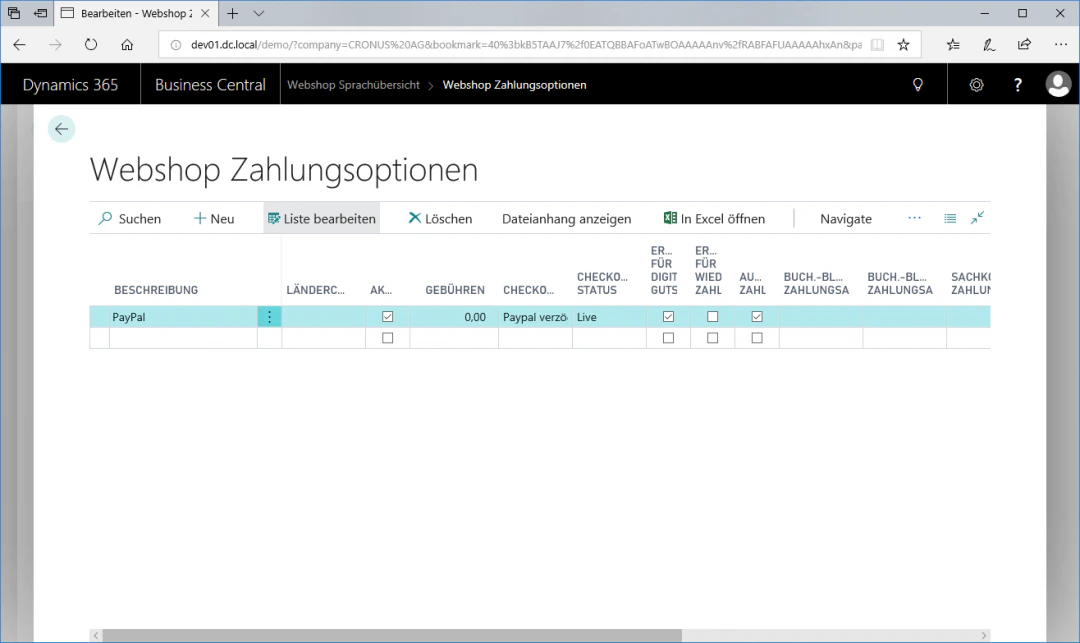
4
Step 4: Define Fees
To determine whether additional fees apply to a payment option, enter the corresponding value in the “Gebühren” field. However, these fees are only added to the invoice at the end. In our example, no fees apply, so we enter 0 in the “Gebühren” field.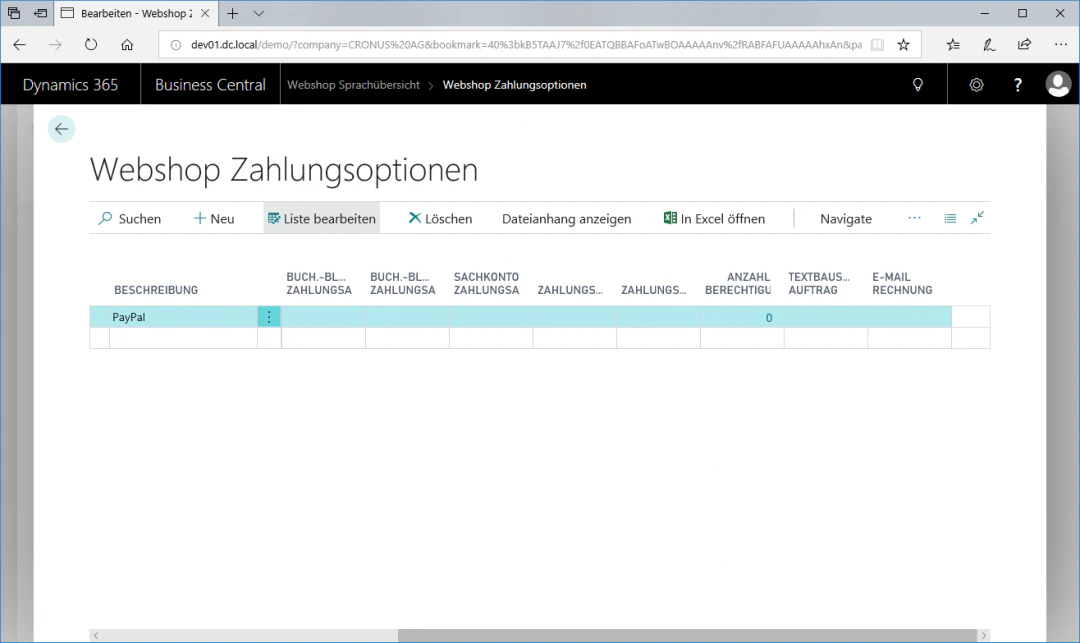
5
Step 5: Define the Checkout Type
Under Checkout, you now determine the actual payment method. In our example, we select “PayPal verzögert” in the Checkout field. Deferred means that the purchase amount is only reserved at first and not yet posted. The final posting occurs later when the order has actually been shipped.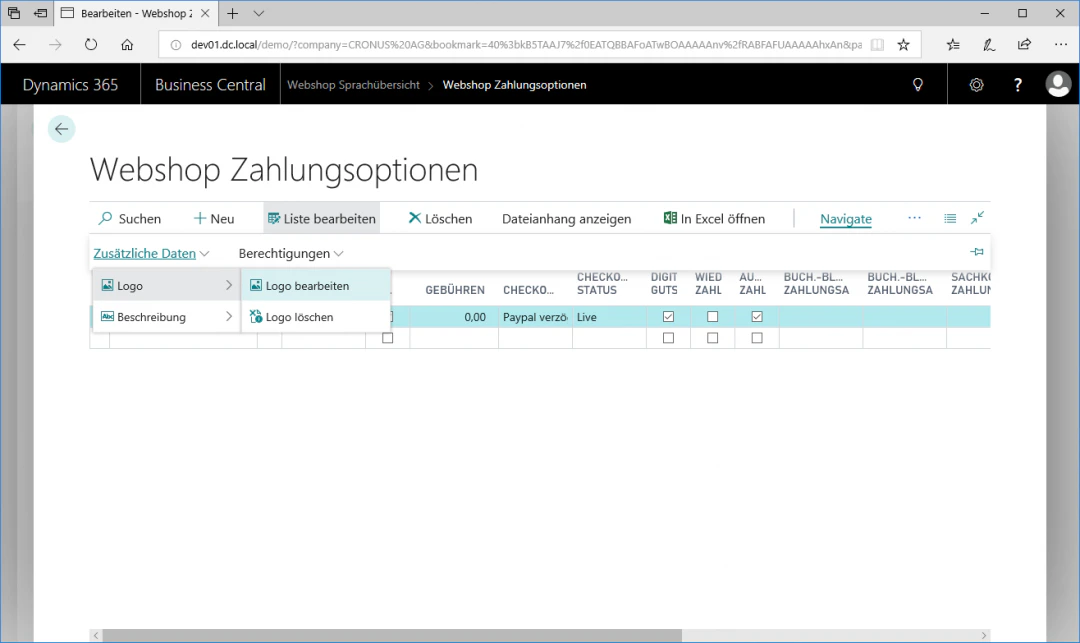
6
Step 6: Define the Checkout Status
The Checkout Status now determines whether requests to the online payment service are sent as Test or Live. In our example, we select “Live” in the “Checkout Status” field.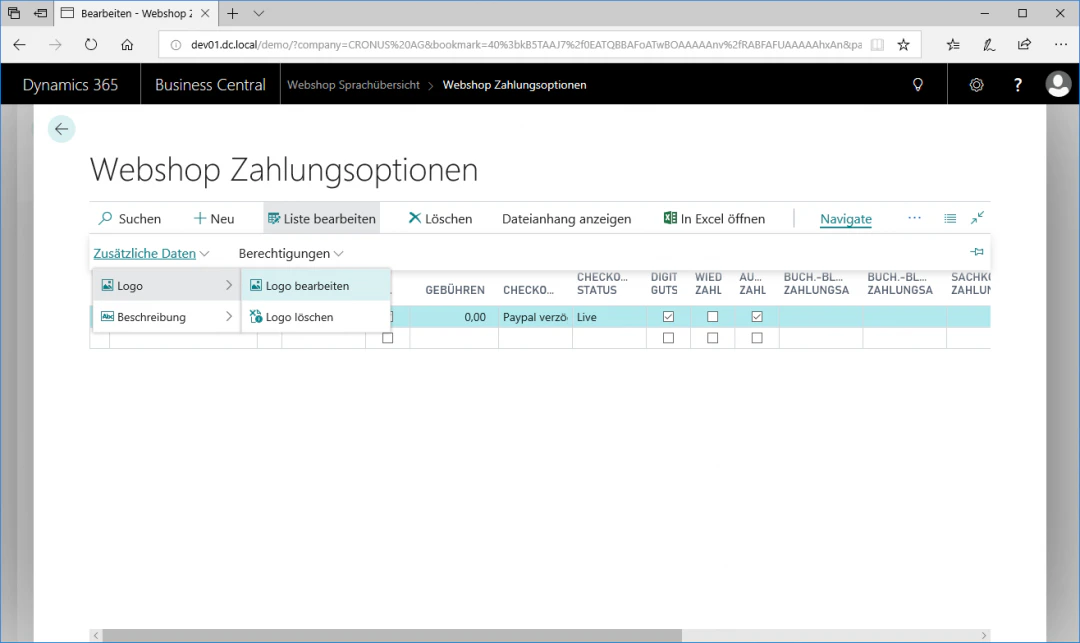
7
Step 7: Activate Digital Voucher
To be able to purchase digital vouchers with the respective payment option, check the “Digitaler Gutschein aktiv” checkbox. Since this only makes sense for online payment methods, we check the box in our example.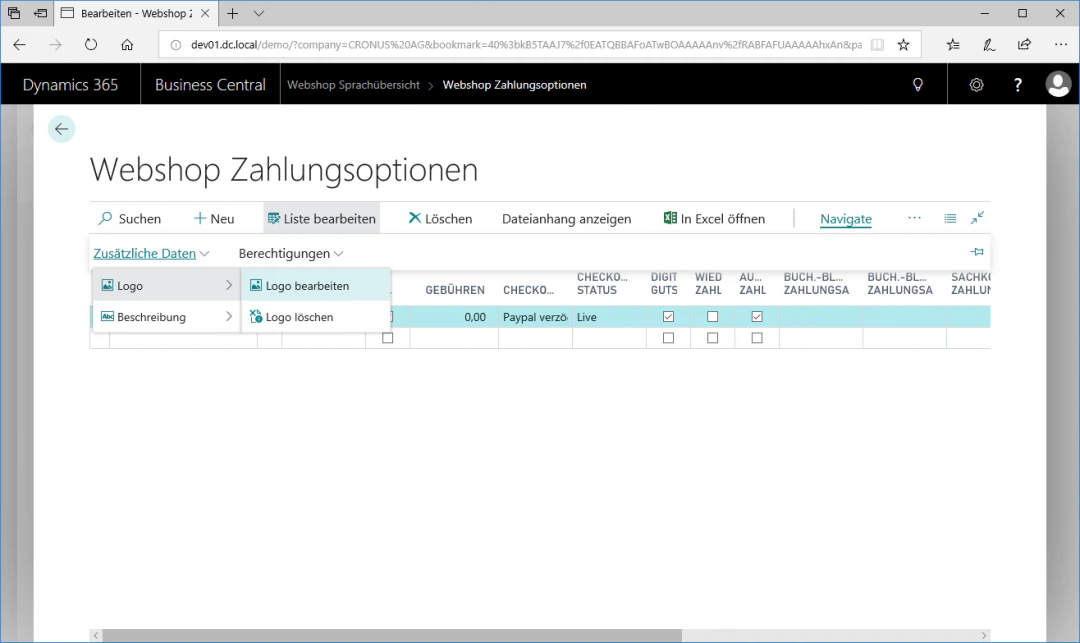
8
Step 8: Define Subscription Orders
To be able to place subscription orders with the respective payment option, check the “Aktiv für Abonnements” checkbox. In our example, however, we do not check the box, since we do not want to enable recurring payments for PayPal.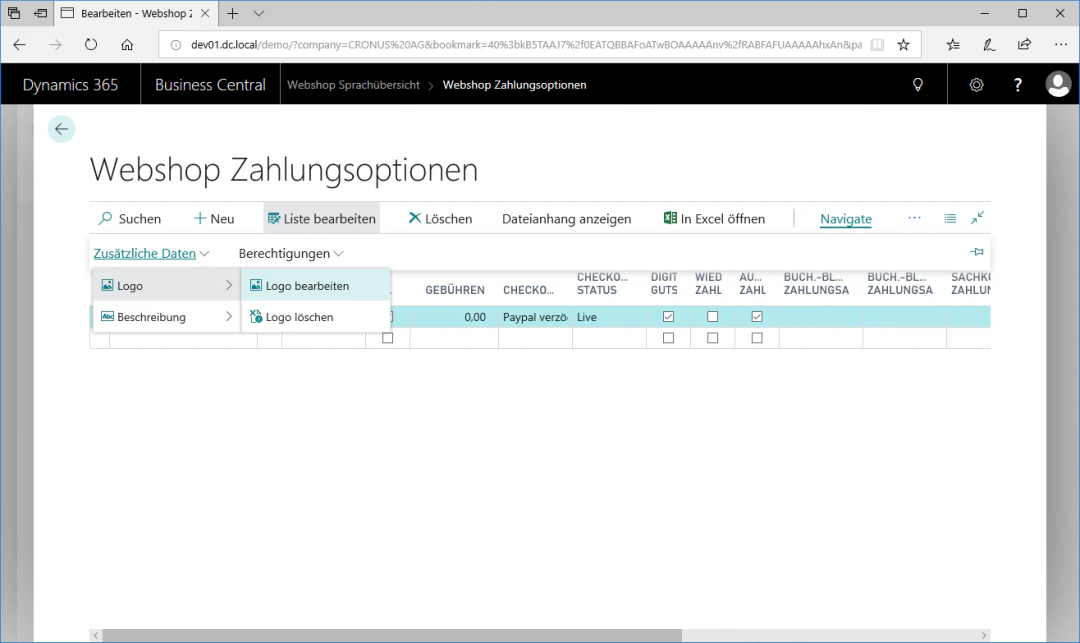
9
Step 9: Automatic Payment Reconciliation
To ensure that the incoming payment is automatically recorded in the background in the financial accounting, we check the “Auto Zahlungsausgleich” field in our example.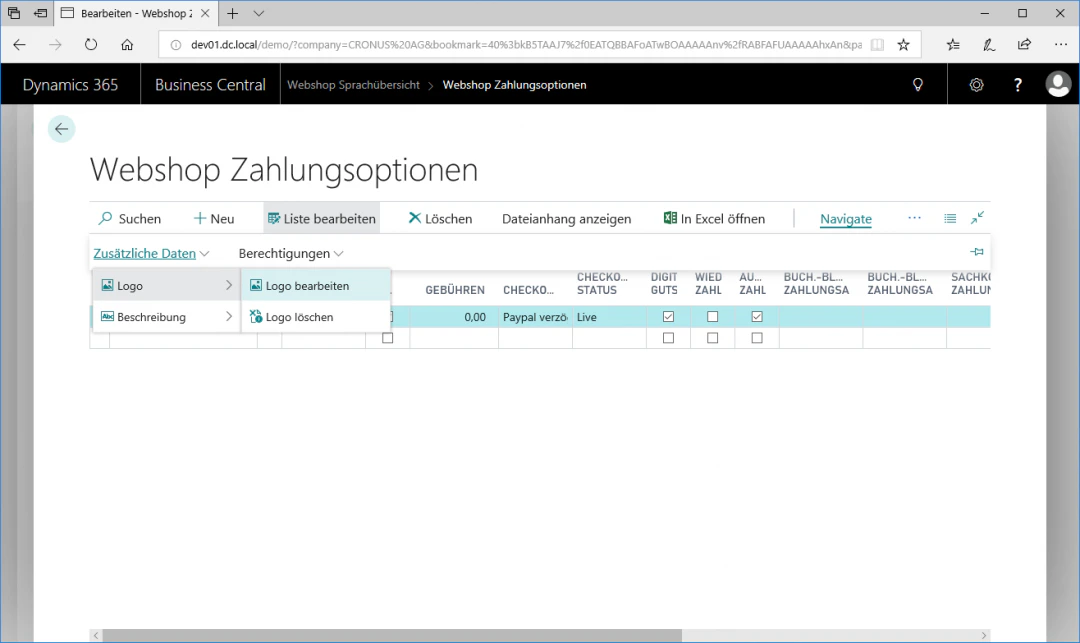
10
Step 10: Insert a Text Module into the Order
To be able to insert a text module, such as “DHL-Green”, into an order, select a corresponding text module in the “Textbaustein Auftrag” field. In our example, we leave this field empty.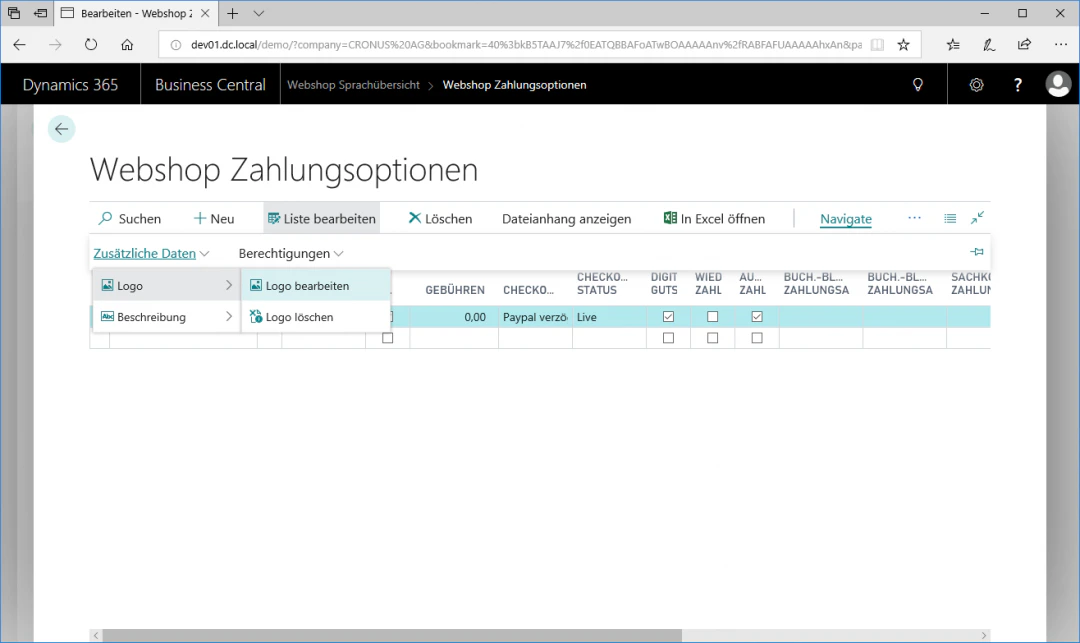
11
Step 11: Text Module for Email Invoice
Under “E-Mail Rechnung”, you can select a text module for the outgoing invoice email.In our example, we also leave this field empty.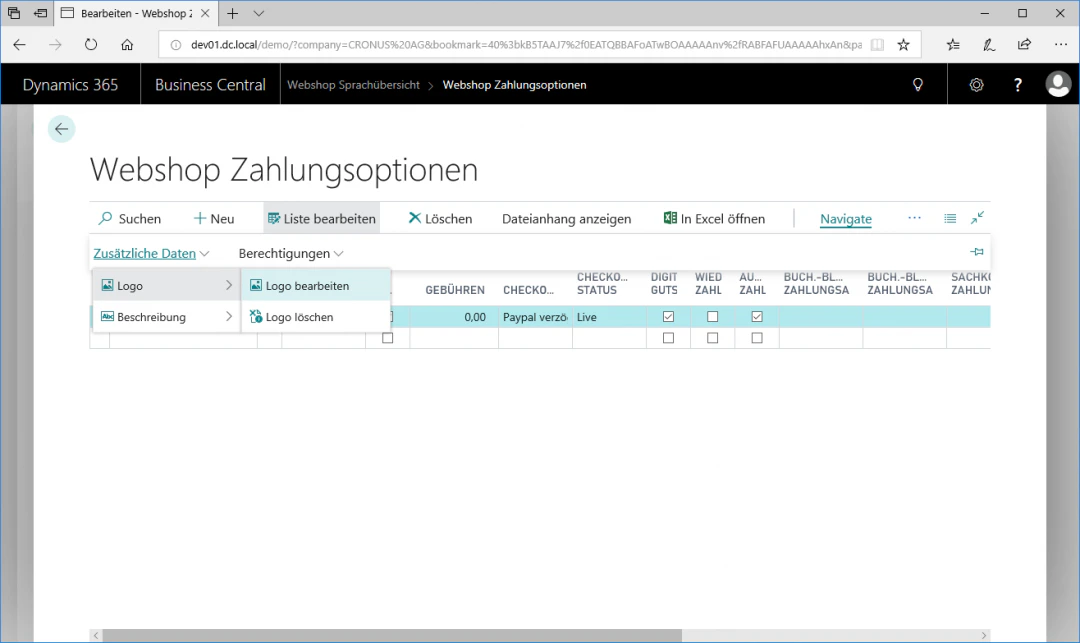
12
Step 12: Assign an Image to the Payment Option
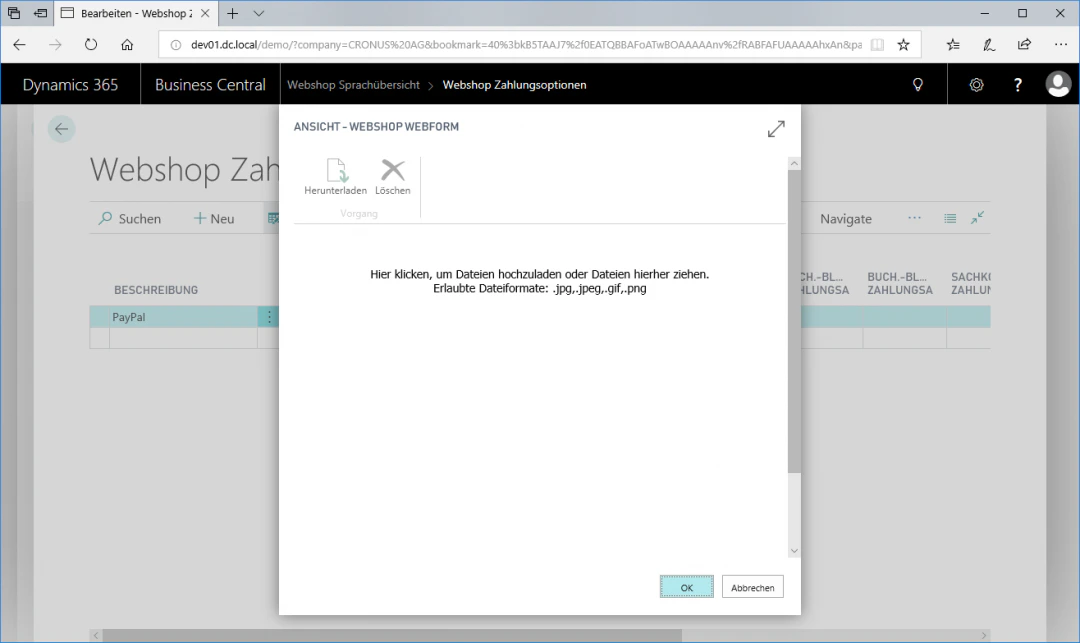
To assign an explanatory image or symbol to the payment option, navigate in the “Navigate” ribbon via “Zusätzliche Daten” to the “Logo” FastTab and click “Logo bearbeiten” there. Images in JPEG or PNG format can be inserted here, which are then automatically converted to the correct size.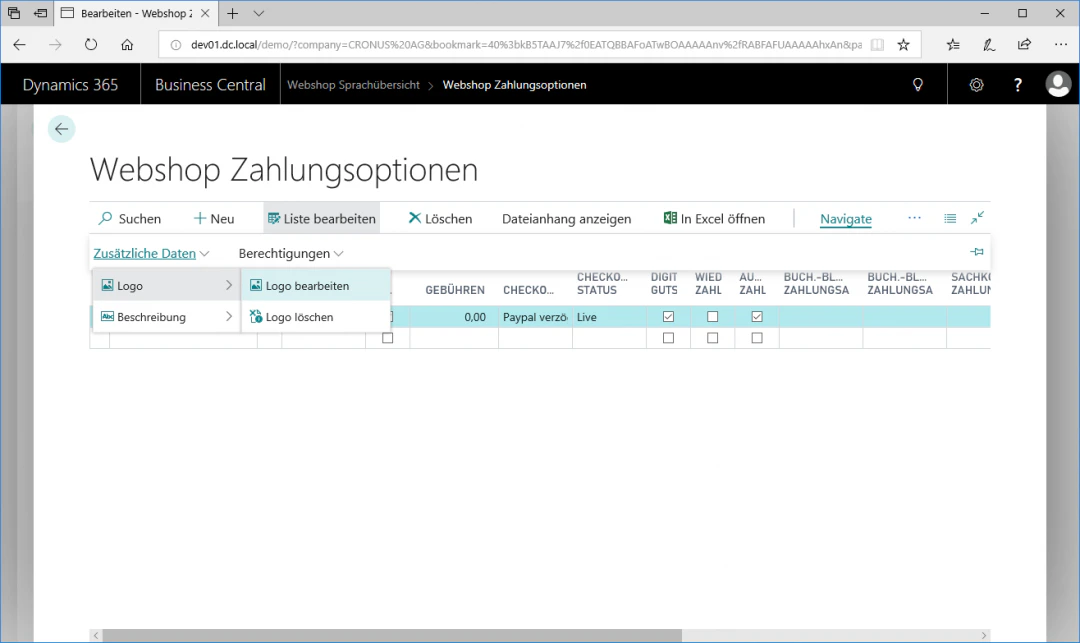
13
Step 13: Assign a Description to the Payment Option
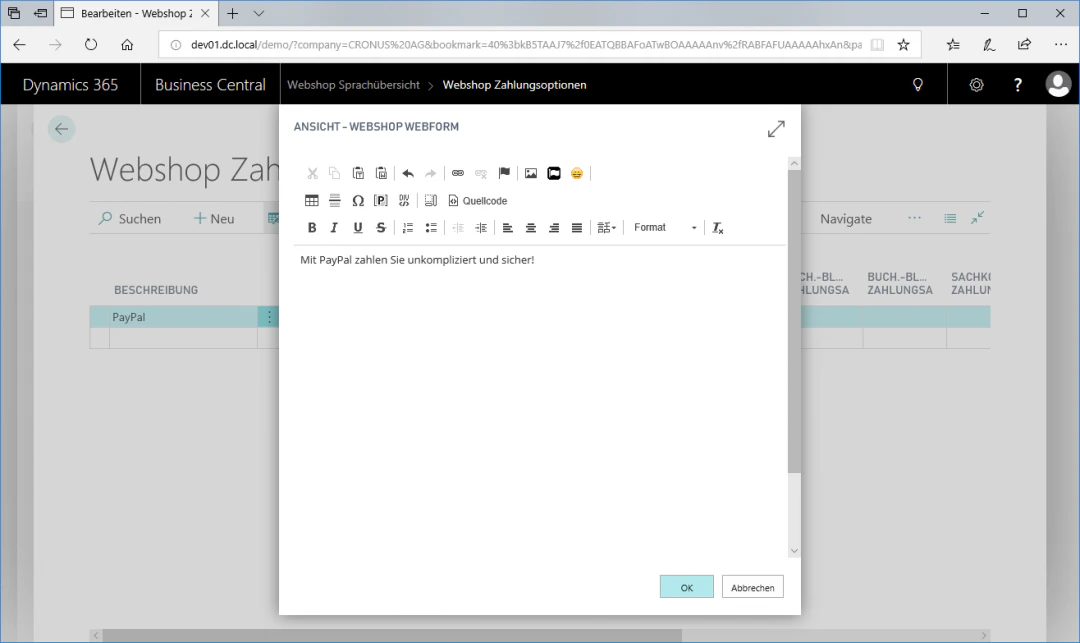
To define a description for the payment option, navigate in the “Navigate” ribbon via “Zusätzliche Daten” to the “Beschreibung” FastTab and click “Beschreibung bearbeiten” there. An editor opens in which you can enter and format text. We recommend composing a meaningful short text here, such as “With PayPal you pay easily and securely!”.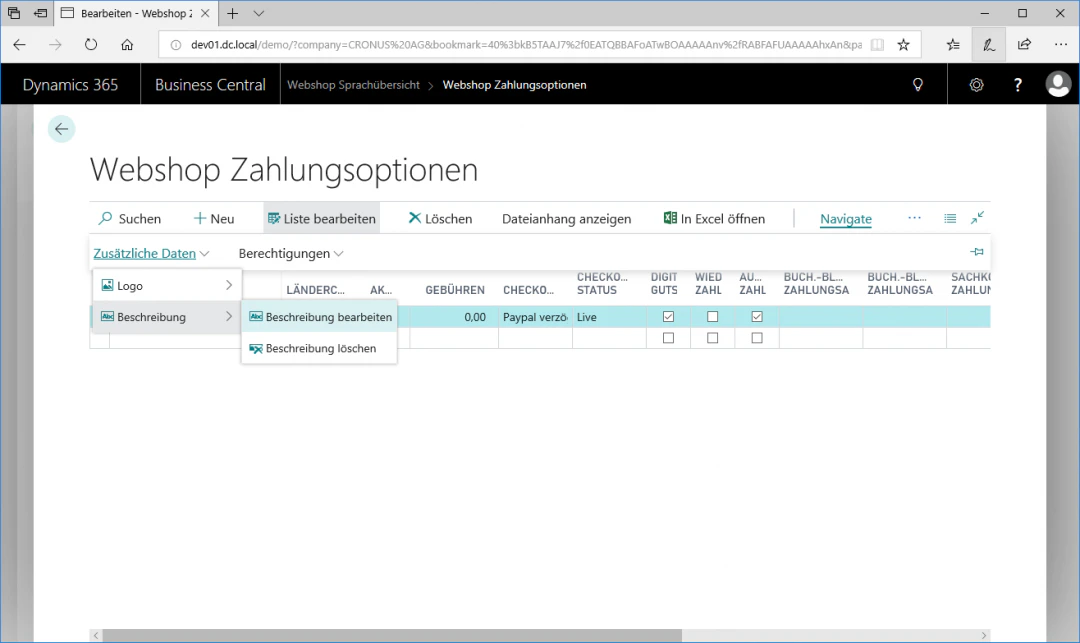
14
Step 14: Update the Payment Option
To synchronize the payment option with the webshop system, click the “Aktualisieren” FastTab in the “Start” ribbon. This updates all payment options that have been changed since the last update.All changed payment options are also automatically updated with the next full data update.Related Topics
Enable Customer for Webshop
Enable customers for login and purchasing.
Set Up Webshop Items
Maintain items for the webshop.