
Connecting to Company Data
If you open the app after installation, a message “You are viewing this app with sample data. Connect your data” is displayed. Following the link takes you through a wizard.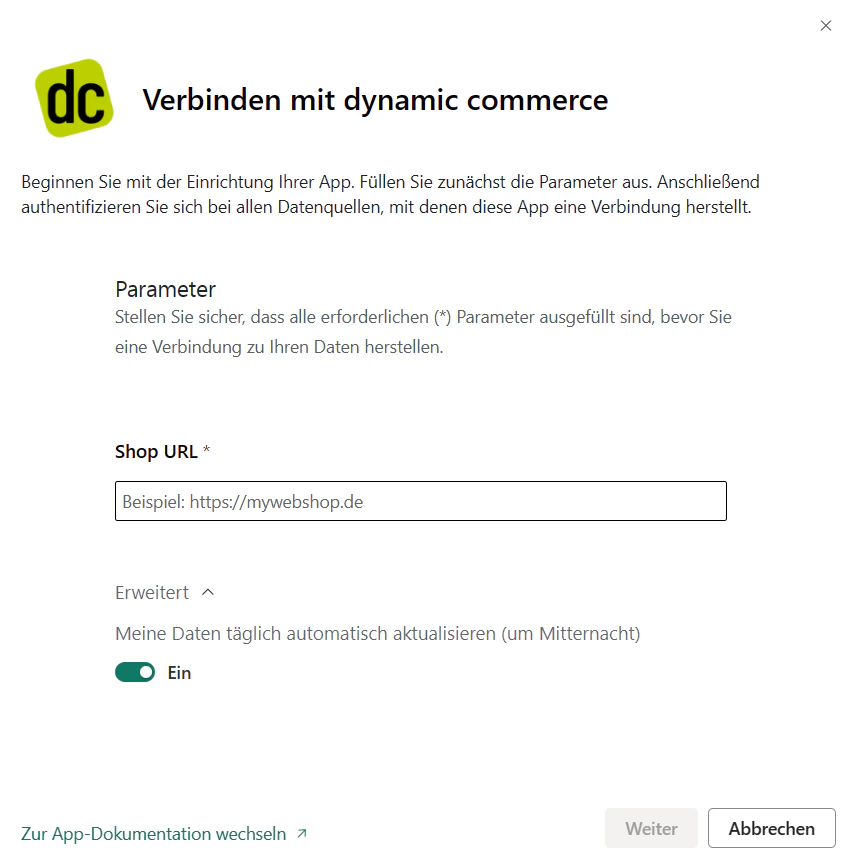
https://brandshop.dc.ag
In the second step, you must enter the login credentials with username and password. The access credentials are provided by the responsible project manager or Customer Success Manager of dc AG.
After completing the wizard, the data is refreshed and the setup is complete.
Sharing the App with Colleagues
-
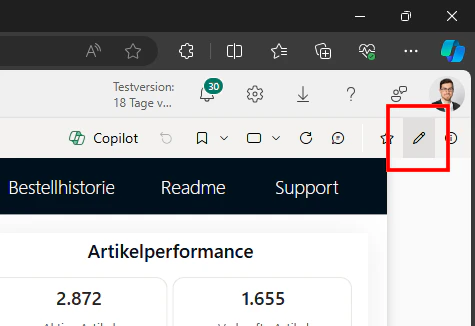
Click the “Edit app” button in the top right above the dashboard.
-
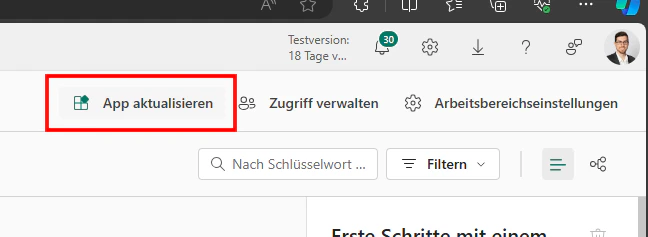
You are then redirected to the corresponding workspace. There, click “Update app”.
-
Afterwards, navigate to the “Permissions” tab and add the people who should be granted access to the app.
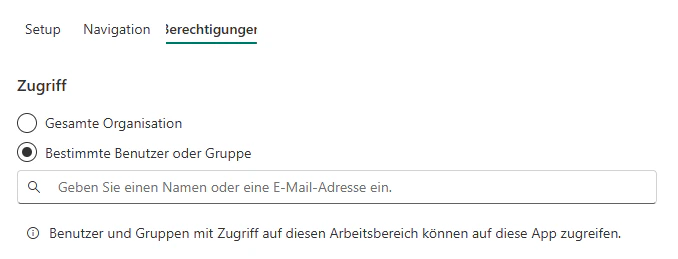
- Enable the “This automatically updates this app” checkbox so that colleagues do not have to install the app themselves.
- Click “Update app”.
Related Topics
Set Up Web Shop Items
Maintain items for the web shop.