
1
Step 1: Open the Webshop Item Overview
Navigate to the Items area by entering “Items” in the search.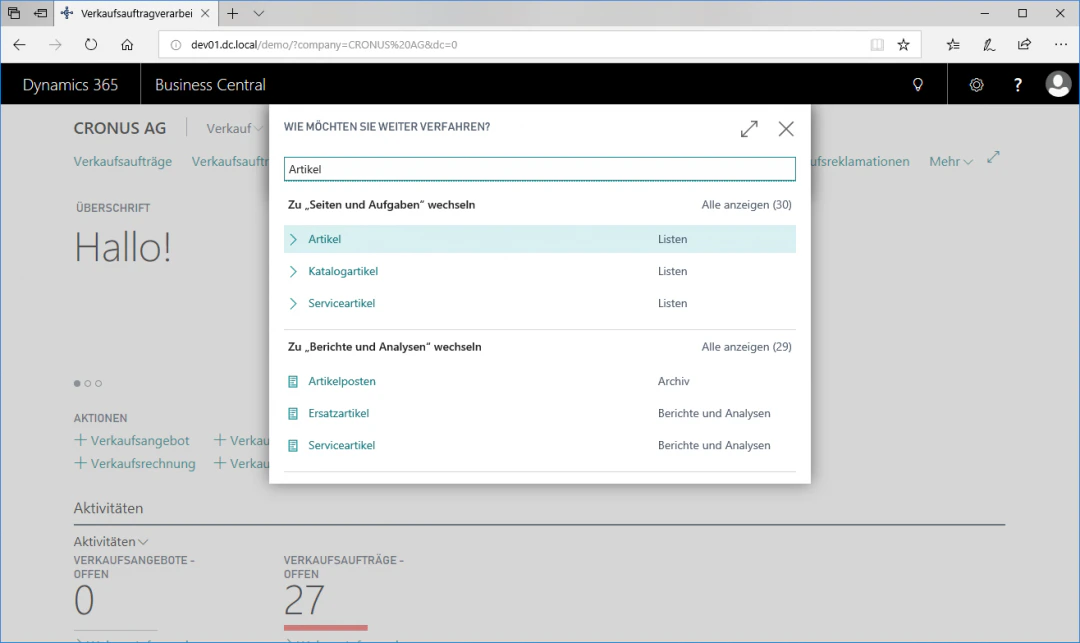
2
Step 2: Open the Webshop Item Card
Select the row with the desired item you want to individualize, here the touring bike 1000.Click the “Webshop Item” FastTab in the “Process” ribbon to open the webshop item card.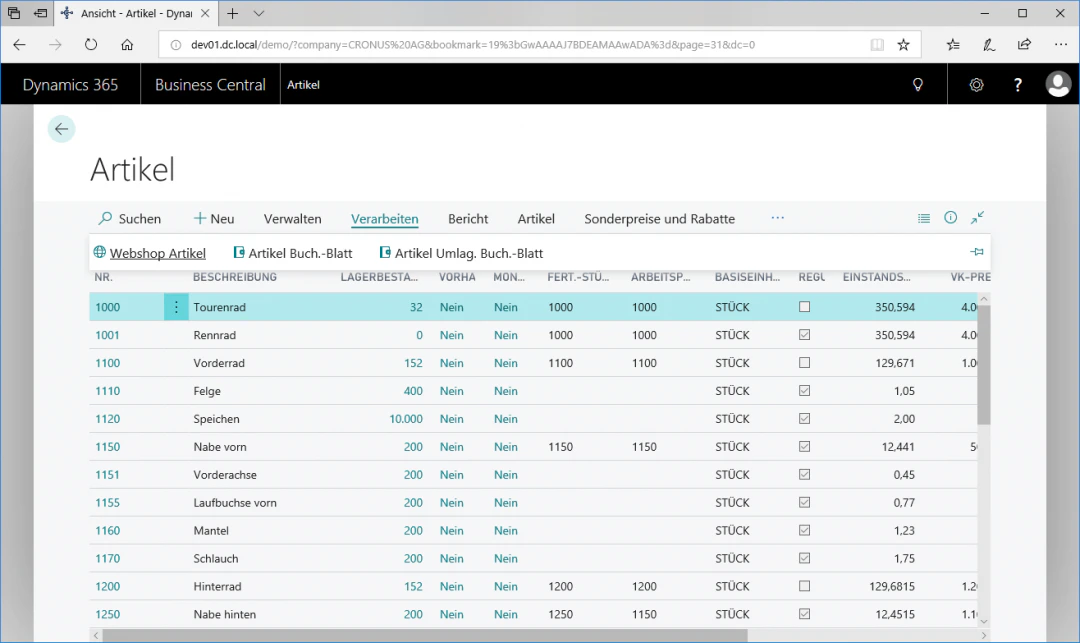
3
Step 3: Define Individualizability
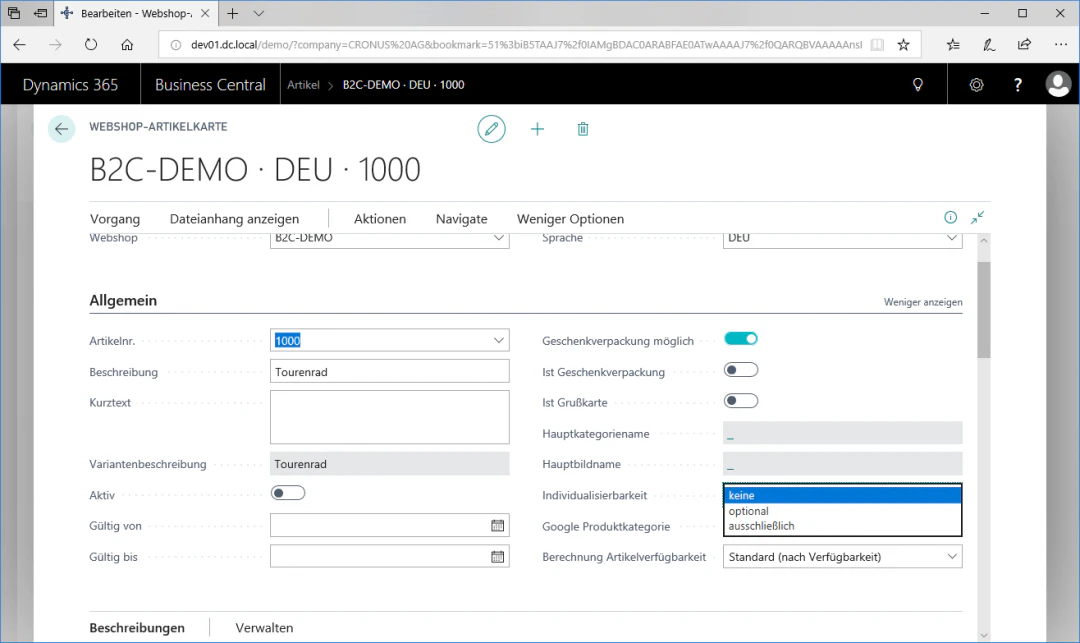
In the “General” menu item, you can now define in the “Individualizability” field whether and how an item should be individualized.The available options are “none”, “optional”, and “exclusive” and mean the following:- “none”: the item can only be ordered without individualization
- “optional”: the item can be ordered with or without individualization
- “exclusive”: the item can only be ordered with individualization
4
Step 4: Open the Individualization Menu
In the Navigate ribbon, open the Additional Functions area. Then click on Individualizations.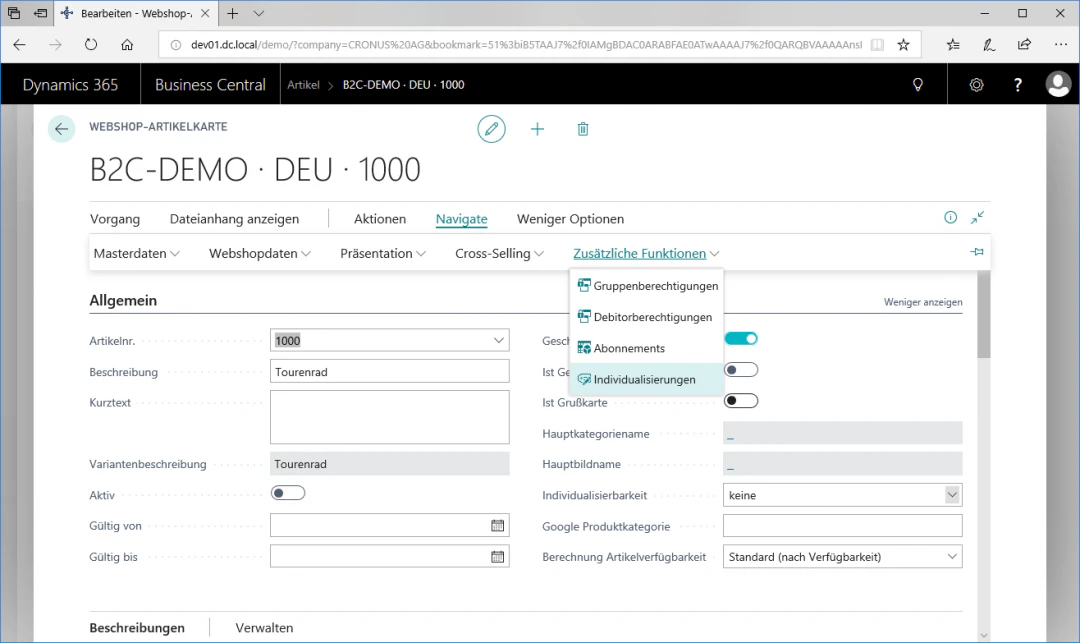
5
Step 5: Configuring the Individualization
To add an individualized text to your item, select the desired type in the “Type” column. You can choose between text, image, and body text. Finally, you can enter your desired text in the “Description” column.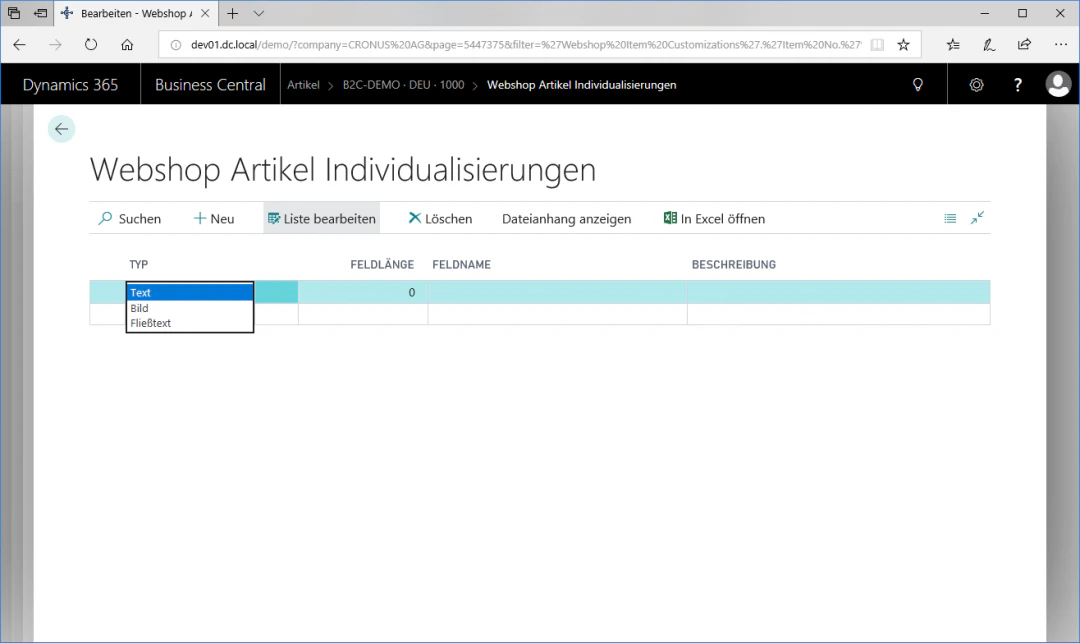
Related Topics
Setting Up Webshop Items
Maintain items for the webshop.
Setting Up Digital Products
Set up an item as a digital product.