
1
Step 1: Open the Customer List
Navigate to the Customers area by entering “Customers” in the search.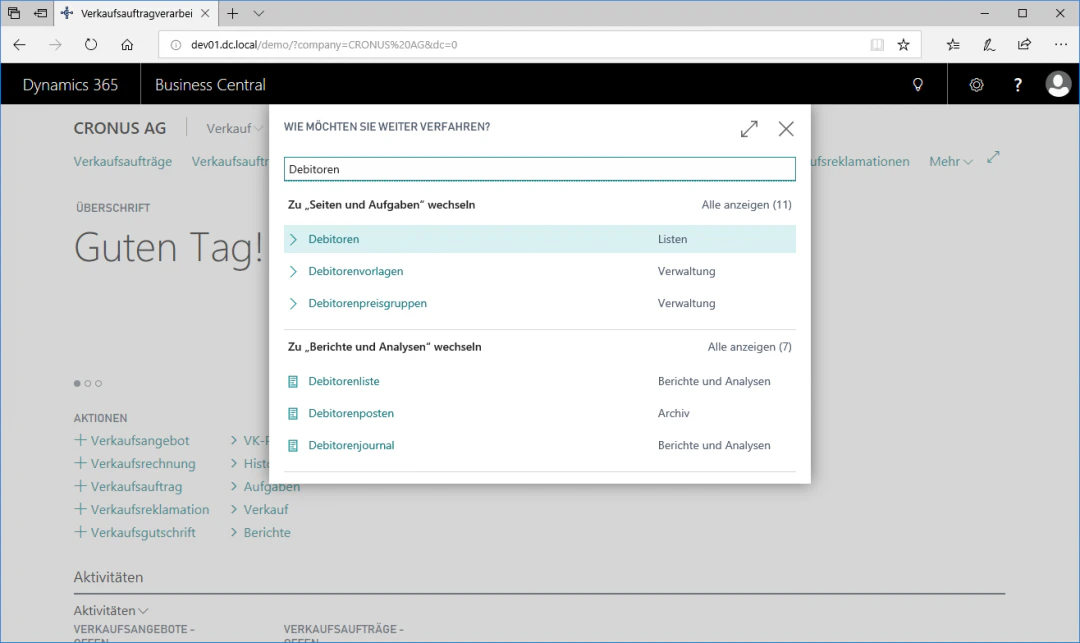
2
Step 2: Open the Customer Card
Select the row with the desired customer that you want to enable for the dealer search, here “Möbel-Meller KG”.Click the “Edit” fast tab in the “Manage” ribbon to open the customer card.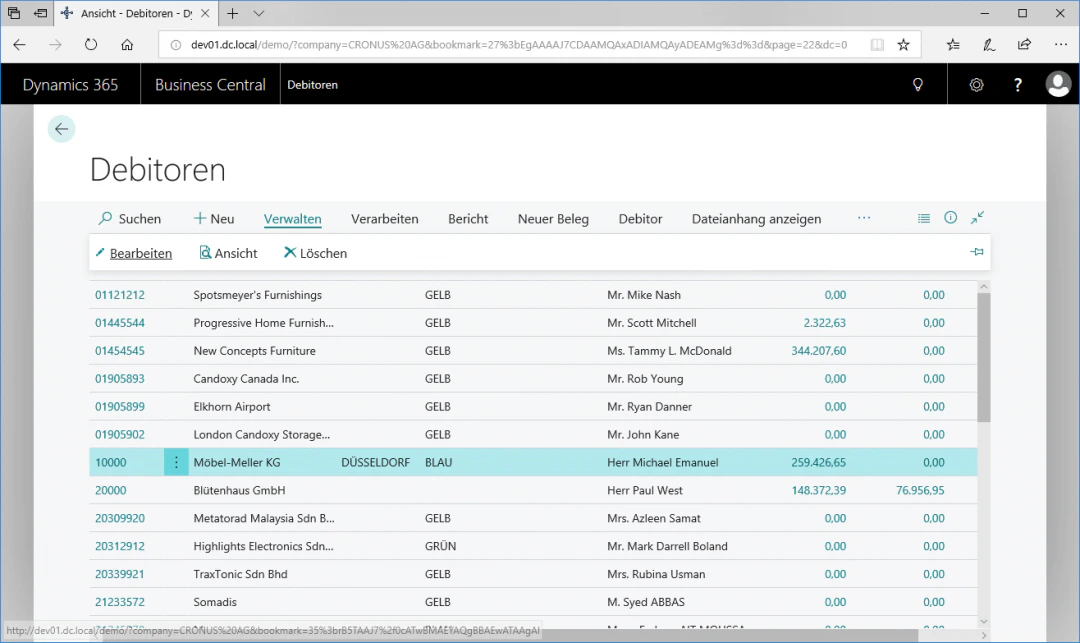
3
Step 3: Customer Web Shop Permissions
To open the web shop permissions for a customer, click the “Web Shop Permissions” fast tab in the “Process” ribbon to open the web shop permissions overview.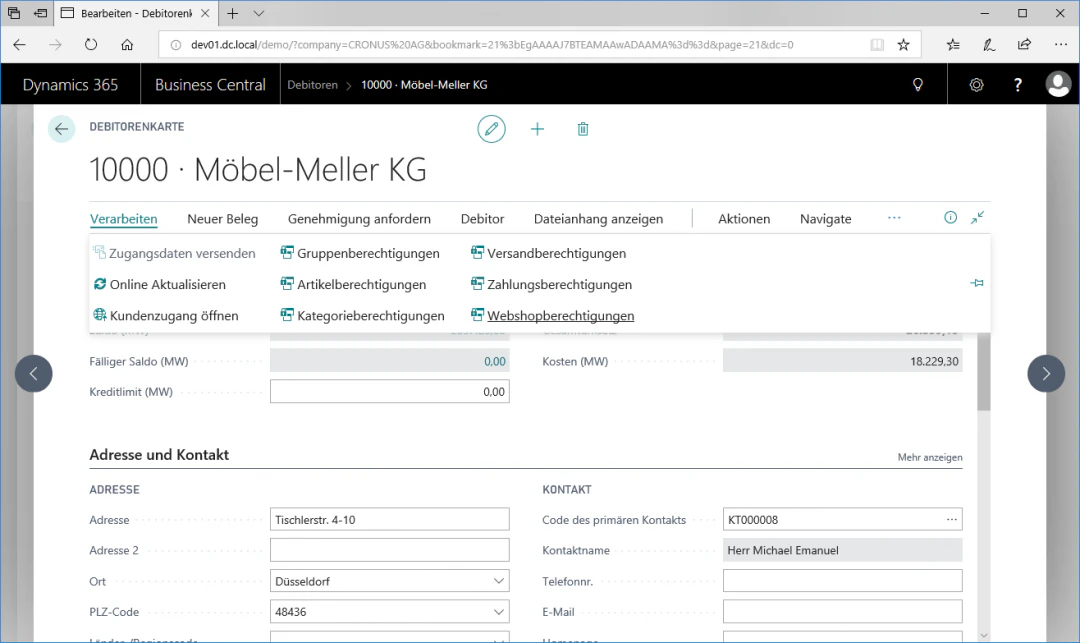
4
Step 4: Activate the Customer for the Dealer Search
To enable the customer for a web shop, select the desired web shop and then check the box for dealer search active.In our example, we enter “CRONUS-B2B” in the Shop Code column and also check the box for “Dealer search active”.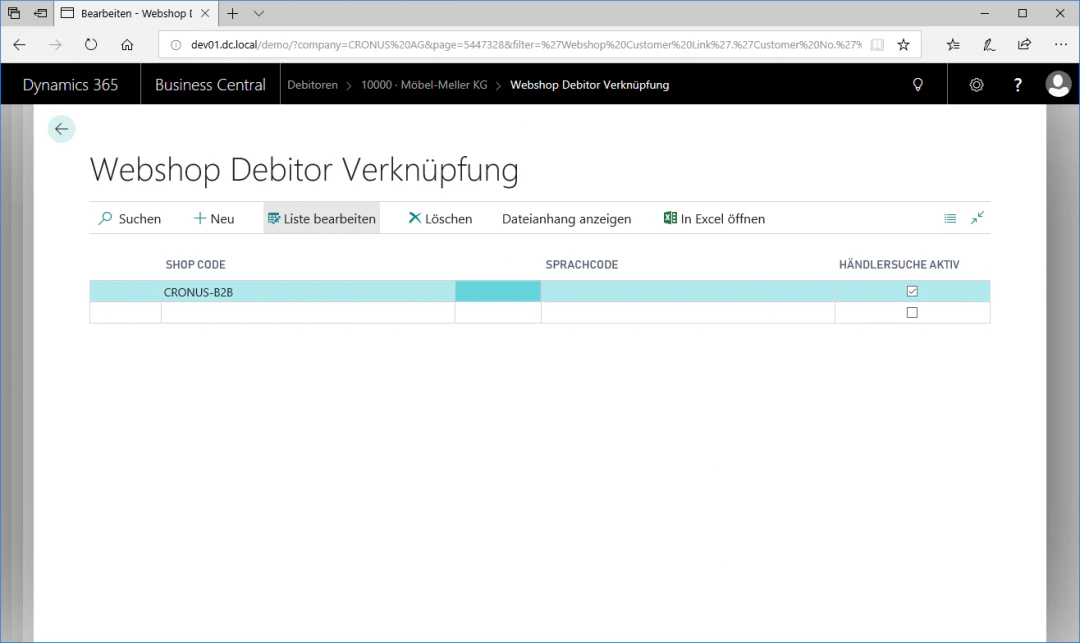
Related Topics
Enable Customer for Web Shop
Enable customers for login and purchase.
Enable Salesperson for Web Shop
Activate salespersons for the web shop.