
1
Step 1: Open the Webshop Campaigns Overview
Navigate to the Webshop Campaigns area by entering “Webshop Campaigns” in the search.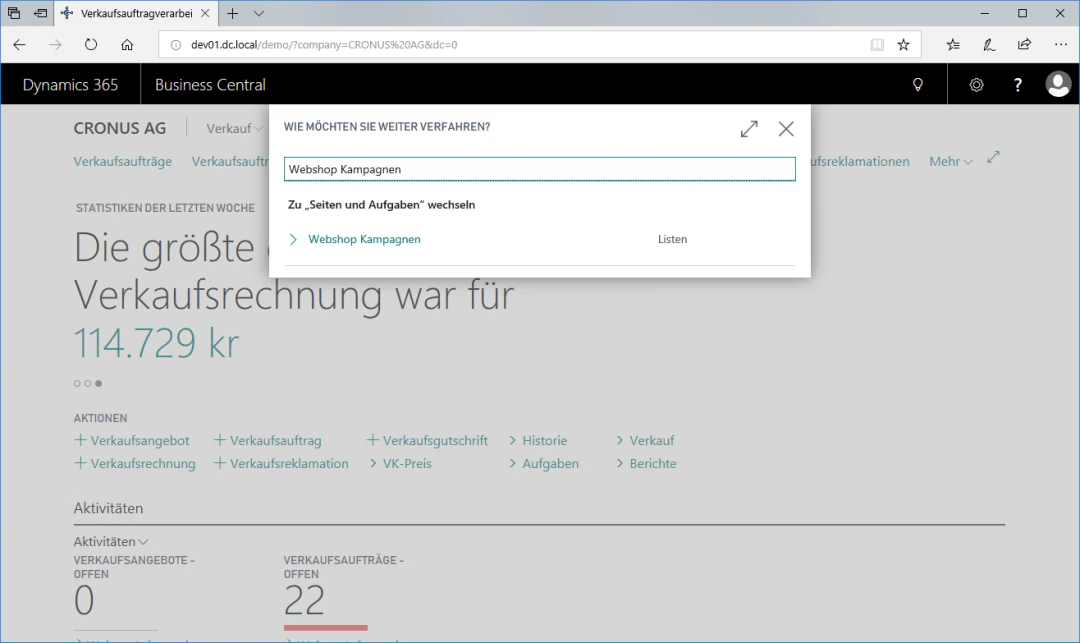
2
Step 2: Create a Webshop Campaign
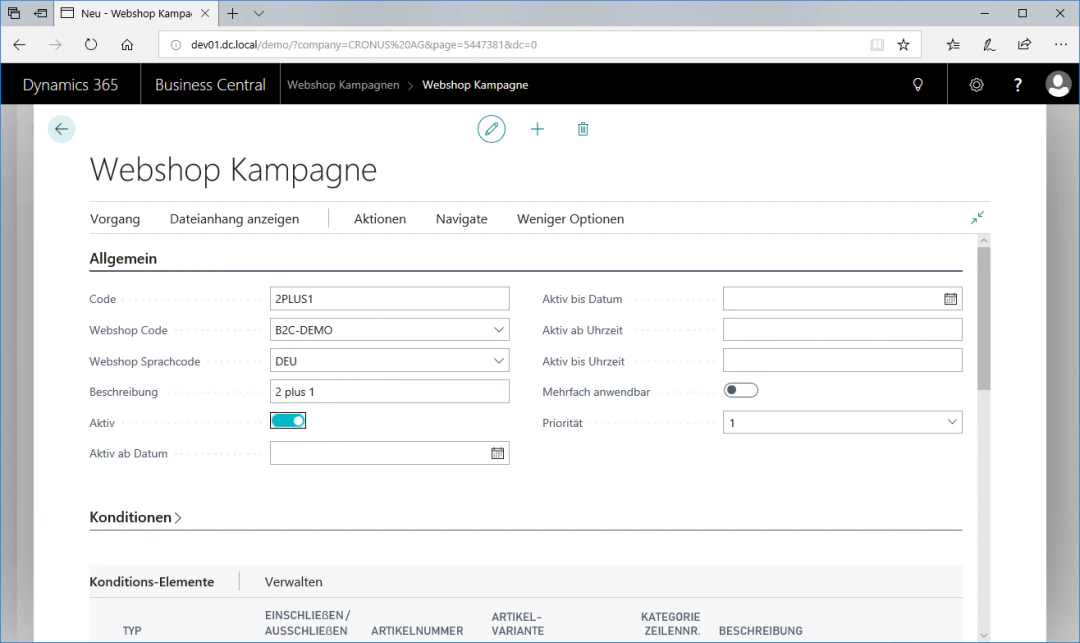
To create a campaign, select the “New” fasttab. This takes you to the Webshop Campaign overview. Here, navigate to the “General” menu item. In our example, we want to create a “2Plus1 Promotion” for a webshop in German. For this exemplary configuration, we select the following settings:Code: 2PLUS1Webshop Code: B2C-DemoWebshop Language Code: DEUDescription: 2 plus 1Active: Set checkmark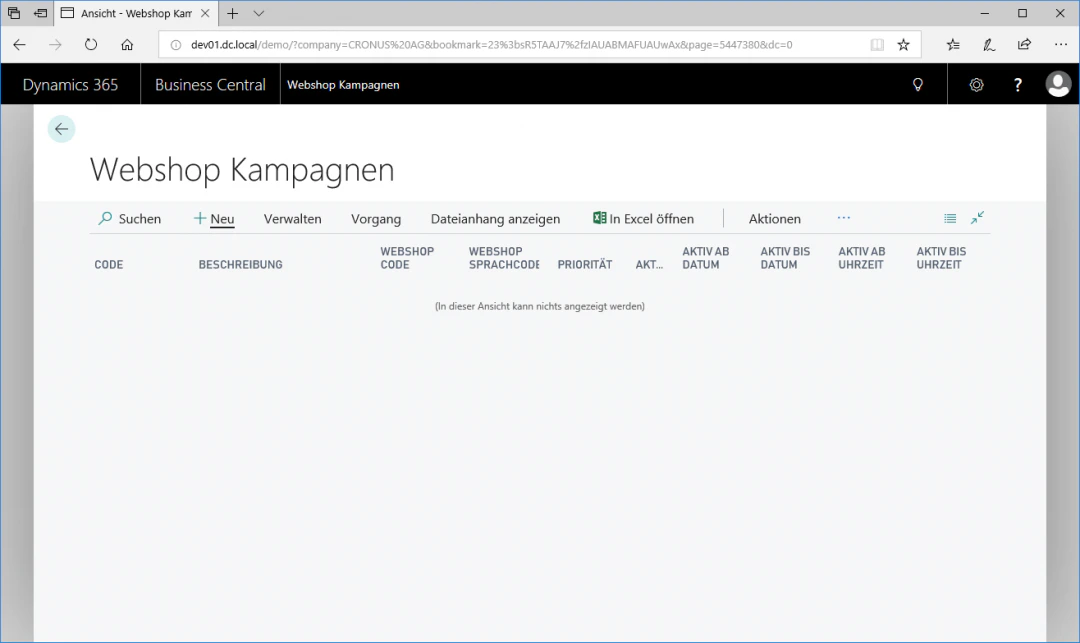
3
Step 3: Define Conditions
To define specific conditions for the promotion, open the “Conditions” menu item. In our example, we want a customer who has purchased 2 copies of the same webshop item to receive a third copy for free with their order. For this exemplary configuration, we enter a 2 in the “Min. Quantity of Single Item” field.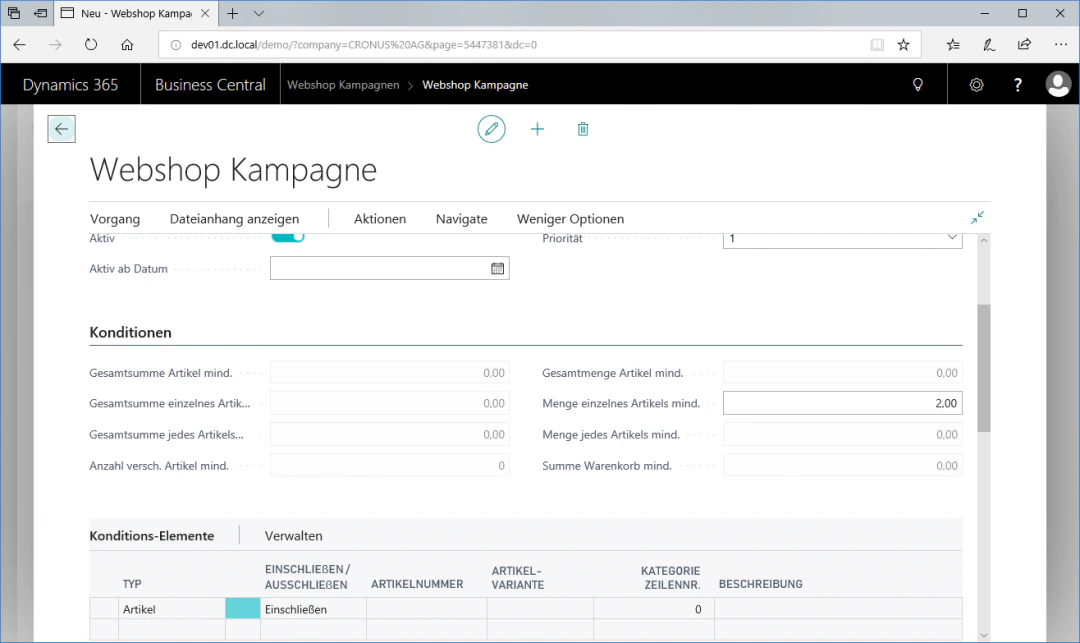
4
Step 4: Define Condition Elements
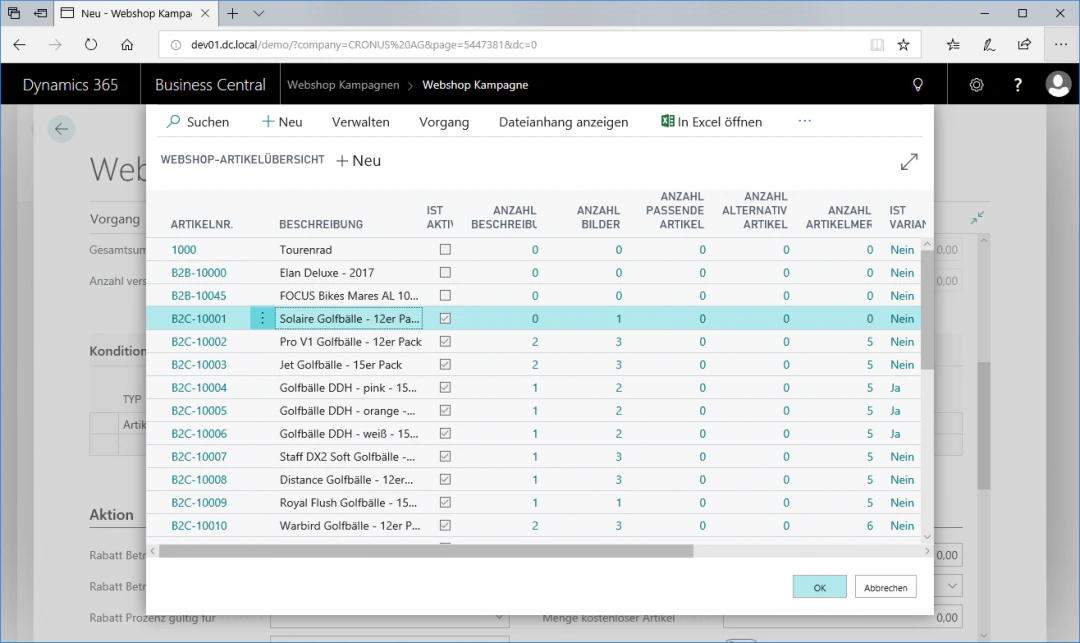
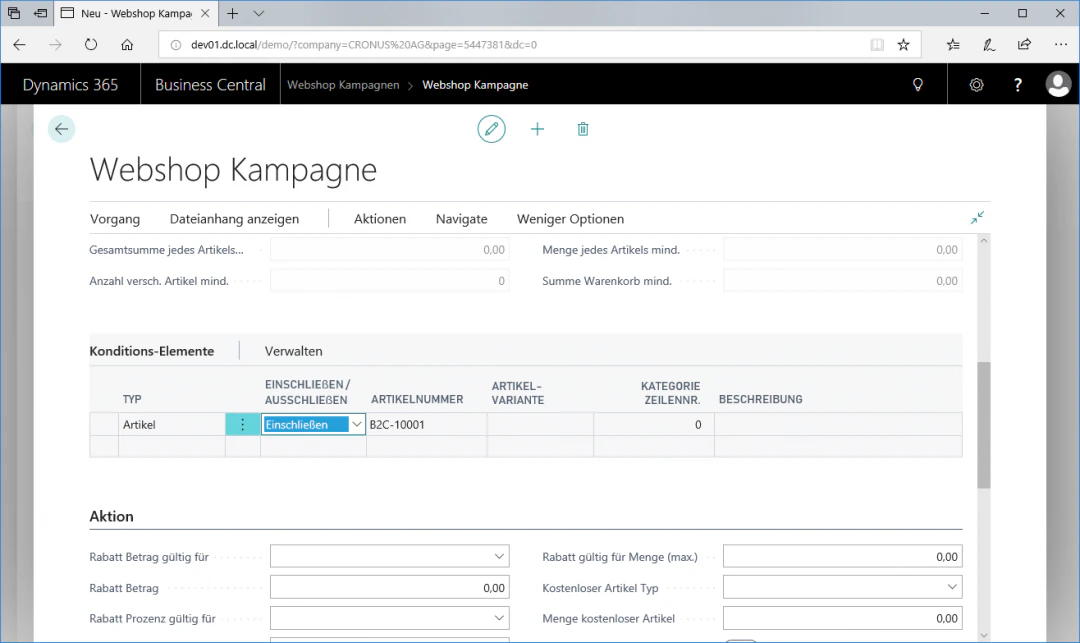
To define an item as a condition element, open the “Condition Elements” menu item. Here you insert the items to which a later selected promotion is to be applied. Scroll to the end of the condition elements table to add a new item. Click in the first empty row and there on the “Item Number” column to access the webshop item overview. Here you select the item “Solaire Golf Balls – Pack of 12” with the item number “B2C-10001”.In addition, in the “Include/Exclude” field you select Include, whereby the respective item is included in the promotion. Alternatively, you can also select “Exclude”, whereby the item is excluded from the promotion.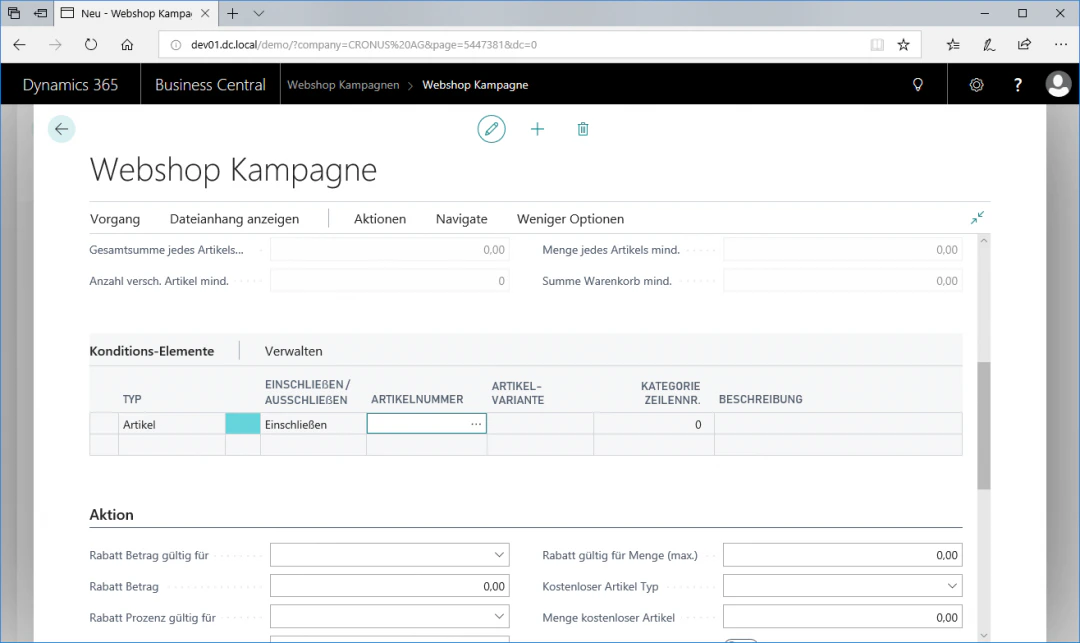
5
Step 5: Define the Promotion
To define a promotion, open the “Promotion” menu item. In our example, we want a third copy to be added to the order for free when 2 copies of the selected condition item are purchased. For this exemplary configuration, we select the following settings:Free Item Type: Current Condition ItemQuantity of Free Item: 1.00It should be noted here that the “Quantity of Free Item” field does not contain 0, since otherwise, when 2 copies of the condition item are purchased, all other webshop items would be added to the order for free!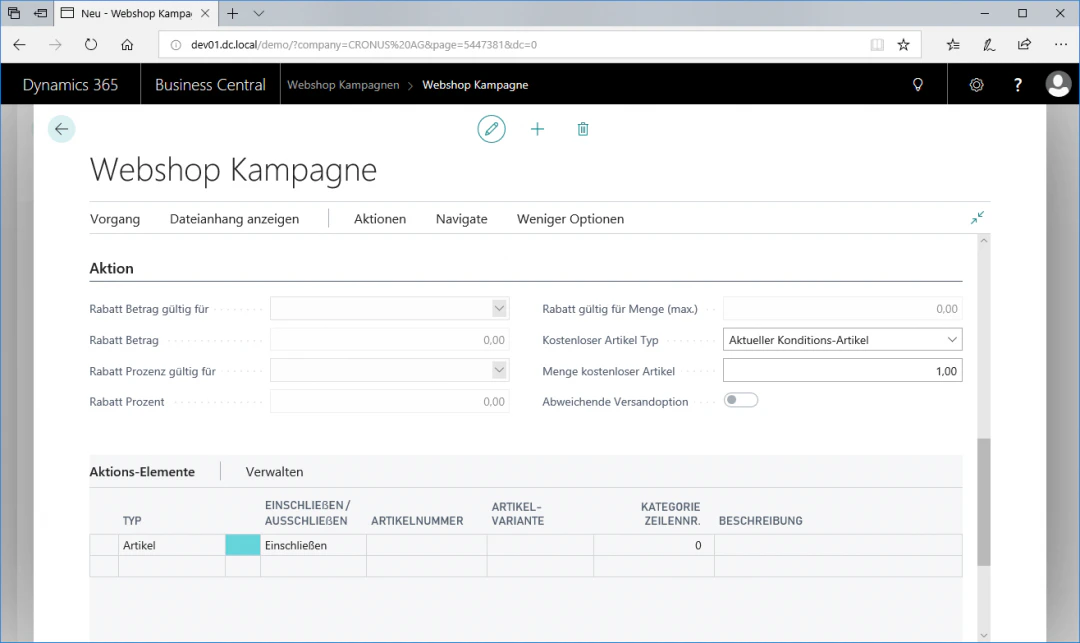
6
Step 6: Update the Campaign
To synchronize the campaign with the webshop system, click the “Update Campaign” fasttab in the “Process” ribbon. This updates all campaigns that have been changed since the last update. All changed campaigns are also automatically updated with the next complete data update.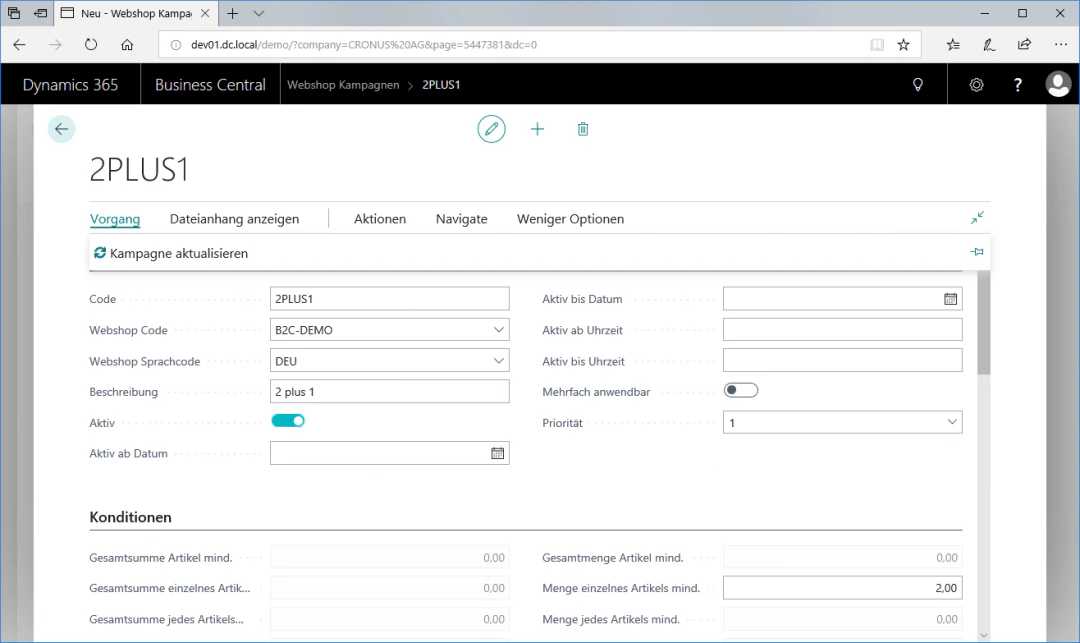
Related Topics
Setting Up Discount Coupons
Create discount coupons with codes.
Setting Up Webshop Items
Maintain items for the webshop.