
1
Step 1: Open the Webshop Subscription Overview
Navigate to the Webshop Languages area by entering “Webshop Subscription” in the search.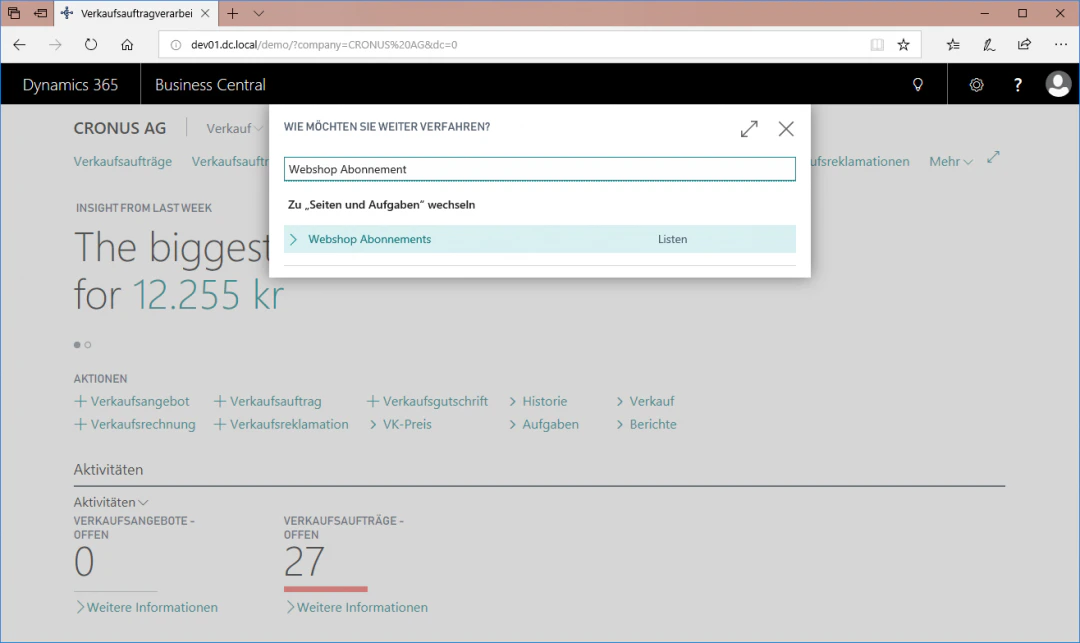
2
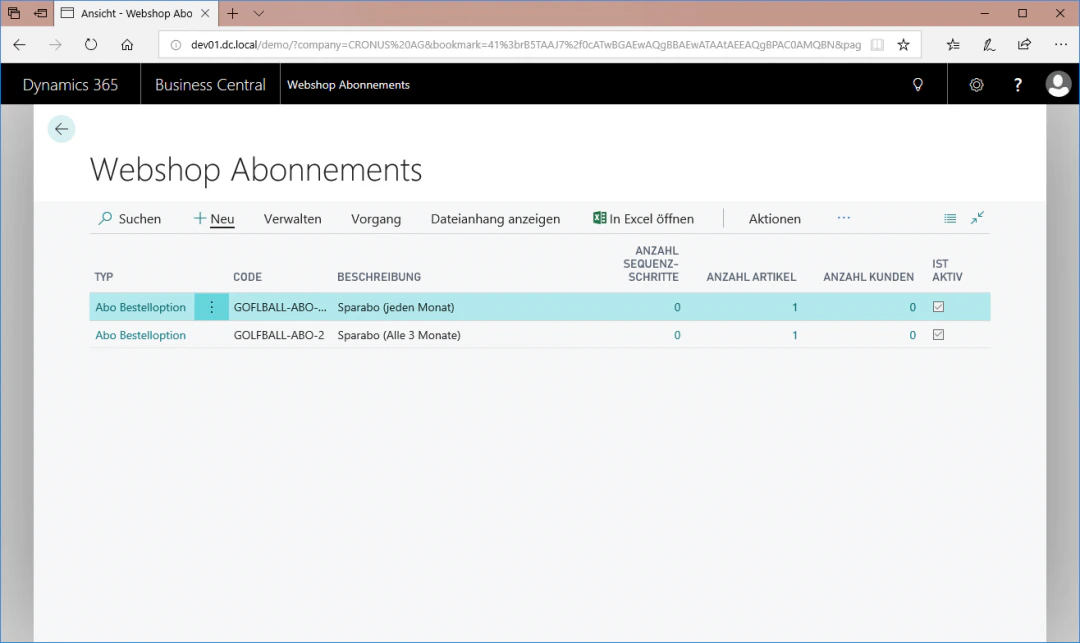
3
Step 3: Select the Subscription
To create a new savings subscription, navigate to the “Subscription Selection” menu item and select “Subscription Order Option” as the type.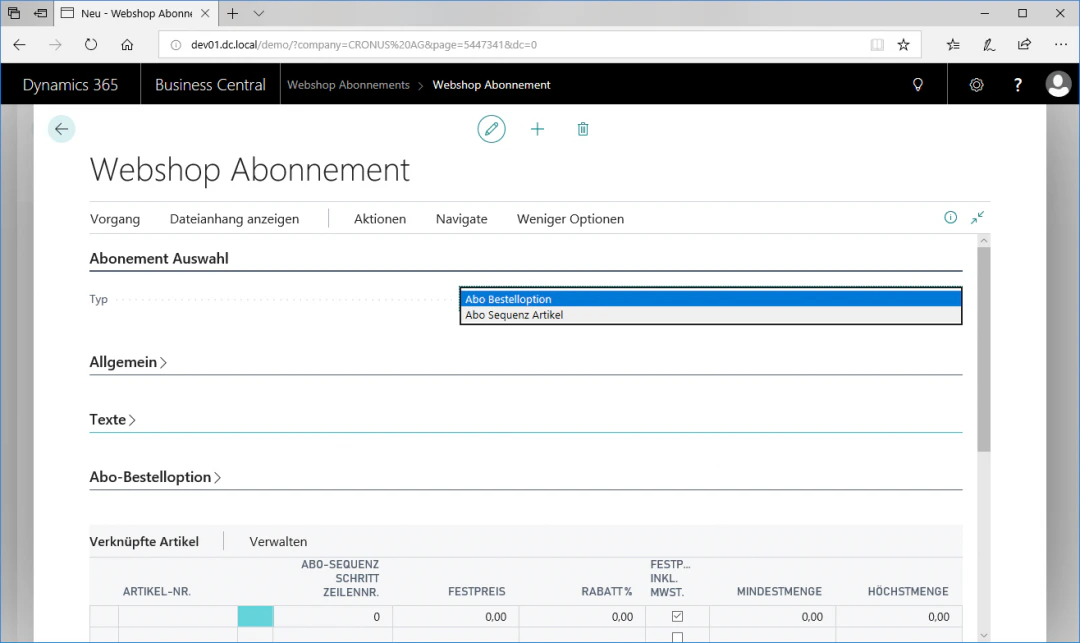
4
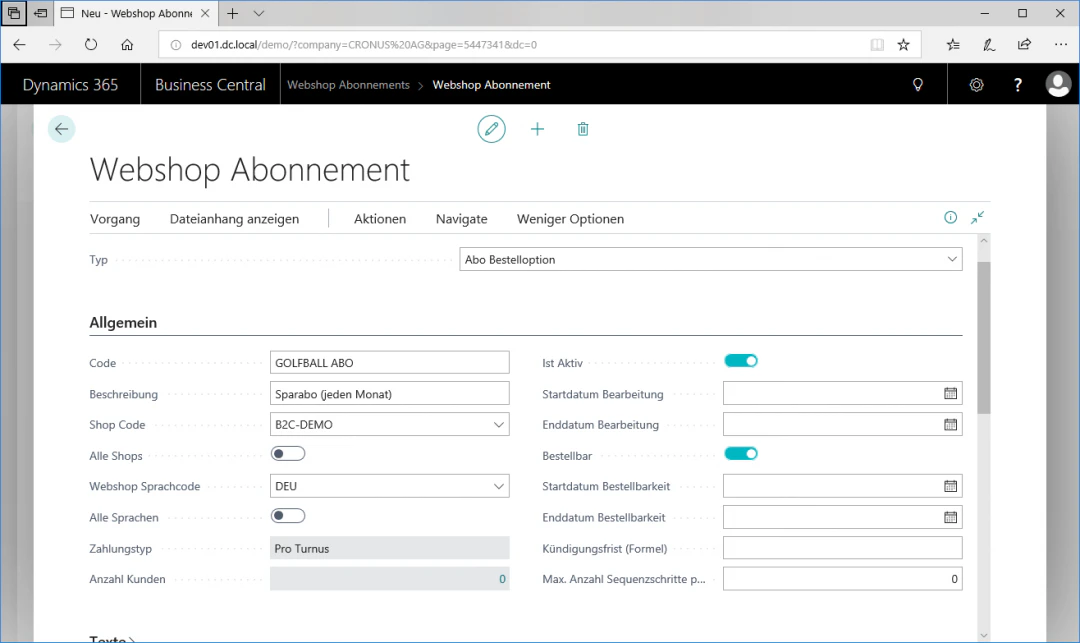
Step 4: General Data
Via the “General” menu item, in our example we want to create a golf ball savings subscription that should be valid for a b2c shop. In addition, it should be orderable online and active in the webshop.For this example configuration, we choose the following settings:- Code: GOLFBALL ABO 1M
- Description: Savings subscription (every month)
- Shop Code: B2C-DEMO
- Webshop Language Code: DEU
- Payment Type: Per Cycle
- Is Active: Check the box
- Orderable: Check the box
5
Step 5: Texts
To enter descriptions for the subscription, open the “Texts” menu item and write “Every month” in the Interval Description field.In addition, write “One month” in the Cancellation Period Description field.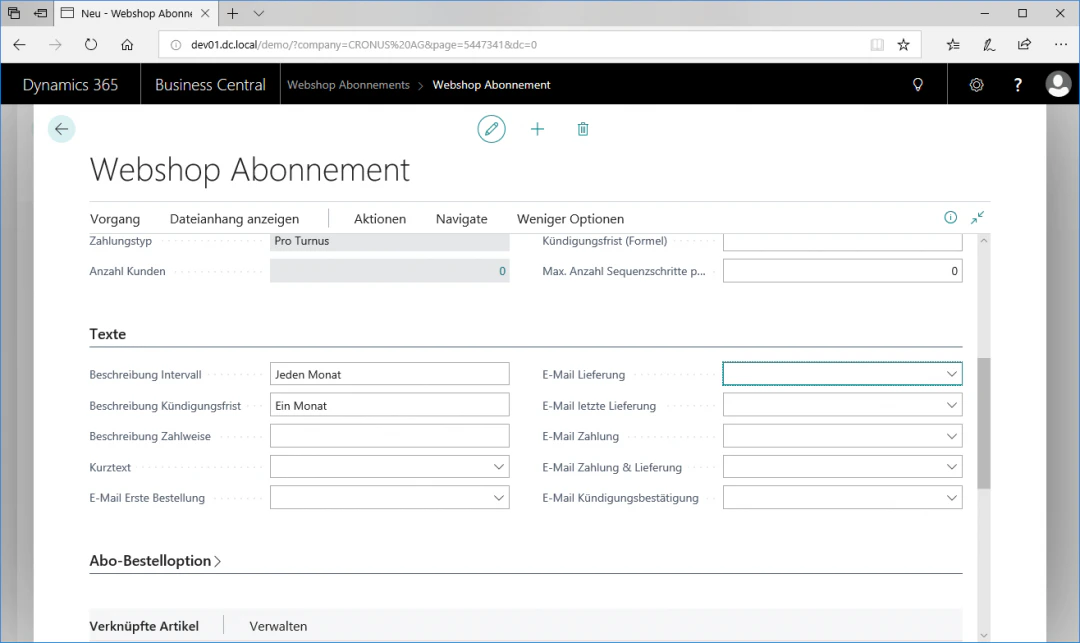
6
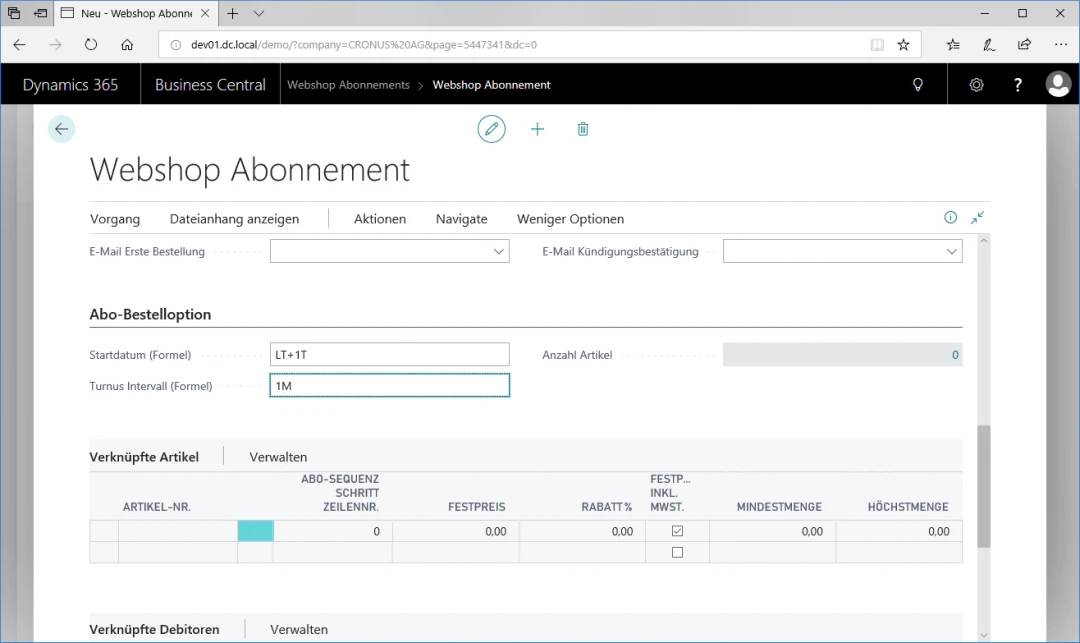
Step 6: Subscription Order Option
To set a start date for the subscription, navigate to the “Subscription Order Option” menu item. The subscription should start one day after the order, and a delivery should take place once a month. For this example configuration, we choose the following settings:- Start Date (Formula): LT + 1T
- Cycle Interval (Formula): 1M
7
Step 7: Add Items
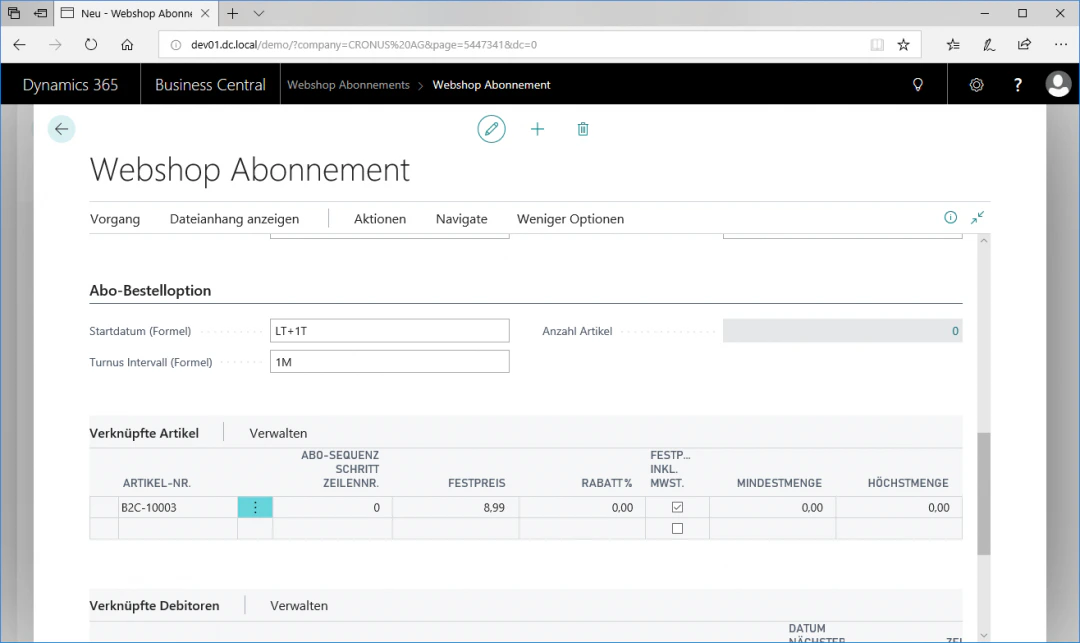
To add items to the savings subscription, navigate to the “Linked Items” menu item and click in the first empty row under the Item Number column.Select your desired item and enter a fixed price. In our example, we select golf balls with the item number “B2C-10003” and set a fixed price of “8.99”.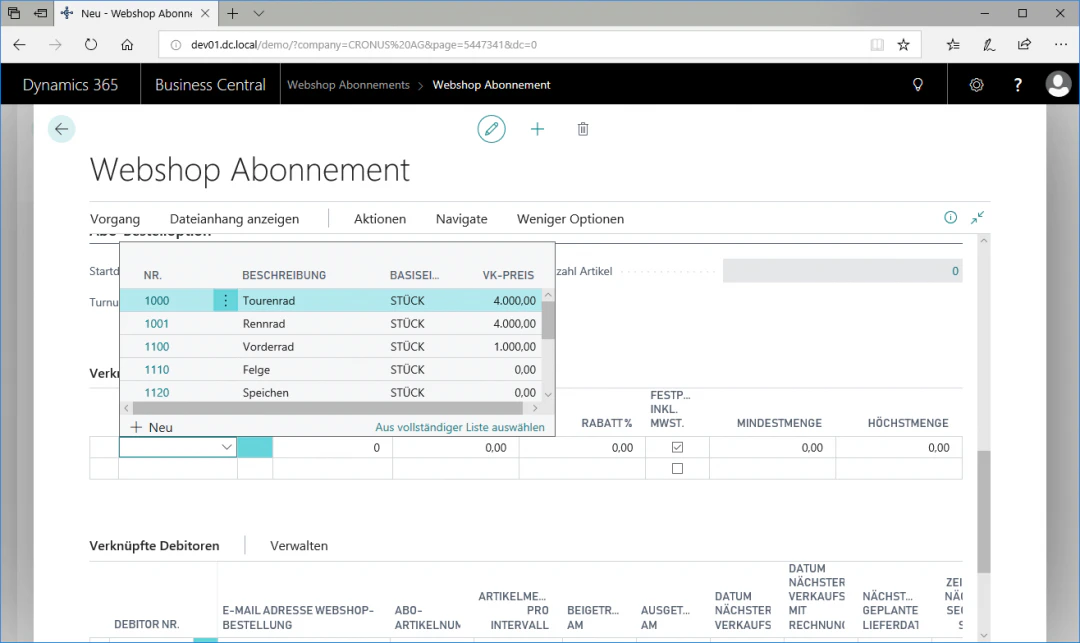
8
Step 8: Update the Subscription
To synchronize the webshop subscription with the webshop system, click the “Update Subscription” fast tab in the “Actions” ribbon. This updates all webshop subscriptions that have been changed since the last update.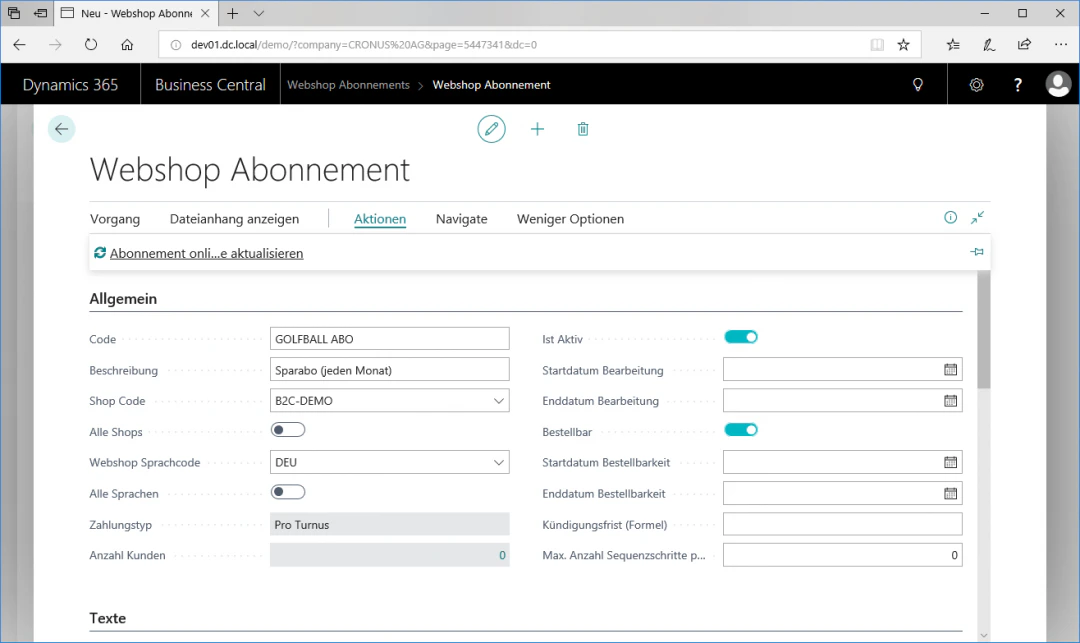
Related Topics
Set Up Webshop Items
Maintain items for the webshop.
Set Up Webshop Payment Options
Configure payment methods in the webshop.