> ## Documentation Index
> Fetch the complete documentation index at: https://docs.dc.ag/llms.txt
> Use this file to discover all available pages before exploring further.
# dynamic content - Statistics
> Evaluate mail log, access, order, and search statistics in the CMS.
In our CMS, you also have the option to view various statistics.
We will explain the meaning of these statistics and how to access them in the following.
## Navigating to the Statistics
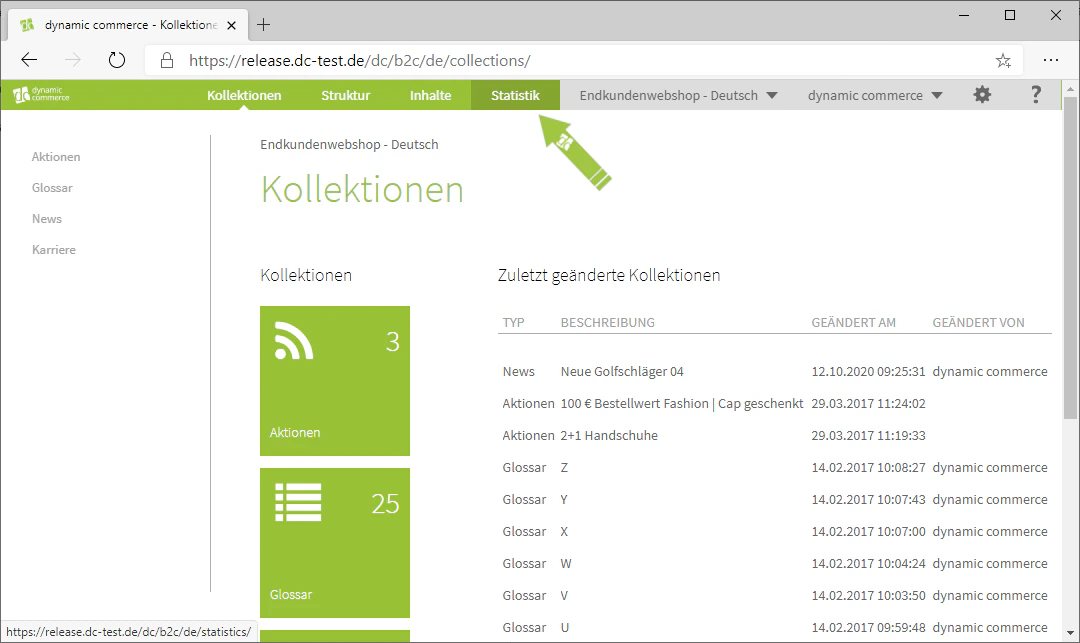
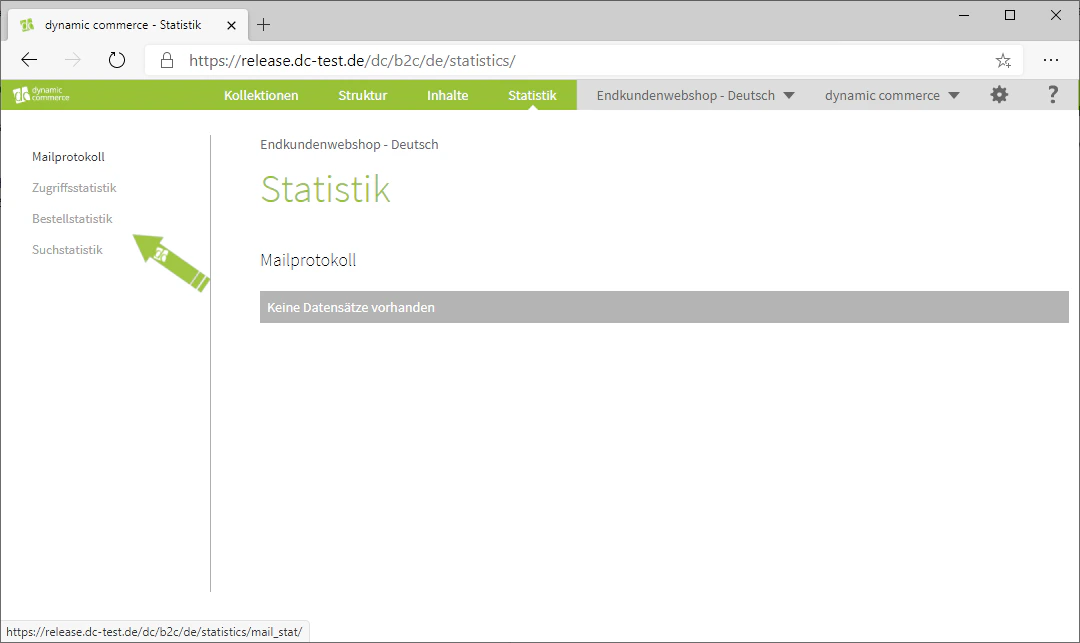
You can access the individual statistics via the Statistics tab. There you can select the respective statistic from the list.
 ## The Mail Log
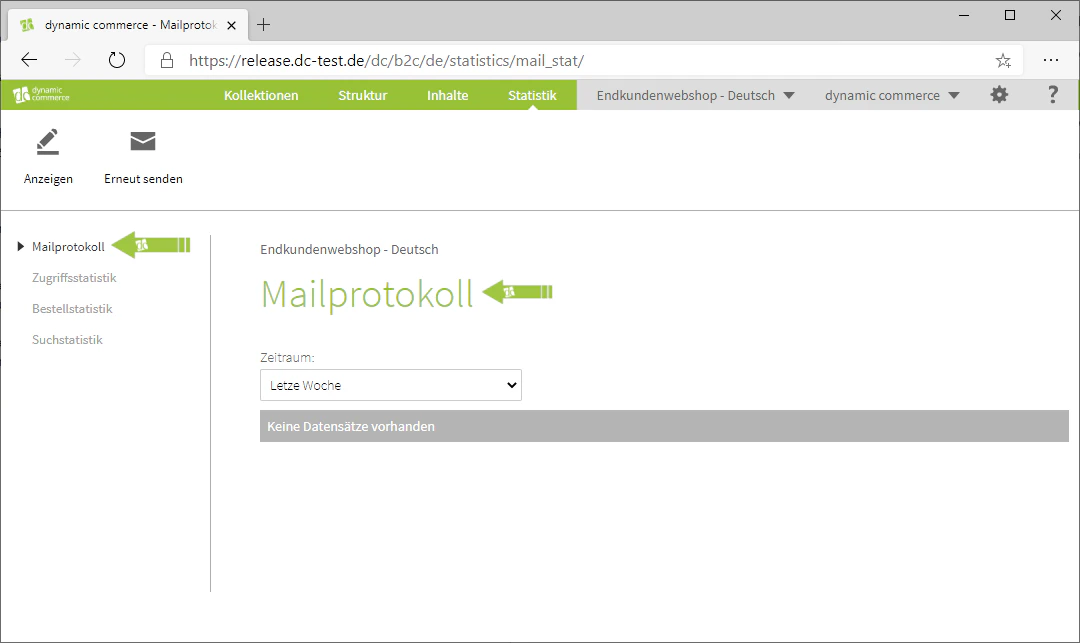
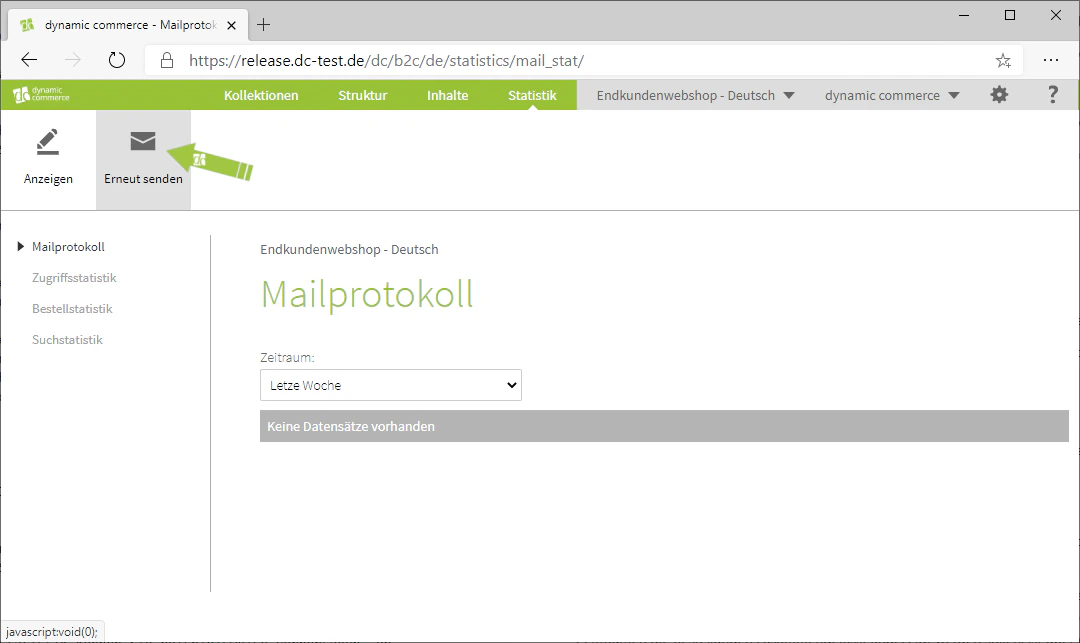
The mail log shows you which e-mails have been sent from your web shop.
For example, order and shipping confirmations that were automatically sent to your customers would be listed here.
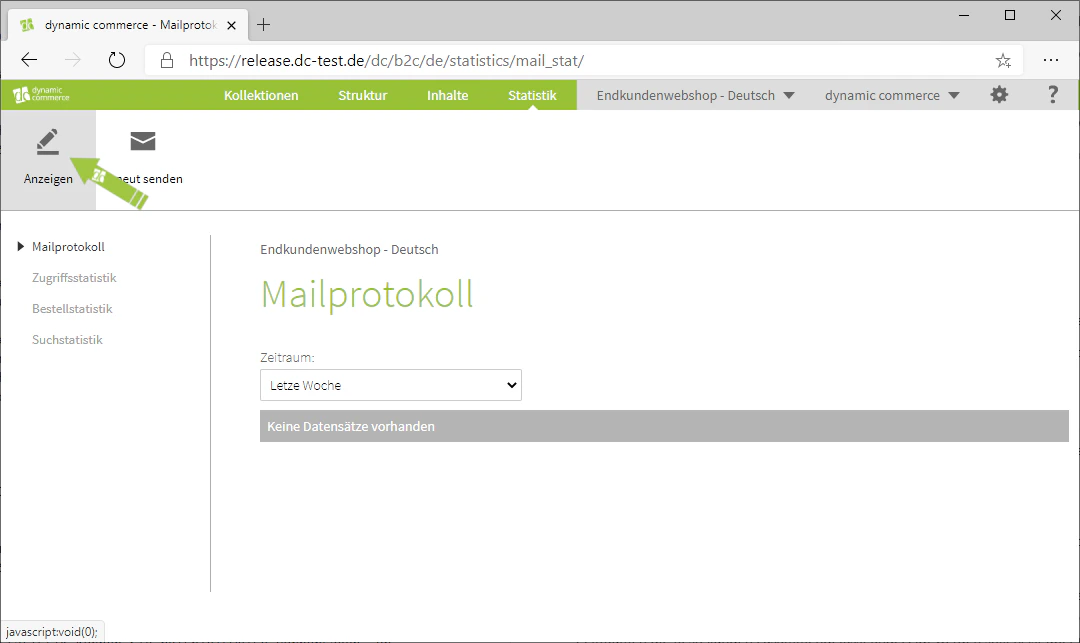
This allows you to check, in the event of problems with an order, what information the respective customer has already received. By clicking "Display" in the upper left, you can view the selected sent mail. You can also resend this mail by clicking on the button to the right of "Display".
## The Mail Log
The mail log shows you which e-mails have been sent from your web shop.
For example, order and shipping confirmations that were automatically sent to your customers would be listed here.
This allows you to check, in the event of problems with an order, what information the respective customer has already received. By clicking "Display" in the upper left, you can view the selected sent mail. You can also resend this mail by clicking on the button to the right of "Display".
 ## The Access Statistics
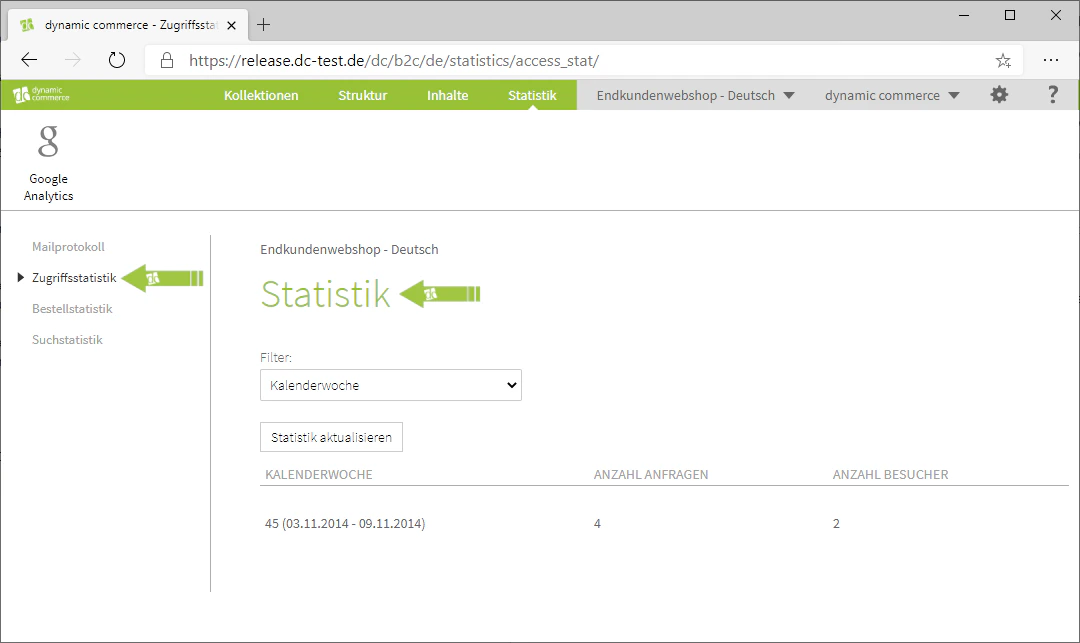
The access statistics show you how many visitors have accessed your site.
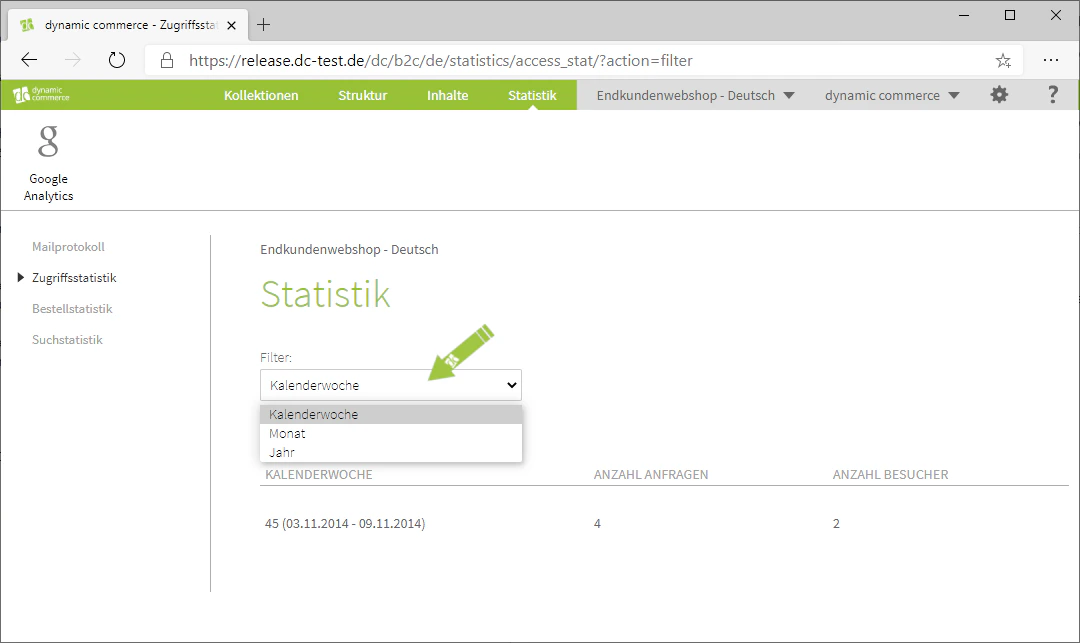
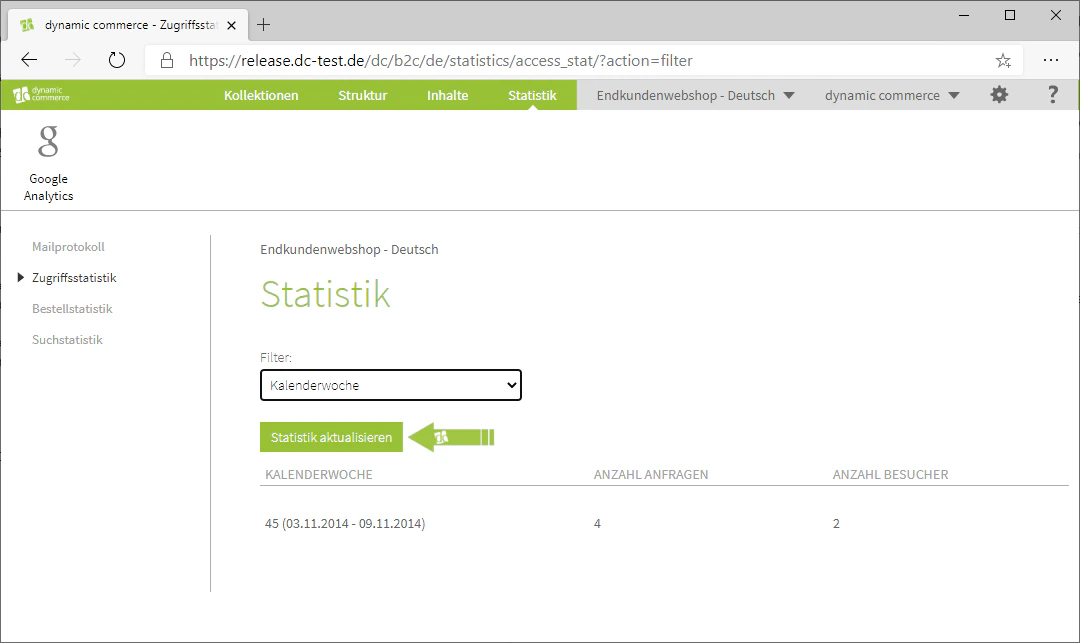
You can filter these by various time periods using the drop-down labelled "Filter", which is located below the heading "Statistics". You can also refresh the statistics by clicking the button below it.
Using the figures from the access statistics, you can, for example, predict whether more or fewer orders will be received in the near future. In conjunction with the order statistics, you can also calculate how many visitors place an order.
## The Access Statistics
The access statistics show you how many visitors have accessed your site.
You can filter these by various time periods using the drop-down labelled "Filter", which is located below the heading "Statistics". You can also refresh the statistics by clicking the button below it.
Using the figures from the access statistics, you can, for example, predict whether more or fewer orders will be received in the near future. In conjunction with the order statistics, you can also calculate how many visitors place an order.
 ## The Order Statistics
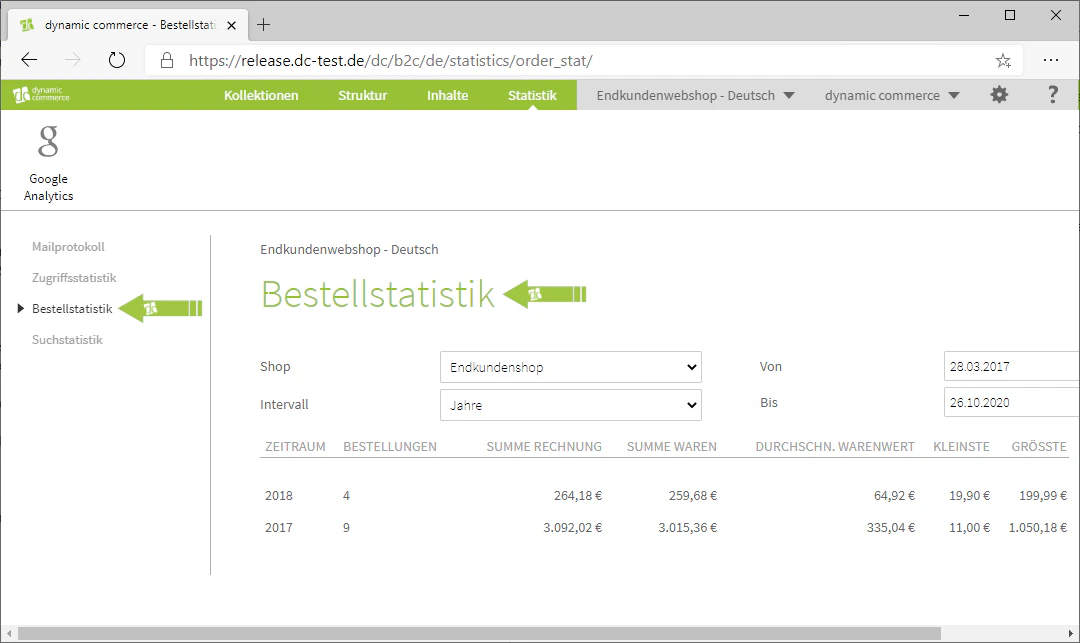
In the order statistics, you can see how many orders have been placed in your individual web shops. In addition, the goods value and invoice value of all orders is displayed.
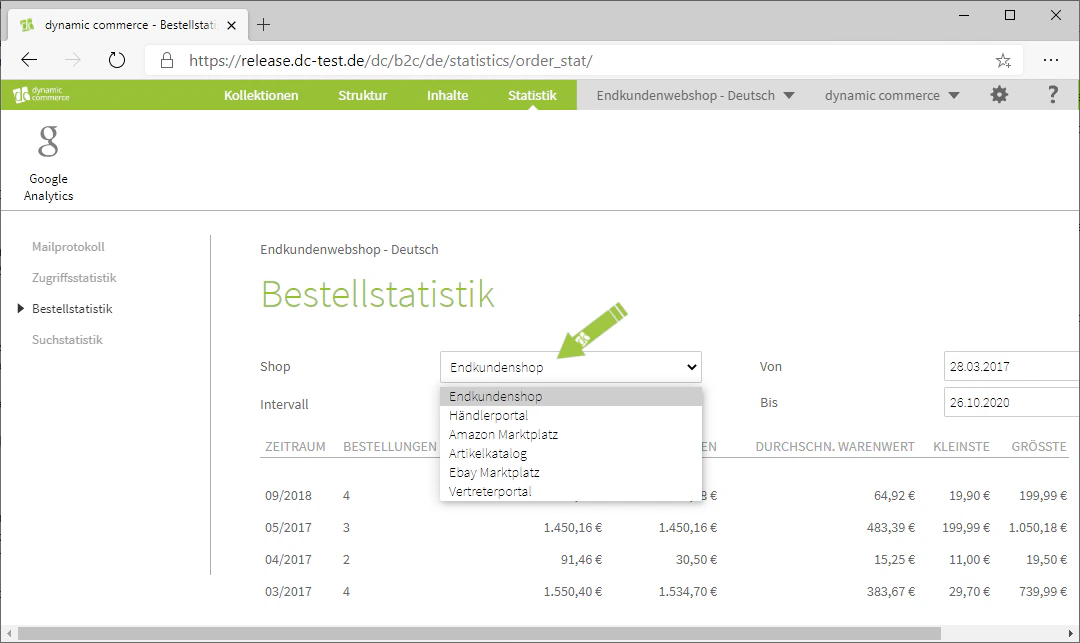
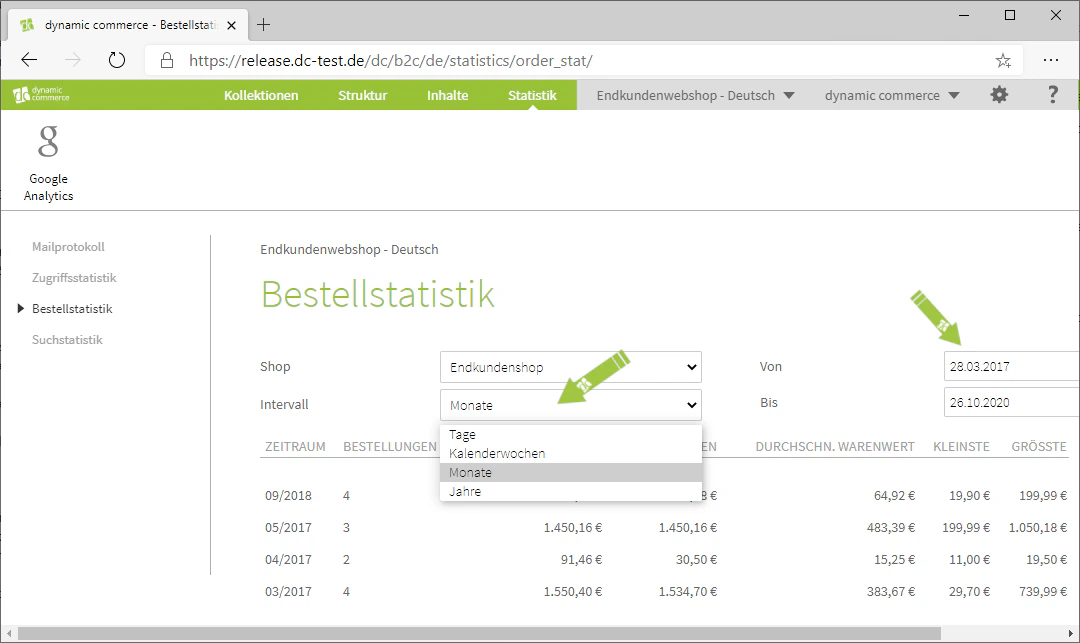
You can filter this statistic again via the settings below the heading "Order Statistics". Using the "Shop" drop-down, you can select which shop should be displayed. The interval at which orders are displayed in summary form can also be adjusted via the corresponding drop-down. To the right of this, you can specify the time period for which the statistic should be generated.
The order statistics is an important tool that you should monitor regularly. It can be used, for example, to determine when your individual web shops have a peak season or when fewer orders are to be expected. In combination with the access statistics, you can also calculate how many of your visitors actually place an order. Depending on the results, you can adjust your marketing strategies accordingly.
## The Order Statistics
In the order statistics, you can see how many orders have been placed in your individual web shops. In addition, the goods value and invoice value of all orders is displayed.
You can filter this statistic again via the settings below the heading "Order Statistics". Using the "Shop" drop-down, you can select which shop should be displayed. The interval at which orders are displayed in summary form can also be adjusted via the corresponding drop-down. To the right of this, you can specify the time period for which the statistic should be generated.
The order statistics is an important tool that you should monitor regularly. It can be used, for example, to determine when your individual web shops have a peak season or when fewer orders are to be expected. In combination with the access statistics, you can also calculate how many of your visitors actually place an order. Depending on the results, you can adjust your marketing strategies accordingly.
 ## The Search Statistics
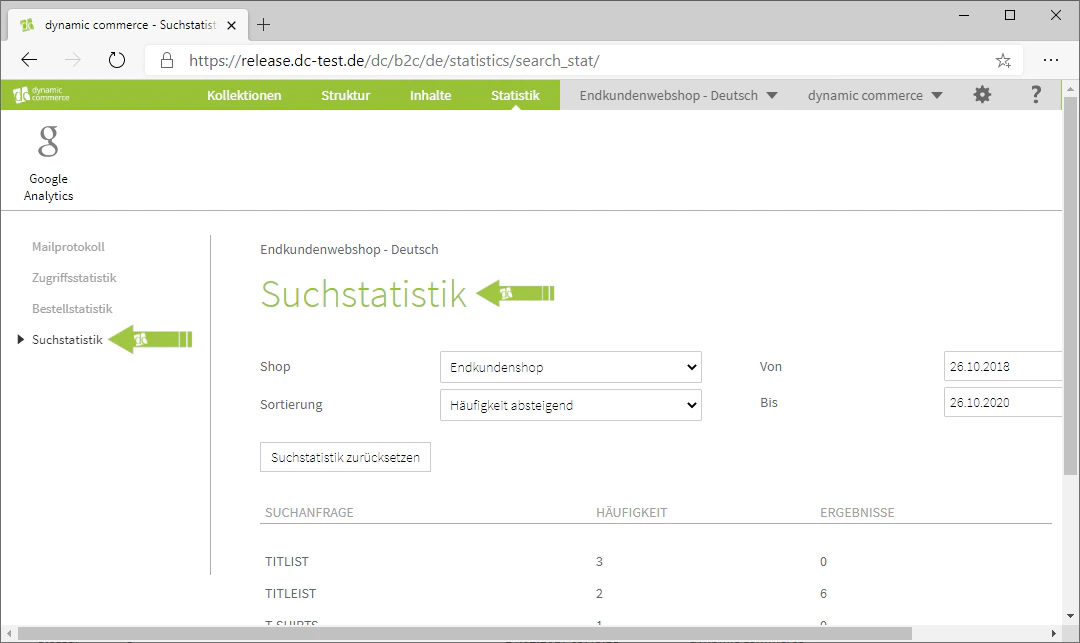
The search statistics show you which terms visitors to your website have entered into the search. For each term, the frequency of the search query and the number of results found by the search are also recorded.
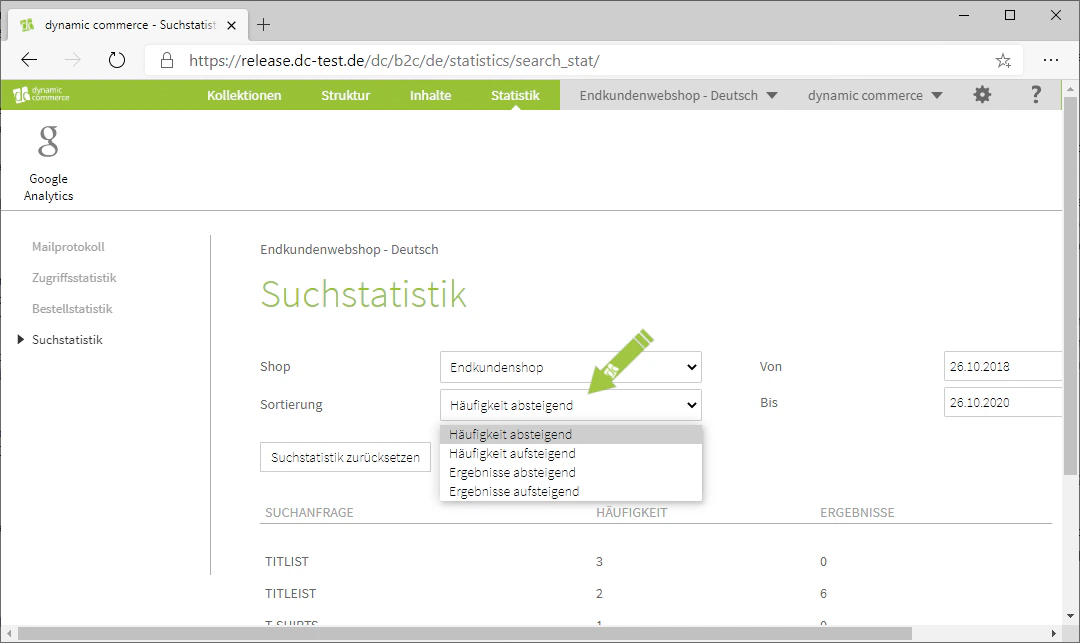
Below the heading "Search Statistics", you can filter the results just as with the order statistics. As a special feature here, you can adjust the sorting by frequency or results.
The search statistics are particularly interesting for the articles you offer. In general, you should pay attention to search queries that return no results. If, for example, a particular brand is frequently searched for that you do not yet offer, you might consider introducing it to your product range.
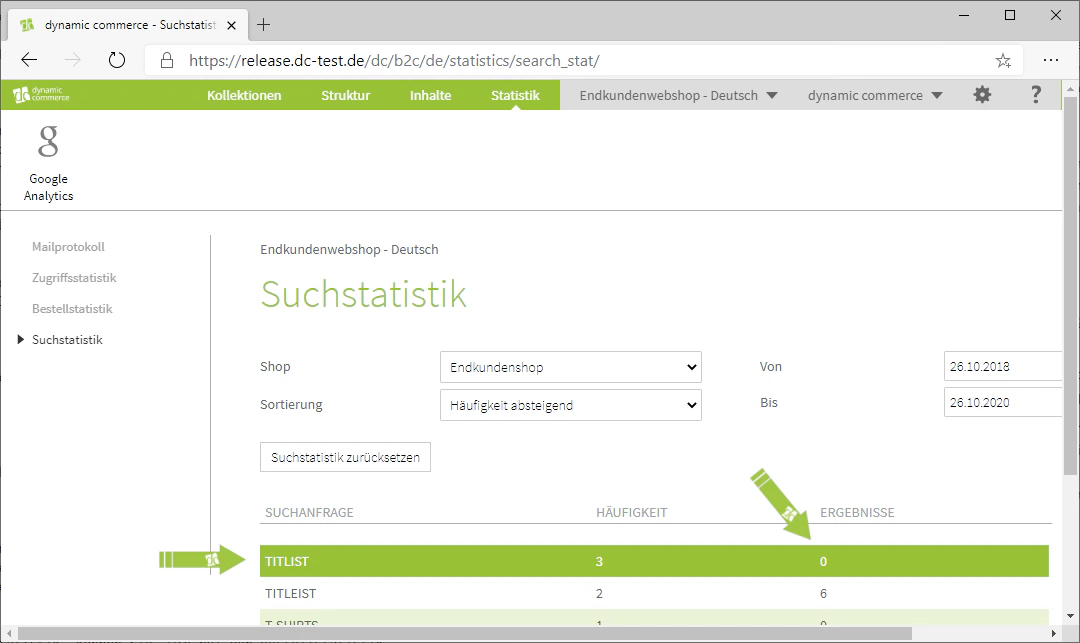
Furthermore, if visitors frequently search for an article or a brand but spell it incorrectly, you should adjust this in the web shop so that the correct results are displayed despite a typing error. In our example, "titlist" was frequently searched for without any results, even though it is clear that the brand "titleist" was actually intended. This incorrect brand name could then also be maintained on the articles so that they are still displayed correctly.
## The Search Statistics
The search statistics show you which terms visitors to your website have entered into the search. For each term, the frequency of the search query and the number of results found by the search are also recorded.
Below the heading "Search Statistics", you can filter the results just as with the order statistics. As a special feature here, you can adjust the sorting by frequency or results.
The search statistics are particularly interesting for the articles you offer. In general, you should pay attention to search queries that return no results. If, for example, a particular brand is frequently searched for that you do not yet offer, you might consider introducing it to your product range.
Furthermore, if visitors frequently search for an article or a brand but spell it incorrectly, you should adjust this in the web shop so that the correct results are displayed despite a typing error. In our example, "titlist" was frequently searched for without any results, even though it is clear that the brand "titleist" was actually intended. This incorrect brand name could then also be maintained on the articles so that they are still displayed correctly.
 ## Related Topics
Get your initial bearings in the CMS.
Create new websites and web shops.
Create and maintain content on pages.
Support and further information.
## Related Topics
Get your initial bearings in the CMS.
Create new websites and web shops.
Create and maintain content on pages.
Support and further information.