> ## Documentation Index
> Fetch the complete documentation index at: https://docs.dc.ag/llms.txt
> Use this file to discover all available pages before exploring further.
# dynamic content - Assign Collections to a Page
> How to link a collection to a page so that it is displayed on your website.
Here we show you how to assign a collection to a page.
This assignment is a prerequisite for the collection to be displayed on your website at all. It does not matter whether the page is accessible via the navigation or not. If, for example, you only want to display your collection via a collection preview, it makes sense not to make the page with the collection reachable through the navigation.
In this explanation, we link the collection "Karriereportal" we have already created to an existing page. We explain here how to create collections using the example just mentioned. You can see how to create a page here.
## Step 1: Select a Page
To select a page, first navigate to the Pages menu.
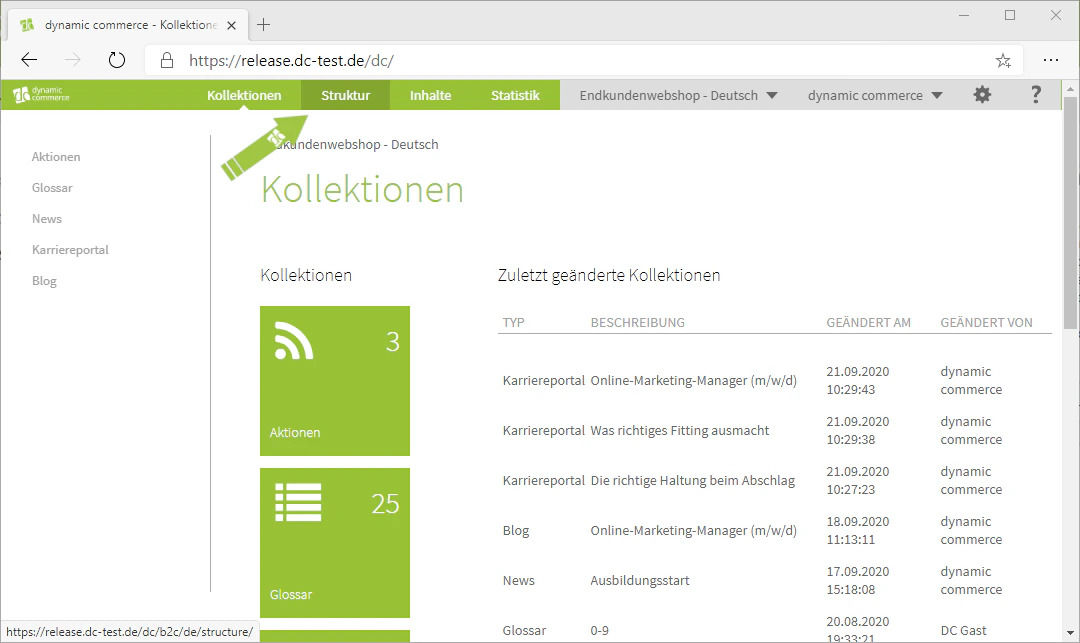
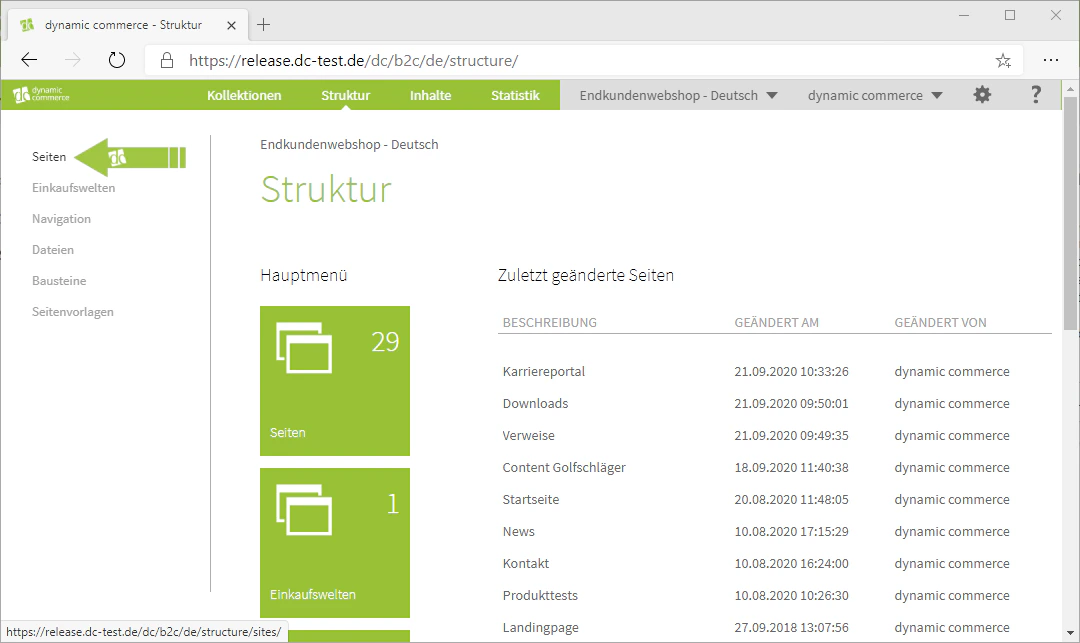
You can access it by clicking on "Structure" in the top tab bar. On the left-hand side you will see a list where you can select the item "Pages".
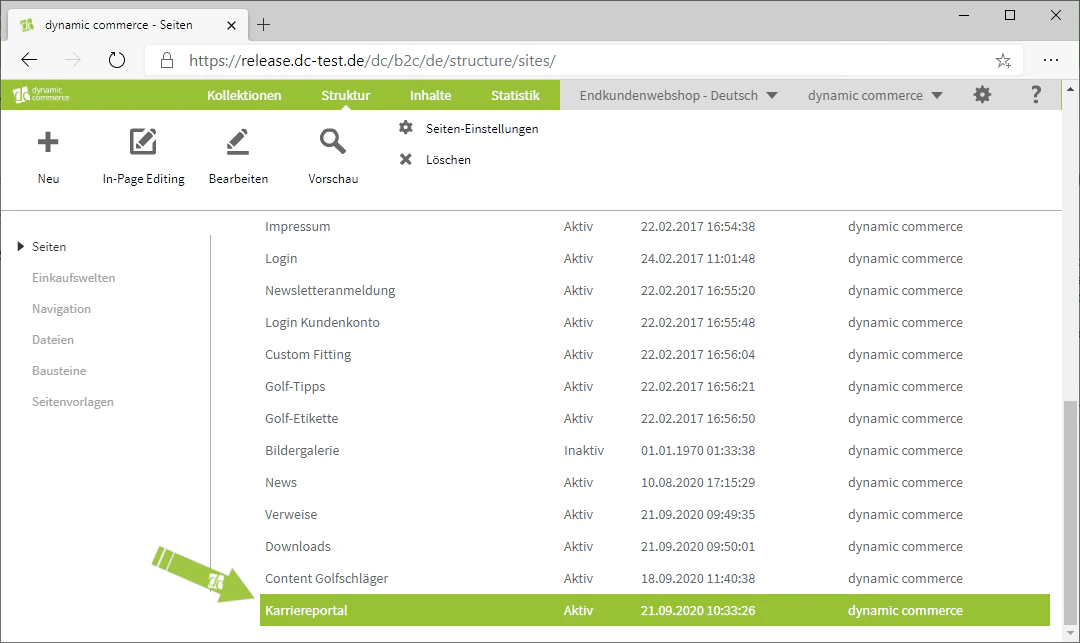
You have now reached the Pages menu. All created pages are displayed here. By double-clicking on them, you can view their contents.
Since displaying a collection is also a type of content, double-click on the page to which you want to link the collection.
In our example, we have already created a page called "Karriereportal". We will now select this page.
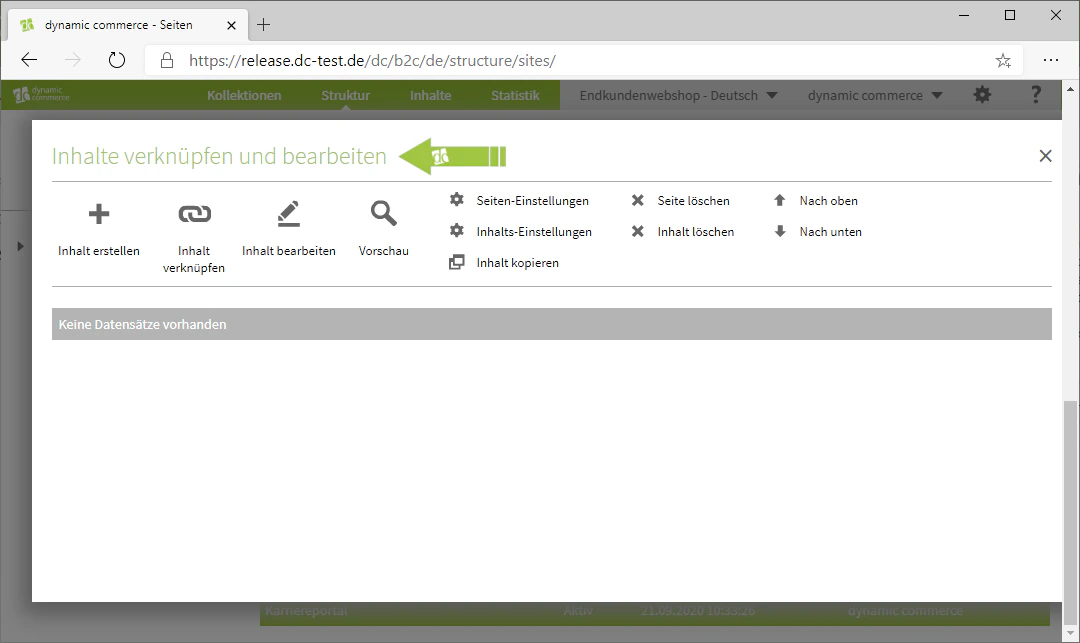
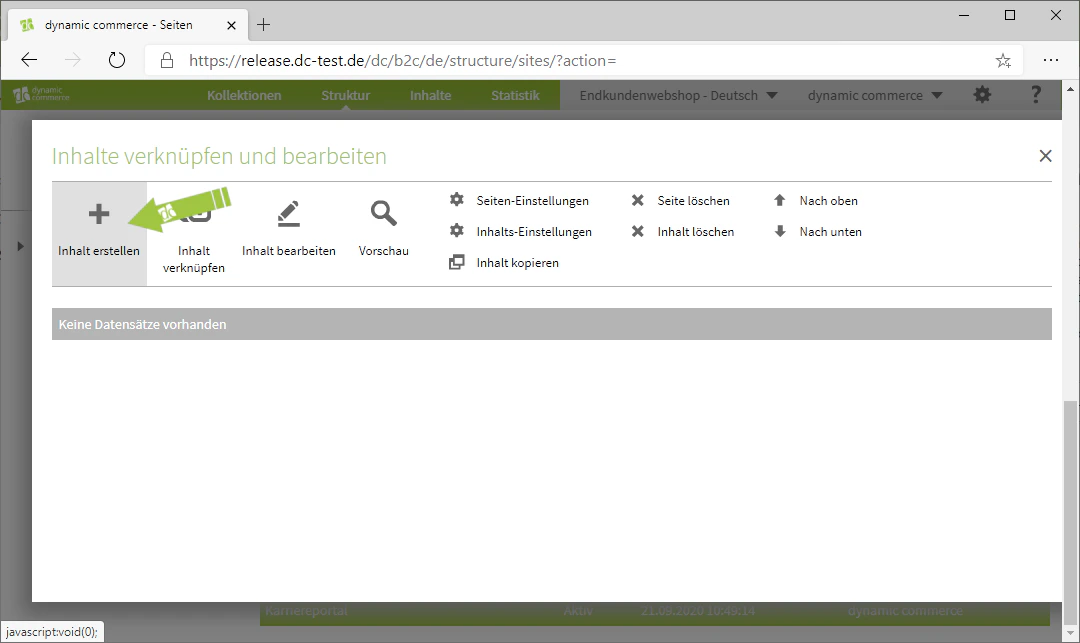
A window with the heading "Link and edit content" should then open.
 ## Step 2: Select the "Collection" Content Type
Now maintain the "Collection" content type by creating a new content item.
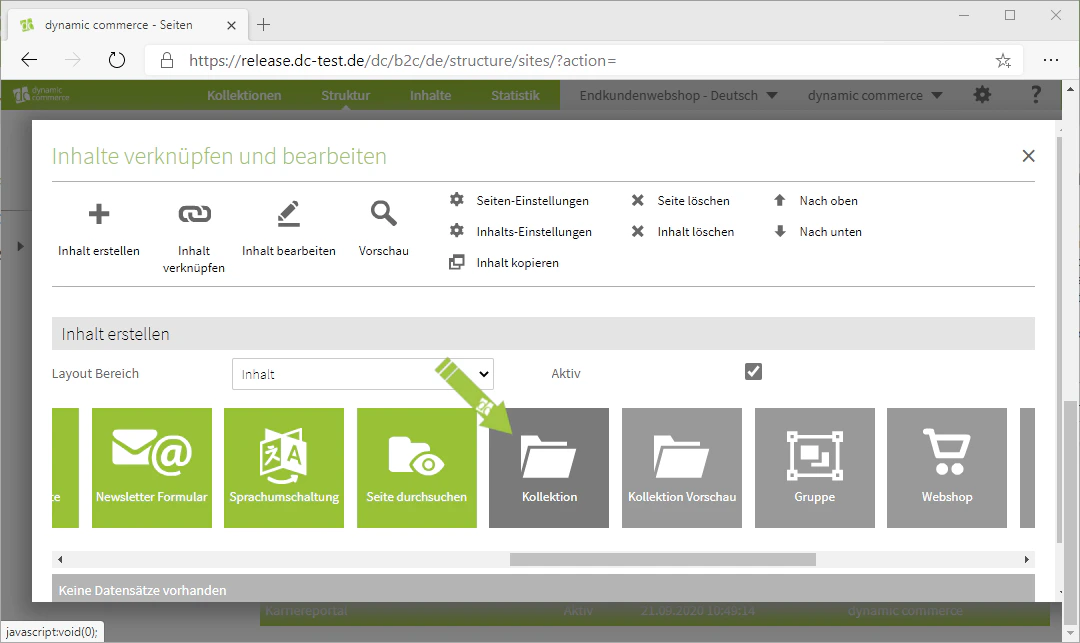
This is done by clicking on the "Plus" icon with the label "Create content" below it. A selection of tiles should then open. Select the grey tile labelled "Collection".
A window with the heading "Link collection" should then open.
## Step 2: Select the "Collection" Content Type
Now maintain the "Collection" content type by creating a new content item.
This is done by clicking on the "Plus" icon with the label "Create content" below it. A selection of tiles should then open. Select the grey tile labelled "Collection".
A window with the heading "Link collection" should then open.
 ## Step 3: Select a Collection Type
Next, select a collection type from the drop-down menu.
In our example, as mentioned above, we use the collection "Karriereportal" as the collection type.
To the right of it, you can also specify how many collection entries should be displayed per page.
Further information on collection entries can be found under [Create Collection Entries](/docs/en/dynamic-content/user-guide/kollektionseintraege-erstellen).
Finally, save the link.
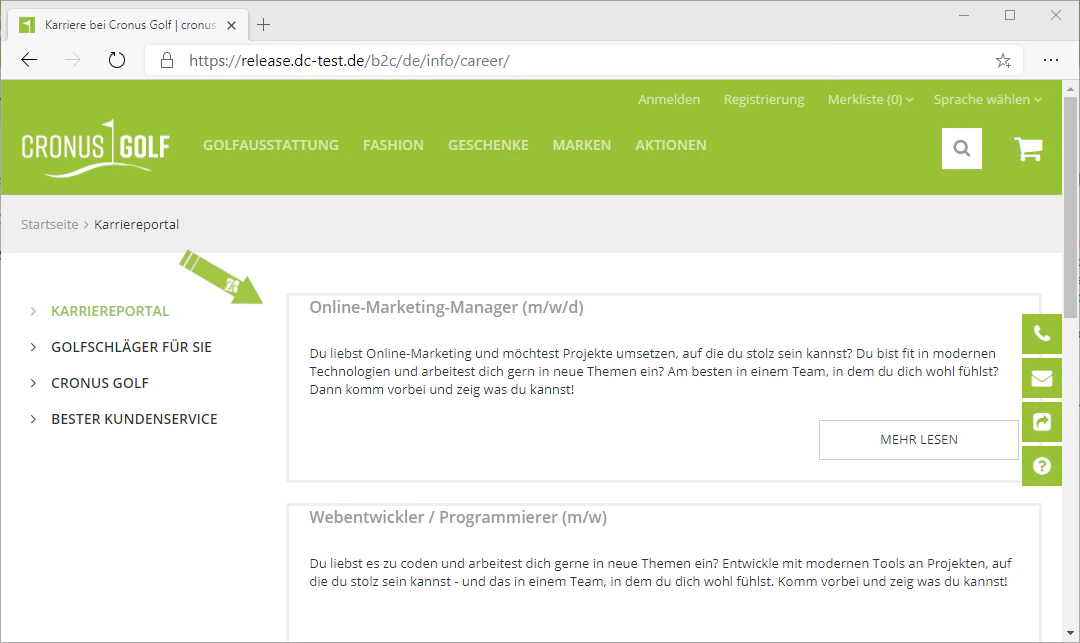
The collection will then already be displayed on the page. You can also maintain additional content on this page. We explain how to maintain content here.
## Step 3: Select a Collection Type
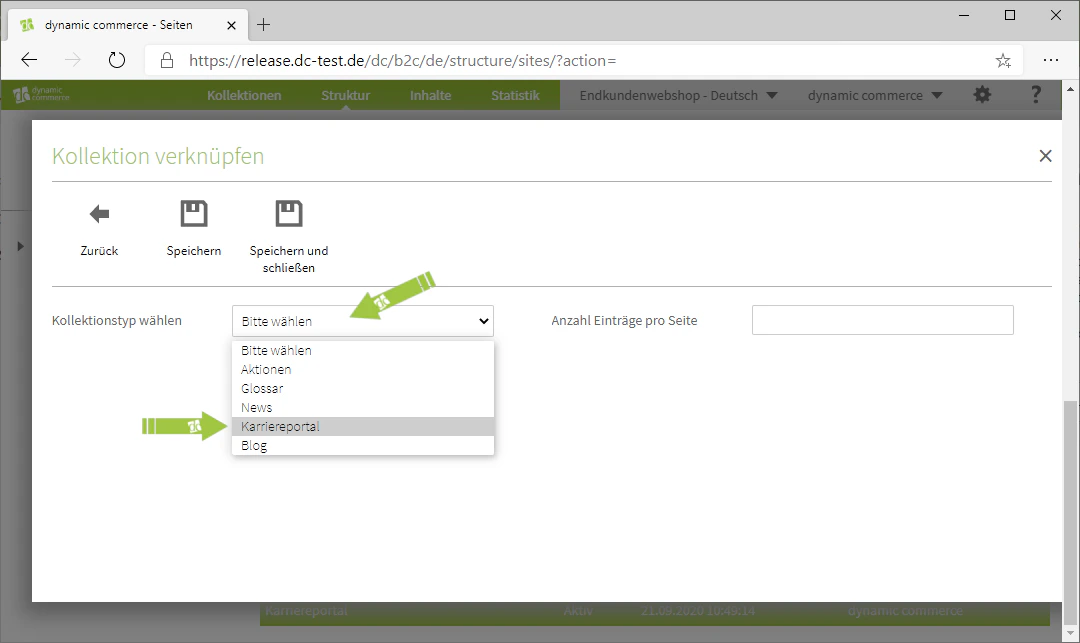
Next, select a collection type from the drop-down menu.
In our example, as mentioned above, we use the collection "Karriereportal" as the collection type.
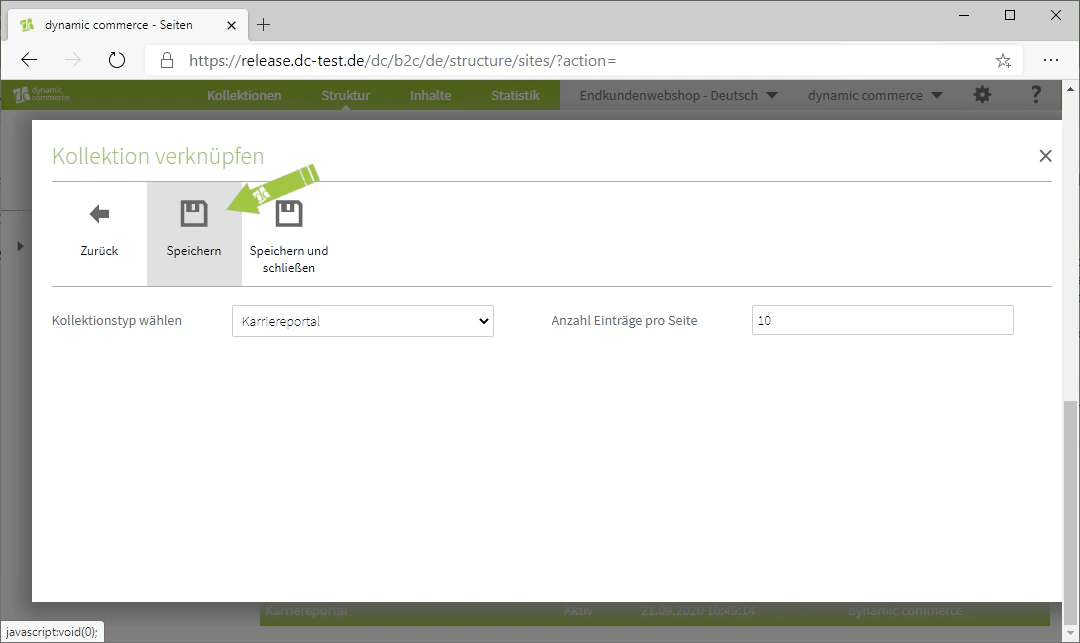
To the right of it, you can also specify how many collection entries should be displayed per page.
Further information on collection entries can be found under [Create Collection Entries](/docs/en/dynamic-content/user-guide/kollektionseintraege-erstellen).
Finally, save the link.
The collection will then already be displayed on the page. You can also maintain additional content on this page. We explain how to maintain content here.
 ## Related Topics
Create a new collection with fields and groups.
Create individual entries for a collection.
Create a new page to which a collection can be linked.
Create and edit content for a page.
## Related Topics
Create a new collection with fields and groups.
Create individual entries for a collection.
Create a new page to which a collection can be linked.
Create and edit content for a page.