> ## Documentation Index
> Fetch the complete documentation index at: https://docs.dc.ag/llms.txt
> Use this file to discover all available pages before exploring further.

# dynamic content - Creating Collections

> How to create a new collection with fields and groups in the CMS.

Collections are one of the most powerful tools in our CMS. They allow you to create a template of content modules that remains consistent for each of the associated entries.

There is also the option to have a detail page automatically generated for each of these entries, which can be accessed by clicking on an entry in the overview.

Typical examples of collections are job listing pages, blog entries, glossaries, and news entries.

<Steps>
  <Step>
    ## Step 1: Navigate to the Collections Menu

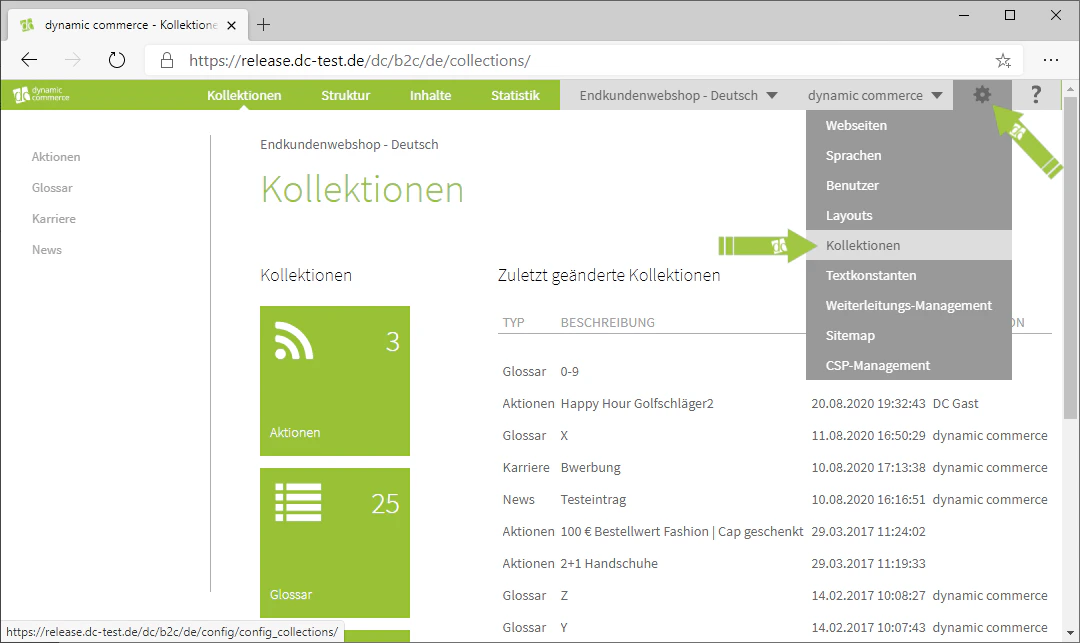
    First, navigate to the Collections menu. You can find it by hovering over the gear icon in the top right corner and clicking on "Collections" in the drop-down menu.
    <Frame>
      <img src="https://mintcdn.com/dcag/nFuK0eL_GOzpIxeu/images/dynamic-content/kollektionen-erstellen/navigation-kollektionen-menue.png?fit=max&auto=format&n=nFuK0eL_GOzpIxeu&q=85&s=f9bbcd9be85b7b6af93a1fa2cdc1f2b0" alt="Navigation to the Collections menu via the gear icon" width="1080" height="643" data-path="images/dynamic-content/kollektionen-erstellen/navigation-kollektionen-menue.png" />
    </Frame>
  </Step>

  <Step>
    ## Step 2: Create a New Collection

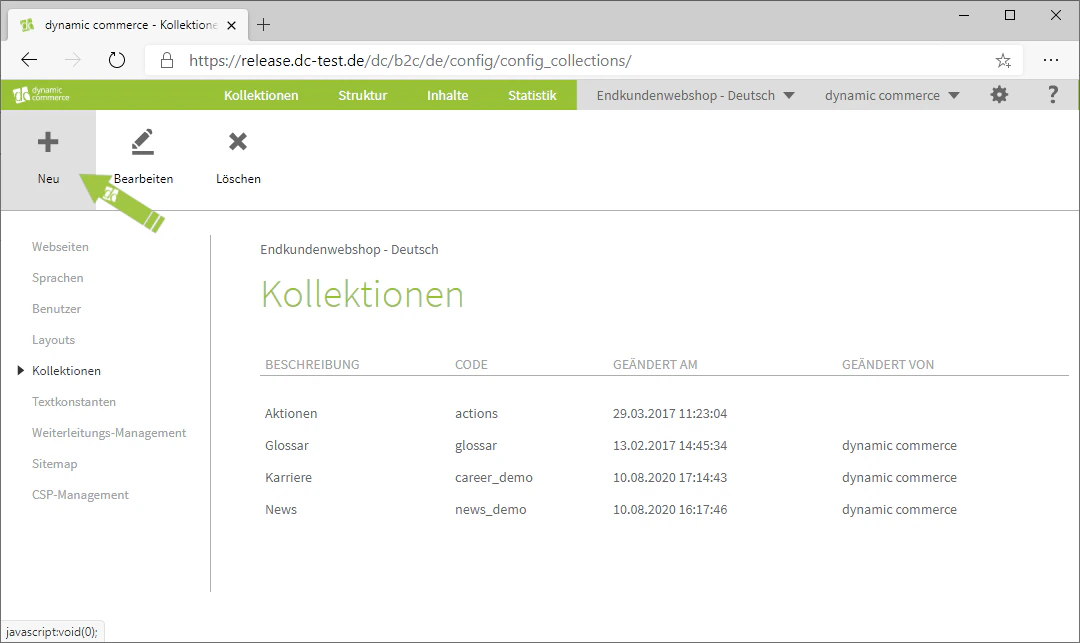
    There you can begin creating a new collection. Do this by clicking on the "Plus" icon with the label "New" below it.
    <Frame>
      <img src="https://mintcdn.com/dcag/nFuK0eL_GOzpIxeu/images/dynamic-content/kollektionen-erstellen/neue-kollektion.png?fit=max&auto=format&n=nFuK0eL_GOzpIxeu&q=85&s=45235591a0ee77f1844dc29f2308b924" alt="Create a new collection using the plus icon" width="1080" height="643" data-path="images/dynamic-content/kollektionen-erstellen/neue-kollektion.png" />
    </Frame>
  </Step>

  <Step>
    ## Step 3: Choose a Collection Code and Description

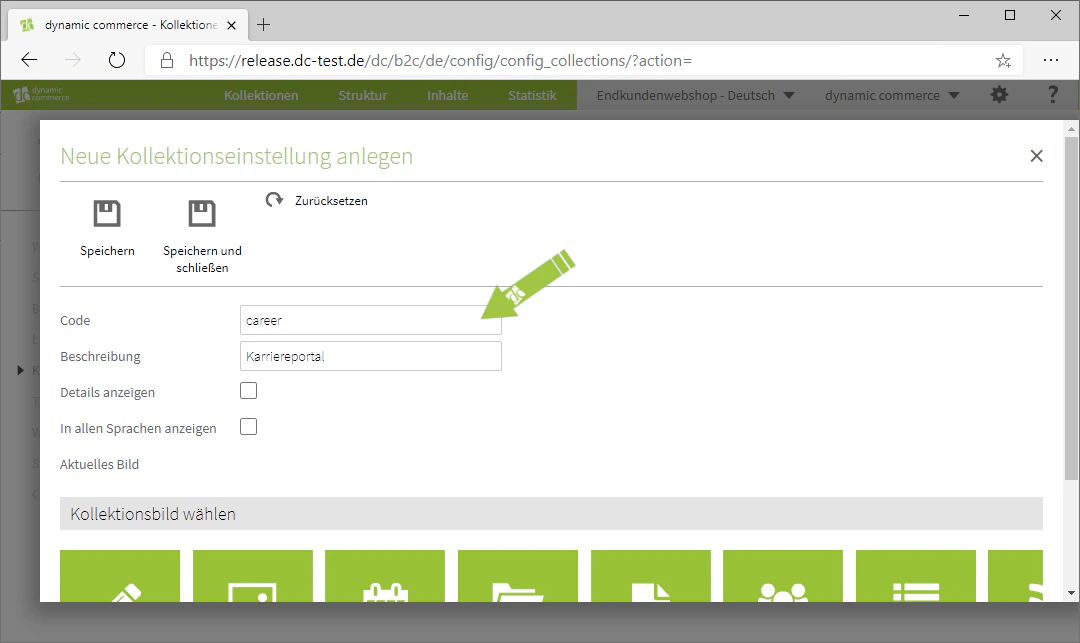
    Now choose the collection code and description. You can freely choose both the code and the description — they serve only to help with clarity and organisation.

    <Warning>
      Please note that the Code field must not contain any spaces, umlauts, or special characters.
    </Warning>

    <Frame>
      <img src="https://mintcdn.com/dcag/nFuK0eL_GOzpIxeu/images/dynamic-content/kollektionen-erstellen/code-und-beschreibung.png?fit=max&auto=format&n=nFuK0eL_GOzpIxeu&q=85&s=ed8f1e71435c2ec70d7bcaac569f74c2" alt="Enter the collection code and description" width="1080" height="643" data-path="images/dynamic-content/kollektionen-erstellen/code-und-beschreibung.png" />
    </Frame>
  </Step>

  <Step>
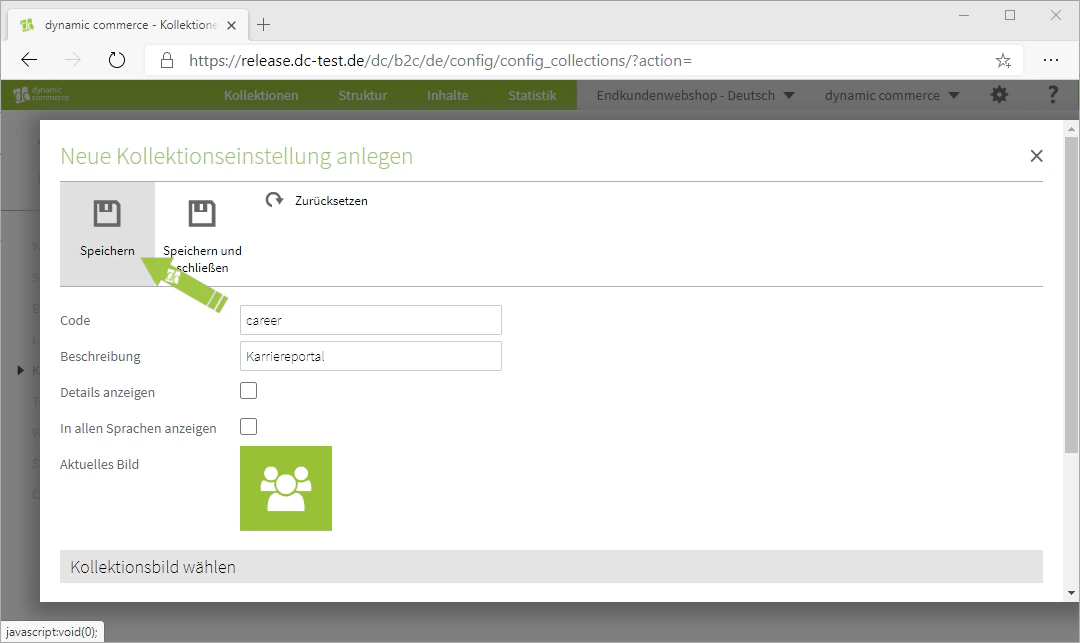
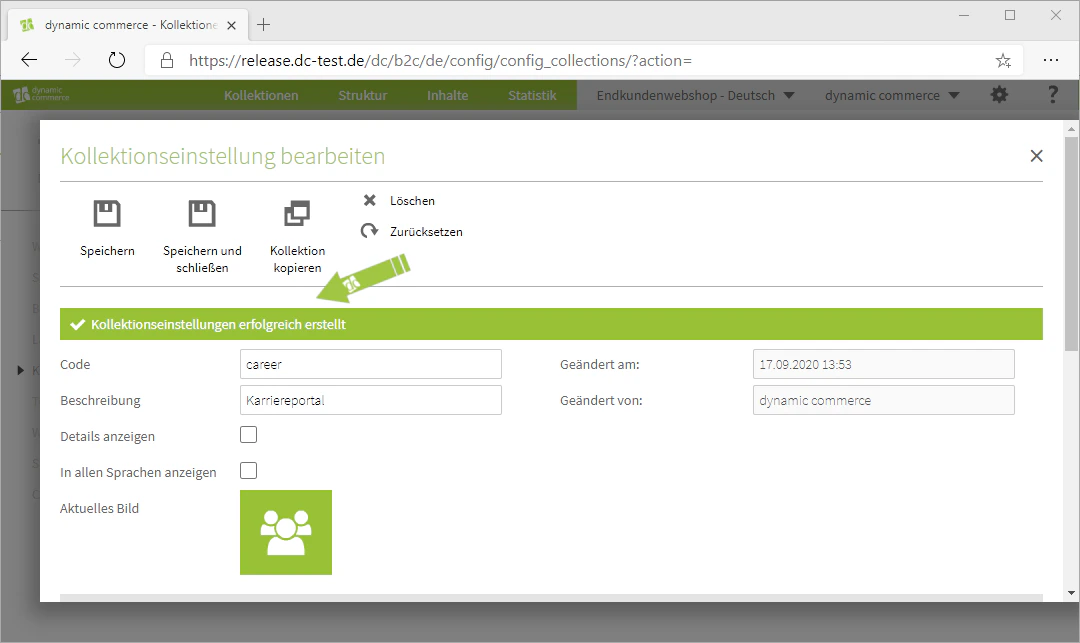
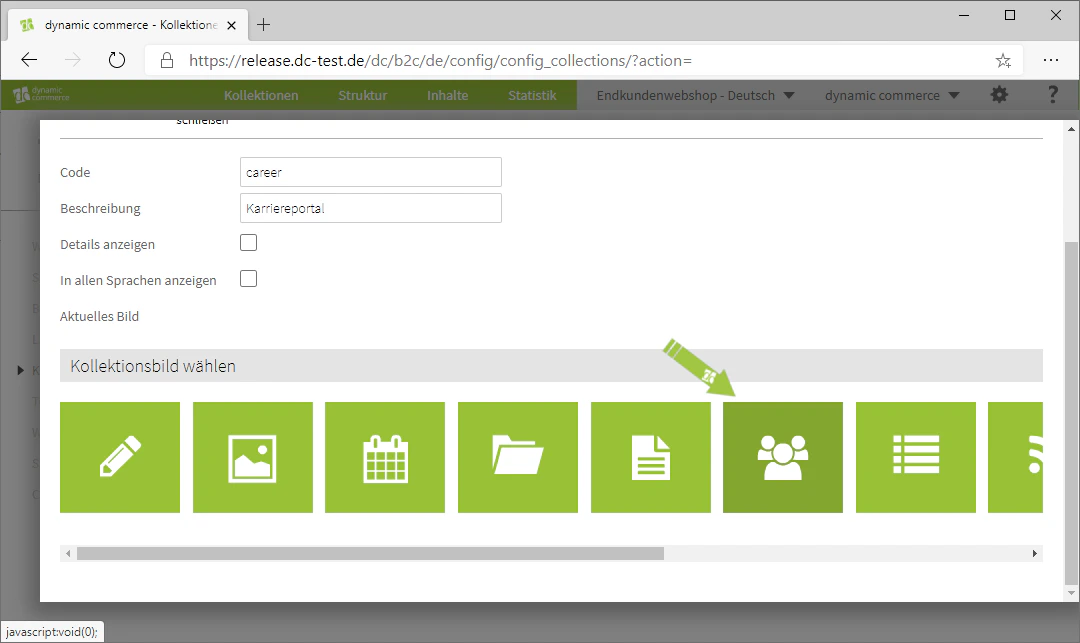
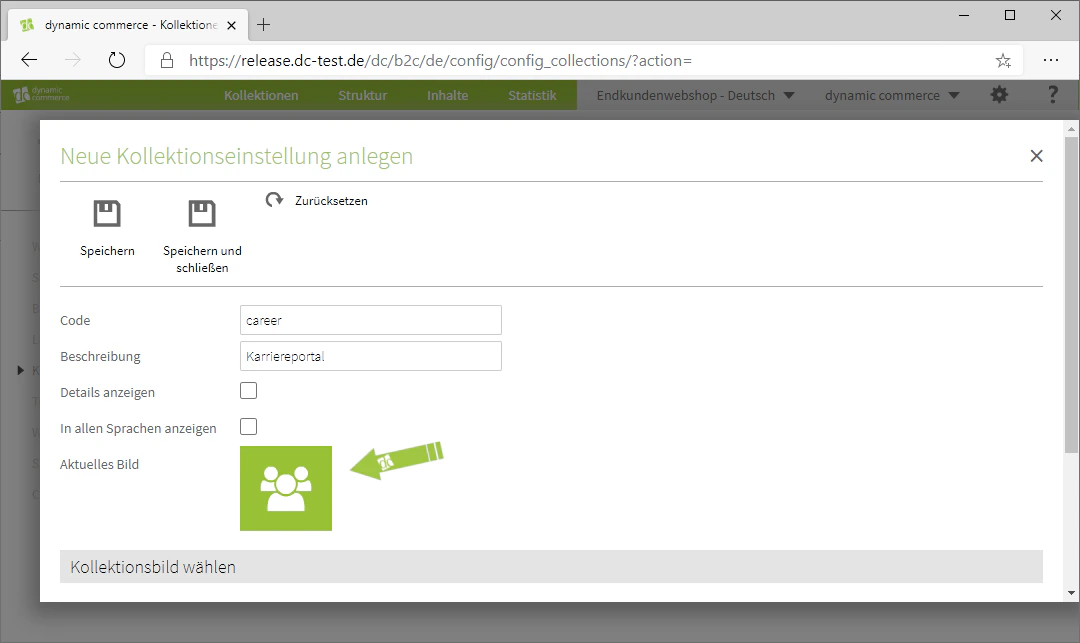
    ## Step 4: Choose a Collection Image and Save

    Next, you need to select a collection image. This also serves purely for organisational purposes and will not be displayed in your web shop.
    <Columns cols={2}>
      <Column>
        <Frame>
          <img src="https://mintcdn.com/dcag/nFuK0eL_GOzpIxeu/images/dynamic-content/kollektionen-erstellen/kollektionsbild.png?fit=max&auto=format&n=nFuK0eL_GOzpIxeu&q=85&s=98bf9cfc4418c7f84d5ed292defe5218" alt="Choose a collection image" width="1080" height="643" data-path="images/dynamic-content/kollektionen-erstellen/kollektionsbild.png" />
        </Frame>
      </Column>

      <Column>
        <Frame>
          <img src="https://mintcdn.com/dcag/nFuK0eL_GOzpIxeu/images/dynamic-content/kollektionen-erstellen/aktuelles-bild.png?fit=max&auto=format&n=nFuK0eL_GOzpIxeu&q=85&s=e8414d573bef1dccf4f6cf94b6a67770" alt="Current collection image" width="1080" height="643" data-path="images/dynamic-content/kollektionen-erstellen/aktuelles-bild.png" />
        </Frame>
      </Column>
    </Columns>

    <Columns cols={2}>
      <Column>
        <Frame>
          <img src="https://mintcdn.com/dcag/nFuK0eL_GOzpIxeu/images/dynamic-content/kollektionen-erstellen/speichern-1.png?fit=max&auto=format&n=nFuK0eL_GOzpIxeu&q=85&s=f4324763807c106036a9c4a715d1e5e4" alt="Save collection step 1" width="1080" height="643" data-path="images/dynamic-content/kollektionen-erstellen/speichern-1.png" />
        </Frame>
      </Column>

      <Column>
        <Frame>
          <img src="https://mintcdn.com/dcag/nFuK0eL_GOzpIxeu/images/dynamic-content/kollektionen-erstellen/speichern-2.png?fit=max&auto=format&n=nFuK0eL_GOzpIxeu&q=85&s=9bf8cf2759e0a37366f19007273d1710" alt="Save collection step 2" width="1080" height="643" data-path="images/dynamic-content/kollektionen-erstellen/speichern-2.png" />
        </Frame>
      </Column>
    </Columns>
  </Step>

  <Step>
    ## Step 5: Set Up the Detail View

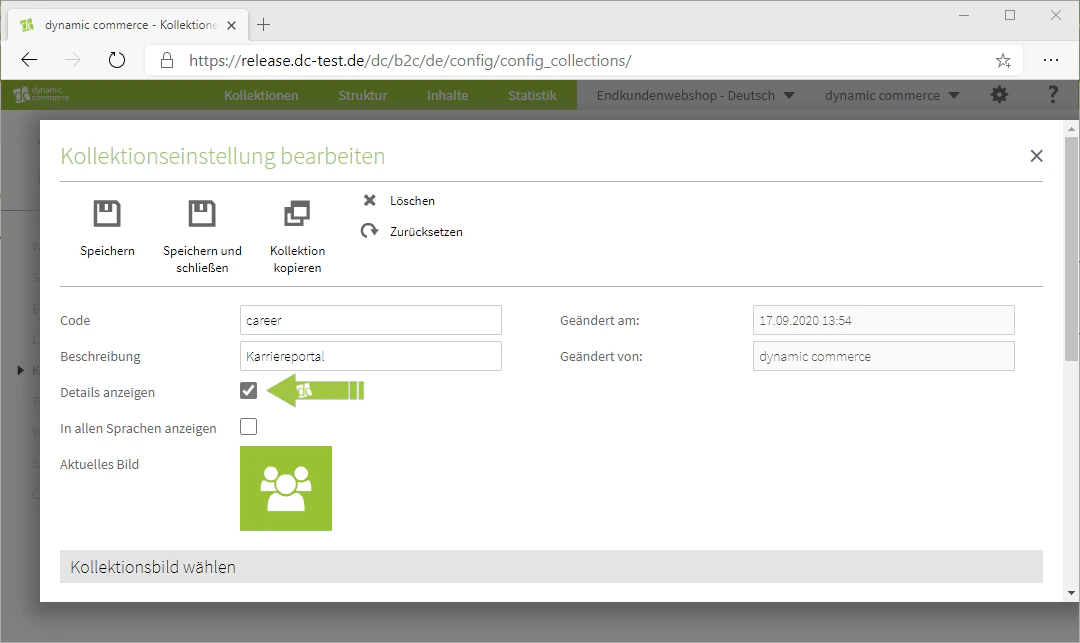
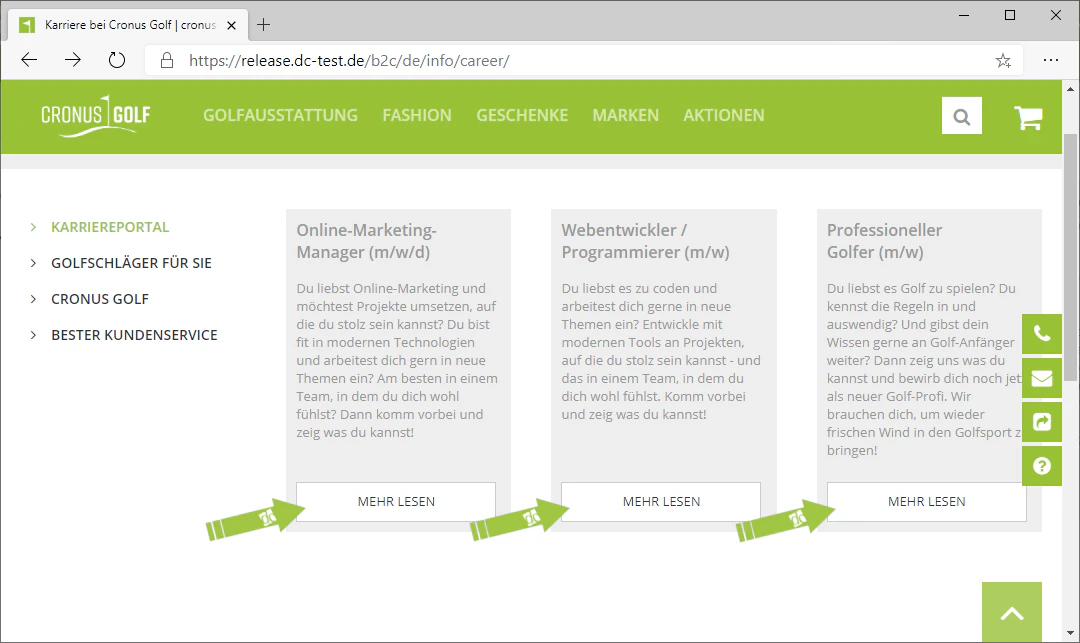
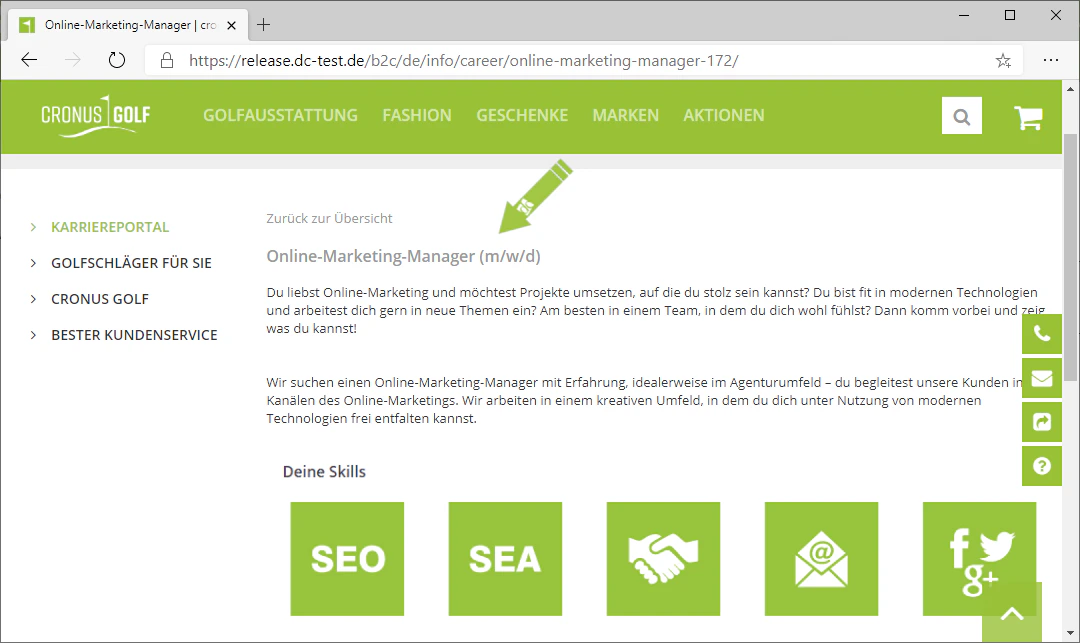
    You now have the option to enable a detail view for your collection.

    This will display a "Read more" field below the collection fields, which we will create in the next step. If you would like such a detail view, check the box next to "Show details".
    <Columns cols={3}>
      <Column>
        <Frame>
          <img src="https://mintcdn.com/dcag/nFuK0eL_GOzpIxeu/images/dynamic-content/kollektionen-erstellen/detailansicht-beispiel-1.png?fit=max&auto=format&n=nFuK0eL_GOzpIxeu&q=85&s=5266a3c5268426bea037b5162a04e7f6" alt="Detail view example 1" width="1080" height="643" data-path="images/dynamic-content/kollektionen-erstellen/detailansicht-beispiel-1.png" />
        </Frame>
      </Column>

      <Column>
        <Frame>
          <img src="https://mintcdn.com/dcag/nFuK0eL_GOzpIxeu/images/dynamic-content/kollektionen-erstellen/detailansicht-beispiel-2.png?fit=max&auto=format&n=nFuK0eL_GOzpIxeu&q=85&s=d341feb0bdf0262f0c65c104c18b06fc" alt="Detail view example 2" width="1080" height="643" data-path="images/dynamic-content/kollektionen-erstellen/detailansicht-beispiel-2.png" />
        </Frame>
      </Column>

      <Column>
        <Frame>
          <img src="https://mintcdn.com/dcag/nFuK0eL_GOzpIxeu/images/dynamic-content/kollektionen-erstellen/details-anzeigen.png?fit=max&auto=format&n=nFuK0eL_GOzpIxeu&q=85&s=074d7e721318f79e0bd4aefd7fa3f4fc" alt="Check the Show details checkbox" width="1080" height="643" data-path="images/dynamic-content/kollektionen-erstellen/details-anzeigen.png" />
        </Frame>
      </Column>
    </Columns>
  </Step>

  <Step>
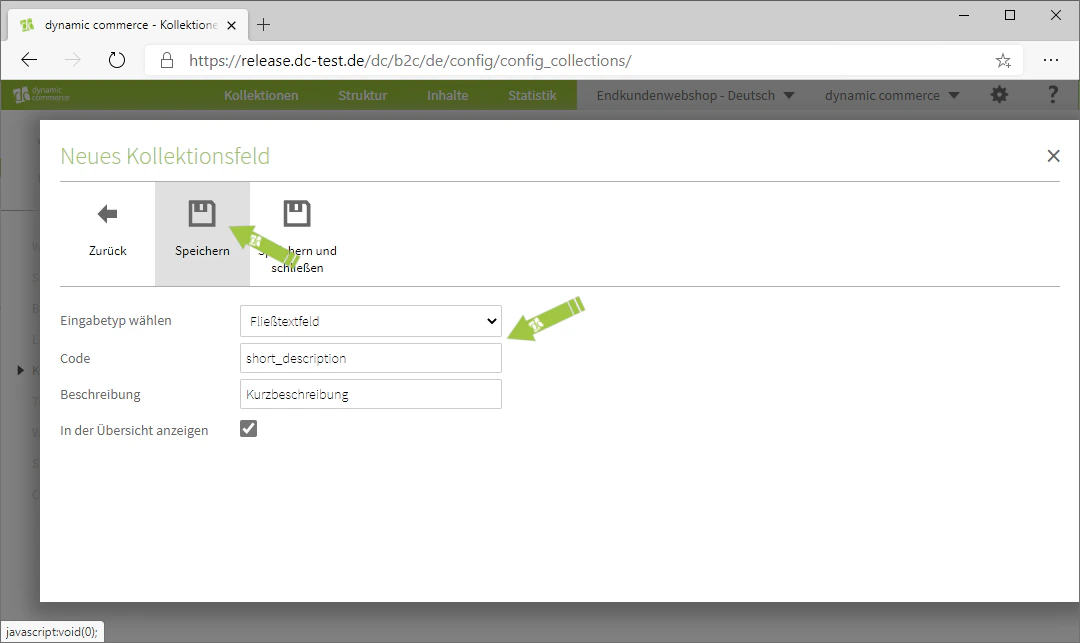
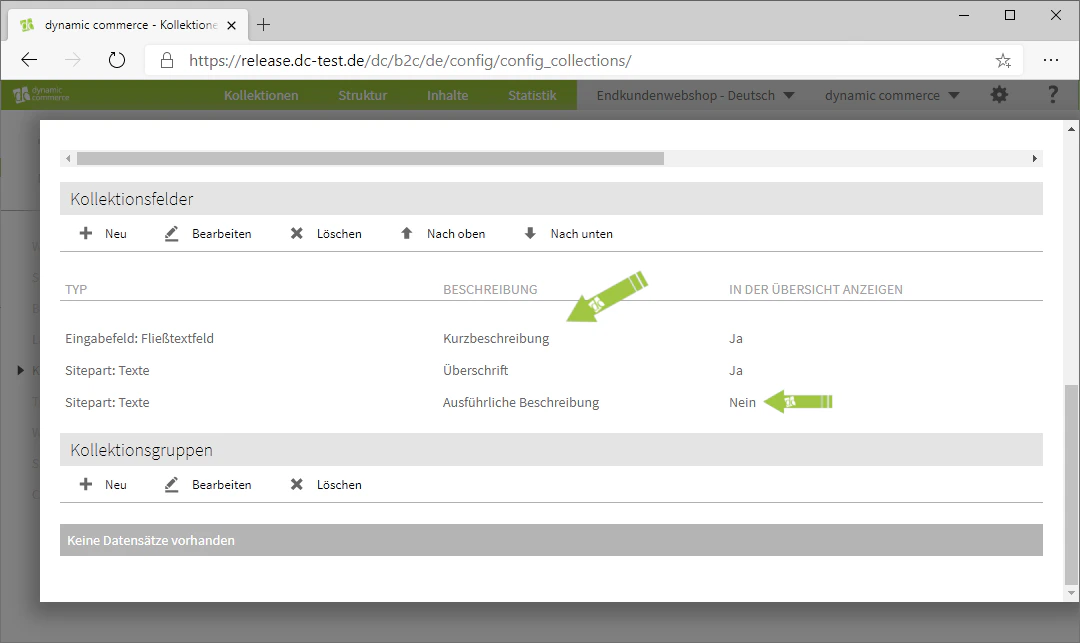
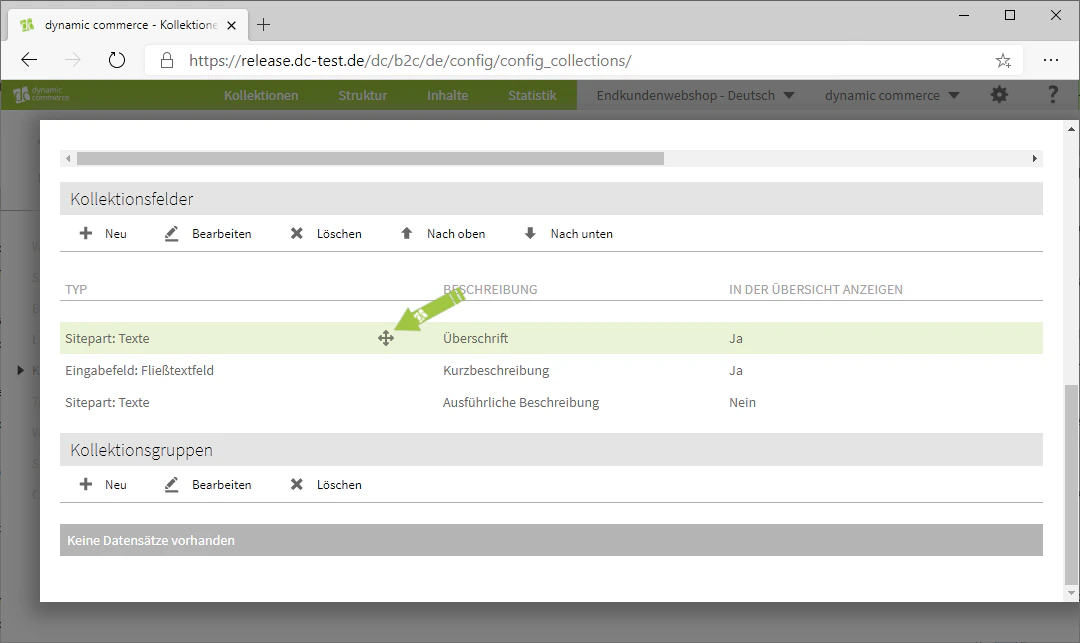
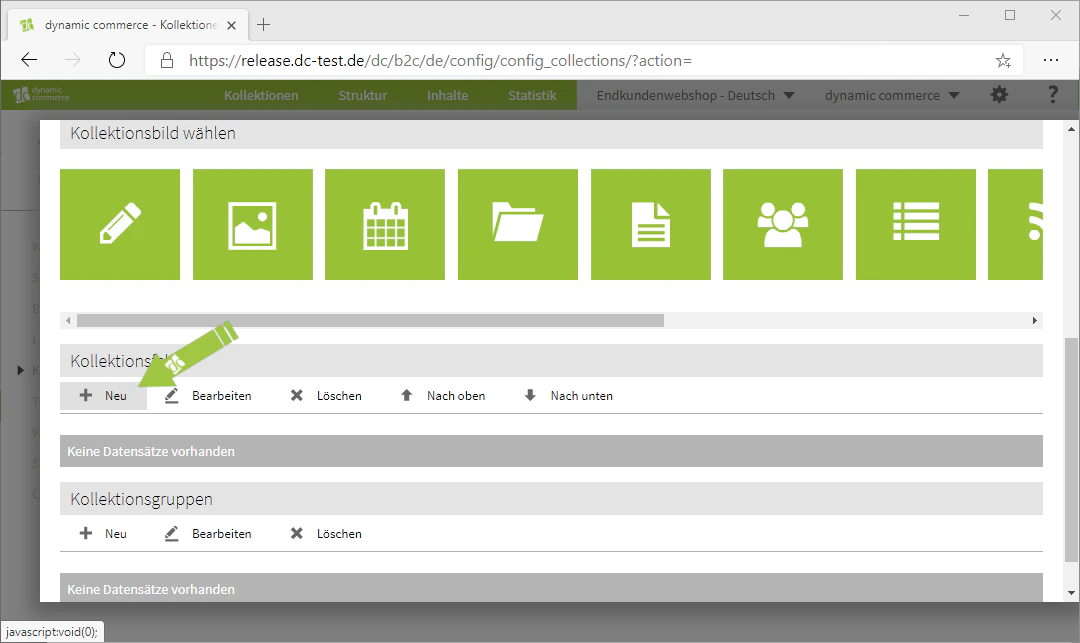
    ## Step 6: Create Collection Fields

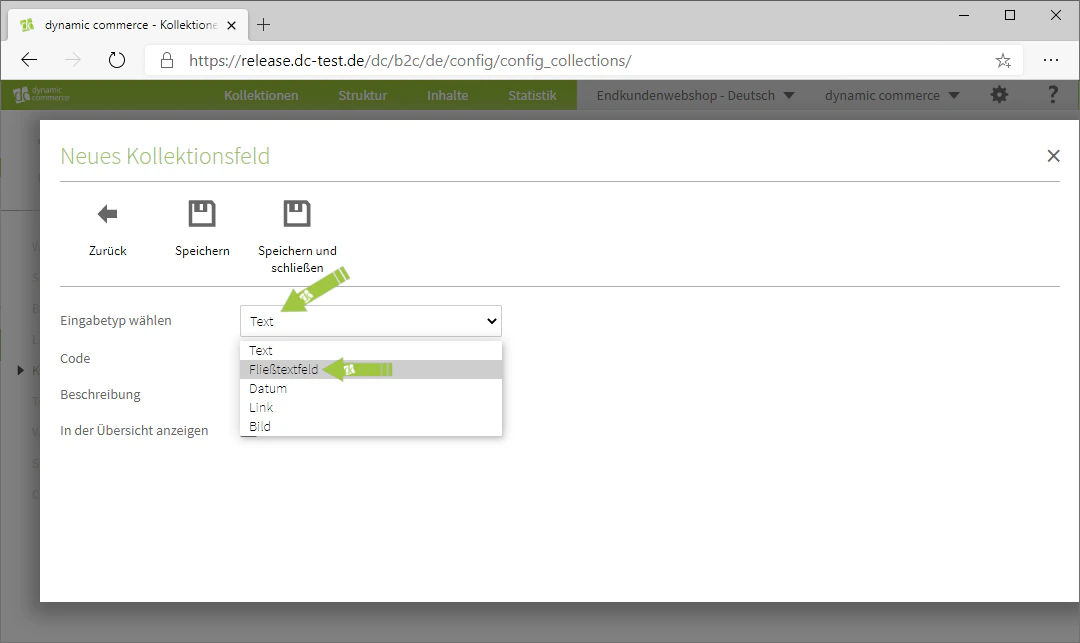
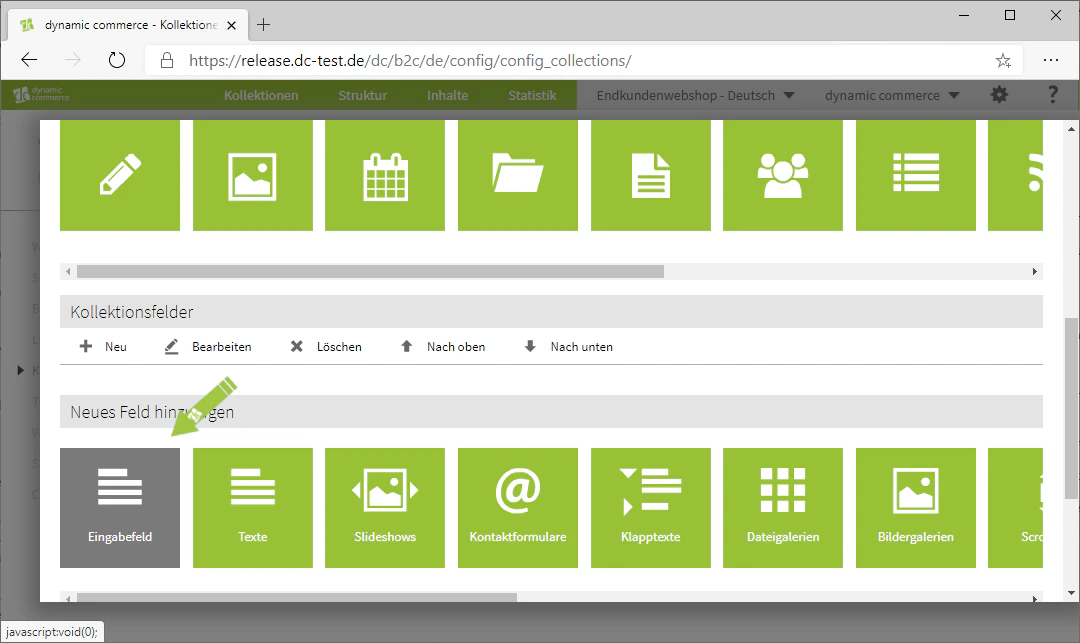
    Collection fields are the fields in which you will later maintain the content of the individual collection entries.

    Using the "Input field" module, you can create simple fields for maintaining texts, images, links, and data.
    <Columns cols={3}>
      <Column>
        <Frame>
          <img src="https://mintcdn.com/dcag/nFuK0eL_GOzpIxeu/images/dynamic-content/kollektionen-erstellen/neues-kollektionsfeld.png?fit=max&auto=format&n=nFuK0eL_GOzpIxeu&q=85&s=80305816e9ac47711b632f446a1ace8a" alt="Create a new collection field" width="1080" height="643" data-path="images/dynamic-content/kollektionen-erstellen/neues-kollektionsfeld.png" />
        </Frame>
      </Column>

      <Column>
        <Frame>
          <img src="https://mintcdn.com/dcag/nFuK0eL_GOzpIxeu/images/dynamic-content/kollektionen-erstellen/eingabefeld.png?fit=max&auto=format&n=nFuK0eL_GOzpIxeu&q=85&s=a6a2b5d5697a7206a9ebe5425c360bfb" alt="Select the Input field module" width="1080" height="643" data-path="images/dynamic-content/kollektionen-erstellen/eingabefeld.png" />
        </Frame>
      </Column>

      <Column>
        <Frame>
          <img src="https://mintcdn.com/dcag/nFuK0eL_GOzpIxeu/images/dynamic-content/kollektionen-erstellen/eingabetyp.png?fit=max&auto=format&n=nFuK0eL_GOzpIxeu&q=85&s=7dc7cf617f897d9de0148822ed827667" alt="Define the input type" width="1080" height="643" data-path="images/dynamic-content/kollektionen-erstellen/eingabetyp.png" />
        </Frame>
      </Column>
    </Columns>

    <Columns cols={3}>
      <Column>
        <Frame>
          <img src="https://mintcdn.com/dcag/nFuK0eL_GOzpIxeu/images/dynamic-content/kollektionen-erstellen/code-beschreibung-speichern.png?fit=max&auto=format&n=nFuK0eL_GOzpIxeu&q=85&s=d4c9d30ec01f694adf5484faa2d4d410" alt="Code, description and save" width="1080" height="643" data-path="images/dynamic-content/kollektionen-erstellen/code-beschreibung-speichern.png" />
        </Frame>
      </Column>

      <Column>
        <Frame>
          <img src="https://mintcdn.com/dcag/nFuK0eL_GOzpIxeu/images/dynamic-content/kollektionen-erstellen/uebersicht-1.png?fit=max&auto=format&n=nFuK0eL_GOzpIxeu&q=85&s=cf2ef179a1956f2cd868dcafa7aa61f1" alt="Collection fields overview 1" width="1080" height="643" data-path="images/dynamic-content/kollektionen-erstellen/uebersicht-1.png" />
        </Frame>
      </Column>

      <Column>
        <Frame>
          <img src="https://mintcdn.com/dcag/nFuK0eL_GOzpIxeu/images/dynamic-content/kollektionen-erstellen/uebersicht-2.png?fit=max&auto=format&n=nFuK0eL_GOzpIxeu&q=85&s=53d2b578f39b1754ee01061a5edf79e4" alt="Collection fields overview 2" width="1080" height="643" data-path="images/dynamic-content/kollektionen-erstellen/uebersicht-2.png" />
        </Frame>
      </Column>
    </Columns>
  </Step>

  <Step>
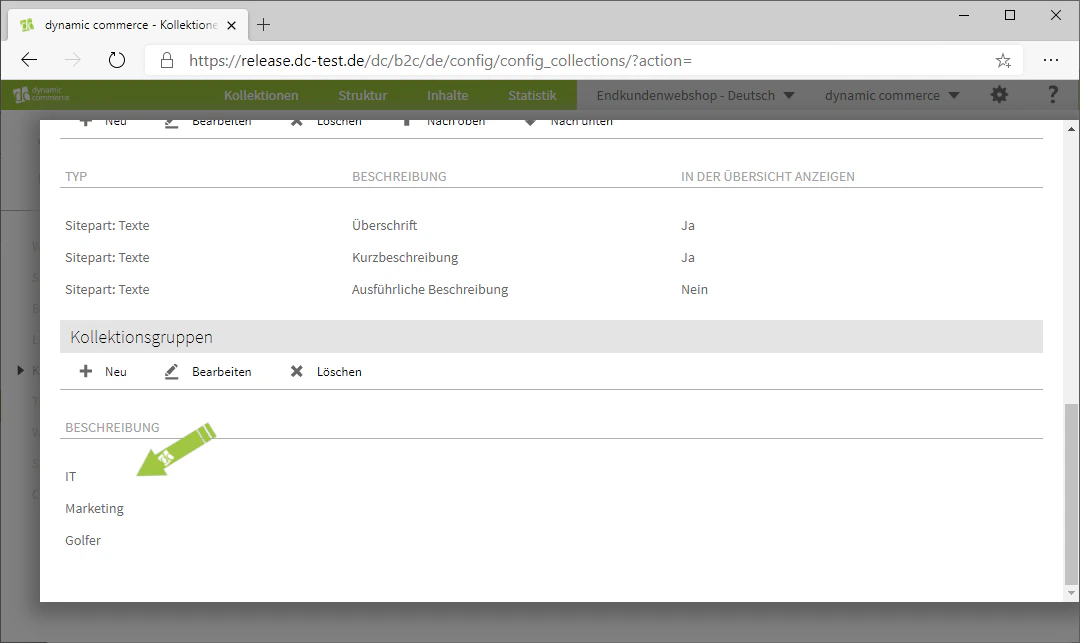
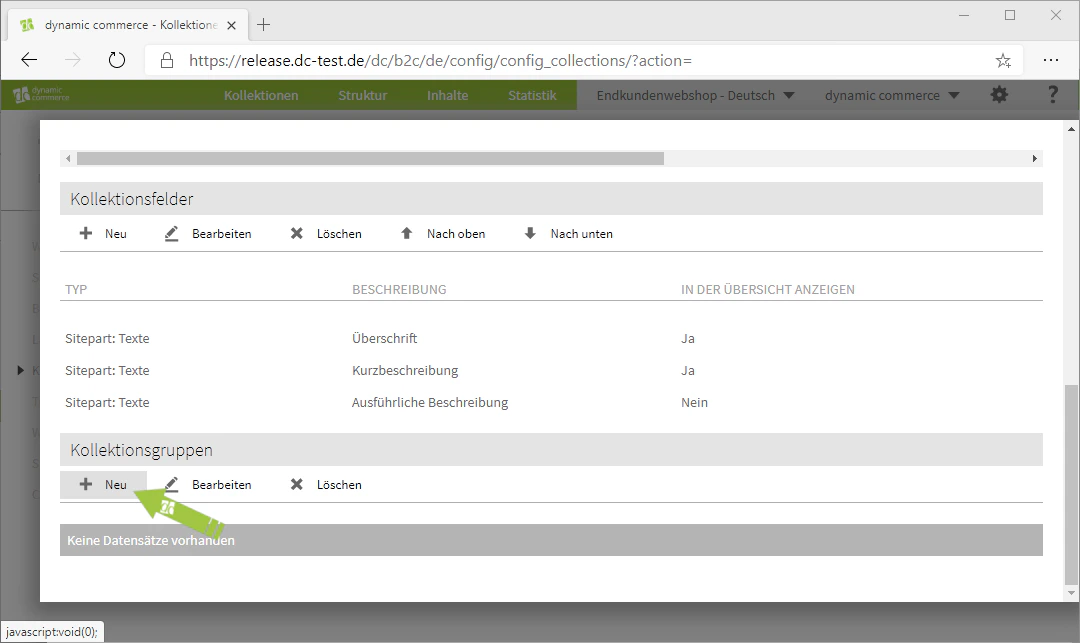
    ## Step 7: Create Collection Groups

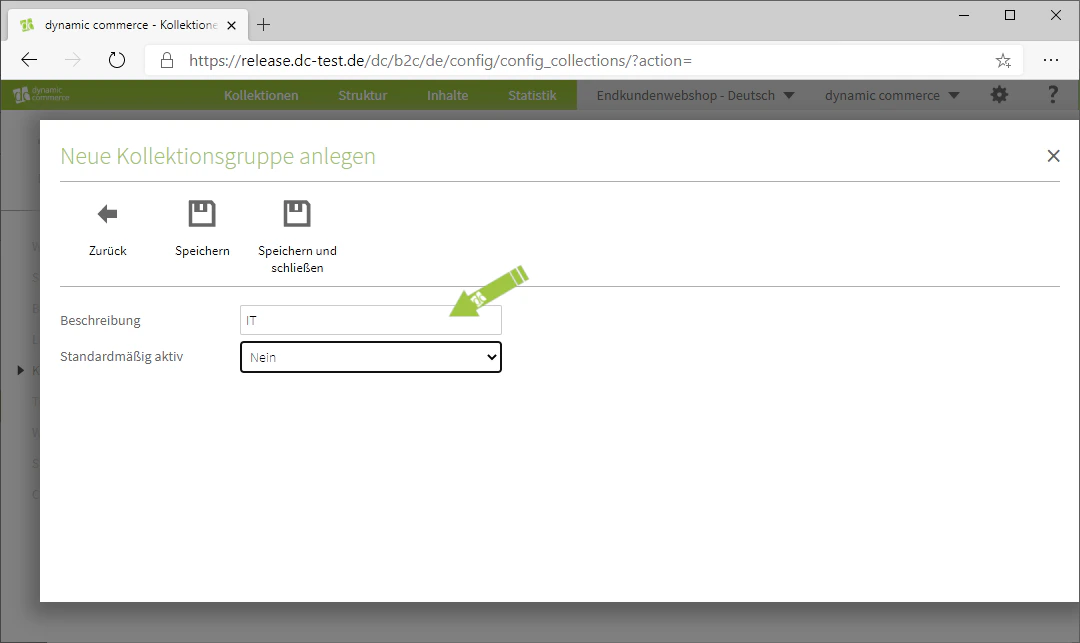
    If you plan to create a large number of entries in this collection, it is worth organising them into collection groups.

    There you can select a description and determine whether this group should be active by default when creating new entries.
    <Columns cols={3}>
      <Column>
        <Frame>
          <img src="https://mintcdn.com/dcag/nFuK0eL_GOzpIxeu/images/dynamic-content/kollektionen-erstellen/neue-kollektionsgruppe.png?fit=max&auto=format&n=nFuK0eL_GOzpIxeu&q=85&s=da8e1a89fe5ca60d147e5bf941c07ed4" alt="Create a new collection group" width="1080" height="643" data-path="images/dynamic-content/kollektionen-erstellen/neue-kollektionsgruppe.png" />
        </Frame>
      </Column>

      <Column>
        <Frame>
          <img src="https://mintcdn.com/dcag/nFuK0eL_GOzpIxeu/images/dynamic-content/kollektionen-erstellen/beschreibung-und-aktiv.png?fit=max&auto=format&n=nFuK0eL_GOzpIxeu&q=85&s=9c730f465e8008515805dc3463fc6ec4" alt="Description and active by default" width="1080" height="643" data-path="images/dynamic-content/kollektionen-erstellen/beschreibung-und-aktiv.png" />
        </Frame>
      </Column>

      <Column>
        <Frame>
          <img src="https://mintcdn.com/dcag/nFuK0eL_GOzpIxeu/images/dynamic-content/kollektionen-erstellen/gruppen-uebersicht.png?fit=max&auto=format&n=nFuK0eL_GOzpIxeu&q=85&s=1f04a84a44f9409197da70e9733c8fd2" alt="Collection groups overview" width="1080" height="643" data-path="images/dynamic-content/kollektionen-erstellen/gruppen-uebersicht.png" />
        </Frame>
      </Column>
    </Columns>
  </Step>

  <Step>
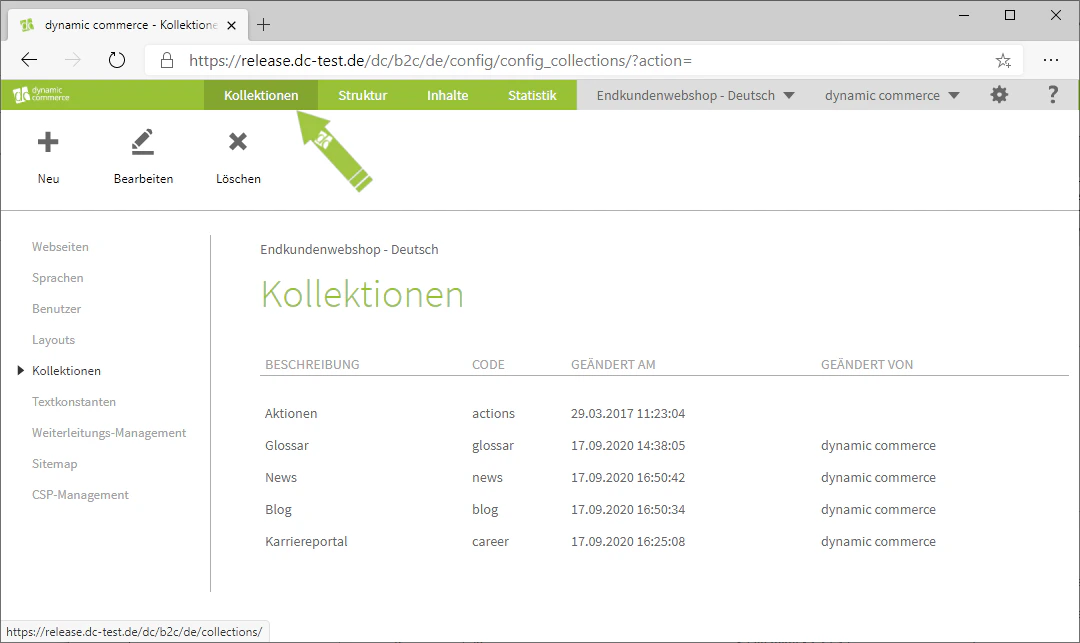
    ## Step 8: Maintain Collection Entries

    Finally, all that remains is to maintain the collection entries.
    <Columns cols={2}>
      <Column>
        <Frame>
          <img src="https://mintcdn.com/dcag/nFuK0eL_GOzpIxeu/images/dynamic-content/kollektionen-erstellen/kollektionen-tab.png?fit=max&auto=format&n=nFuK0eL_GOzpIxeu&q=85&s=d41759cc26d70d4d5f8fd2a3a15e9193" alt="Open the Collections tab" width="1080" height="643" data-path="images/dynamic-content/kollektionen-erstellen/kollektionen-tab.png" />
        </Frame>
      </Column>

      <Column>
        <Frame>
          <img src="https://mintcdn.com/dcag/nFuK0eL_GOzpIxeu/images/dynamic-content/kollektionen-erstellen/neuer-eintrag.png?fit=max&auto=format&n=nFuK0eL_GOzpIxeu&q=85&s=4ed958259f64d420ad85913e2f16975a" alt="Select a collection and create a new entry" width="1080" height="643" data-path="images/dynamic-content/kollektionen-erstellen/neuer-eintrag.png" />
        </Frame>
      </Column>
    </Columns>

    <Note>
      To learn how to create collection entries in detail, please refer to the page [Creating Collection Entries](/docs/en/dynamic-content/user-guide/kollektionseintraege-erstellen).
    </Note>
  </Step>
</Steps>

## Related Topics

<CardGroup cols={2}>
  <Card title="Creating Collection Entries" icon="square-plus" href="/docs/en/dynamic-content/user-guide/kollektionseintraege-erstellen">
    Create and maintain individual entries for a collection.
  </Card>

  <Card title="Assigning Collections to a Page" icon="link" href="/docs/en/dynamic-content/user-guide/kollektionen-zuweisen">
    Link a collection to a page so that it appears in the web shop.
  </Card>

  <Card title="Content Types" icon="shapes" href="/docs/en/dynamic-content/user-guide/inhaltsarten">
    Configure content types used in collection fields.
  </Card>

  <Card title="Creating Content" icon="pen-to-square" href="/docs/en/dynamic-content/user-guide/inhalte-erstellen">
    Create and edit the content of a page.
  </Card>
</CardGroup>