> ## Documentation Index
> Fetch the complete documentation index at: https://docs.dc.ag/llms.txt
> Use this file to discover all available pages before exploring further.
# dynamic content - Display YouTube Content
> Embed and display YouTube videos directly on your pages.
Our CMS also gives you the option to embed YouTube content on your pages. This displays the respective videos directly on the selected page rather than merely linking to them.
This guide is part of the [Content Types](/docs/en/dynamic-content/user-guide/inhaltsarten). We show you how to create content in general under [Create and Edit Content](/docs/en/dynamic-content/user-guide/inhalte-erstellen).
The prerequisite is that you have created a page on which the content is to be displayed, and that you are already in the content creation window. In addition, the display of external content must be enabled in the CSP management.
## Step 1: Select the Content Type
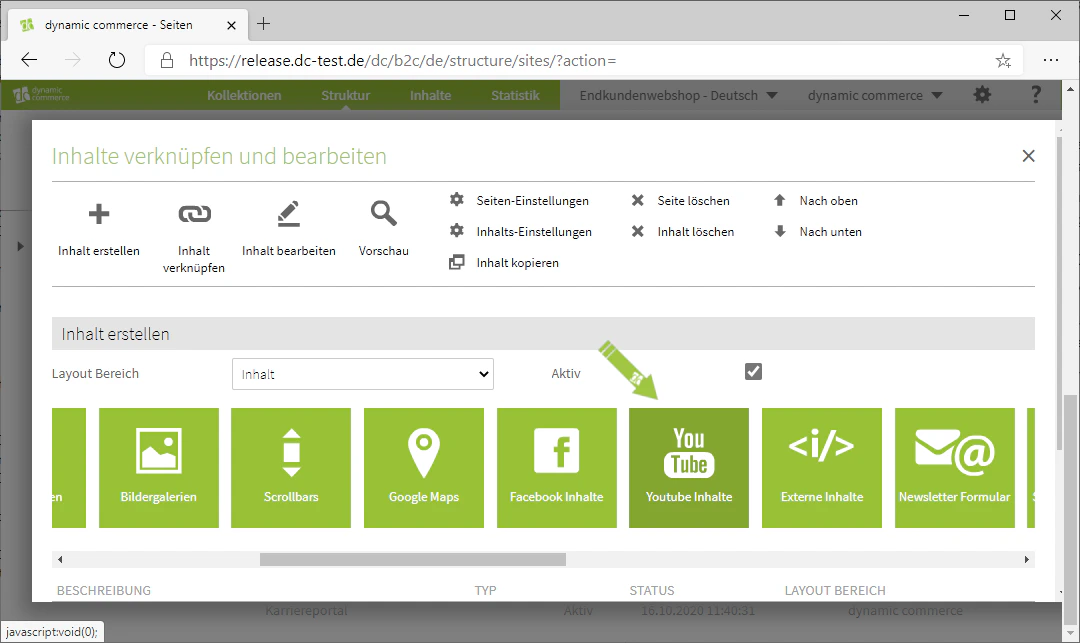
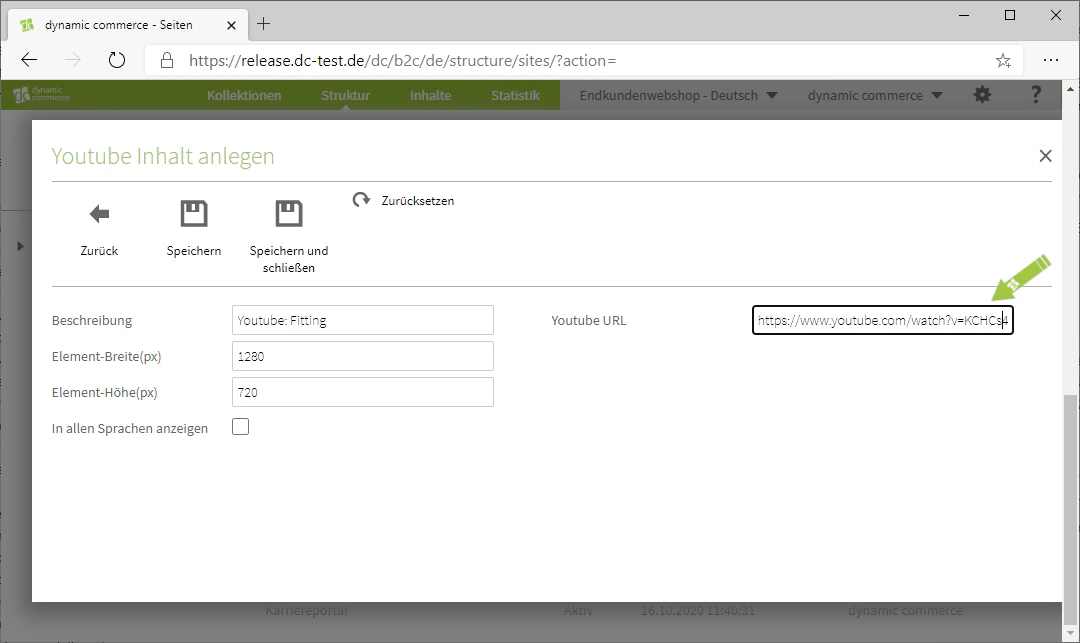
When creating new content, select the "Youtube Inhalte" module. A dialog with the title "Youtube Inhalt anlegen" will open, in which you can configure all settings and enter the URL of the video.
 ## Step 2: Choose a Description
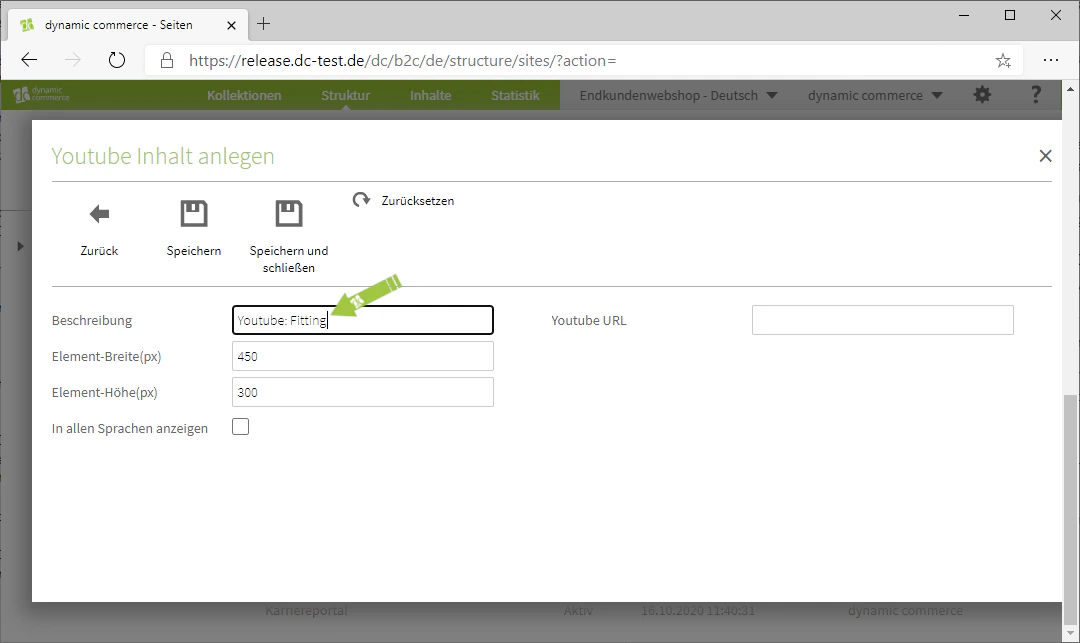
Here you can define a description. This is for organisational purposes only and will not be displayed on the selected page.
## Step 2: Choose a Description
Here you can define a description. This is for organisational purposes only and will not be displayed on the selected page.
 ## Step 3: Choose Height and Width
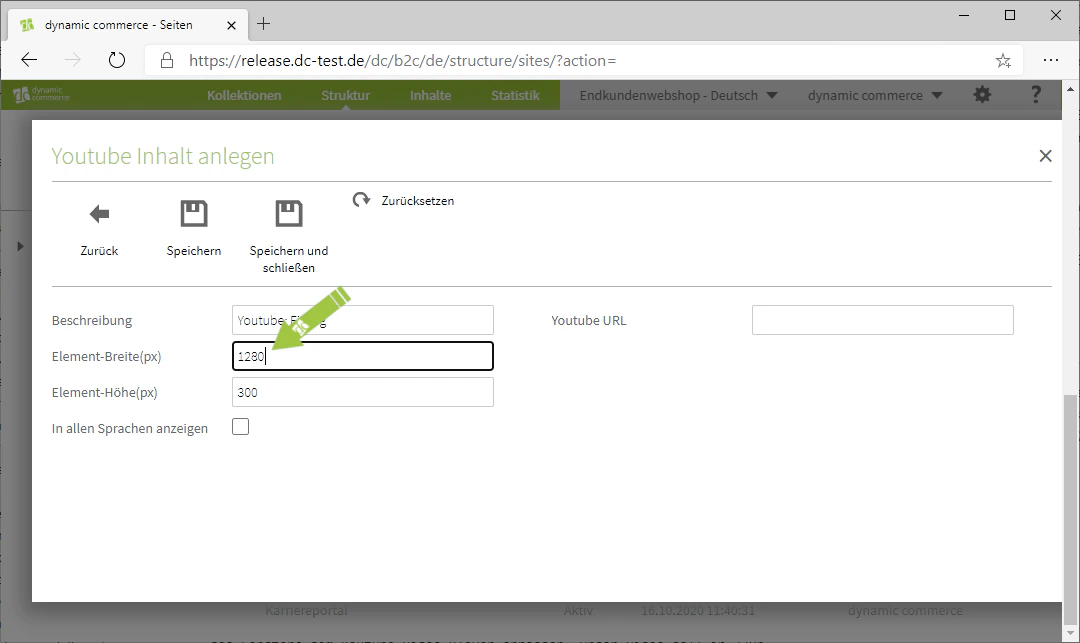
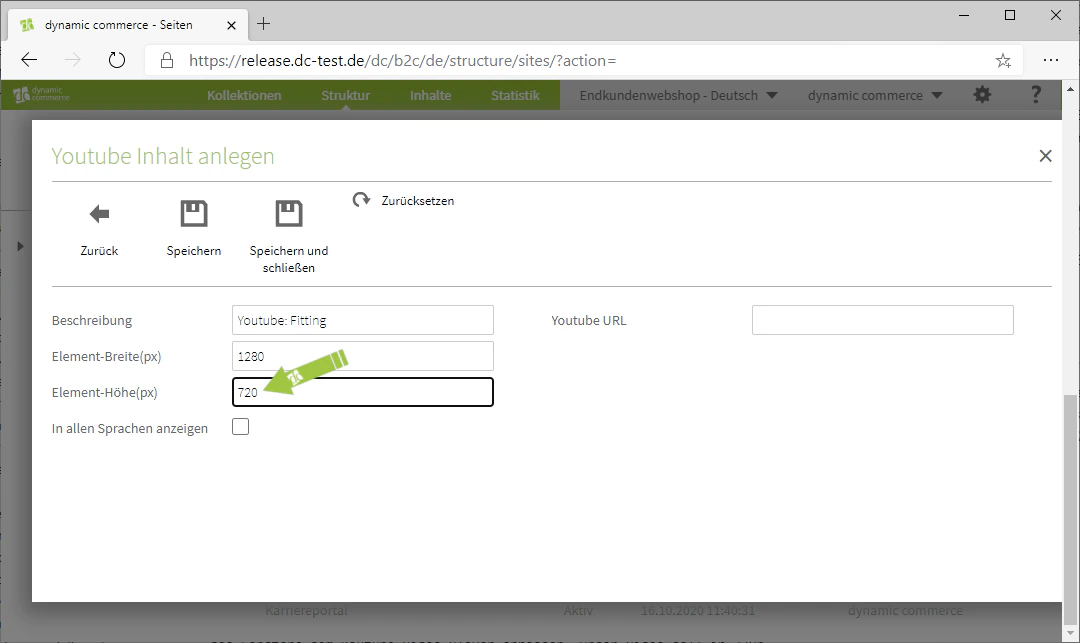
Next, specify the height and width in pixels. These values determine the size of the embedded video player on the page. In our example, we use a width of 1280 pixels and a height of 720 pixels, which corresponds to 720p playback.
## Step 3: Choose Height and Width
Next, specify the height and width in pixels. These values determine the size of the embedded video player on the page. In our example, we use a width of 1280 pixels and a height of 720 pixels, which corresponds to 720p playback.
 ## Step 4: Insert the YouTube URL
Finally, enter the URL of the YouTube video you wish to embed. Please note that this module can only display YouTube videos.
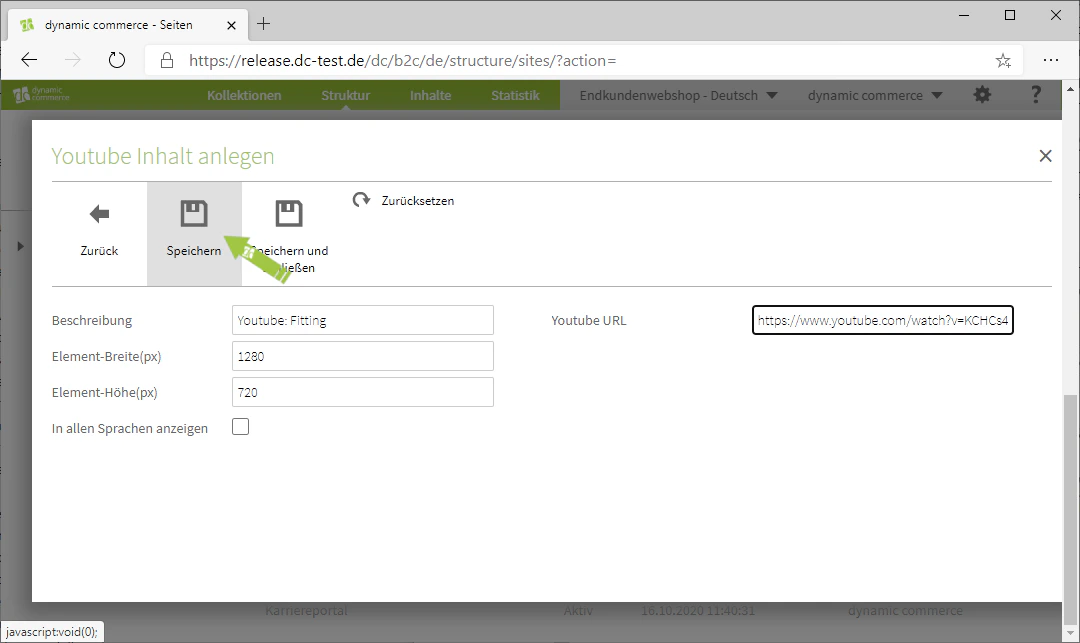
Save your settings to complete the YouTube content and publish it on the page.
## Step 4: Insert the YouTube URL
Finally, enter the URL of the YouTube video you wish to embed. Please note that this module can only display YouTube videos.
Save your settings to complete the YouTube content and publish it on the page.
 ## Related Topics
Overview of all available modules.
Create content on pages.
Embed any external content via a URL.
Embed Facebook content directly on the page.
## Related Topics
Overview of all available modules.
Create content on pages.
Embed any external content via a URL.
Embed Facebook content directly on the page.