> ## Documentation Index
> Fetch the complete documentation index at: https://docs.dc.ag/llms.txt
> Use this file to discover all available pages before exploring further.

# dynamic content - Create Texts

> Create text content with formatting, tables, images, anchors, and links using the integrated editor.

In the following, we show you how to create a text content item. This is the most fundamental module of our content creation. With it, you can manage everything from simple body text and bullet lists to tables and images.

<Note>
  This guide is part of the [Content Types](/docs/en/dynamic-content/user-guide/inhaltsarten). We show you how to create content in general under [Create and Edit Content](/docs/en/dynamic-content/user-guide/inhalte-erstellen).
</Note>

<Steps>
  <Step>
    ## Step 1: Select the Content Type

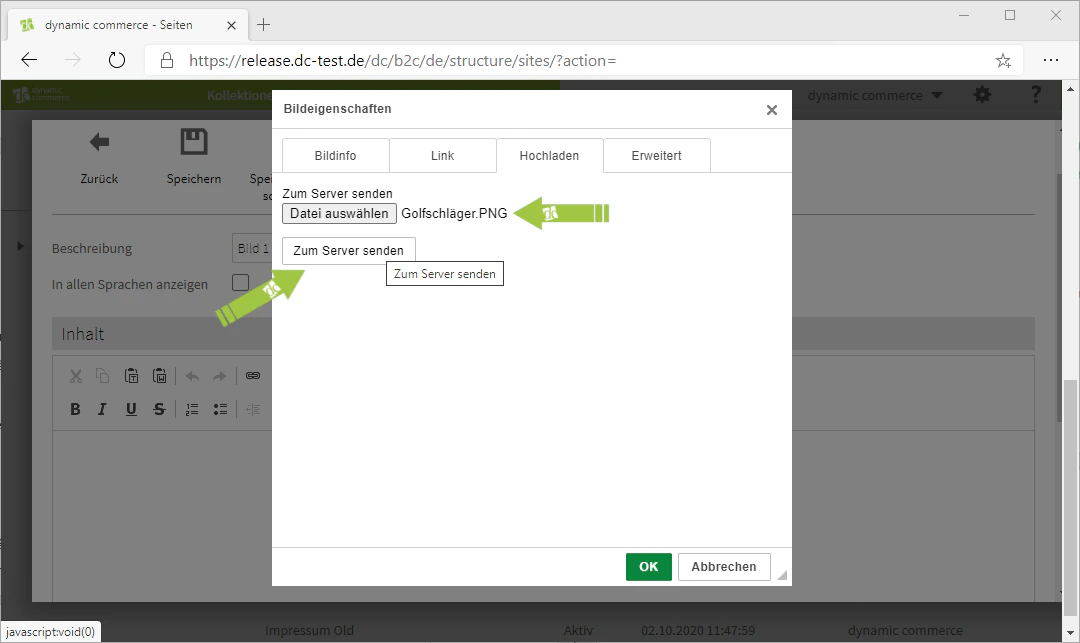
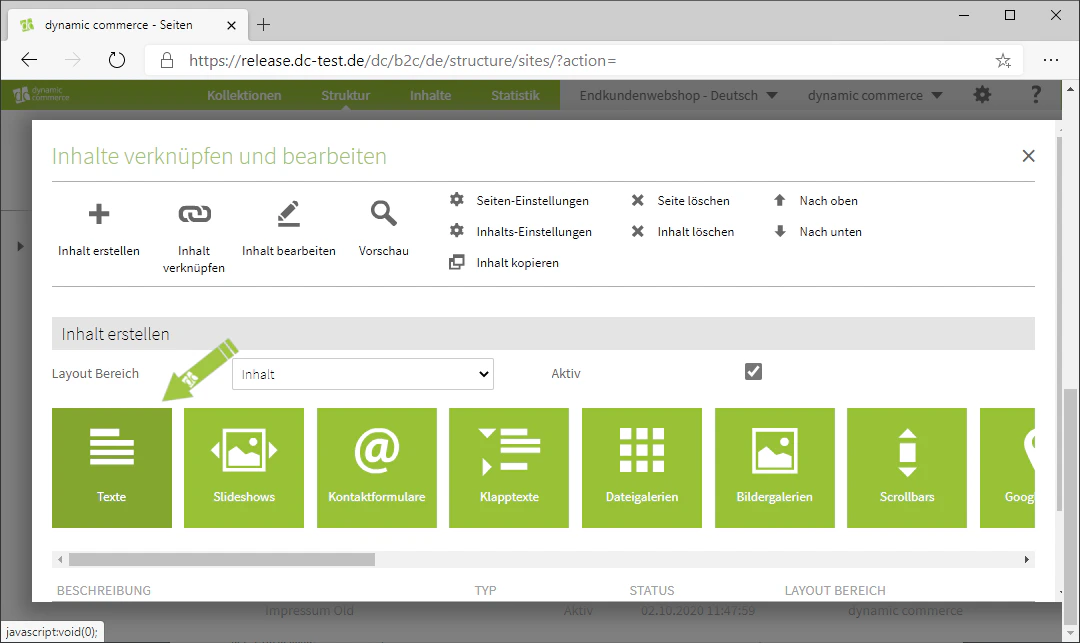
    First, select the content type "Texts" when creating a content item. A window with the heading "New Text Content" should open, where you can configure the settings and manage your text.
    <Frame>
      <img src="https://mintcdn.com/dcag/nFuK0eL_GOzpIxeu/images/dynamic-content/inhaltsarten/texte/inhaltsart-texte.png?fit=max&auto=format&n=nFuK0eL_GOzpIxeu&q=85&s=0d7e29e38bf41270e37e4fe99b5a438f" alt="Selecting the content type Texts" width="1080" height="643" data-path="images/dynamic-content/inhaltsarten/texte/inhaltsart-texte.png" />
    </Frame>
  </Step>

  <Step>
    ## Step 2: Choose a Description

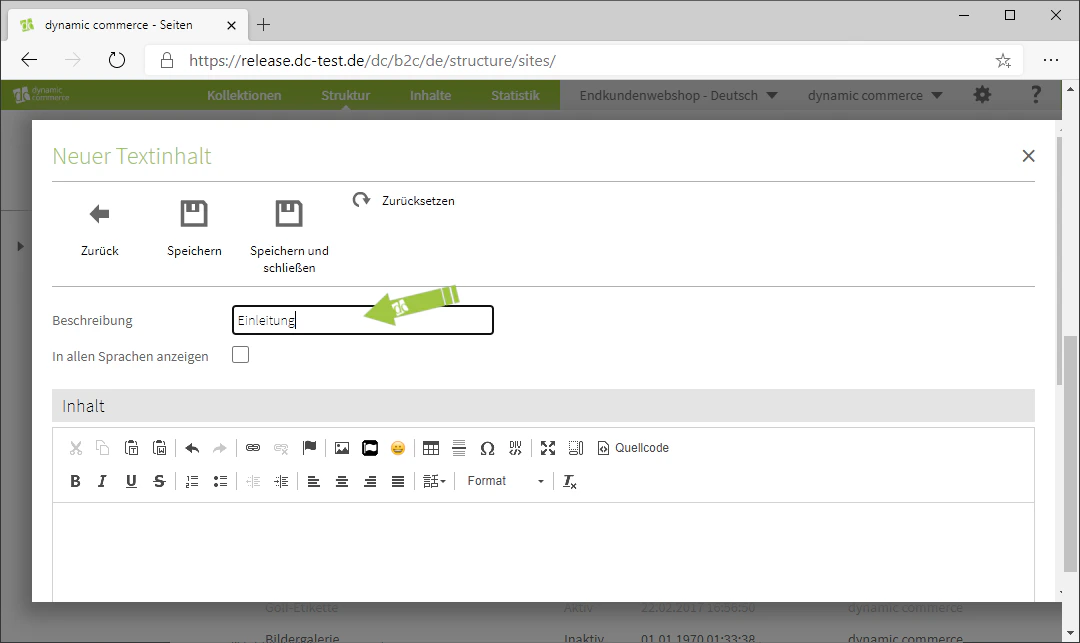
    Start by choosing a description. This is for organisational purposes only and will not be displayed on the selected page.
    <Frame>
      <img src="https://mintcdn.com/dcag/nFuK0eL_GOzpIxeu/images/dynamic-content/inhaltsarten/texte/beschreibung.png?fit=max&auto=format&n=nFuK0eL_GOzpIxeu&q=85&s=e94552656820ddd65ec2b6fbccb37a82" alt="Maintaining the description of the text content" width="1080" height="643" data-path="images/dynamic-content/inhaltsarten/texte/beschreibung.png" />
    </Frame>
  </Step>

  <Step>
    ## Step 3: Write Text

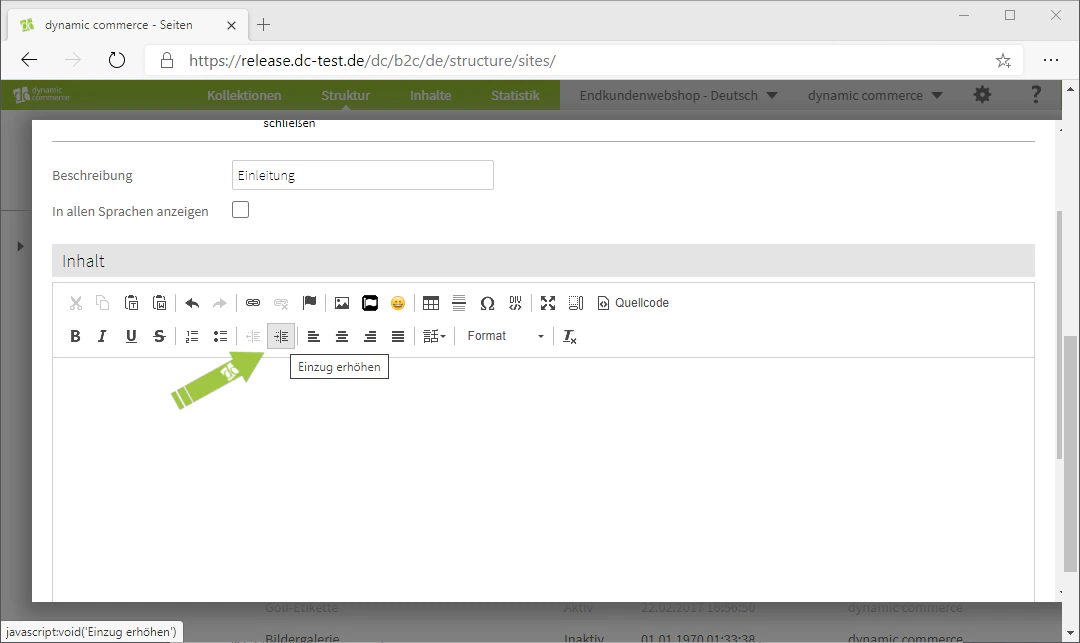
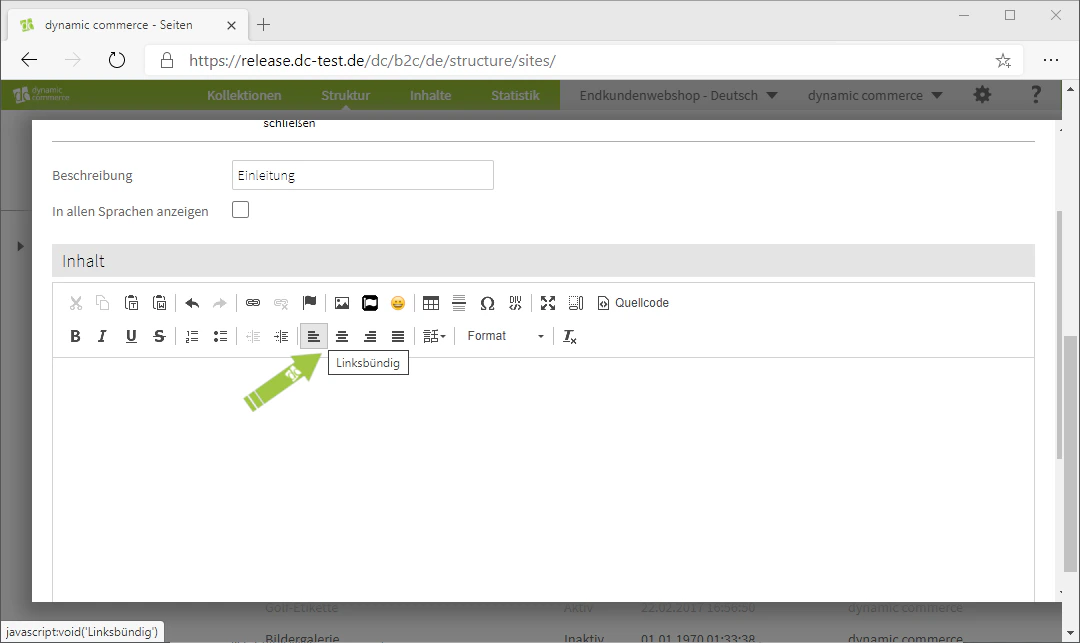
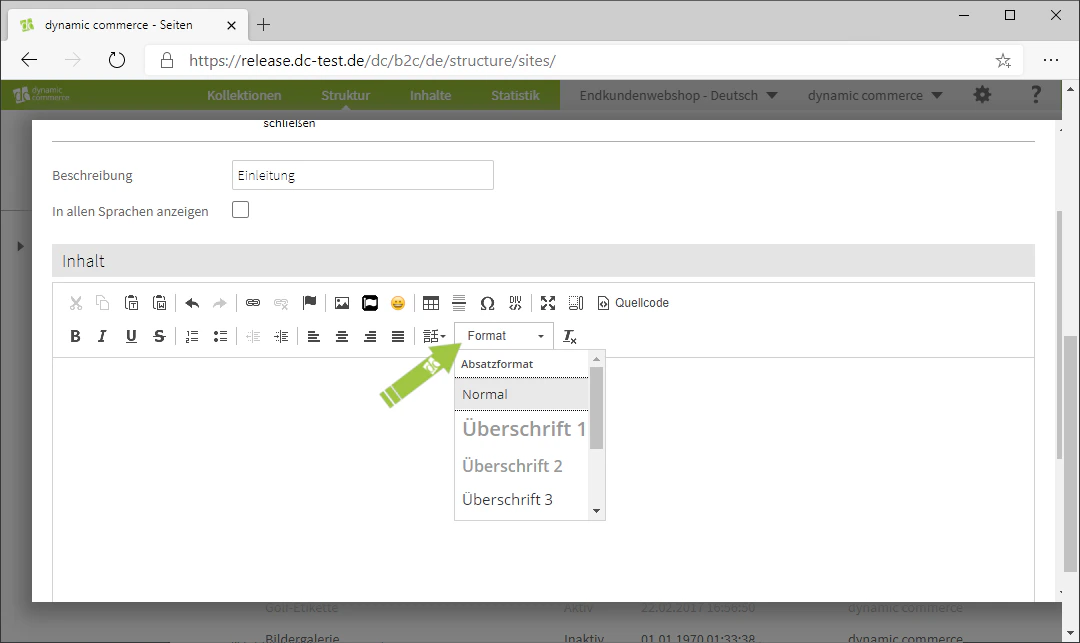
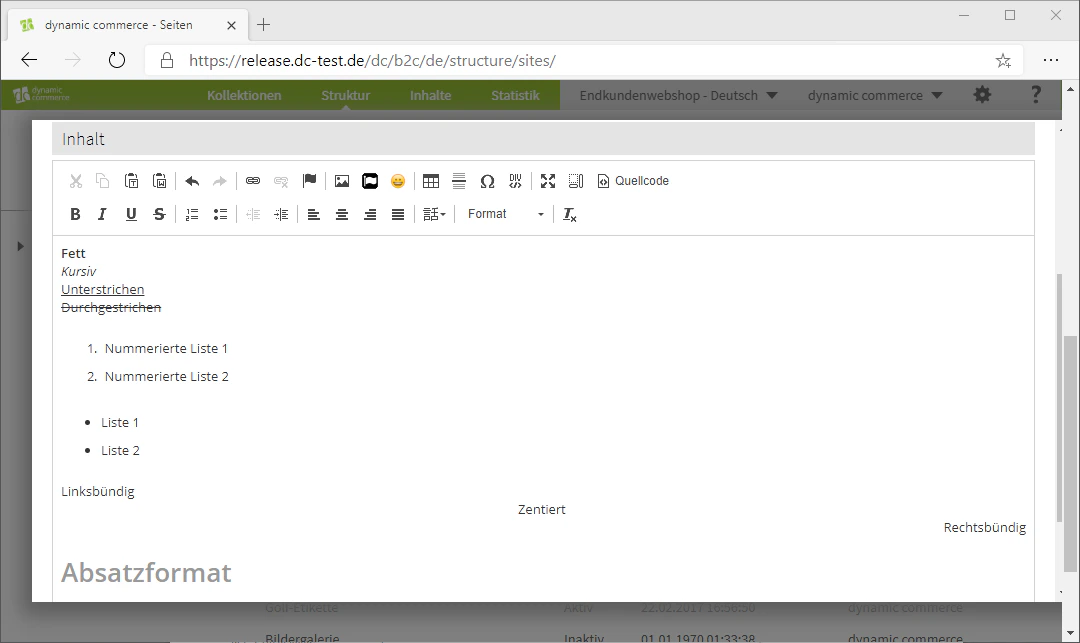
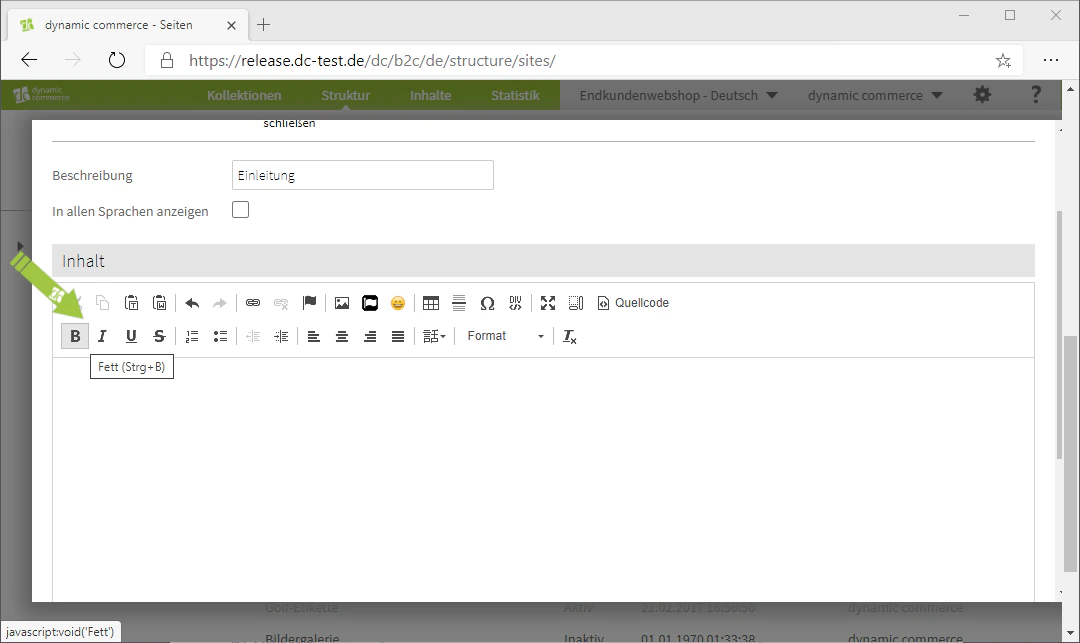
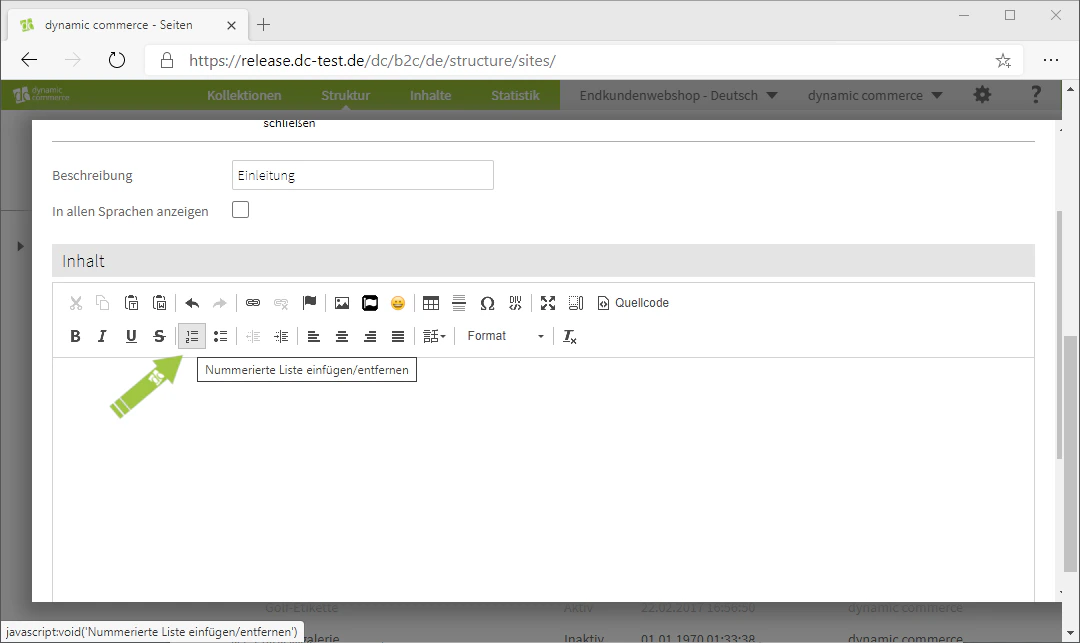
    You can now enter your text in the editor below. The toolbar provides functions such as Bold, Italic, Underline, and Strikethrough. You can also create lists, increase or decrease indentation, set the alignment of your text, choose a language, and format paragraphs.
    <Columns cols={3}>
      <Column>
        <Frame>
          <img src="https://mintcdn.com/dcag/nFuK0eL_GOzpIxeu/images/dynamic-content/inhaltsarten/texte/fett.png?fit=max&auto=format&n=nFuK0eL_GOzpIxeu&q=85&s=791cb063ede9d28fd3003226a684c17c" alt="Text formatting: Bold, Italic, Underline, Strikethrough" width="1080" height="643" data-path="images/dynamic-content/inhaltsarten/texte/fett.png" />
        </Frame>
      </Column>

      <Column>
        <Frame>
          <img src="https://mintcdn.com/dcag/nFuK0eL_GOzpIxeu/images/dynamic-content/inhaltsarten/texte/listen.png?fit=max&auto=format&n=nFuK0eL_GOzpIxeu&q=85&s=39678029b694ab20697c2f5b48ad547a" alt="Creating lists" width="1080" height="643" data-path="images/dynamic-content/inhaltsarten/texte/listen.png" />
        </Frame>
      </Column>

      <Column>
        <Frame>
          <img src="https://mintcdn.com/dcag/nFuK0eL_GOzpIxeu/images/dynamic-content/inhaltsarten/texte/einzug.png?fit=max&auto=format&n=nFuK0eL_GOzpIxeu&q=85&s=2d64ddf25a88dab967f9b326199f4348" alt="Increase or decrease indentation" width="1080" height="643" data-path="images/dynamic-content/inhaltsarten/texte/einzug.png" />
        </Frame>
      </Column>
    </Columns>

    <Columns cols={3}>
      <Column>
        <Frame>
          <img src="https://mintcdn.com/dcag/nFuK0eL_GOzpIxeu/images/dynamic-content/inhaltsarten/texte/ausrichtung.png?fit=max&auto=format&n=nFuK0eL_GOzpIxeu&q=85&s=8f9def2316e71143e2766cc9ddc398c5" alt="Text alignment" width="1080" height="643" data-path="images/dynamic-content/inhaltsarten/texte/ausrichtung.png" />
        </Frame>
      </Column>

      <Column>
        <Frame>
          <img src="https://mintcdn.com/dcag/nFuK0eL_GOzpIxeu/images/dynamic-content/inhaltsarten/texte/format.png?fit=max&auto=format&n=nFuK0eL_GOzpIxeu&q=85&s=9845a875fa9f6f385ae0e1c30c519a82" alt="Format and paragraph formatting" width="1080" height="643" data-path="images/dynamic-content/inhaltsarten/texte/format.png" />
        </Frame>
      </Column>

      <Column>
        <Frame>
          <img src="https://mintcdn.com/dcag/nFuK0eL_GOzpIxeu/images/dynamic-content/inhaltsarten/texte/uebersicht.png?fit=max&auto=format&n=nFuK0eL_GOzpIxeu&q=85&s=0020d444aa44b92f7c28b8334722e338" alt="Overview of the editor functions" width="1080" height="643" data-path="images/dynamic-content/inhaltsarten/texte/uebersicht.png" />
        </Frame>
      </Column>
    </Columns>
  </Step>

  <Step>
    ## Step 4: Create Tables

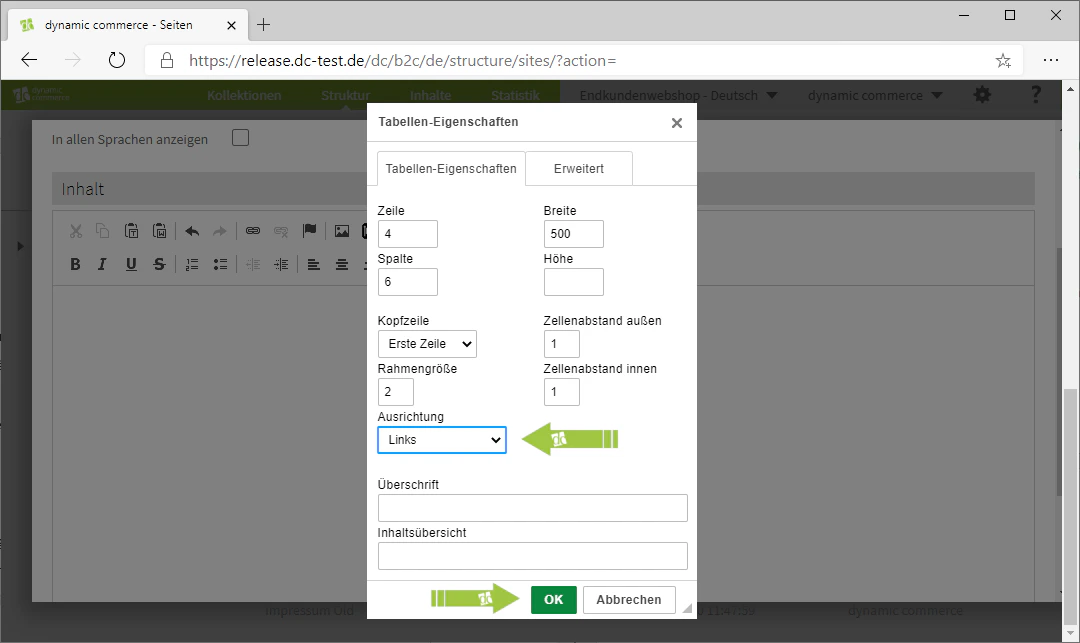
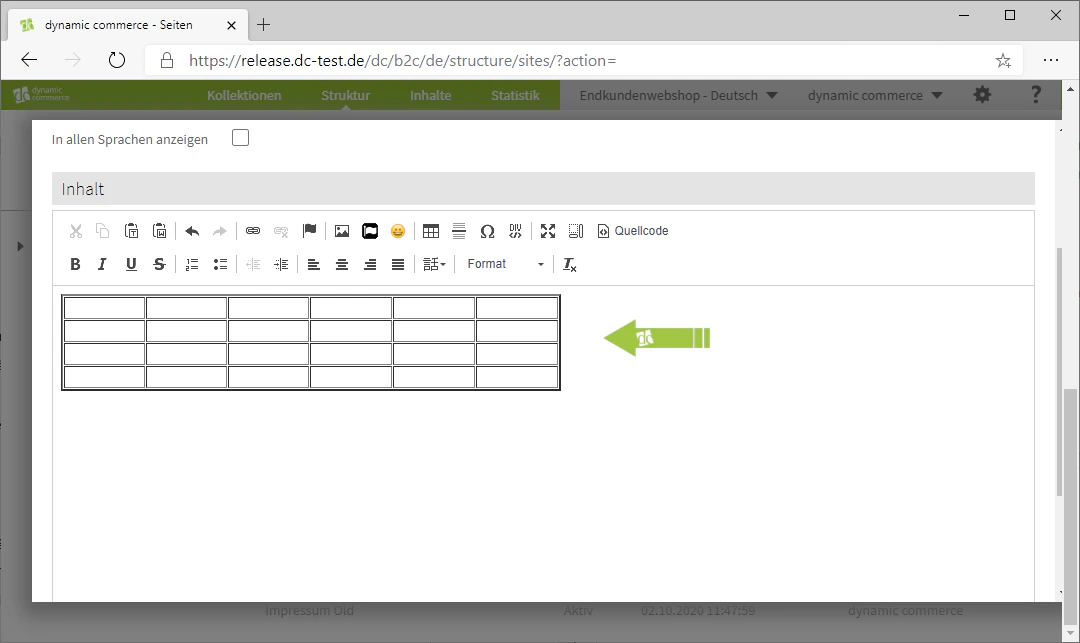
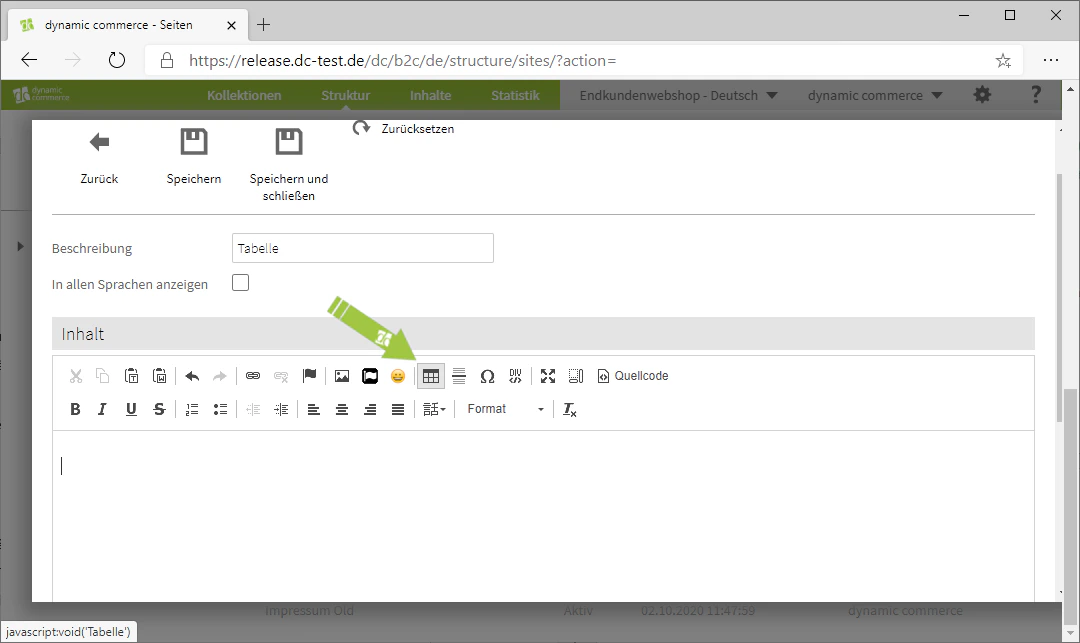
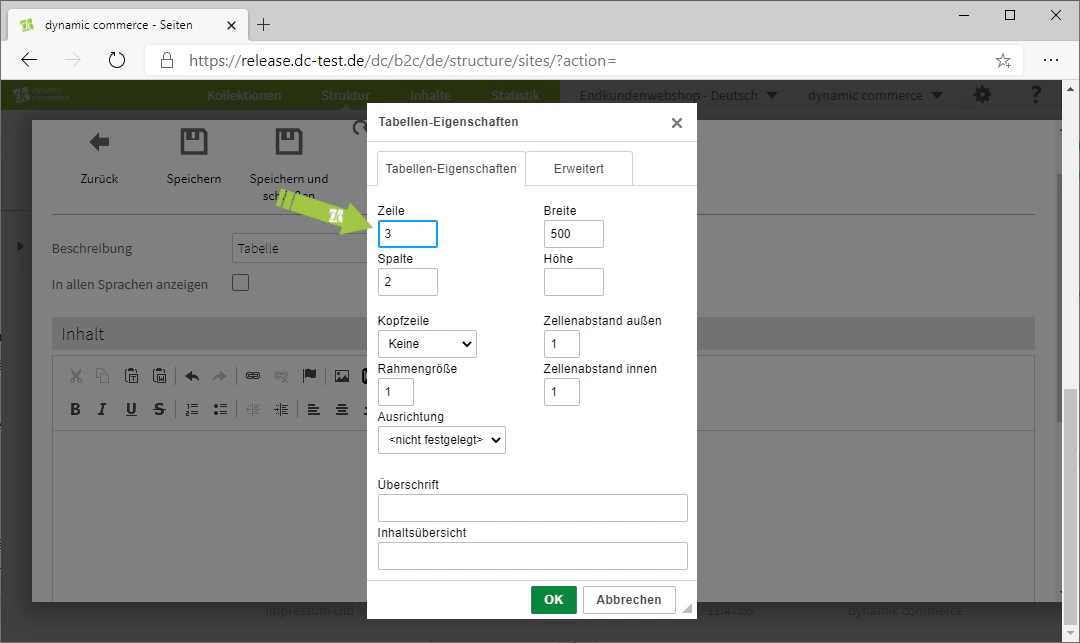
    You also have the option to create tables in our editor. Click the table icon and define the number of rows and columns, cell dimensions, headers, spacing, borders, and alignment.
    <Columns cols={2}>
      <Column>
        <Frame>
          <img src="https://mintcdn.com/dcag/nFuK0eL_GOzpIxeu/images/dynamic-content/inhaltsarten/texte/tabelle-erstellen.png?fit=max&auto=format&n=nFuK0eL_GOzpIxeu&q=85&s=8326bebeaeb6c0e62f018d175e9d3c5f" alt="Creating a table using the table icon" width="1080" height="643" data-path="images/dynamic-content/inhaltsarten/texte/tabelle-erstellen.png" />
        </Frame>
      </Column>

      <Column>
        <Frame>
          <img src="https://mintcdn.com/dcag/nFuK0eL_GOzpIxeu/images/dynamic-content/inhaltsarten/texte/tabellen-einstellungen.png?fit=max&auto=format&n=nFuK0eL_GOzpIxeu&q=85&s=03940b7c9b9ca6206995d3690ab30bd6" alt="Settings for a table" width="1080" height="643" data-path="images/dynamic-content/inhaltsarten/texte/tabellen-einstellungen.png" />
        </Frame>
      </Column>
    </Columns>

    <Columns cols={2}>
      <Column>
        <Frame>
          <img src="https://mintcdn.com/dcag/nFuK0eL_GOzpIxeu/images/dynamic-content/inhaltsarten/texte/tabellen-ausrichtung.png?fit=max&auto=format&n=nFuK0eL_GOzpIxeu&q=85&s=799ac27879a98f425c974ac8c4a40b6f" alt="Setting the table alignment" width="1080" height="643" data-path="images/dynamic-content/inhaltsarten/texte/tabellen-ausrichtung.png" />
        </Frame>
      </Column>

      <Column>
        <Frame>
          <img src="https://mintcdn.com/dcag/nFuK0eL_GOzpIxeu/images/dynamic-content/inhaltsarten/texte/beispiel-tabelle.png?fit=max&auto=format&n=nFuK0eL_GOzpIxeu&q=85&s=b048e01cd977e69b73e5a0437bf01e64" alt="Example of a completed table" width="1080" height="643" data-path="images/dynamic-content/inhaltsarten/texte/beispiel-tabelle.png" />
        </Frame>
      </Column>
    </Columns>
  </Step>

  <Step>
    ## Step 5: Insert Images

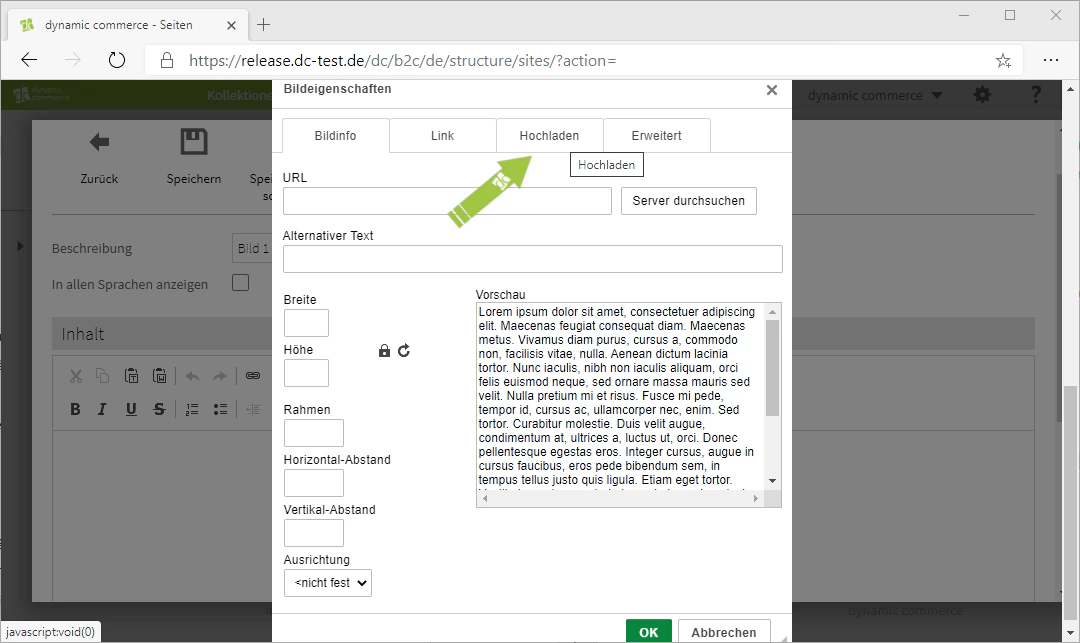
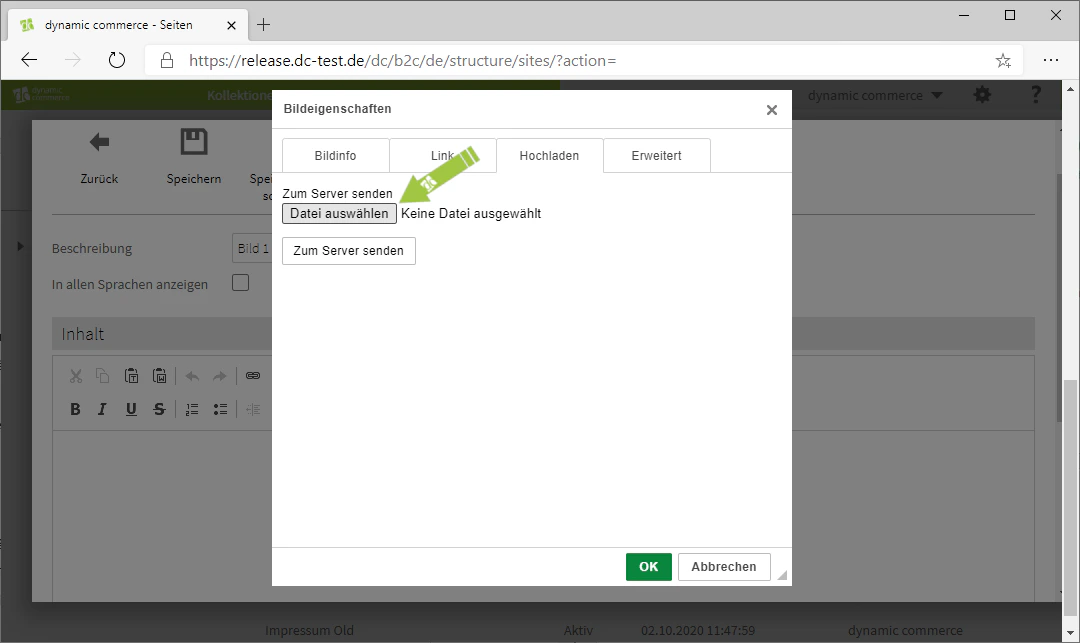
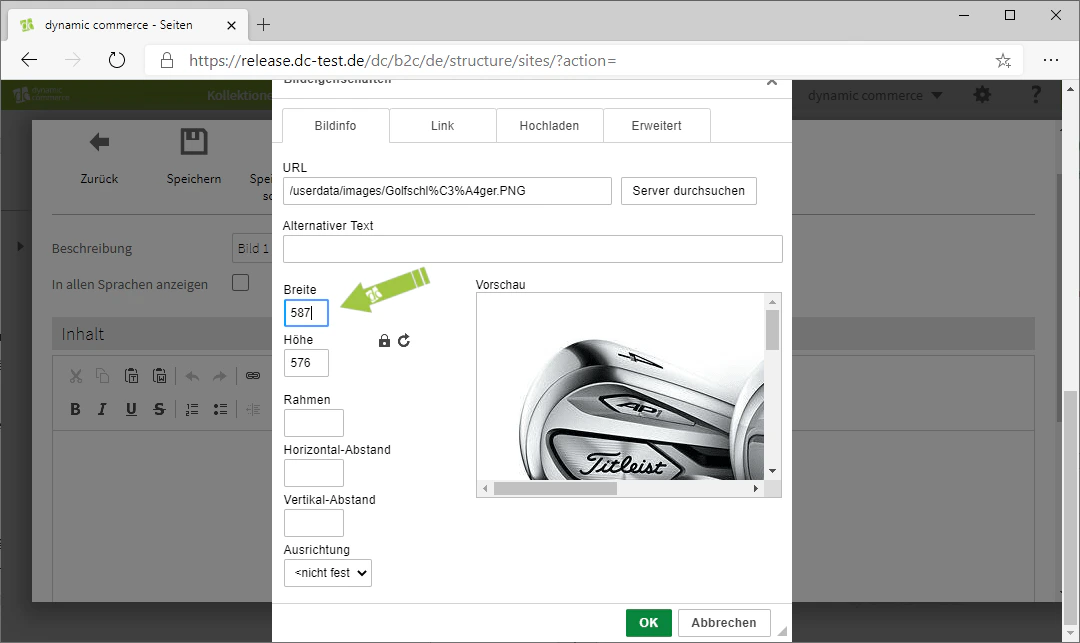
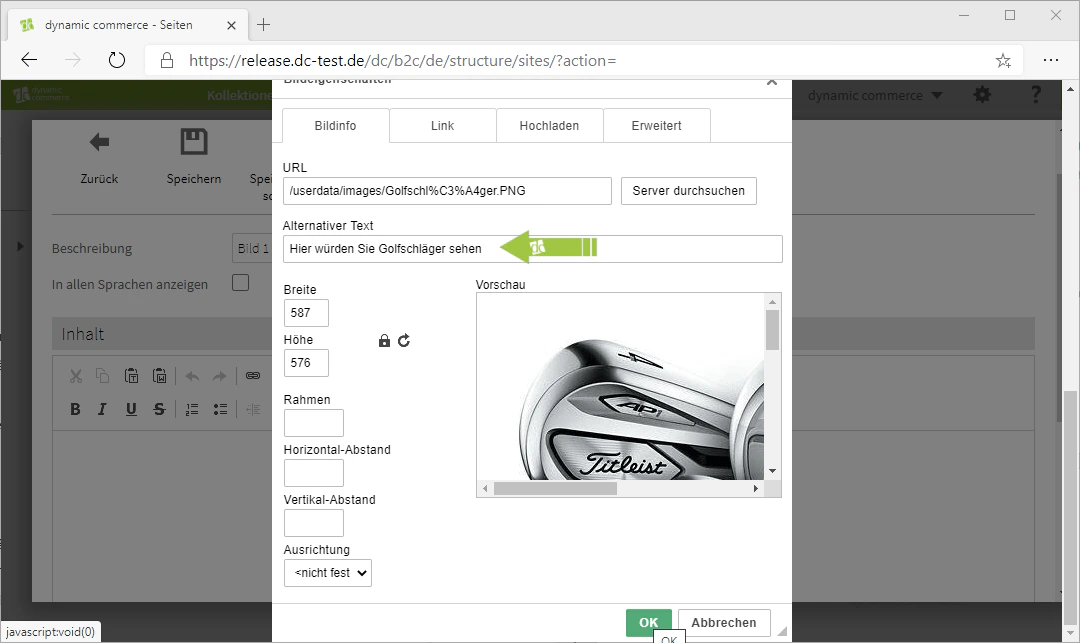
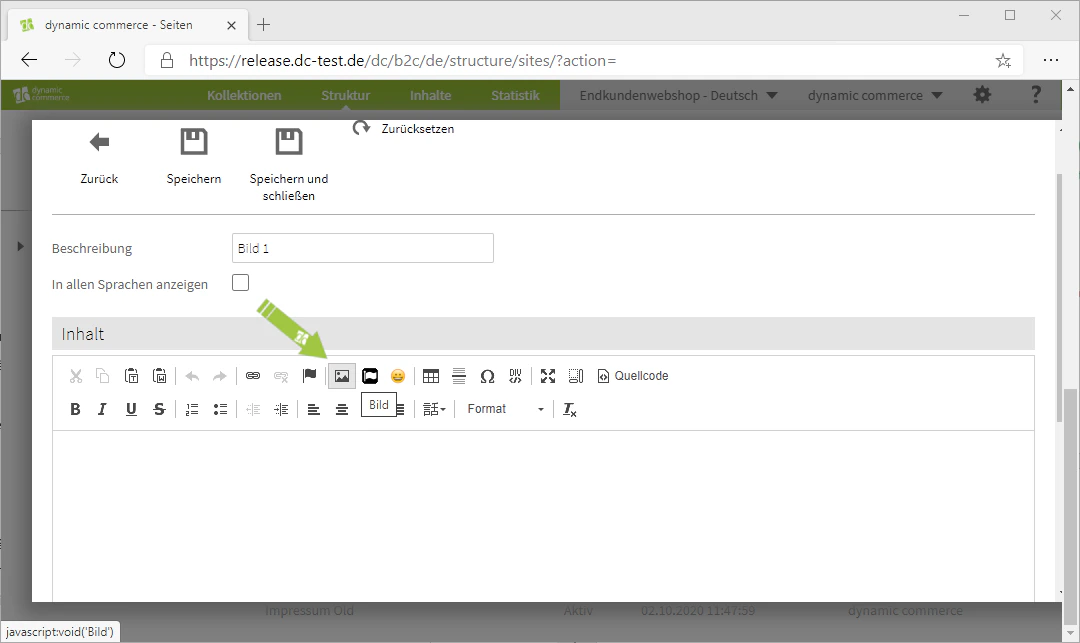
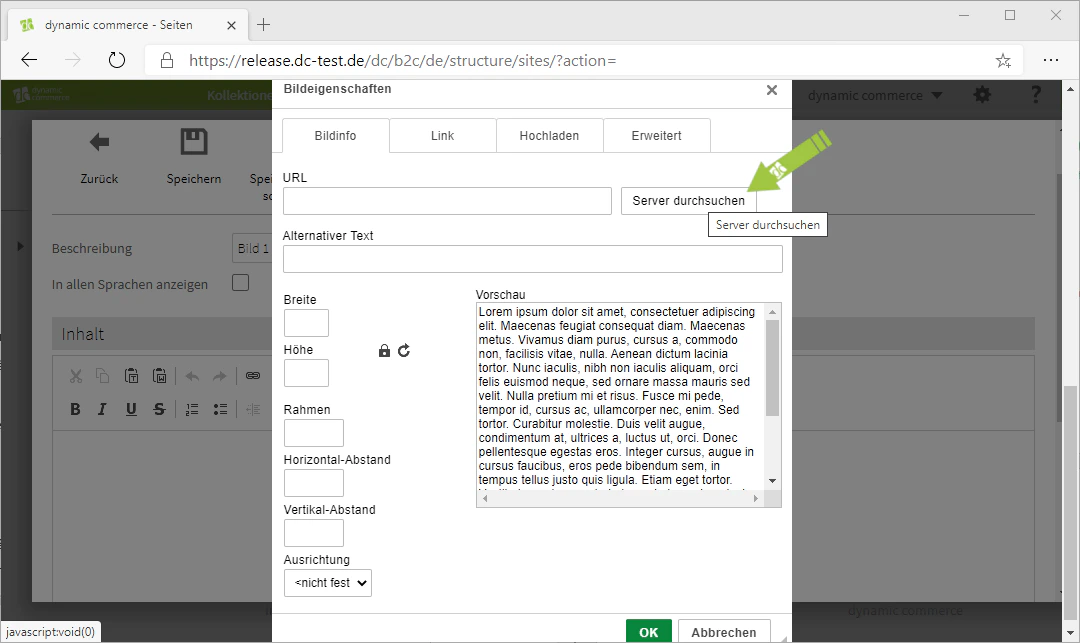
    There is also the option to upload images directly via our editor. Use "Browse Server" to select already uploaded images, or upload a new image via the "Upload" tab. You can then set the height and width as well as alternative text.
    <Columns cols={3}>
      <Column>
        <Frame>
          <img src="https://mintcdn.com/dcag/nFuK0eL_GOzpIxeu/images/dynamic-content/inhaltsarten/texte/bilder-einfuegen.png?fit=max&auto=format&n=nFuK0eL_GOzpIxeu&q=85&s=f895859c4a40094d333459f67ba76668" alt="Inserting images via the editor" width="1080" height="643" data-path="images/dynamic-content/inhaltsarten/texte/bilder-einfuegen.png" />
        </Frame>
      </Column>

      <Column>
        <Frame>
          <img src="https://mintcdn.com/dcag/nFuK0eL_GOzpIxeu/images/dynamic-content/inhaltsarten/texte/server-durchsuchen.png?fit=max&auto=format&n=nFuK0eL_GOzpIxeu&q=85&s=00db44fe9af3a24816c5f857f0587af7" alt="Browse server for existing images" width="1080" height="643" data-path="images/dynamic-content/inhaltsarten/texte/server-durchsuchen.png" />
        </Frame>
      </Column>

      <Column>
        <Frame>
          <img src="https://mintcdn.com/dcag/nFuK0eL_GOzpIxeu/images/dynamic-content/inhaltsarten/texte/hochladen.png?fit=max&auto=format&n=nFuK0eL_GOzpIxeu&q=85&s=2b17049381f0e98a753b436653d7a660" alt="Upload tab for new images" width="1080" height="643" data-path="images/dynamic-content/inhaltsarten/texte/hochladen.png" />
        </Frame>
      </Column>
    </Columns>

    <Columns cols={2}>
      <Column>
        <Frame>
          <img src="https://mintcdn.com/dcag/nFuK0eL_GOzpIxeu/images/dynamic-content/inhaltsarten/texte/datei-auswaehlen.png?fit=max&auto=format&n=nFuK0eL_GOzpIxeu&q=85&s=5edda5bc2f311b50c6de287d95f27567" alt="Selecting a file to upload" width="1080" height="643" data-path="images/dynamic-content/inhaltsarten/texte/datei-auswaehlen.png" />
        </Frame>
      </Column>

      <Column>
        <Frame>
          <img src="https://mintcdn.com/dcag/nFuK0eL_GOzpIxeu/images/dynamic-content/inhaltsarten/texte/zum-server-senden.png?fit=max&auto=format&n=nFuK0eL_GOzpIxeu&q=85&s=ae0b28f7bf4963c09e24f44488938cb2" alt="Sending the file to the server" width="1080" height="643" data-path="images/dynamic-content/inhaltsarten/texte/zum-server-senden.png" />
        </Frame>
      </Column>
    </Columns>

    <Columns cols={2}>
      <Column>
        <Frame>
          <img src="https://mintcdn.com/dcag/nFuK0eL_GOzpIxeu/images/dynamic-content/inhaltsarten/texte/hoehe-und-breite.png?fit=max&auto=format&n=nFuK0eL_GOzpIxeu&q=85&s=2a767b641d66267b9860c150d04e9450" alt="Setting the height and width of the image" width="1080" height="643" data-path="images/dynamic-content/inhaltsarten/texte/hoehe-und-breite.png" />
        </Frame>
      </Column>

      <Column>
        <Frame>
          <img src="https://mintcdn.com/dcag/nFuK0eL_GOzpIxeu/images/dynamic-content/inhaltsarten/texte/alternativer-text.png?fit=max&auto=format&n=nFuK0eL_GOzpIxeu&q=85&s=c14e51ec8823b159f5e3fdb9a8ecbcc0" alt="Maintaining alternative text for the image" width="1080" height="643" data-path="images/dynamic-content/inhaltsarten/texte/alternativer-text.png" />
        </Frame>
      </Column>
    </Columns>
  </Step>

  <Step>
    ## Step 6: Set Anchors

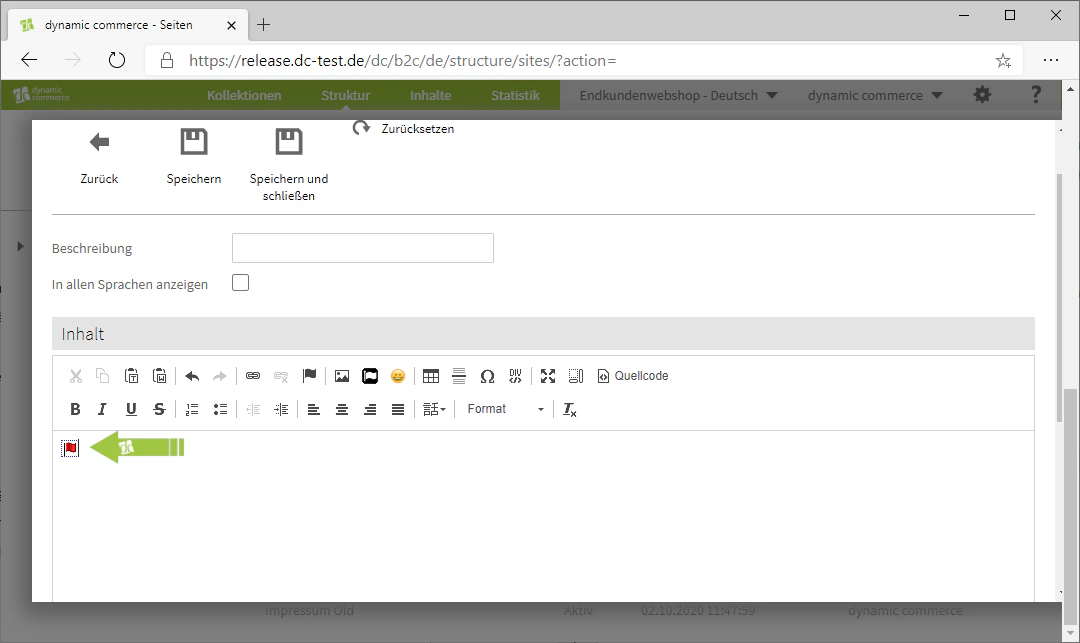
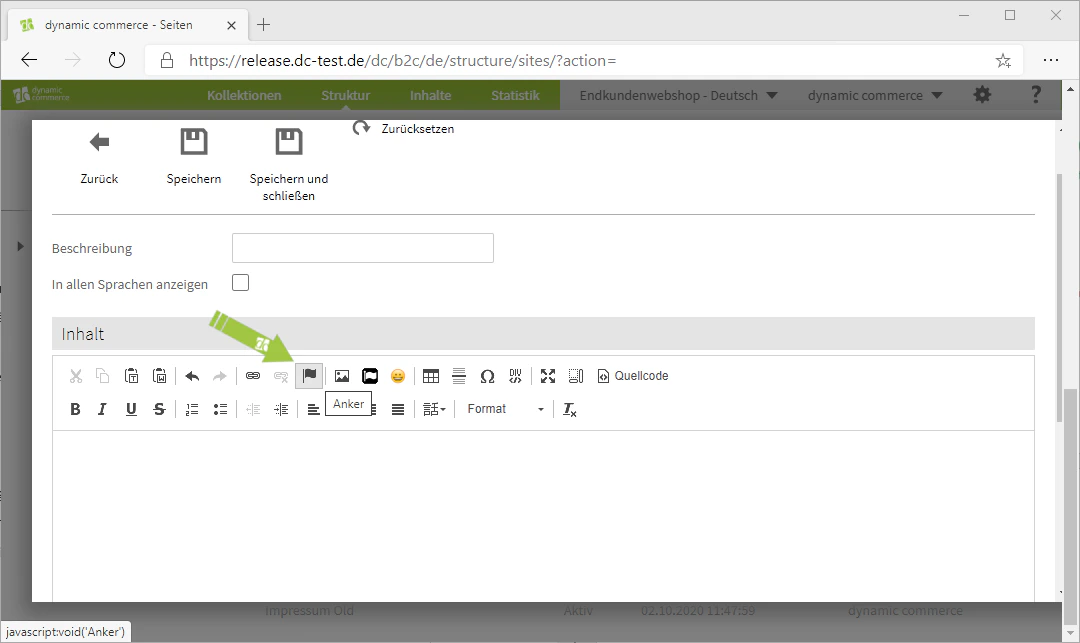
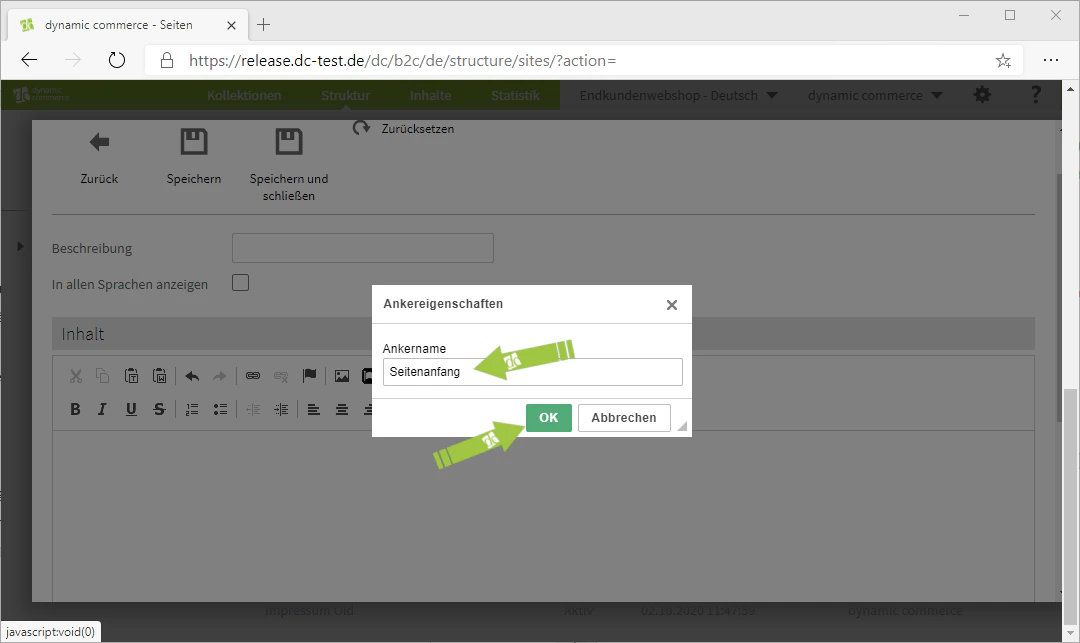
    You can also set an anchor. Anchors mark positions for internal links within the same content item. Click the flag icon and assign an anchor name.
    <Columns cols={3}>
      <Column>
        <Frame>
          <img src="https://mintcdn.com/dcag/nFuK0eL_GOzpIxeu/images/dynamic-content/inhaltsarten/texte/anker-setzen.png?fit=max&auto=format&n=nFuK0eL_GOzpIxeu&q=85&s=f4264b2d17ce42d96148903e08387e20" alt="Setting an anchor in the editor" width="1080" height="643" data-path="images/dynamic-content/inhaltsarten/texte/anker-setzen.png" />
        </Frame>
      </Column>

      <Column>
        <Frame>
          <img src="https://mintcdn.com/dcag/nFuK0eL_GOzpIxeu/images/dynamic-content/inhaltsarten/texte/ankername.png?fit=max&auto=format&n=nFuK0eL_GOzpIxeu&q=85&s=d7c2fb3ed39379a000b9c28cdaa6c15d" alt="Assigning an anchor name" width="1080" height="643" data-path="images/dynamic-content/inhaltsarten/texte/ankername.png" />
        </Frame>
      </Column>

      <Column>
        <Frame>
          <img src="https://mintcdn.com/dcag/nFuK0eL_GOzpIxeu/images/dynamic-content/inhaltsarten/texte/ankersymbol.png?fit=max&auto=format&n=nFuK0eL_GOzpIxeu&q=85&s=8579535fb80c954dab7bce08370c10fb" alt="Anchor symbol in the text" width="1080" height="643" data-path="images/dynamic-content/inhaltsarten/texte/ankersymbol.png" />
        </Frame>
      </Column>
    </Columns>
  </Step>

  <Step>
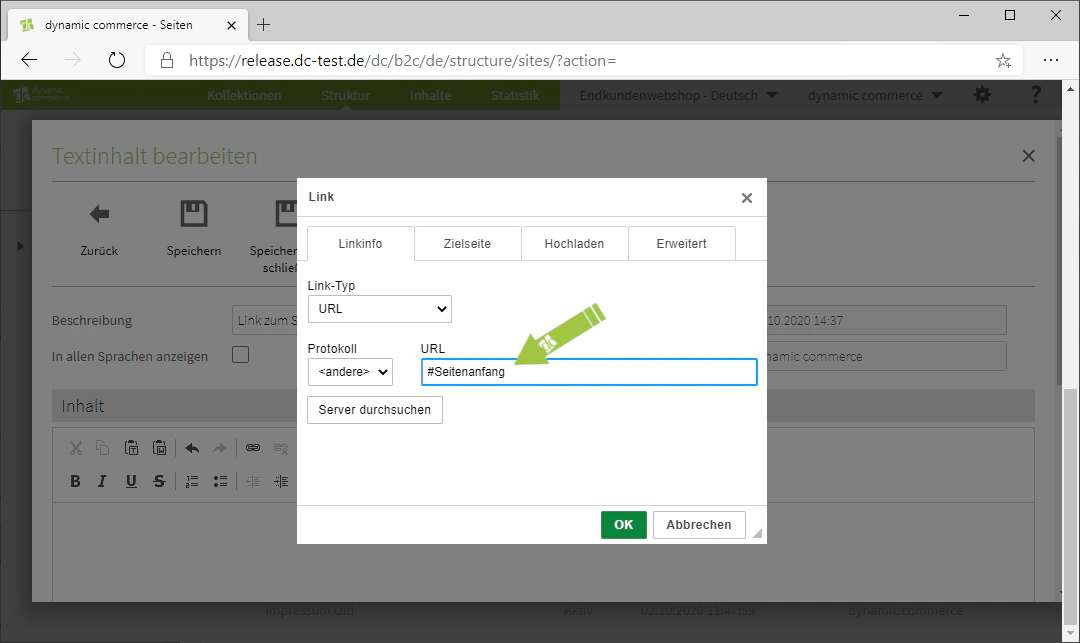
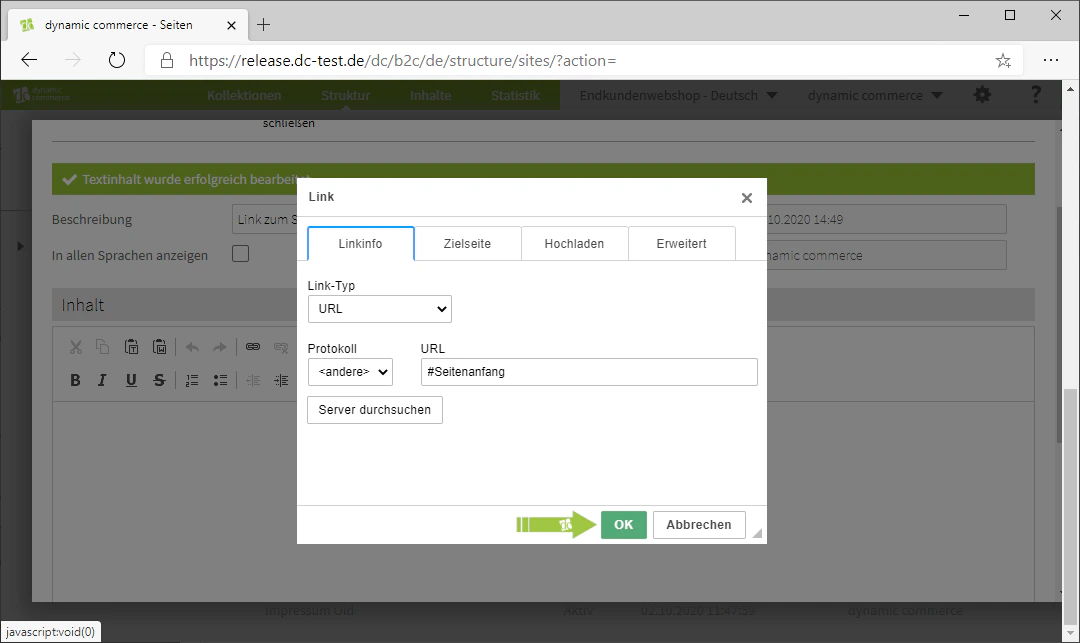
    ## Step 7: Insert Links

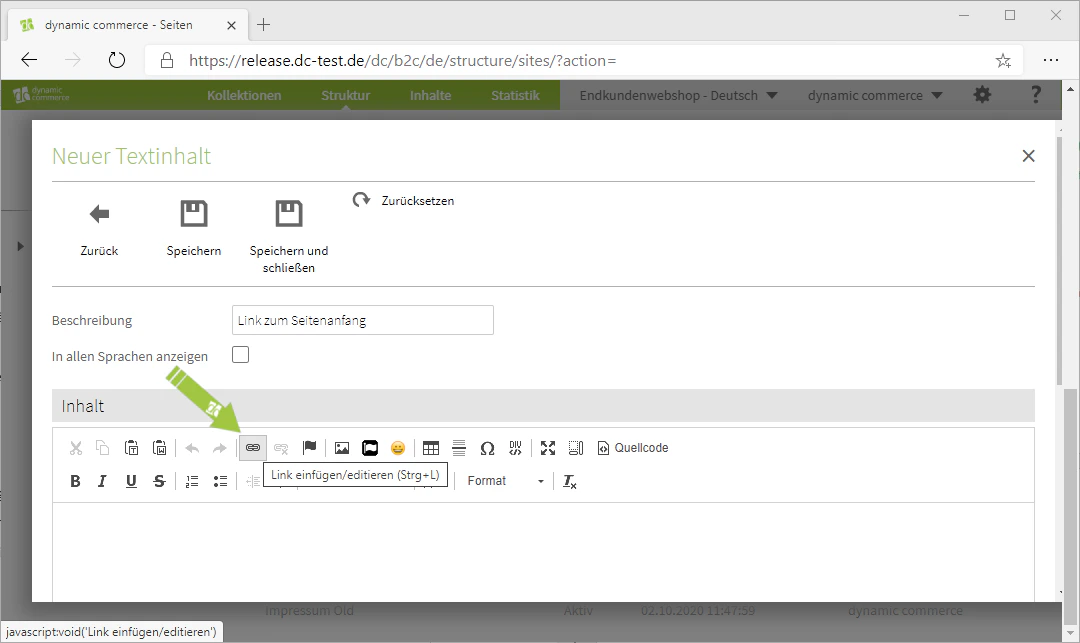
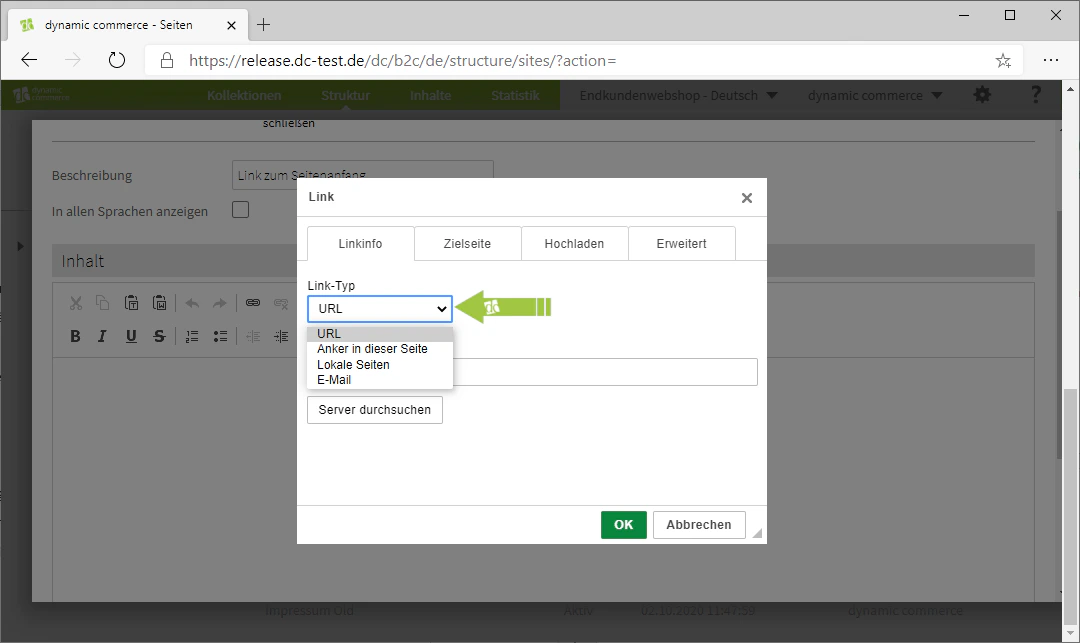
    Links can be used to reference internal as well as external content. Select the link type (URL, anchor, internal page, e-mail), enter the link target, and confirm your input.
    <Columns cols={2}>
      <Column>
        <Frame>
          <img src="https://mintcdn.com/dcag/nFuK0eL_GOzpIxeu/images/dynamic-content/inhaltsarten/texte/link-einfuegen.png?fit=max&auto=format&n=nFuK0eL_GOzpIxeu&q=85&s=cbb2e9483203bc0e5ce6d60ff0685586" alt="Inserting a link via the editor" width="1080" height="643" data-path="images/dynamic-content/inhaltsarten/texte/link-einfuegen.png" />
        </Frame>
      </Column>

      <Column>
        <Frame>
          <img src="https://mintcdn.com/dcag/nFuK0eL_GOzpIxeu/images/dynamic-content/inhaltsarten/texte/link-typ.png?fit=max&auto=format&n=nFuK0eL_GOzpIxeu&q=85&s=dab62cf83db5ed2ffb8d2ba8e0630d6c" alt="Selecting the link type" width="1080" height="643" data-path="images/dynamic-content/inhaltsarten/texte/link-typ.png" />
        </Frame>
      </Column>
    </Columns>

    <Columns cols={2}>
      <Column>
        <Frame>
          <img src="https://mintcdn.com/dcag/nFuK0eL_GOzpIxeu/images/dynamic-content/inhaltsarten/texte/url.png?fit=max&auto=format&n=nFuK0eL_GOzpIxeu&q=85&s=25a3b848160e067a3fc0190efd86bc64" alt="Entering the URL for the link" width="1080" height="643" data-path="images/dynamic-content/inhaltsarten/texte/url.png" />
        </Frame>
      </Column>

      <Column>
        <Frame>
          <img src="https://mintcdn.com/dcag/nFuK0eL_GOzpIxeu/images/dynamic-content/inhaltsarten/texte/bestaetigen.png?fit=max&auto=format&n=nFuK0eL_GOzpIxeu&q=85&s=ee6aac1c2cc5381f504ee0f137020bb0" alt="Confirming the input" width="1080" height="643" data-path="images/dynamic-content/inhaltsarten/texte/bestaetigen.png" />
        </Frame>
      </Column>
    </Columns>
  </Step>

  <Step>
    ## Step 8: View Source Code

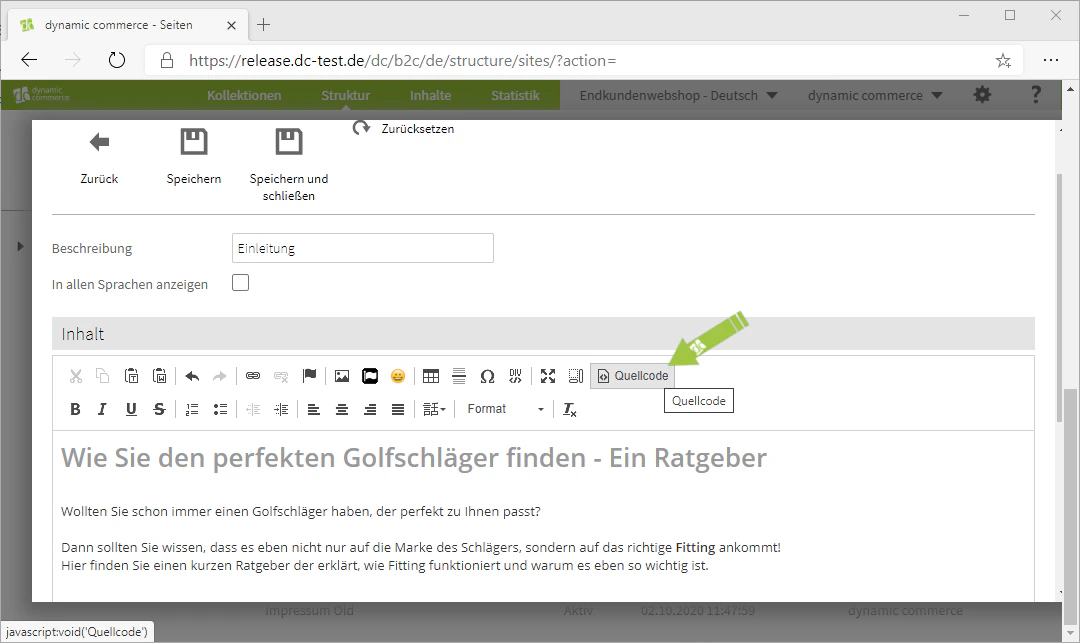
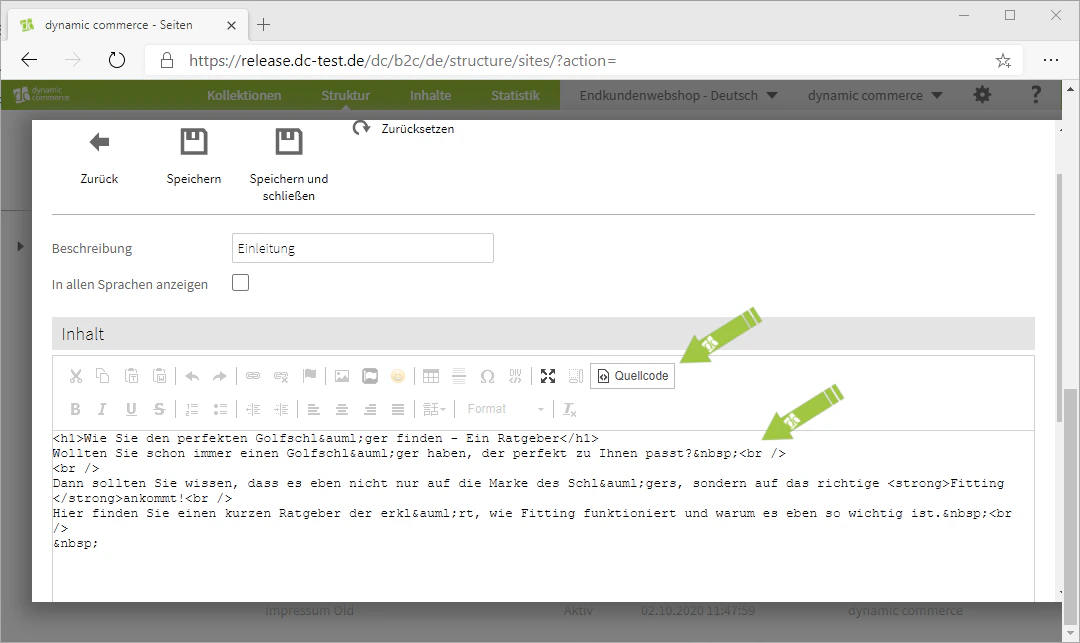
    If you are familiar with HTML, you also have the option to view your text as source code. Click "Source Code" to switch between the HTML view and the normal editor view.
    <Columns cols={2}>
      <Column>
        <Frame>
          <img src="https://mintcdn.com/dcag/nFuK0eL_GOzpIxeu/images/dynamic-content/inhaltsarten/texte/quellcode-anzeigen.png?fit=max&auto=format&n=nFuK0eL_GOzpIxeu&q=85&s=16d2287b8f55f1ee7253891bd3f1a302" alt="Opening the source code view" width="1080" height="643" data-path="images/dynamic-content/inhaltsarten/texte/quellcode-anzeigen.png" />
        </Frame>
      </Column>

      <Column>
        <Frame>
          <img src="https://mintcdn.com/dcag/nFuK0eL_GOzpIxeu/images/dynamic-content/inhaltsarten/texte/quellcode.png?fit=max&auto=format&n=nFuK0eL_GOzpIxeu&q=85&s=130402c742415caf7d5863afc053dcf3" alt="HTML source code of the text" width="1080" height="643" data-path="images/dynamic-content/inhaltsarten/texte/quellcode.png" />
        </Frame>
      </Column>
    </Columns>
  </Step>

  <Step>
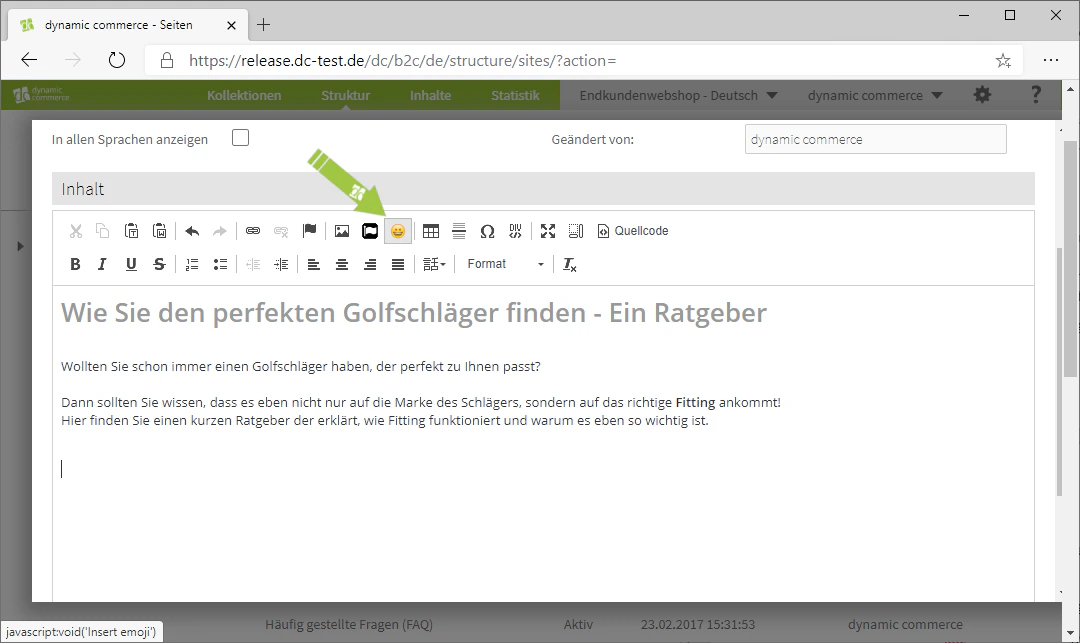
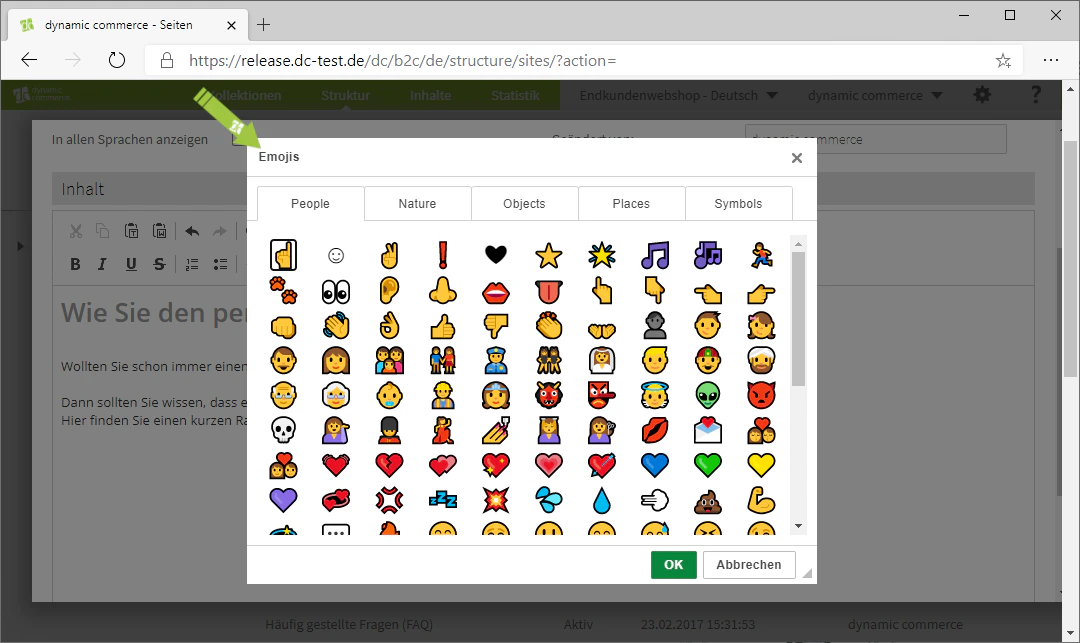
    ## Step 9: Additional Functions

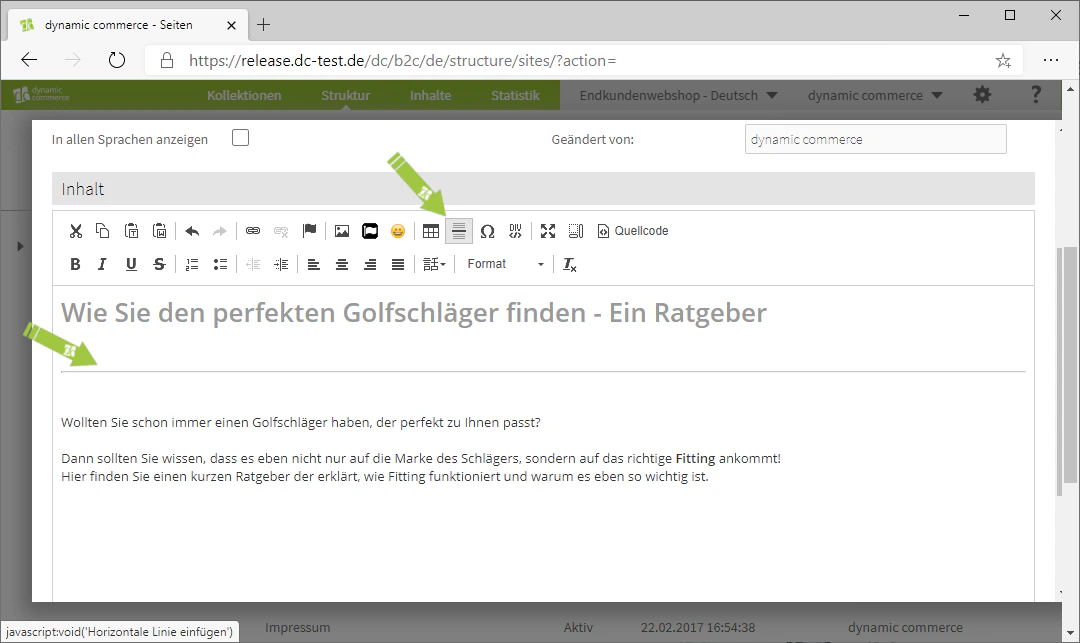
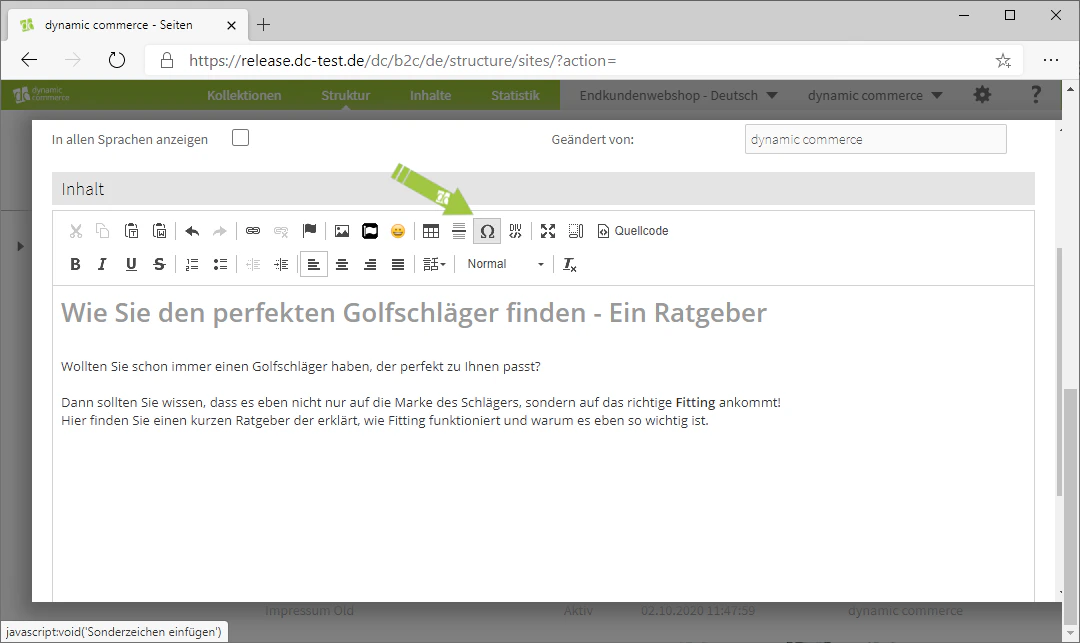
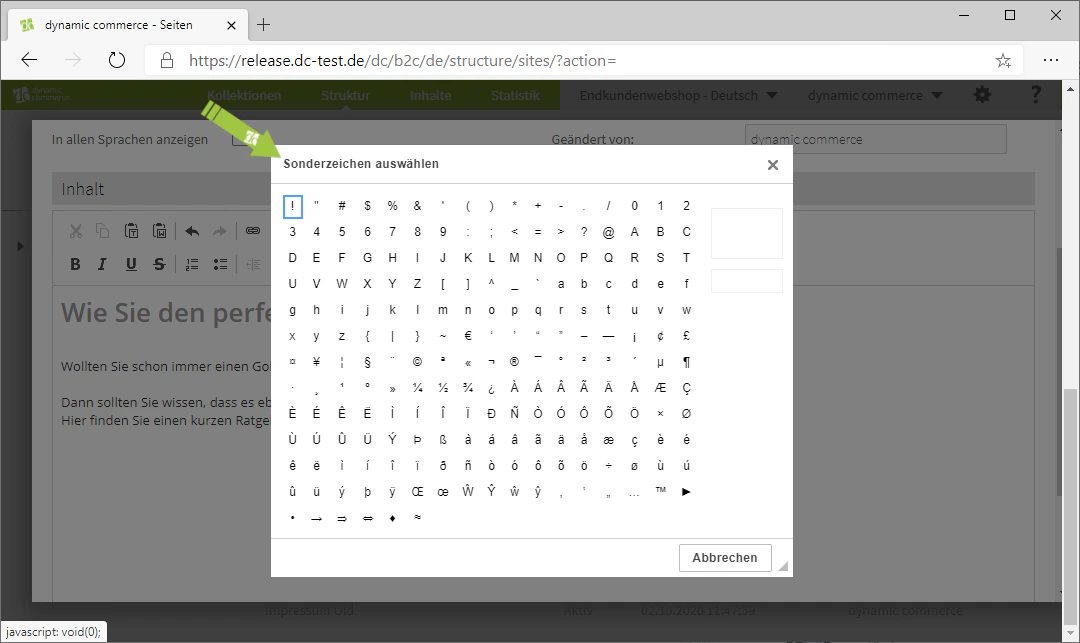
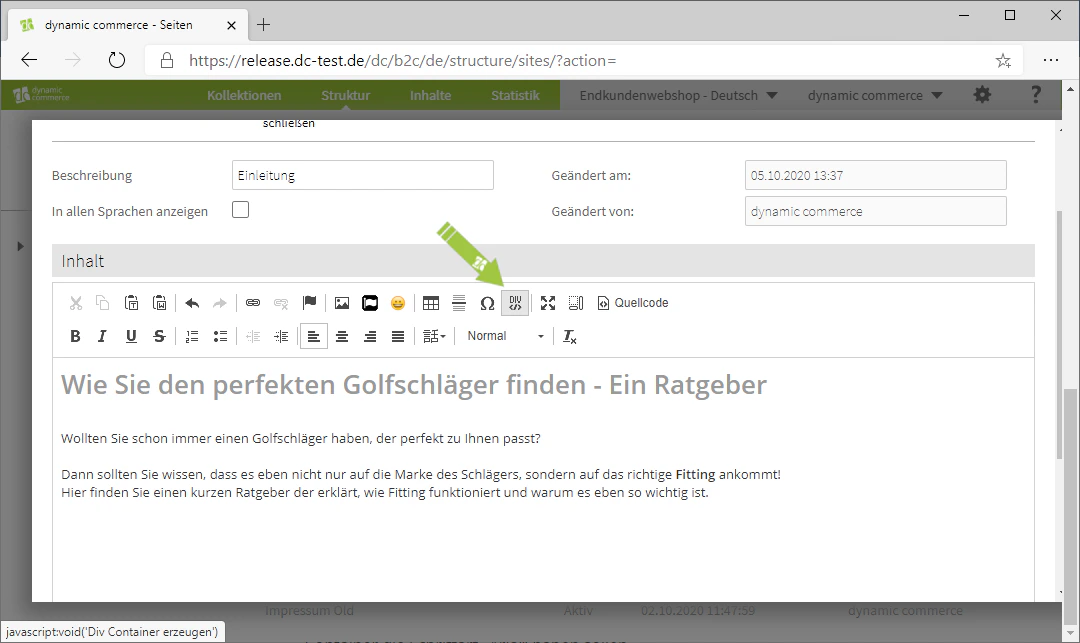
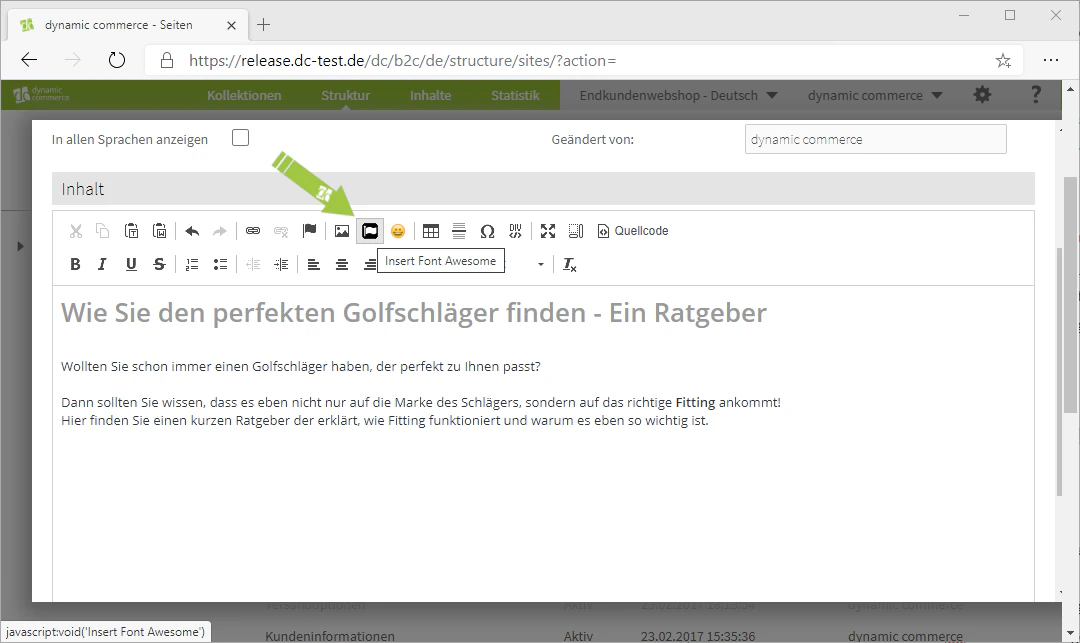
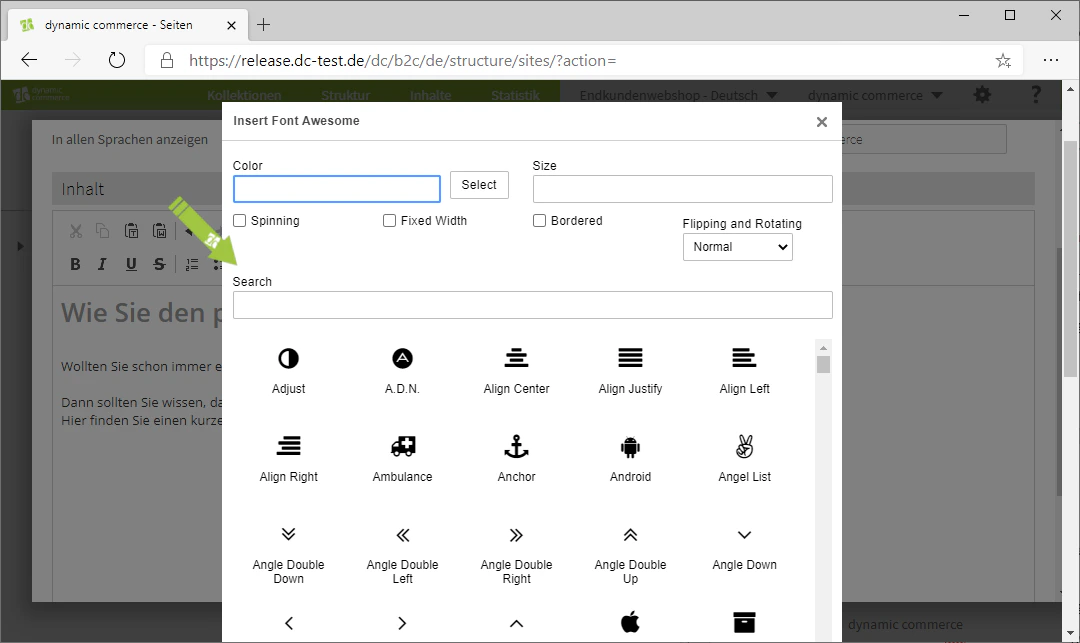
    In addition, further functions are available, such as inserting Font Awesome icons, emojis, horizontal lines, special characters (e.g. the omega symbol), and div containers.
    <Columns cols={2}>
      <Column>
        <Frame>
          <img src="https://mintcdn.com/dcag/nFuK0eL_GOzpIxeu/images/dynamic-content/inhaltsarten/texte/font-awesome-1.png?fit=max&auto=format&n=nFuK0eL_GOzpIxeu&q=85&s=e3c5f57becd35eb4944c2386e515a05b" alt="Inserting a Font Awesome icon" width="1080" height="643" data-path="images/dynamic-content/inhaltsarten/texte/font-awesome-1.png" />
        </Frame>
      </Column>

      <Column>
        <Frame>
          <img src="https://mintcdn.com/dcag/nFuK0eL_GOzpIxeu/images/dynamic-content/inhaltsarten/texte/font-awesome-2.png?fit=max&auto=format&n=nFuK0eL_GOzpIxeu&q=85&s=a066ffbd11ee2d19e285742bb1e125d1" alt="Selecting a Font Awesome icon" width="1080" height="643" data-path="images/dynamic-content/inhaltsarten/texte/font-awesome-2.png" />
        </Frame>
      </Column>
    </Columns>

    <Columns cols={3}>
      <Column>
        <Frame>
          <img src="https://mintcdn.com/dcag/nFuK0eL_GOzpIxeu/images/dynamic-content/inhaltsarten/texte/emoji-1.png?fit=max&auto=format&n=nFuK0eL_GOzpIxeu&q=85&s=b328708355beaeb38f29cde6de64d9e6" alt="Inserting an emoji" width="1080" height="643" data-path="images/dynamic-content/inhaltsarten/texte/emoji-1.png" />
        </Frame>
      </Column>

      <Column>
        <Frame>
          <img src="https://mintcdn.com/dcag/nFuK0eL_GOzpIxeu/images/dynamic-content/inhaltsarten/texte/emoji-2.png?fit=max&auto=format&n=nFuK0eL_GOzpIxeu&q=85&s=460dbd3f199f155a21b5318a8dcd9634" alt="Emoji selection" width="1080" height="643" data-path="images/dynamic-content/inhaltsarten/texte/emoji-2.png" />
        </Frame>
      </Column>

      <Column>
        <Frame>
          <img src="https://mintcdn.com/dcag/nFuK0eL_GOzpIxeu/images/dynamic-content/inhaltsarten/texte/horizontale-linie.png?fit=max&auto=format&n=nFuK0eL_GOzpIxeu&q=85&s=0299b187d8bb4d22bf06984719631ff4" alt="Inserting a horizontal line" width="1080" height="643" data-path="images/dynamic-content/inhaltsarten/texte/horizontale-linie.png" />
        </Frame>
      </Column>
    </Columns>

    <Columns cols={2}>
      <Column>
        <Frame>
          <img src="https://mintcdn.com/dcag/nFuK0eL_GOzpIxeu/images/dynamic-content/inhaltsarten/texte/sonderzeichen-1.png?fit=max&auto=format&n=nFuK0eL_GOzpIxeu&q=85&s=619c7d8368ab940ddaffb030ef73dc24" alt="Inserting special characters" width="1080" height="643" data-path="images/dynamic-content/inhaltsarten/texte/sonderzeichen-1.png" />
        </Frame>
      </Column>

      <Column>
        <Frame>
          <img src="https://mintcdn.com/dcag/nFuK0eL_GOzpIxeu/images/dynamic-content/inhaltsarten/texte/sonderzeichen-2.png?fit=max&auto=format&n=nFuK0eL_GOzpIxeu&q=85&s=cb4a1467bebc58cdab209edbfee6841f" alt="Selection of special characters" width="1080" height="643" data-path="images/dynamic-content/inhaltsarten/texte/sonderzeichen-2.png" />
        </Frame>
      </Column>
    </Columns>

    <Columns cols={2}>
      <Column>
        <Frame>
          <img src="https://mintcdn.com/dcag/nFuK0eL_GOzpIxeu/images/dynamic-content/inhaltsarten/texte/div-container-1.png?fit=max&auto=format&n=nFuK0eL_GOzpIxeu&q=85&s=bd8788242cfacdaafb3c8ac33159e01c" alt="Creating a div container" width="1080" height="643" data-path="images/dynamic-content/inhaltsarten/texte/div-container-1.png" />
        </Frame>
      </Column>

      <Column>
        <Frame>
          <img src="https://mintcdn.com/dcag/nFuK0eL_GOzpIxeu/images/dynamic-content/inhaltsarten/texte/div-container-2.png?fit=max&auto=format&n=nFuK0eL_GOzpIxeu&q=85&s=c3ff0d57fb24826367f1468d41817c54" alt="Settings of the div container" width="1080" height="643" data-path="images/dynamic-content/inhaltsarten/texte/div-container-2.png" />
        </Frame>
      </Column>
    </Columns>

    <Tip>
      Finally, do not forget to save your text content.
    </Tip>
  </Step>
</Steps>

## Related Topics

<CardGroup cols={2}>
  <Card title="Content Types" icon="shapes" href="/docs/en/dynamic-content/user-guide/inhaltsarten">
    Overview of all available modules.
  </Card>

  <Card title="Create and Edit Content" icon="pen-to-square" href="/docs/en/dynamic-content/user-guide/inhalte-erstellen">
    Create content on pages.
  </Card>

  <Card title="Create Collapsible Texts" icon="chevron-down" href="/docs/en/dynamic-content/user-guide/inhaltsarten/klapptexte">
    Create texts with a collapsible heading.
  </Card>
</CardGroup>