> ## Documentation Index
> Fetch the complete documentation index at: https://docs.dc.ag/llms.txt
> Use this file to discover all available pages before exploring further.

# dynamic content - Create Scrollbars

> Display images in an automatically scrolling bar on your website.

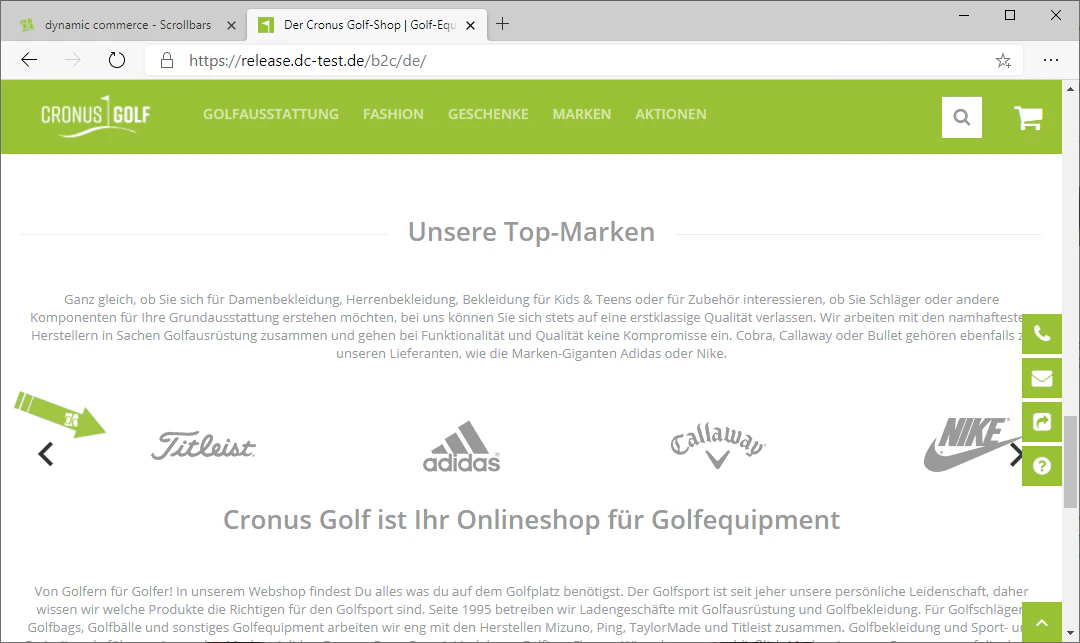
In the following, we will show you how to create scrollbars. Scrollbars are bars that display multiple images and automatically scroll through them.

In general, several images are displayed simultaneously. Unlike an image gallery, there is no large-image display; instead, all images are shown at the same display size.

In addition, scrollbars also give you the option of maintaining a text alongside the image. Scrollbars are typically used to display the brands available in your shop.

<Note>
  This guide is part of the [Content Types](/docs/en/dynamic-content/user-guide/inhaltsarten). We show you how to create content in general under [Creating and Editing Content](/docs/en/dynamic-content/user-guide/inhalte-erstellen).
</Note>

<Steps>
  <Step>
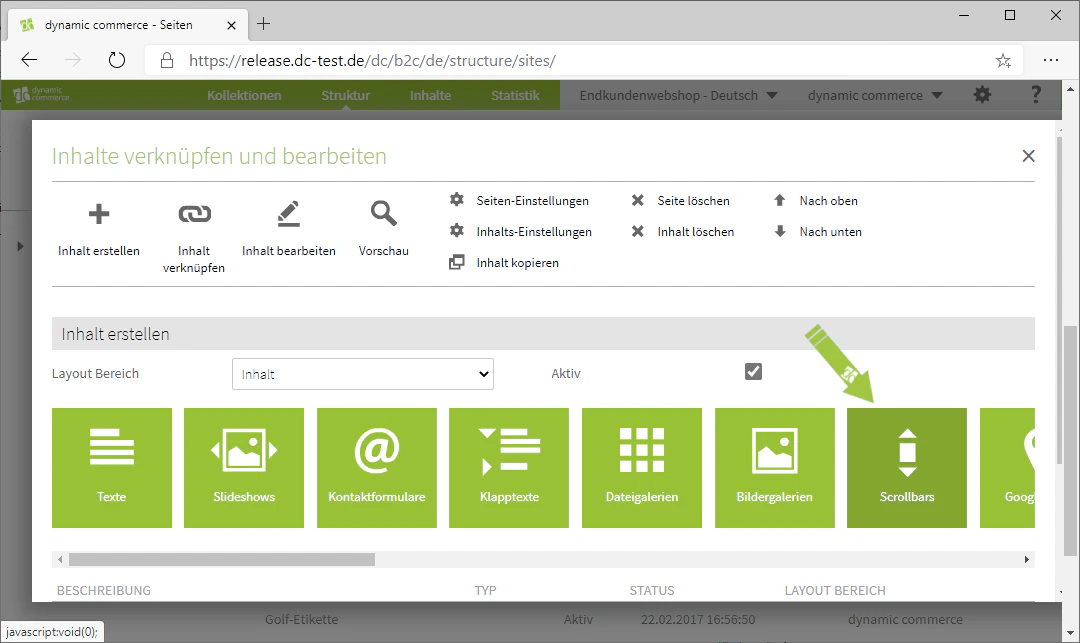
    ## Step 1: Select the Content Type "Scrollbars"

    First, select the content type "Scrollbars". This should open a window with the heading "New Scrollbar".
    <Frame>
      <img src="https://mintcdn.com/dcag/DlKD43HGX8h1zbMf/images/dynamic-content/inhaltsarten/scrollbars/auswahl-inhaltsart.png?fit=max&auto=format&n=DlKD43HGX8h1zbMf&q=85&s=77020368c986fbaf1e4de91ecbe42a3d" alt="Selecting the content type Scrollbars" width="1080" height="643" data-path="images/dynamic-content/inhaltsarten/scrollbars/auswahl-inhaltsart.png" />
    </Frame>
  </Step>

  <Step>
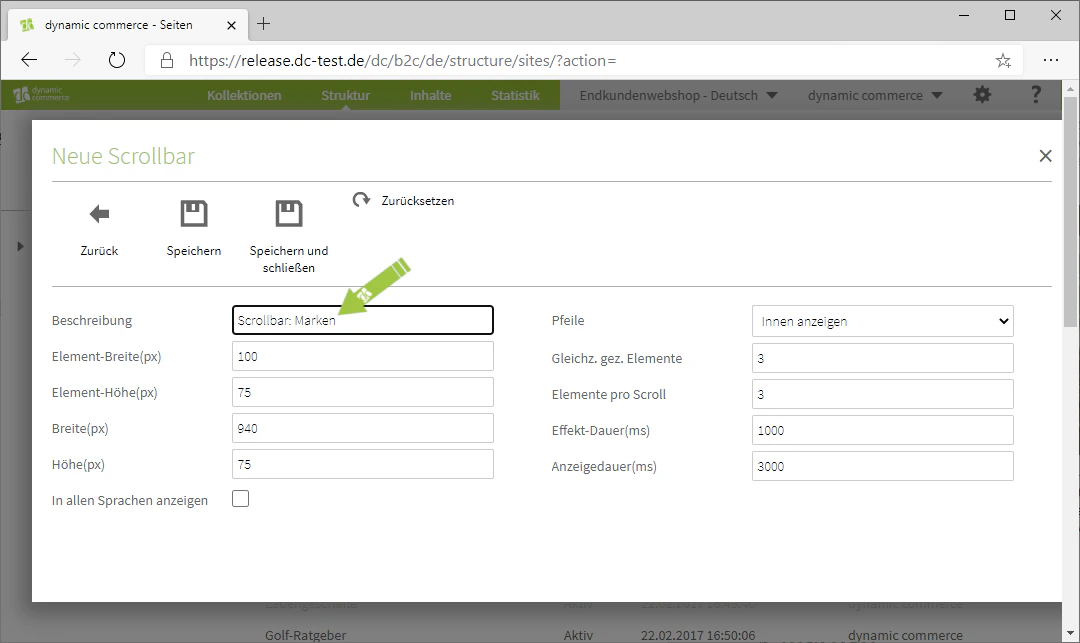
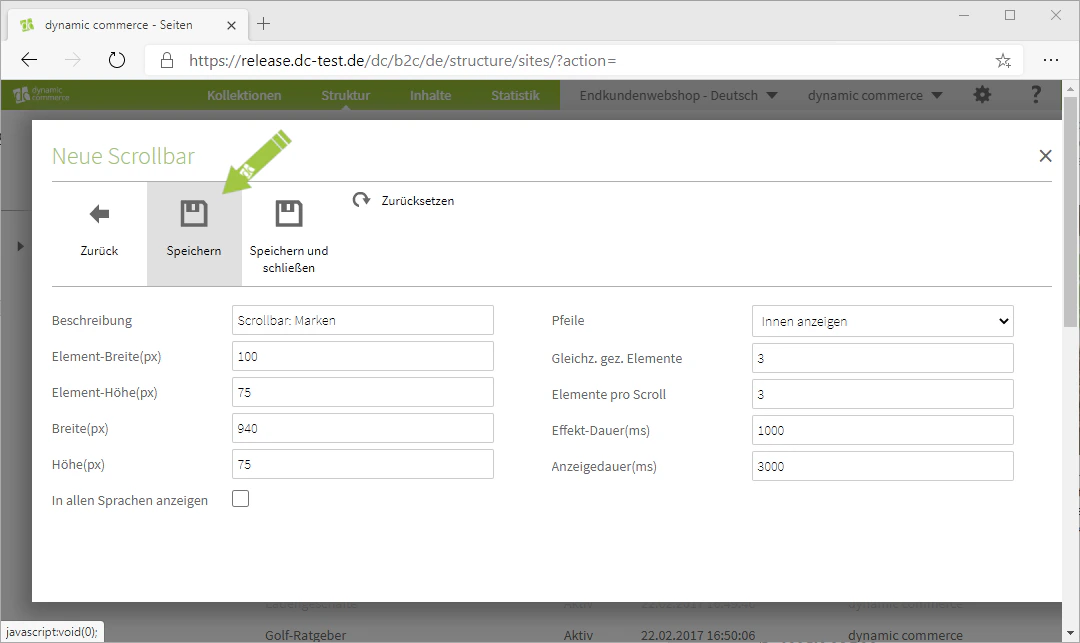
    ## Step 2: Choose a Description and Save

    In the window, first choose a description. This is only for organisational purposes and will not be displayed on your website.
    <Columns cols={2}>
      <Column>
        <Frame>
          <img src="https://mintcdn.com/dcag/DlKD43HGX8h1zbMf/images/dynamic-content/inhaltsarten/scrollbars/beschreibung.png?fit=max&auto=format&n=DlKD43HGX8h1zbMf&q=85&s=49b87bd19bca2a2562e9125c3fae9d45" alt="Choose a description for the scrollbar" width="1080" height="643" data-path="images/dynamic-content/inhaltsarten/scrollbars/beschreibung.png" />
        </Frame>
      </Column>

      <Column>
        <Frame>
          <img src="https://mintcdn.com/dcag/DlKD43HGX8h1zbMf/images/dynamic-content/inhaltsarten/scrollbars/speichern.png?fit=max&auto=format&n=DlKD43HGX8h1zbMf&q=85&s=e69f1179bfb1ff8ac865269f1230541b" alt="Save the scrollbar" width="1080" height="643" data-path="images/dynamic-content/inhaltsarten/scrollbars/speichern.png" />
        </Frame>
      </Column>
    </Columns>
  </Step>

  <Step>
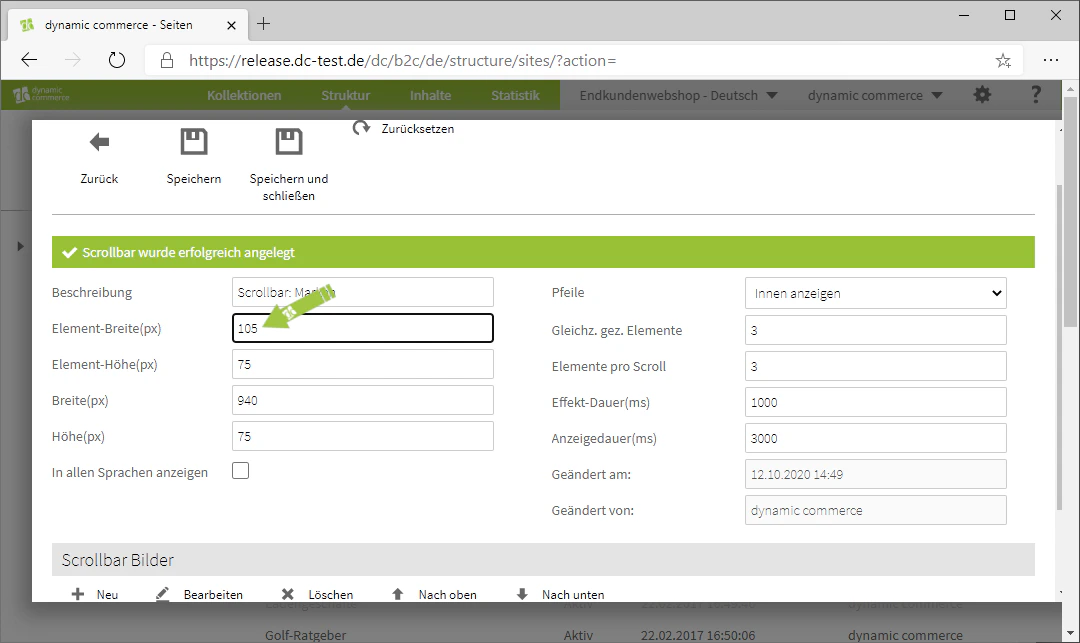
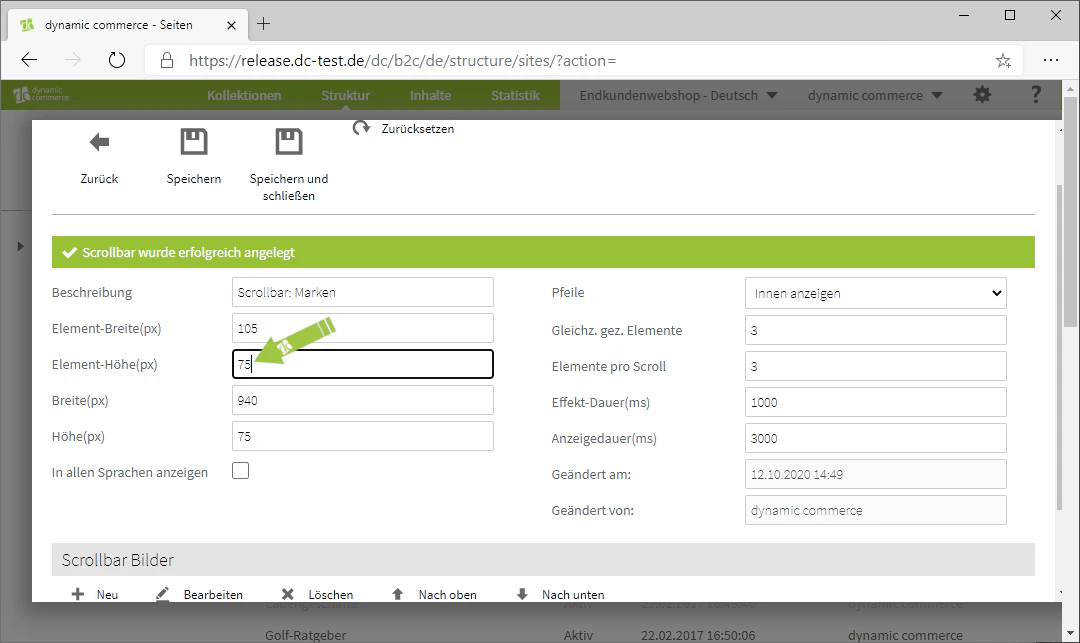
    ## Step 3: Choose Element Width and Height

    This affects the size at which the individual images are actually displayed. You should therefore also pay attention to the format or aspect ratio of the original images here.
    <Columns cols={2}>
      <Column>
        <Frame>
          <img src="https://mintcdn.com/dcag/DlKD43HGX8h1zbMf/images/dynamic-content/inhaltsarten/scrollbars/element-breite.png?fit=max&auto=format&n=DlKD43HGX8h1zbMf&q=85&s=1177b165ae7717953638f9502311efa3" alt="Set element width" width="1080" height="643" data-path="images/dynamic-content/inhaltsarten/scrollbars/element-breite.png" />
        </Frame>
      </Column>

      <Column>
        <Frame>
          <img src="https://mintcdn.com/dcag/DlKD43HGX8h1zbMf/images/dynamic-content/inhaltsarten/scrollbars/element-hoehe.png?fit=max&auto=format&n=DlKD43HGX8h1zbMf&q=85&s=e0b9ab883473cfed5e2676327f17ae29" alt="Set element height" width="1080" height="643" data-path="images/dynamic-content/inhaltsarten/scrollbars/element-hoehe.png" />
        </Frame>
      </Column>
    </Columns>
  </Step>

  <Step>
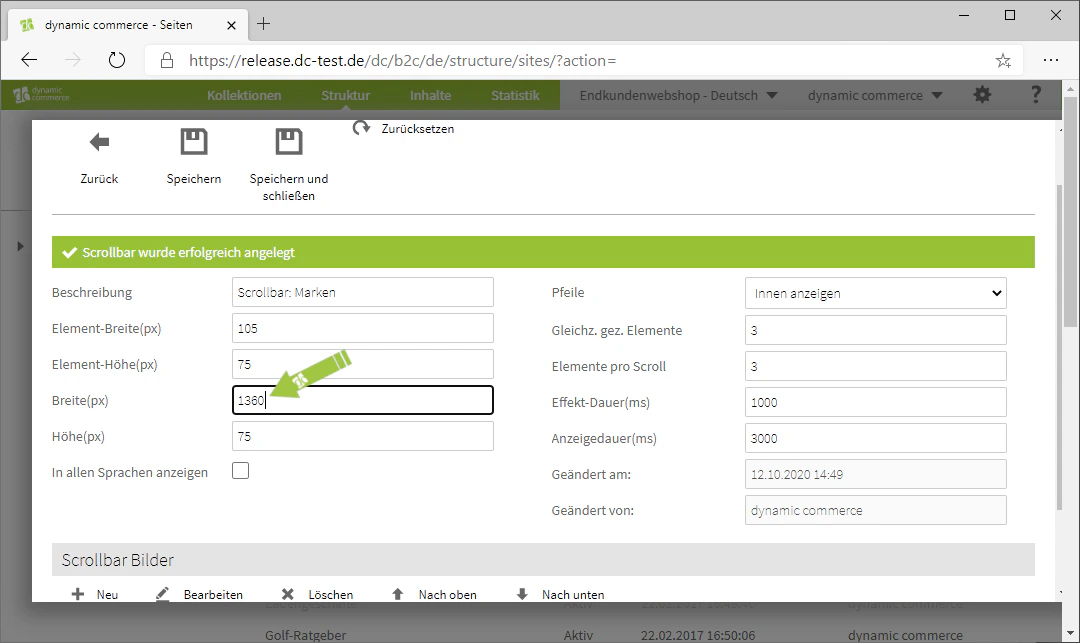
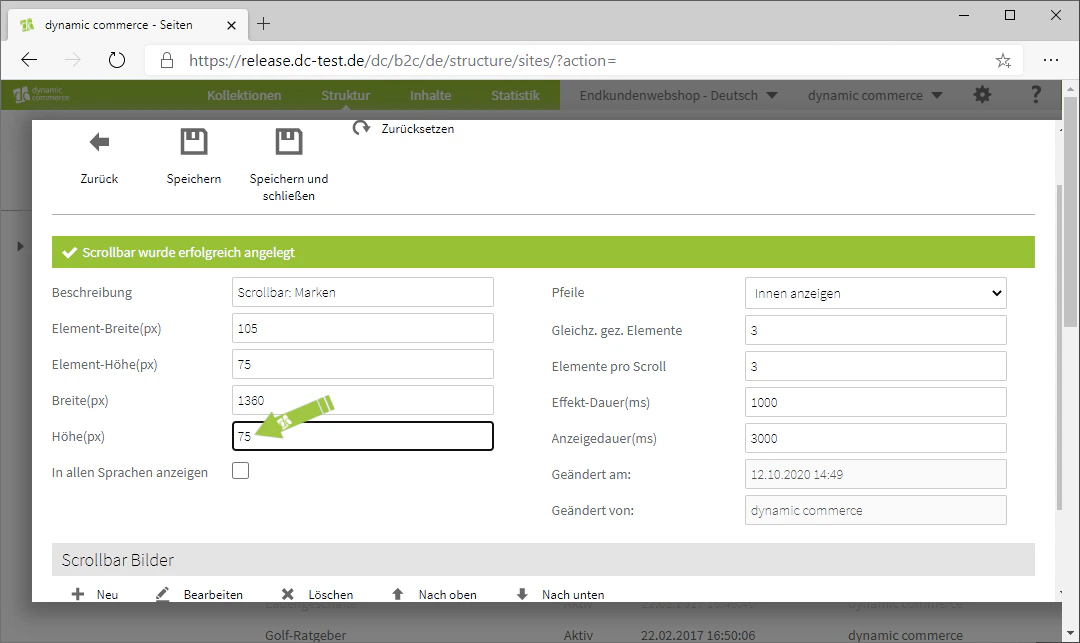
    ## Step 4: Choose Width and Height

    If you want multiple elements displayed side by side, you must adjust the width of the scrollbar so that it is at least as wide as the element width multiplied by the number of simultaneously displayed elements.
    <Columns cols={2}>
      <Column>
        <Frame>
          <img src="https://mintcdn.com/dcag/DlKD43HGX8h1zbMf/images/dynamic-content/inhaltsarten/scrollbars/breite.png?fit=max&auto=format&n=DlKD43HGX8h1zbMf&q=85&s=a2fcd02ea54ca65edd1056bbd2342aab" alt="Set the width of the scrollbar" width="1080" height="643" data-path="images/dynamic-content/inhaltsarten/scrollbars/breite.png" />
        </Frame>
      </Column>

      <Column>
        <Frame>
          <img src="https://mintcdn.com/dcag/DlKD43HGX8h1zbMf/images/dynamic-content/inhaltsarten/scrollbars/hoehe.png?fit=max&auto=format&n=DlKD43HGX8h1zbMf&q=85&s=930c95a700e54f4d4fca79a3562747e3" alt="Set the height of the scrollbar" width="1080" height="643" data-path="images/dynamic-content/inhaltsarten/scrollbars/hoehe.png" />
        </Frame>
      </Column>
    </Columns>
  </Step>

  <Step>
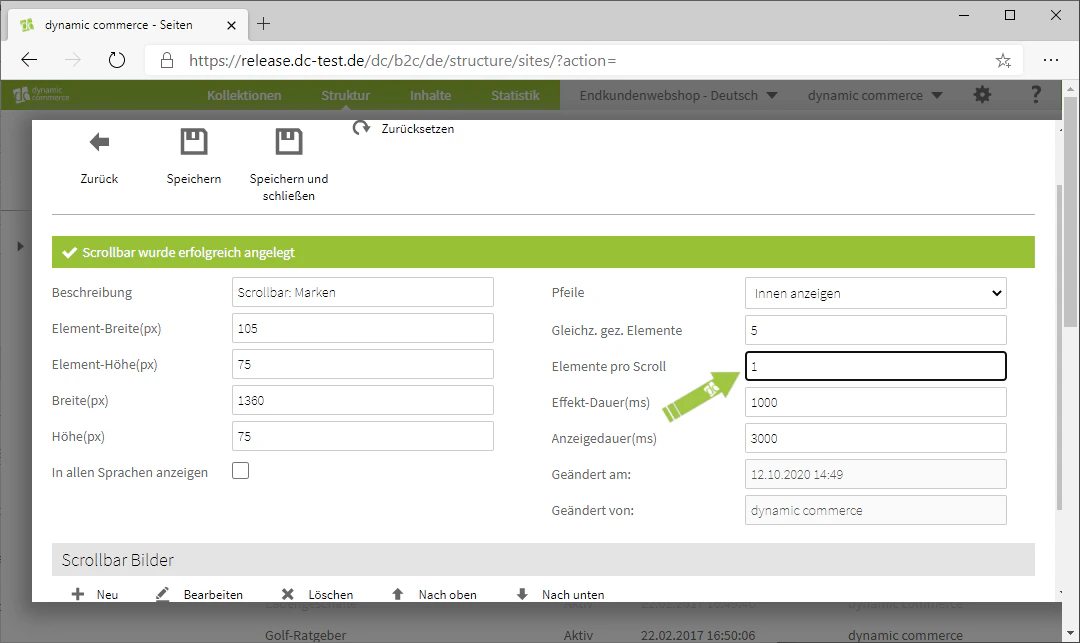
    ## Step 5: Adjust Arrow Position and Element Display

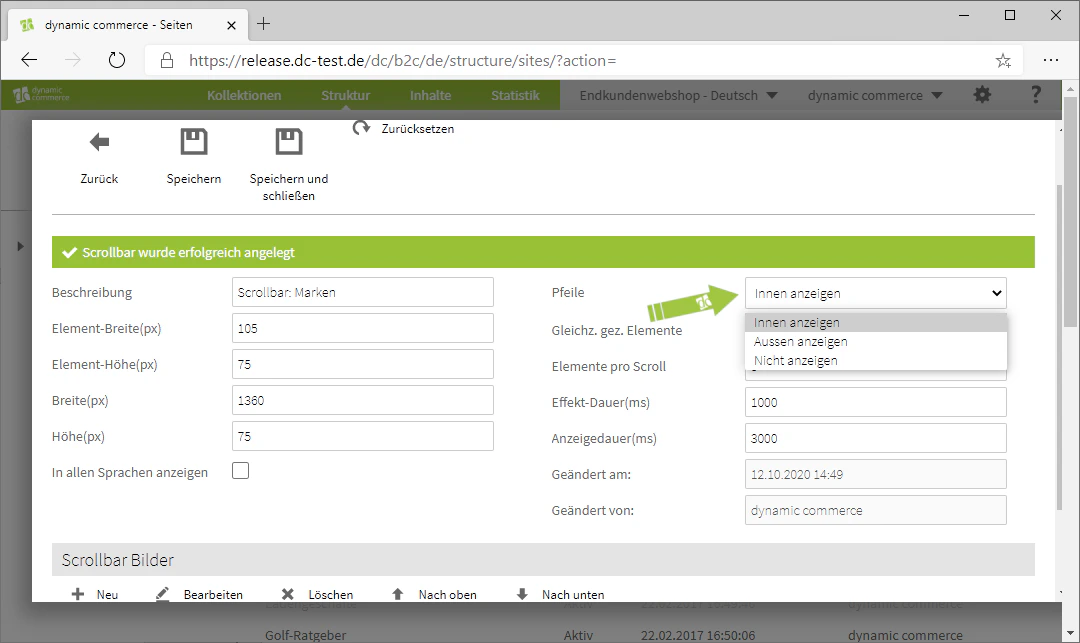
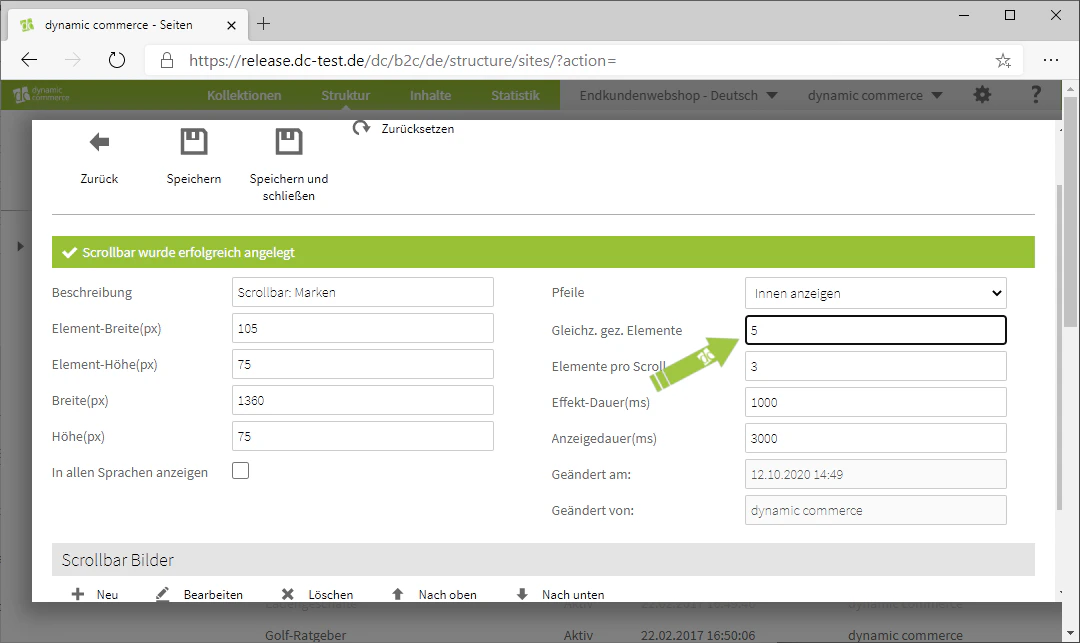
    Next, you can decide where and whether arrows should be displayed on the scrollbar, allowing visitors to manually switch to the next images.
    <Columns cols={3}>
      <Column>
        <Frame>
          <img src="https://mintcdn.com/dcag/DlKD43HGX8h1zbMf/images/dynamic-content/inhaltsarten/scrollbars/pfeile.png?fit=max&auto=format&n=DlKD43HGX8h1zbMf&q=85&s=9ddc357c155569c2ba098fae767cb1fd" alt="Display arrows on the scrollbar" width="1080" height="643" data-path="images/dynamic-content/inhaltsarten/scrollbars/pfeile.png" />
        </Frame>
      </Column>

      <Column>
        <Frame>
          <img src="https://mintcdn.com/dcag/DlKD43HGX8h1zbMf/images/dynamic-content/inhaltsarten/scrollbars/gleichzeitig-gezeigte-elemente.png?fit=max&auto=format&n=DlKD43HGX8h1zbMf&q=85&s=13a257e179beec882c4711d7a20f6515" alt="Simultaneously displayed elements" width="1080" height="643" data-path="images/dynamic-content/inhaltsarten/scrollbars/gleichzeitig-gezeigte-elemente.png" />
        </Frame>
      </Column>

      <Column>
        <Frame>
          <img src="https://mintcdn.com/dcag/DlKD43HGX8h1zbMf/images/dynamic-content/inhaltsarten/scrollbars/elemente-pro-scroll.png?fit=max&auto=format&n=DlKD43HGX8h1zbMf&q=85&s=730813960bf8b52c9ab90fa0dd4a215a" alt="Elements per scroll" width="1080" height="643" data-path="images/dynamic-content/inhaltsarten/scrollbars/elemente-pro-scroll.png" />
        </Frame>
      </Column>
    </Columns>
  </Step>

  <Step>
    ## Step 6: Define Display Duration and Effect Duration

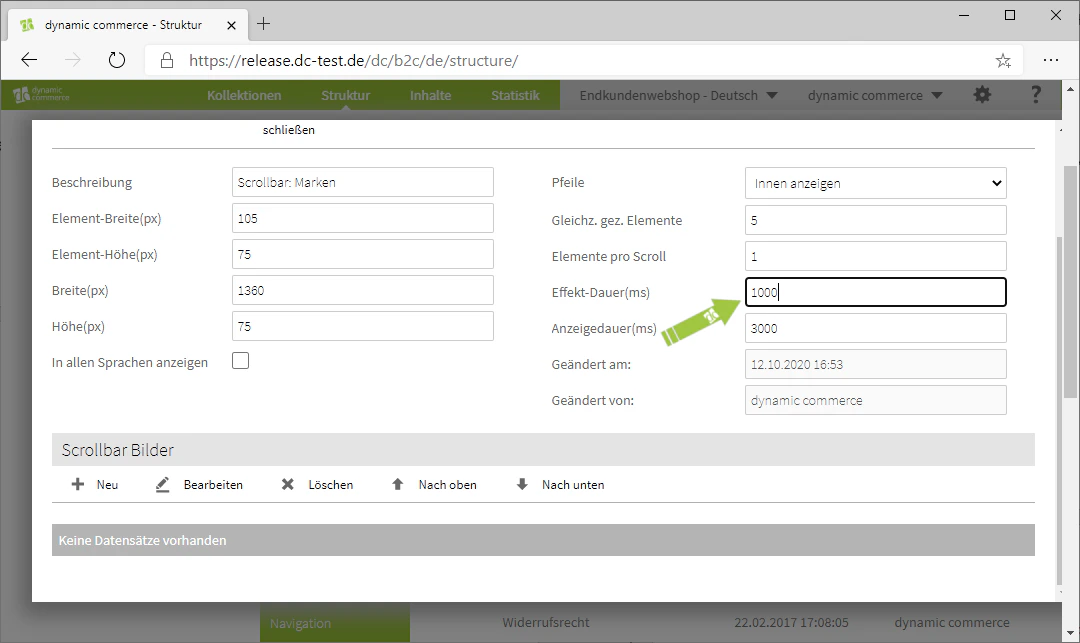
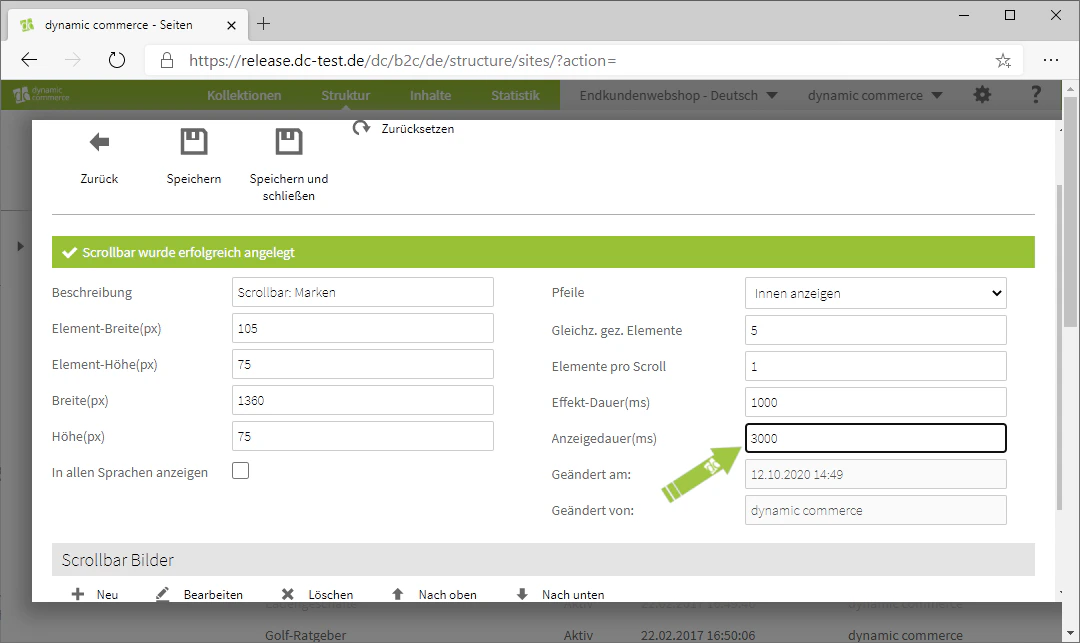
    The display duration specifies how many milliseconds to wait before the next scroll is triggered. The effect duration specifies how long (in milliseconds) the scroll effect should be displayed.
    <Columns cols={2}>
      <Column>
        <Frame>
          <img src="https://mintcdn.com/dcag/DlKD43HGX8h1zbMf/images/dynamic-content/inhaltsarten/scrollbars/effekt-dauer.png?fit=max&auto=format&n=DlKD43HGX8h1zbMf&q=85&s=aaed901832d52f8a39614c9d1aea5544" alt="Set effect duration" width="1080" height="643" data-path="images/dynamic-content/inhaltsarten/scrollbars/effekt-dauer.png" />
        </Frame>
      </Column>

      <Column>
        <Frame>
          <img src="https://mintcdn.com/dcag/DlKD43HGX8h1zbMf/images/dynamic-content/inhaltsarten/scrollbars/anzeigedauer.png?fit=max&auto=format&n=DlKD43HGX8h1zbMf&q=85&s=8468983f473a36c4ba445cf3c0bfd7be" alt="Set display duration" width="1080" height="643" data-path="images/dynamic-content/inhaltsarten/scrollbars/anzeigedauer.png" />
        </Frame>
      </Column>
    </Columns>
  </Step>

  <Step>
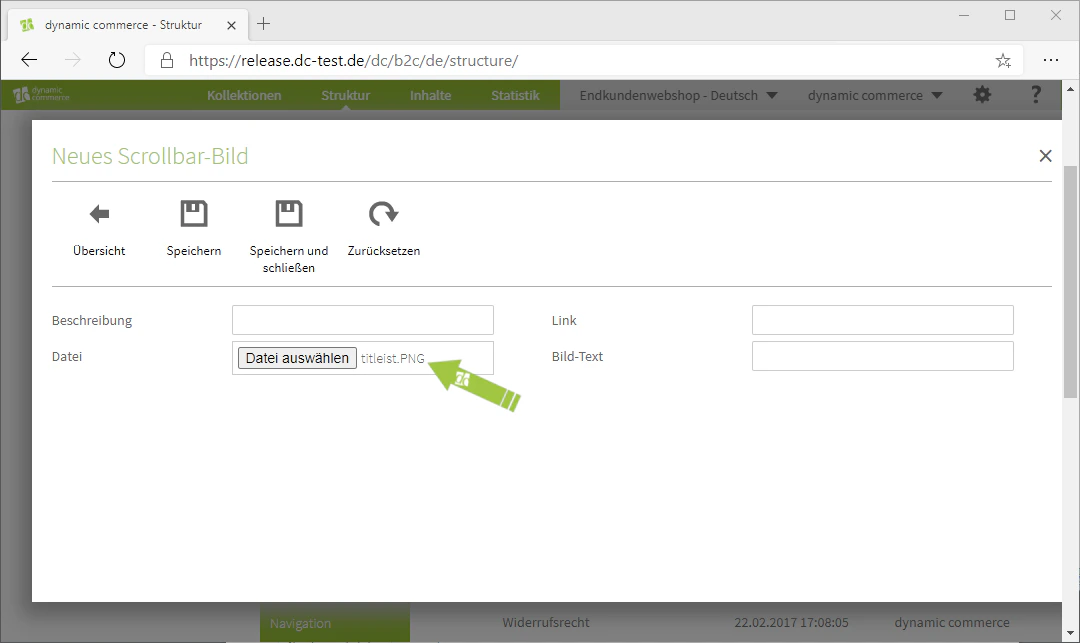
    ## Step 7: Maintain Images

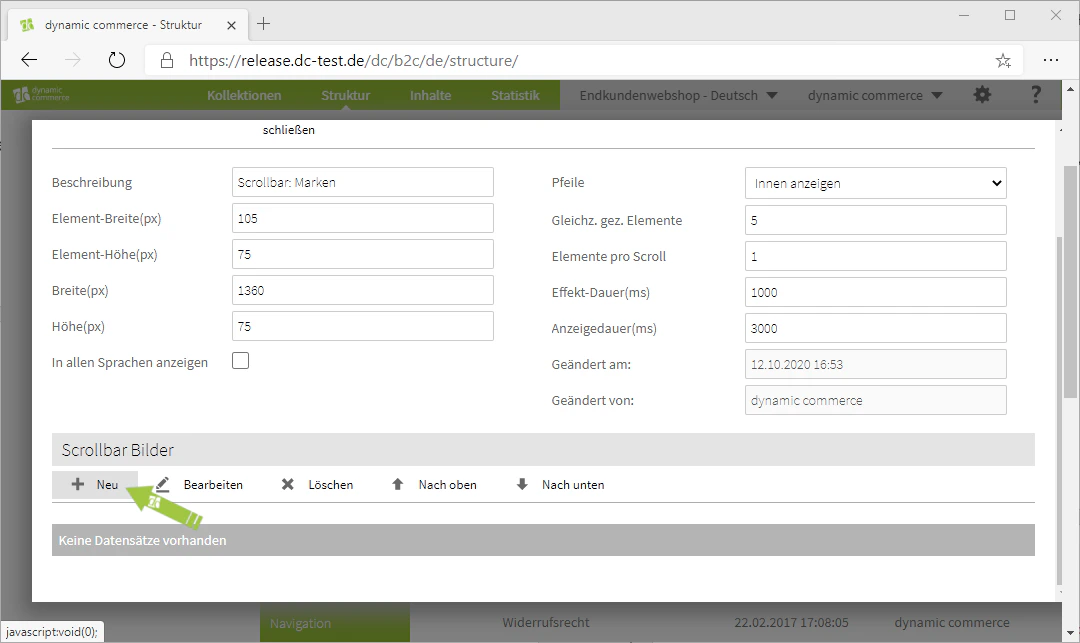
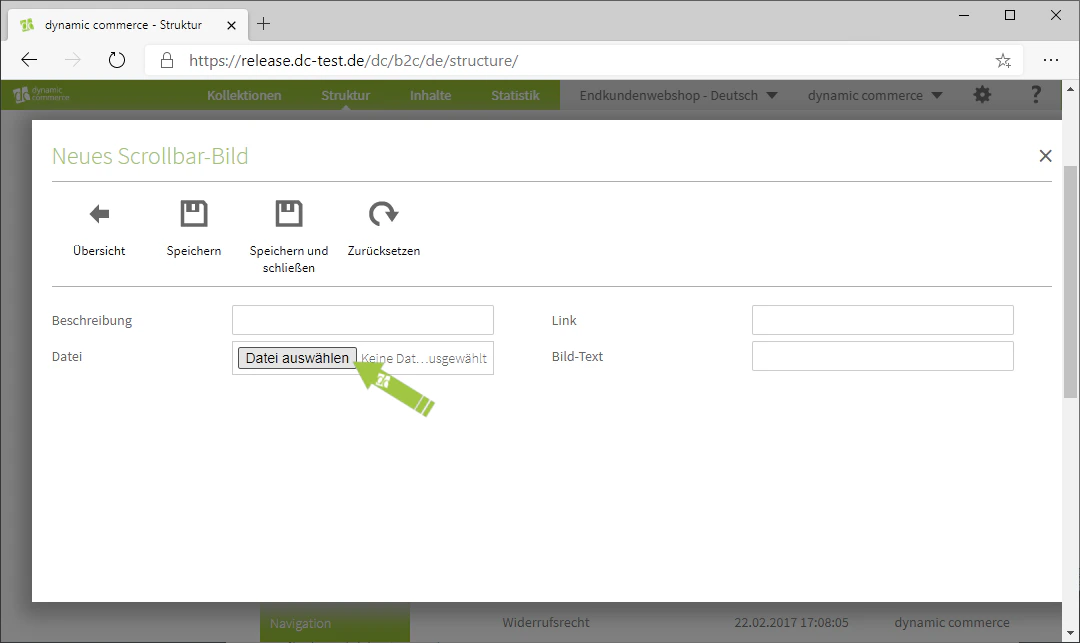
    To do this, click the plus icon with the adjacent label "New" under the heading "Scrollbar Images". A window with the heading "New Scrollbar Image" should then open, in which you can upload the respective image.
    <Columns cols={3}>
      <Column>
        <Frame>
          <img src="https://mintcdn.com/dcag/DlKD43HGX8h1zbMf/images/dynamic-content/inhaltsarten/scrollbars/neue-scrollbar-bilder.png?fit=max&auto=format&n=DlKD43HGX8h1zbMf&q=85&s=7f89f3f72823e1b9093f37d208f3b685" alt="Add new scrollbar images" width="1080" height="643" data-path="images/dynamic-content/inhaltsarten/scrollbars/neue-scrollbar-bilder.png" />
        </Frame>
      </Column>

      <Column>
        <Frame>
          <img src="https://mintcdn.com/dcag/DlKD43HGX8h1zbMf/images/dynamic-content/inhaltsarten/scrollbars/datei-auswaehlen.png?fit=max&auto=format&n=DlKD43HGX8h1zbMf&q=85&s=1a6b4d737479dfe63fb77fea5592b333" alt="Select file for scrollbar" width="1080" height="643" data-path="images/dynamic-content/inhaltsarten/scrollbars/datei-auswaehlen.png" />
        </Frame>
      </Column>

      <Column>
        <Frame>
          <img src="https://mintcdn.com/dcag/DlKD43HGX8h1zbMf/images/dynamic-content/inhaltsarten/scrollbars/hochgeladenes-bild.png?fit=max&auto=format&n=DlKD43HGX8h1zbMf&q=85&s=94490fa41811e49d045a8a7deb3ae45b" alt="Uploaded image in the scrollbar" width="1080" height="643" data-path="images/dynamic-content/inhaltsarten/scrollbars/hochgeladenes-bild.png" />
        </Frame>
      </Column>
    </Columns>
  </Step>

  <Step>
    ## Step 8: Choose Image Description and Text

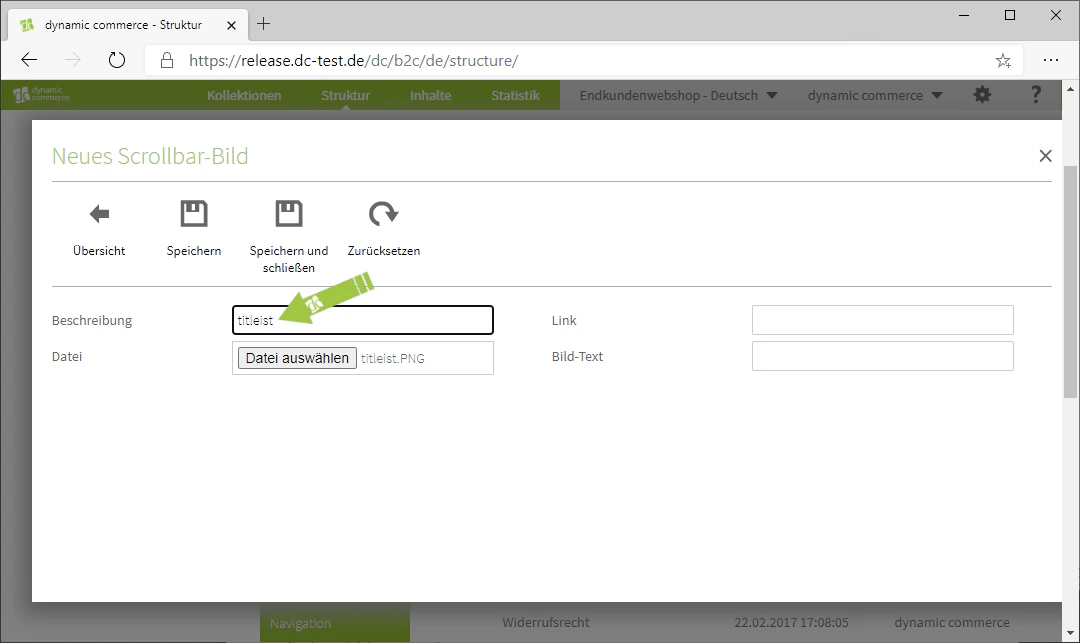
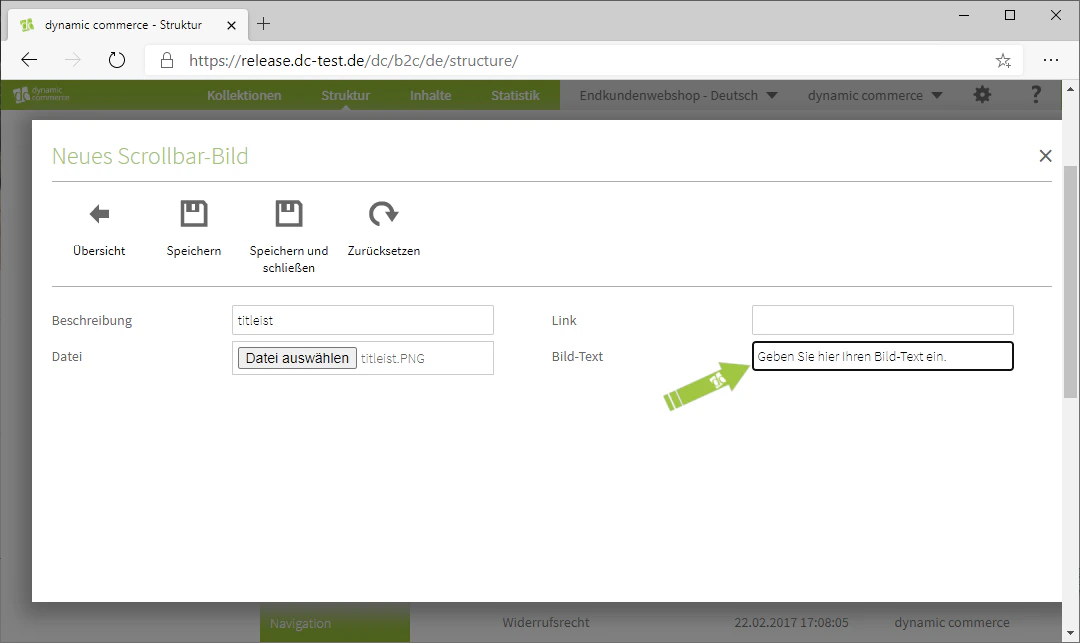
    Next, define a description for your uploaded image. This is only for organisational purposes and will not be displayed on your website.
    <Columns cols={2}>
      <Column>
        <Frame>
          <img src="https://mintcdn.com/dcag/DlKD43HGX8h1zbMf/images/dynamic-content/inhaltsarten/scrollbars/bild-beschreibung.png?fit=max&auto=format&n=DlKD43HGX8h1zbMf&q=85&s=c5b08da944ab1c5d166818505eff1004" alt="Define image description" width="1080" height="643" data-path="images/dynamic-content/inhaltsarten/scrollbars/bild-beschreibung.png" />
        </Frame>
      </Column>

      <Column>
        <Frame>
          <img src="https://mintcdn.com/dcag/DlKD43HGX8h1zbMf/images/dynamic-content/inhaltsarten/scrollbars/bild-text.png?fit=max&auto=format&n=DlKD43HGX8h1zbMf&q=85&s=229671f7181767c42a830ef0a06b6783" alt="Maintain image text" width="1080" height="643" data-path="images/dynamic-content/inhaltsarten/scrollbars/bild-text.png" />
        </Frame>
      </Column>
    </Columns>
  </Step>

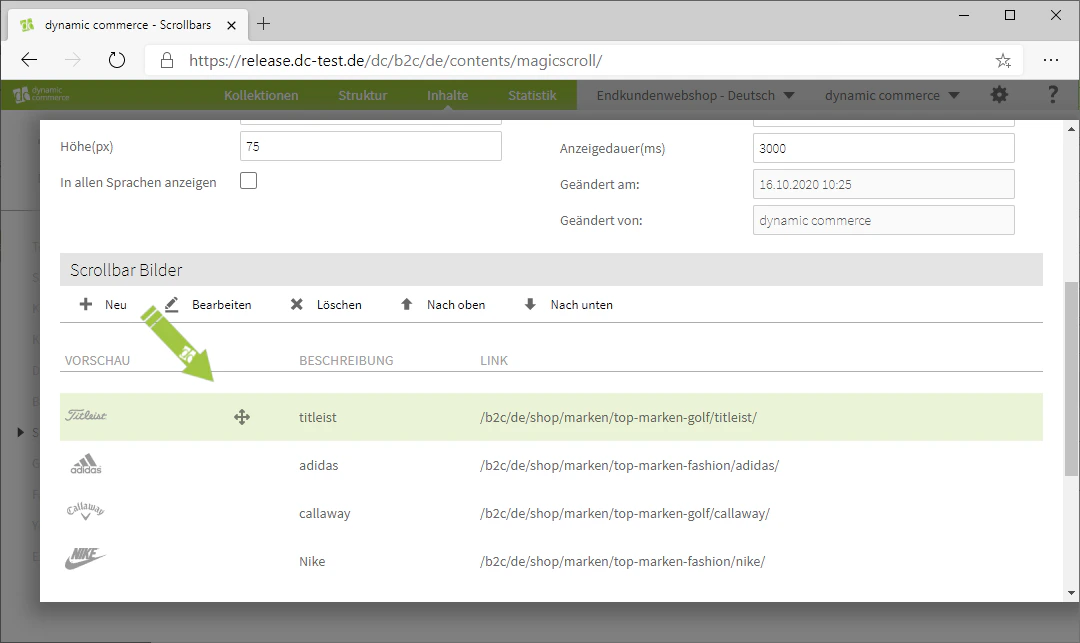
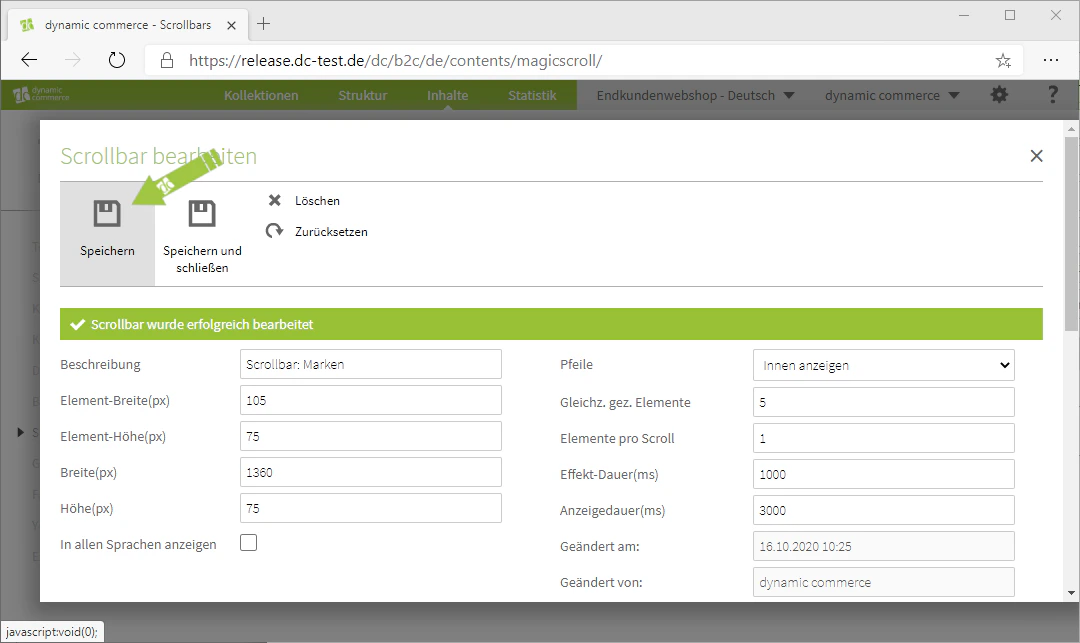
  <Step>
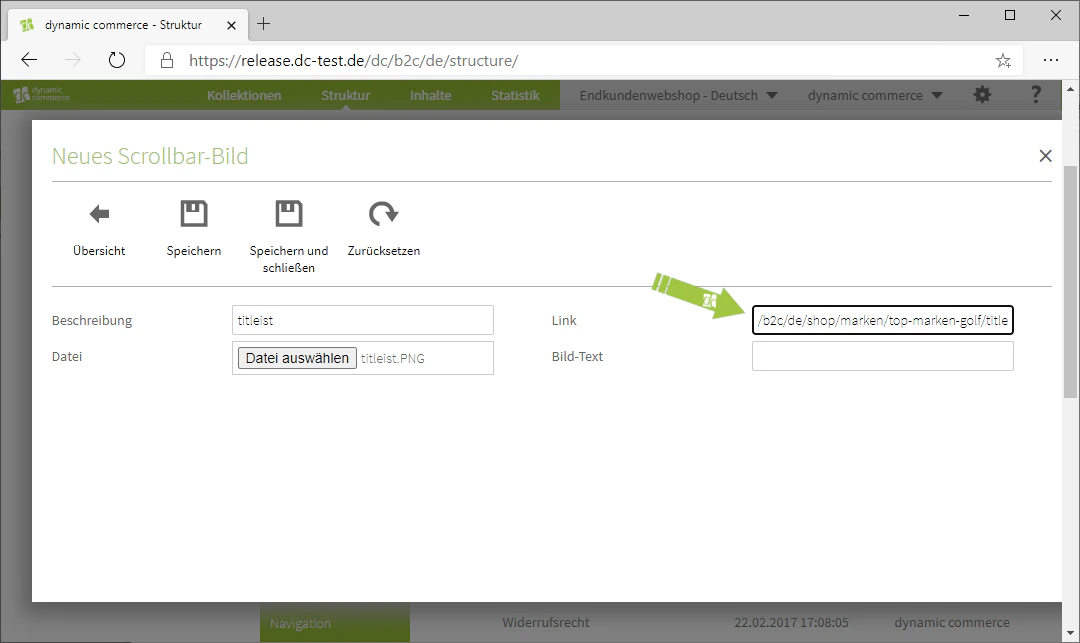
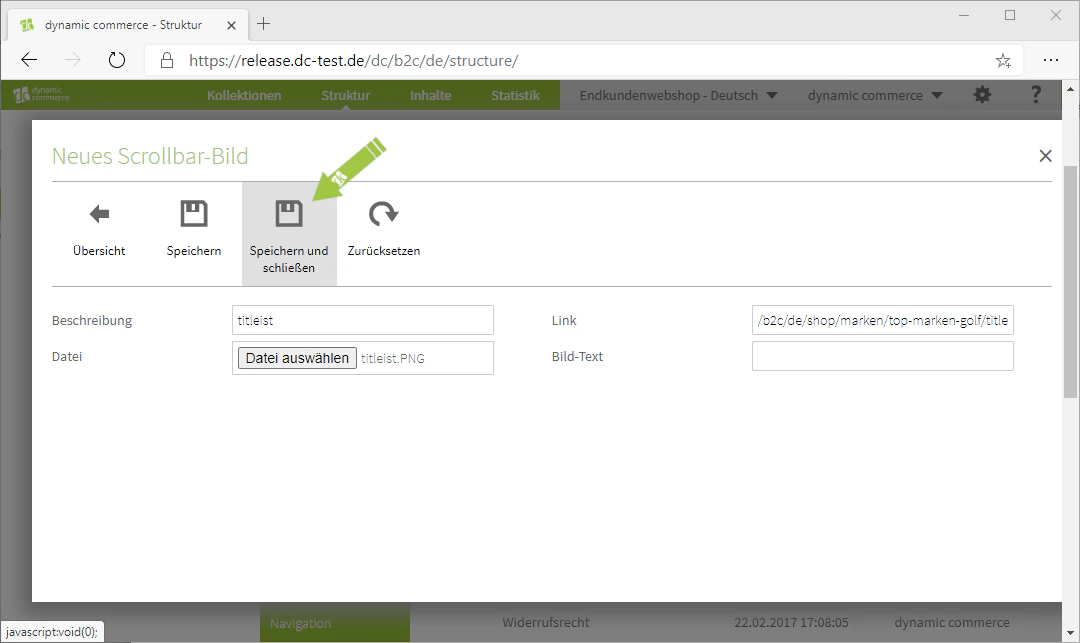
    ## Step 9: Add a Link

    In addition, you have the option of adding a link to your image, to which the visitor will be redirected as soon as they click on the corresponding image in the scrollbar.
    <Columns cols={3}>
      <Column>
        <Frame>
          <img src="https://mintcdn.com/dcag/DlKD43HGX8h1zbMf/images/dynamic-content/inhaltsarten/scrollbars/link-hinzufuegen.png?fit=max&auto=format&n=DlKD43HGX8h1zbMf&q=85&s=379073b08a0f2d9fd122d8d93079cc98" alt="Add a link to the image" width="1080" height="643" data-path="images/dynamic-content/inhaltsarten/scrollbars/link-hinzufuegen.png" />
        </Frame>
      </Column>

      <Column>
        <Frame>
          <img src="https://mintcdn.com/dcag/DlKD43HGX8h1zbMf/images/dynamic-content/inhaltsarten/scrollbars/speichern-und-schliessen.png?fit=max&auto=format&n=DlKD43HGX8h1zbMf&q=85&s=817eb24cbb295e2852f1e36be18b05e7" alt="Save and close image" width="1080" height="643" data-path="images/dynamic-content/inhaltsarten/scrollbars/speichern-und-schliessen.png" />
        </Frame>
      </Column>

      <Column>
        <Frame>
          <img src="https://mintcdn.com/dcag/DlKD43HGX8h1zbMf/images/dynamic-content/inhaltsarten/scrollbars/uebersicht-scrollbar-bilder.png?fit=max&auto=format&n=DlKD43HGX8h1zbMf&q=85&s=f3dd09c1aaad8121fbfa135d87379cbe" alt="Overview of scrollbar images" width="1080" height="643" data-path="images/dynamic-content/inhaltsarten/scrollbars/uebersicht-scrollbar-bilder.png" />
        </Frame>
      </Column>
    </Columns>

    <Columns cols={2}>
      <Column>
        <Frame>
          <img src="https://mintcdn.com/dcag/DlKD43HGX8h1zbMf/images/dynamic-content/inhaltsarten/scrollbars/speichern-final.png?fit=max&auto=format&n=DlKD43HGX8h1zbMf&q=85&s=cce7dd6060f211022c45433362ebfe98" alt="Save the scrollbar as a final step" width="1080" height="643" data-path="images/dynamic-content/inhaltsarten/scrollbars/speichern-final.png" />
        </Frame>
      </Column>

      <Column>
        <Frame>
          <img src="https://mintcdn.com/dcag/DlKD43HGX8h1zbMf/images/dynamic-content/inhaltsarten/scrollbars/beispiel-scrollbar.png?fit=max&auto=format&n=DlKD43HGX8h1zbMf&q=85&s=7eaa8a53c60fc06fcdf161d8c3c5d196" alt="Example of a completed scrollbar" width="1080" height="643" data-path="images/dynamic-content/inhaltsarten/scrollbars/beispiel-scrollbar.png" />
        </Frame>
      </Column>
    </Columns>
  </Step>
</Steps>

## Related Topics

<CardGroup cols={2}>
  <Card title="Content Types" icon="shapes" href="/docs/en/dynamic-content/user-guide/inhaltsarten">
    Overview of all available modules.
  </Card>

  <Card title="Creating and Editing Content" icon="pen-to-square" href="/docs/en/dynamic-content/user-guide/inhalte-erstellen">
    Create content on pages.
  </Card>

  <Card title="Slideshows" icon="images" href="/docs/en/dynamic-content/user-guide/inhaltsarten/slideshows">
    Present images as a slideshow on your page.
  </Card>

  <Card title="Image Galleries" icon="image" href="/docs/en/dynamic-content/user-guide/inhaltsarten/bildergalerien">
    Display multiple images as a gallery with preview.
  </Card>
</CardGroup>