> ## Documentation Index
> Fetch the complete documentation index at: https://docs.dc.ag/llms.txt
> Use this file to discover all available pages before exploring further.

# dynamic content - Create Contact Forms

> Create contact forms with custom fields, recipient email, and optional reCaptcha verification.

In the following, we will show you how to create a contact form.

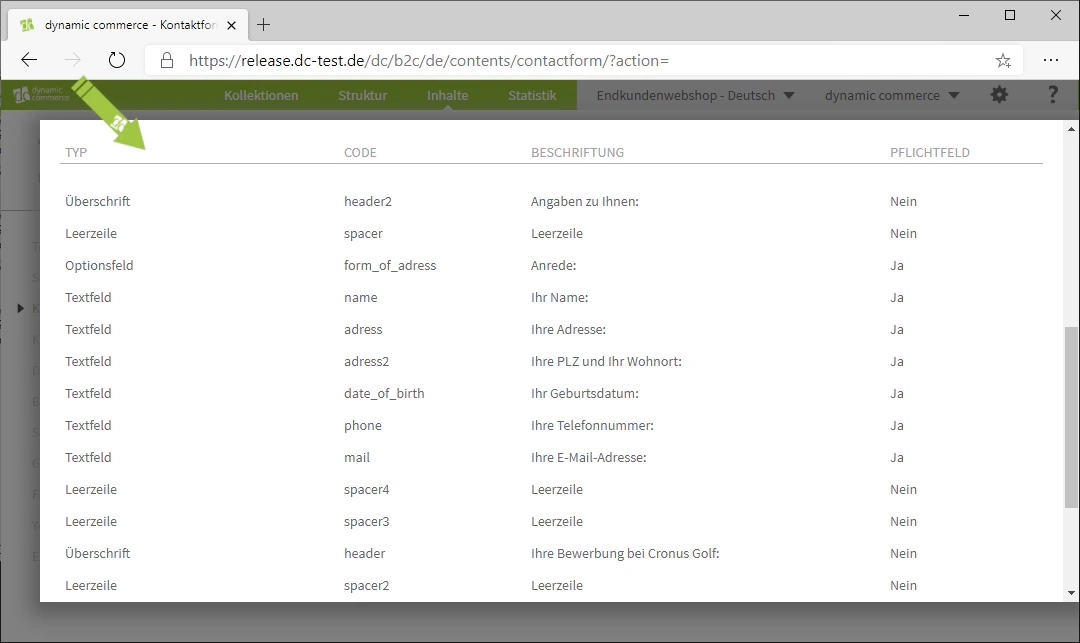
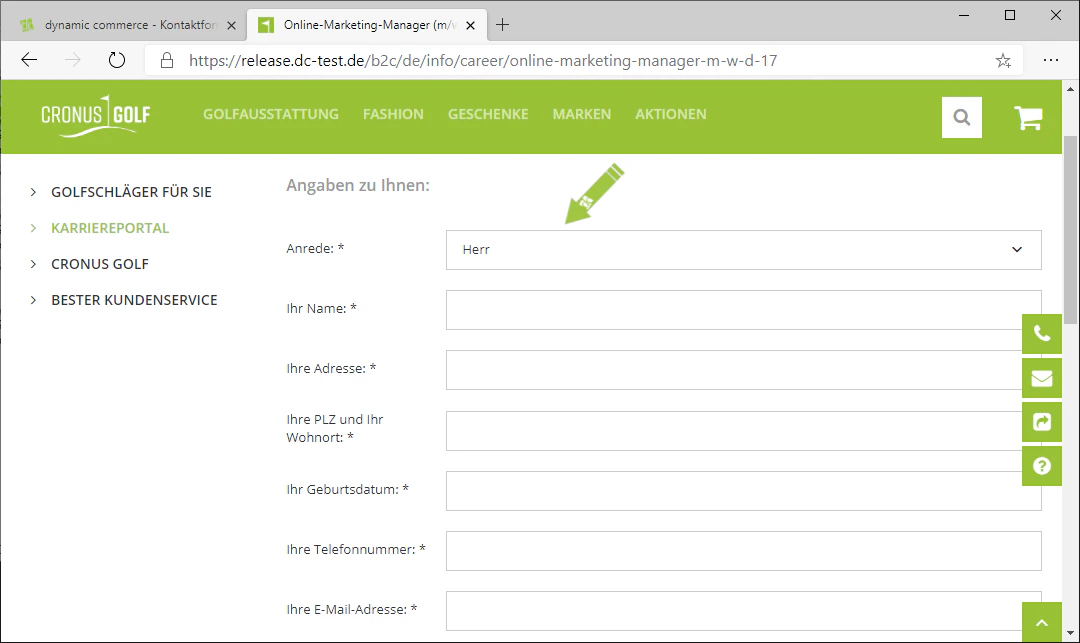
Contact forms allow visitors to your shop to get in touch with you. You can customise the fields that the visitor must fill in.

When the visitor clicks "Submit", you will receive their enquiry at an email address of your choice.

<Note>
  This guide is part of the [Content Types](/docs/en/dynamic-content/user-guide/inhaltsarten). We show you how to create content in general under [Create and Edit Content](/docs/en/dynamic-content/user-guide/inhalte-erstellen).
</Note>

<Steps>
  <Step>
    ## Step 1: Select the Content Type "Contact Forms"

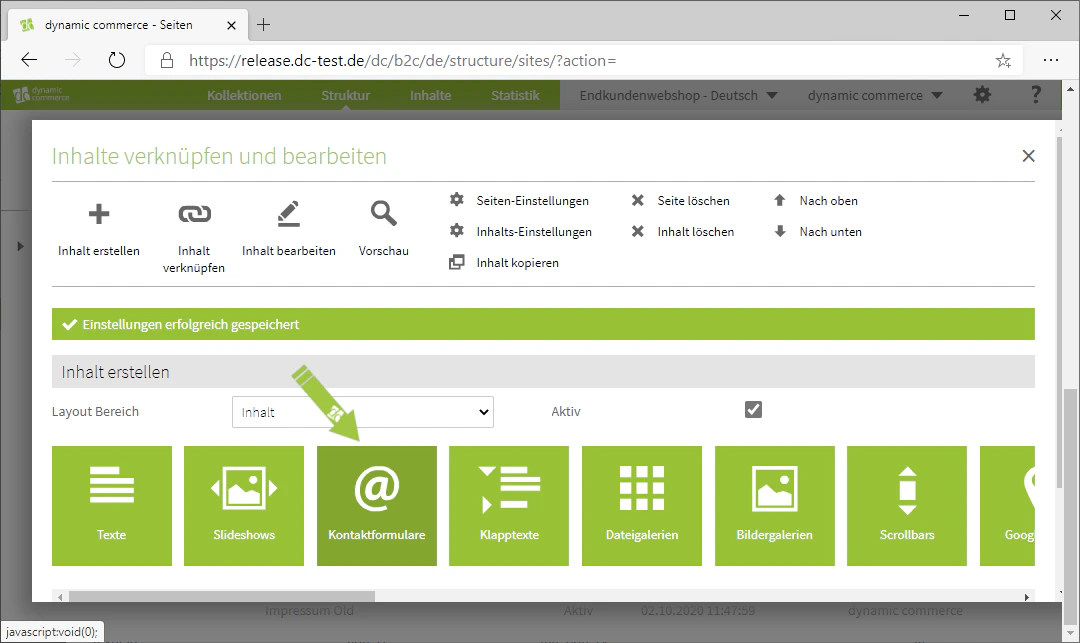
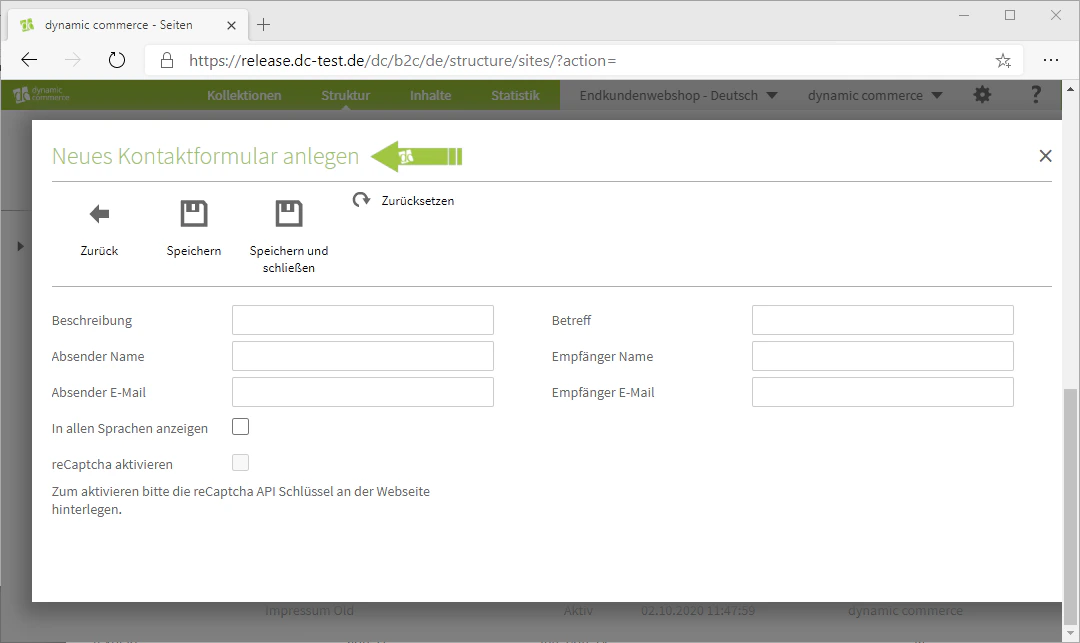
    First, select the content type "Contact Forms" when creating a content item. A new window with the heading "Create New Contact Form" should open.
    <Columns cols={2}>
      <Column>
        <Frame>
          <img src="https://mintcdn.com/dcag/DlKD43HGX8h1zbMf/images/dynamic-content/inhaltsarten/kontaktformulare/kontaktformulare-erstellen.png?fit=max&auto=format&n=DlKD43HGX8h1zbMf&q=85&s=cbe57c02421dc19c488e388532cb316c" alt="Selecting the Contact Forms content type" width="1080" height="643" data-path="images/dynamic-content/inhaltsarten/kontaktformulare/kontaktformulare-erstellen.png" />
        </Frame>
      </Column>

      <Column>
        <Frame>
          <img src="https://mintcdn.com/dcag/DlKD43HGX8h1zbMf/images/dynamic-content/inhaltsarten/kontaktformulare/neues-kontaktformular.png?fit=max&auto=format&n=DlKD43HGX8h1zbMf&q=85&s=4e14626aec1cf0938646fe6739761f68" alt="Create New Contact Form window" width="1080" height="643" data-path="images/dynamic-content/inhaltsarten/kontaktformulare/neues-kontaktformular.png" />
        </Frame>
      </Column>
    </Columns>
  </Step>

  <Step>
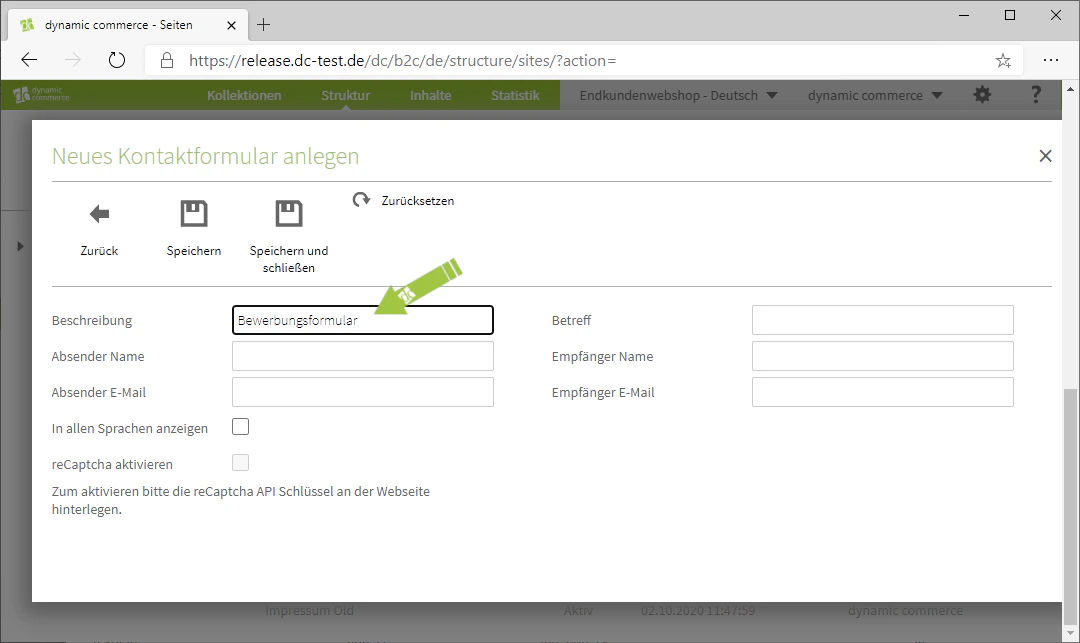
    ## Step 2: Choose a Description

    Start by choosing a description. This is only for organisational purposes and will not be displayed on your website.
    <Frame>
      <img src="https://mintcdn.com/dcag/DlKD43HGX8h1zbMf/images/dynamic-content/inhaltsarten/kontaktformulare/beschreibung.png?fit=max&auto=format&n=DlKD43HGX8h1zbMf&q=85&s=84a9fdcca62157949ef991da602d657b" alt="Description of the contact form" width="1080" height="643" data-path="images/dynamic-content/inhaltsarten/kontaktformulare/beschreibung.png" />
    </Frame>
  </Step>

  <Step>
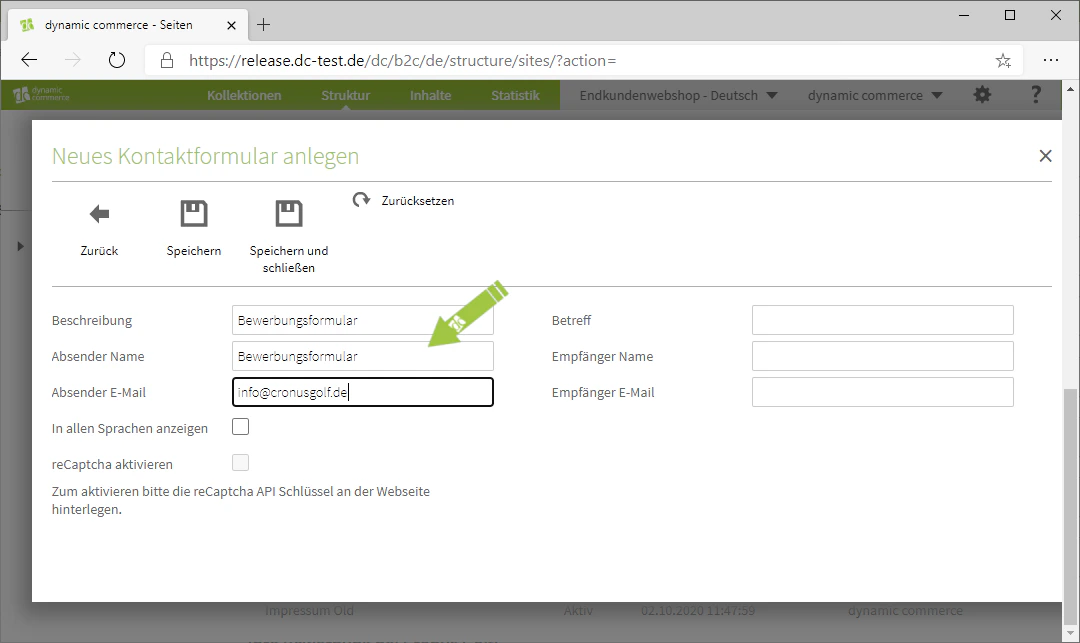
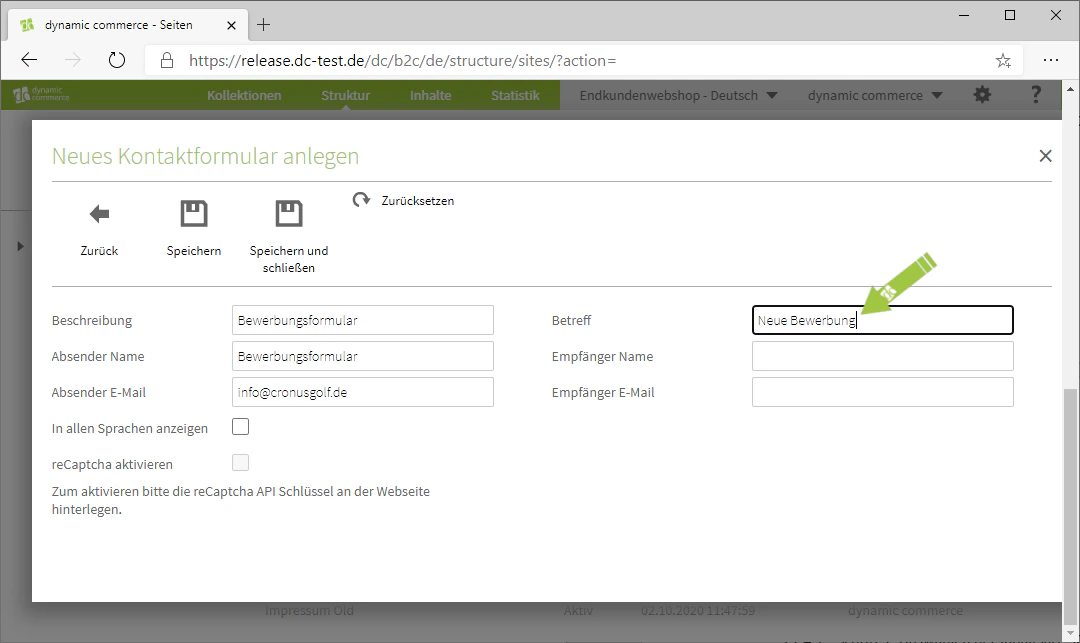
    ## Step 3: Define Sender and Subject

    Next, define a sender. It is recommended to use the description or name of the contact form as the sender name. Then enter the subject for the enquiries.
    <Columns cols={2}>
      <Column>
        <Frame>
          <img src="https://mintcdn.com/dcag/DlKD43HGX8h1zbMf/images/dynamic-content/inhaltsarten/kontaktformulare/absender-name-email.png?fit=max&auto=format&n=DlKD43HGX8h1zbMf&q=85&s=5f82b4c05f0728d1cdf41a657b508555" alt="Define sender name and email" width="1080" height="643" data-path="images/dynamic-content/inhaltsarten/kontaktformulare/absender-name-email.png" />
        </Frame>
      </Column>

      <Column>
        <Frame>
          <img src="https://mintcdn.com/dcag/DlKD43HGX8h1zbMf/images/dynamic-content/inhaltsarten/kontaktformulare/betreff.png?fit=max&auto=format&n=DlKD43HGX8h1zbMf&q=85&s=0df6c23a3237d8d6aba1b47a969a5561" alt="Define subject for the contact form" width="1080" height="643" data-path="images/dynamic-content/inhaltsarten/kontaktformulare/betreff.png" />
        </Frame>
      </Column>
    </Columns>
  </Step>

  <Step>
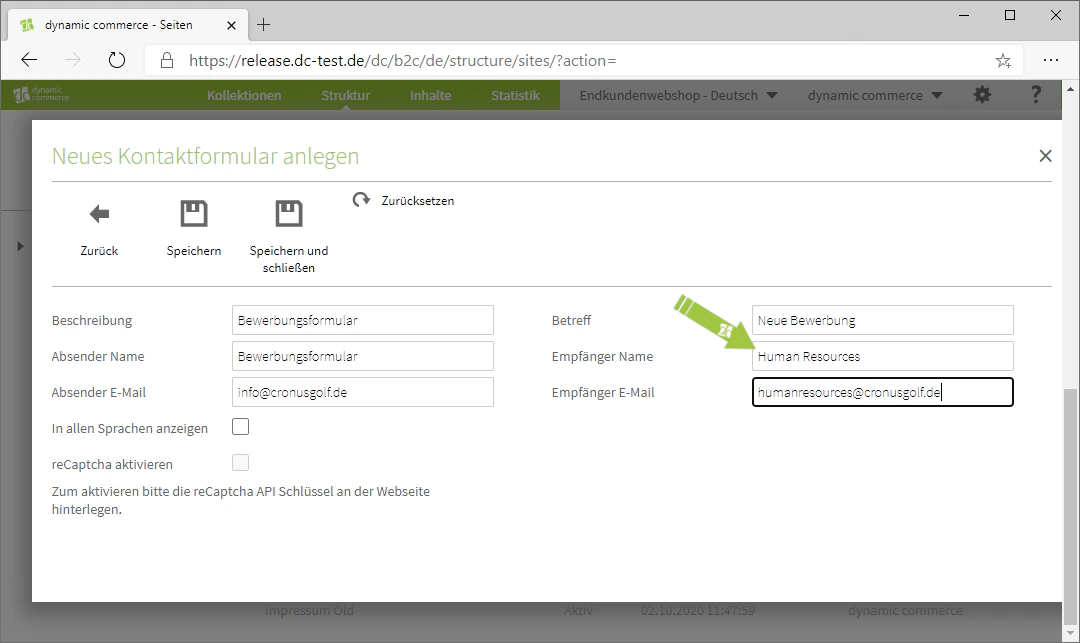
    ## Step 4: Choose Recipient and Save

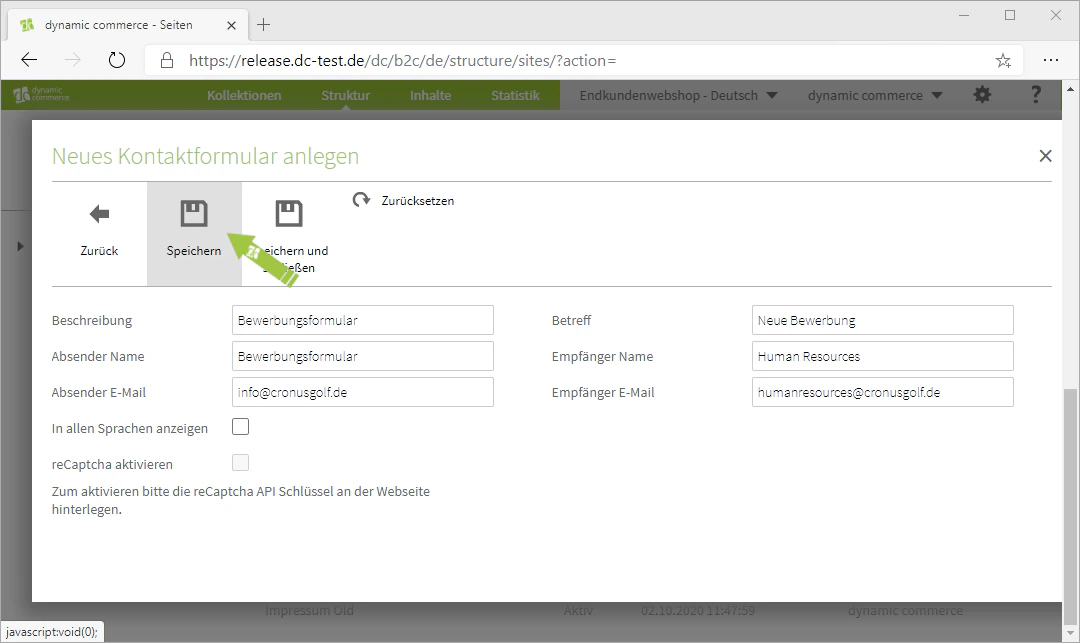
    Then select a recipient. You can enter both a recipient name and a recipient email address. Save your entries afterwards.
    <Columns cols={2}>
      <Column>
        <Frame>
          <img src="https://mintcdn.com/dcag/DlKD43HGX8h1zbMf/images/dynamic-content/inhaltsarten/kontaktformulare/empfaenger-name-email.png?fit=max&auto=format&n=DlKD43HGX8h1zbMf&q=85&s=b2d24196a1831461f457a1cc0f9c4671" alt="Enter recipient name and email" width="1080" height="643" data-path="images/dynamic-content/inhaltsarten/kontaktformulare/empfaenger-name-email.png" />
        </Frame>
      </Column>

      <Column>
        <Frame>
          <img src="https://mintcdn.com/dcag/DlKD43HGX8h1zbMf/images/dynamic-content/inhaltsarten/kontaktformulare/speichern.png?fit=max&auto=format&n=DlKD43HGX8h1zbMf&q=85&s=f1d629cd53c8b3121890c2ac637a5e59" alt="Save contact form" width="1080" height="643" data-path="images/dynamic-content/inhaltsarten/kontaktformulare/speichern.png" />
        </Frame>
      </Column>
    </Columns>
  </Step>

  <Step>
    ## Step 5: Activate reCaptcha

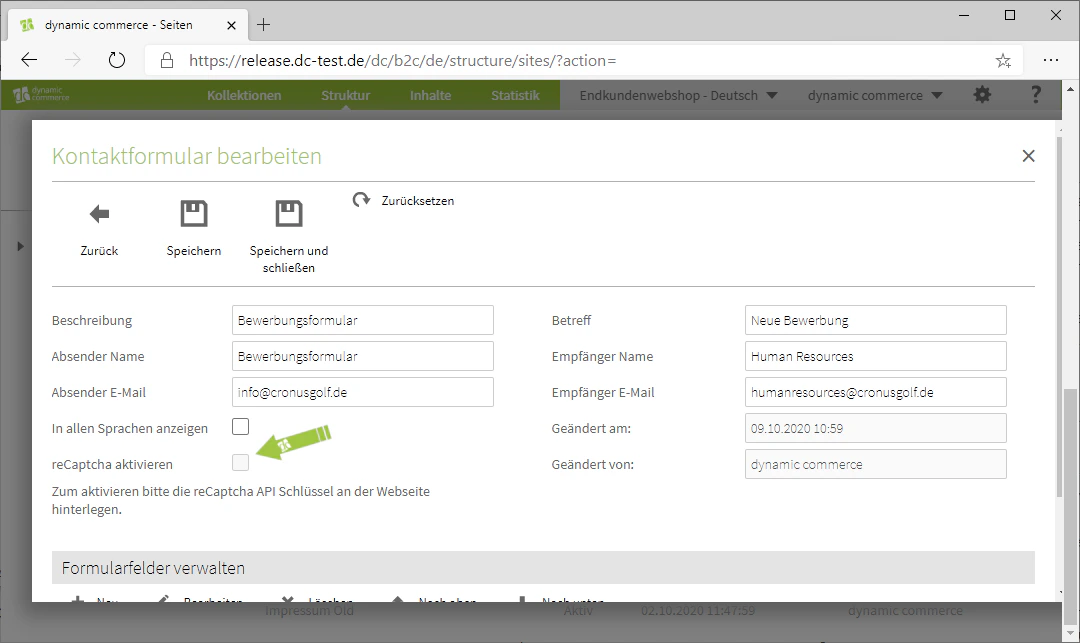
    You also have the option to enable a reCaptcha verification by checking the "Activate reCaptcha" checkbox.

    <Info>
      ReCaptcha is a captcha service that distinguishes whether certain actions on your site are performed by a human or a computer (bot).
    </Info>

    <Frame>
      <img src="https://mintcdn.com/dcag/DlKD43HGX8h1zbMf/images/dynamic-content/inhaltsarten/kontaktformulare/recaptcha-aktivieren.png?fit=max&auto=format&n=DlKD43HGX8h1zbMf&q=85&s=3061771b89e24d883517d0936ada8e5c" alt="Activate reCaptcha verification" width="1080" height="643" data-path="images/dynamic-content/inhaltsarten/kontaktformulare/recaptcha-aktivieren.png" />
    </Frame>
  </Step>

  <Step>
    ## Step 6: Create Form Fields

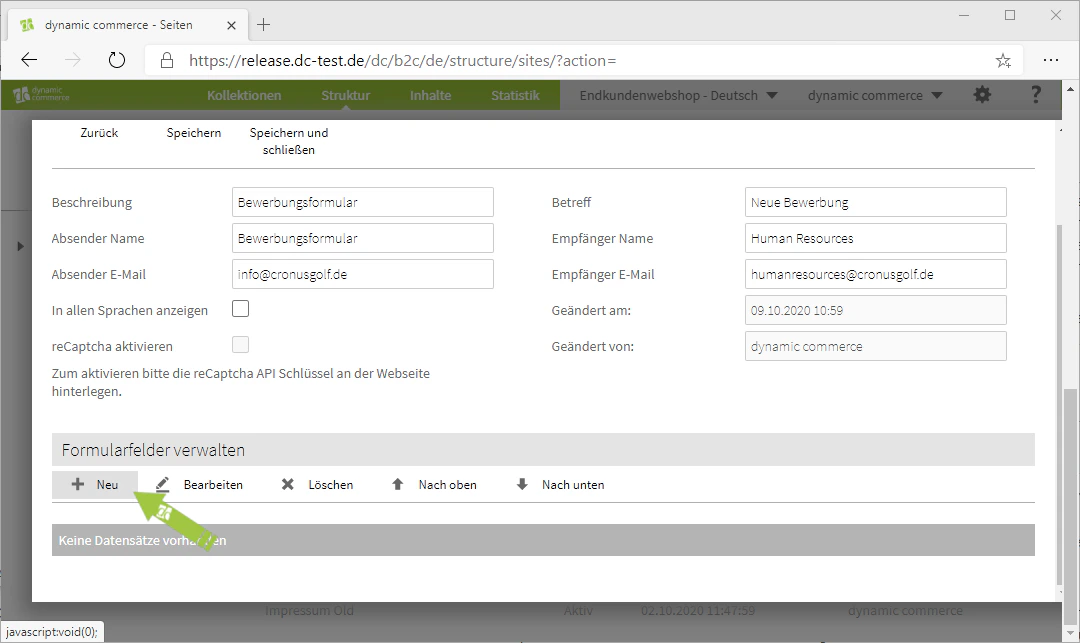
    After saving, a menu with the heading "Manage Form Fields" should appear below the general settings.

    You create a new field by clicking the "Plus" icon with the adjacent label "New".
    <Columns cols={2}>
      <Column>
        <Frame>
          <img src="https://mintcdn.com/dcag/DlKD43HGX8h1zbMf/images/dynamic-content/inhaltsarten/kontaktformulare/neues-formularfeld.png?fit=max&auto=format&n=DlKD43HGX8h1zbMf&q=85&s=d8ebadb88807828eadb68962b8277154" alt="Create new form field" width="1080" height="643" data-path="images/dynamic-content/inhaltsarten/kontaktformulare/neues-formularfeld.png" />
        </Frame>
      </Column>

      <Column>
        <Frame>
          <img src="https://mintcdn.com/dcag/DlKD43HGX8h1zbMf/images/dynamic-content/inhaltsarten/kontaktformulare/formularfelder-verwalten.png?fit=max&auto=format&n=DlKD43HGX8h1zbMf&q=85&s=58285cceba2f63df67279c58cb8ff1ed" alt="Manage form fields" width="1080" height="643" data-path="images/dynamic-content/inhaltsarten/kontaktformulare/formularfelder-verwalten.png" />
        </Frame>
      </Column>
    </Columns>
  </Step>

  <Step>
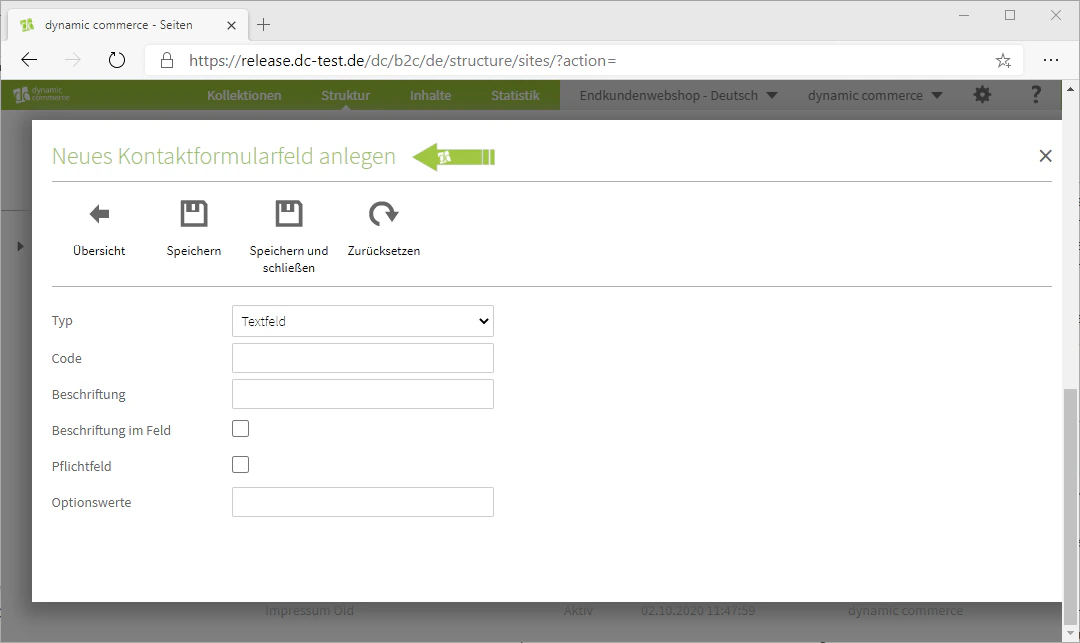
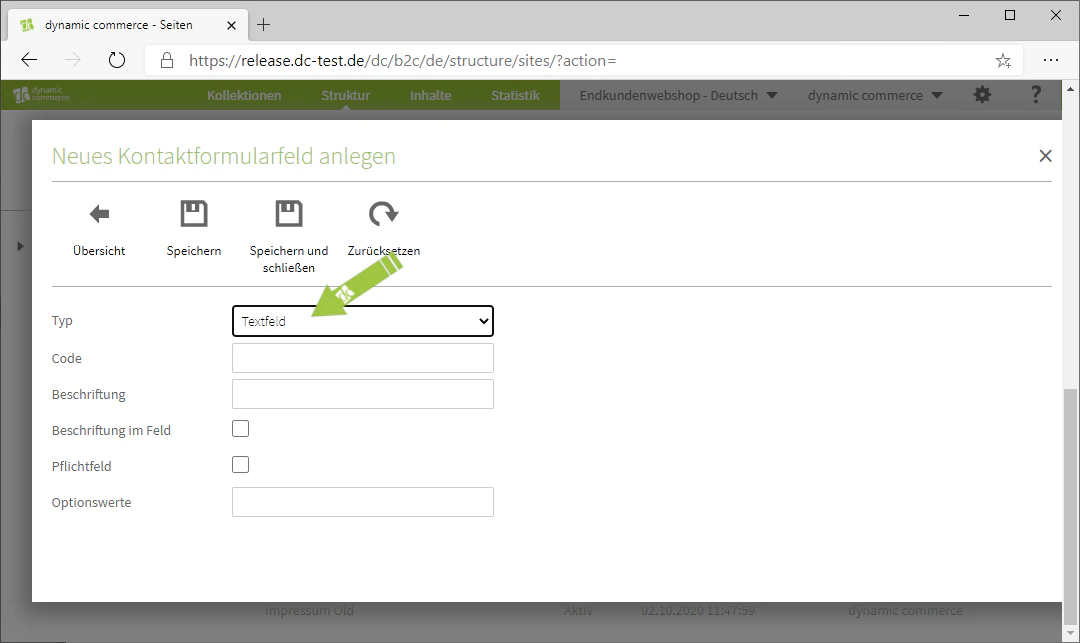
    ## Step 7: Define the Field Type

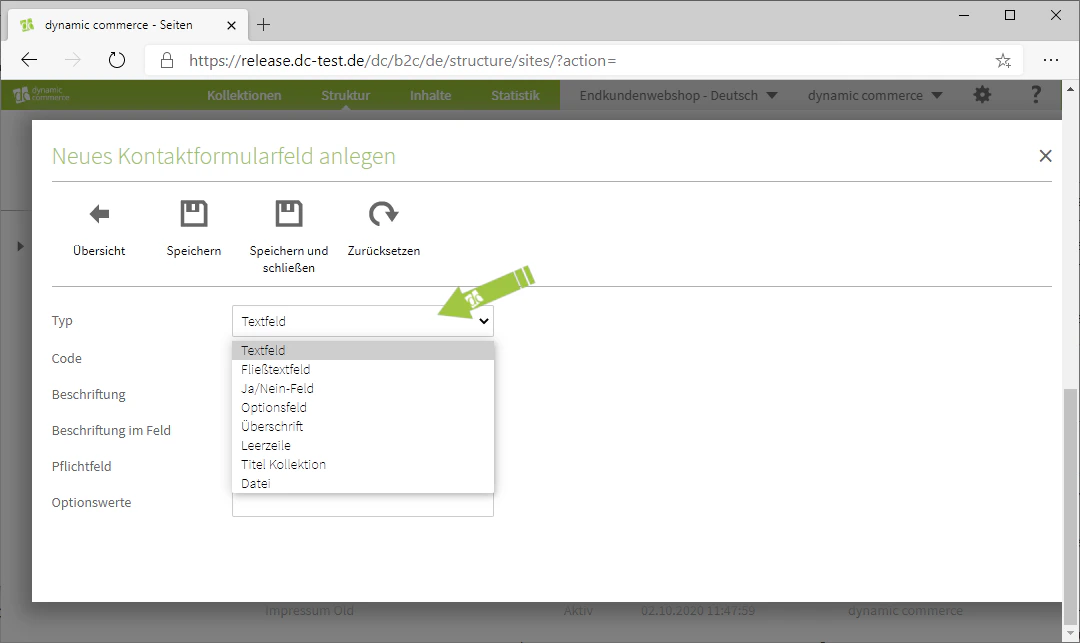
    Define the field type there. You select it by clicking on the drop-down named "Type".

    * Text fields are standard fields in which the user can enter a short text.
    * Long text fields behave like text fields. The only difference is that users can enter a longer text there.
    * Yes/No fields are fields in which the visitor must check a box.
    * For option fields, the user can select an option from a drop-down.
    * With the "Headings" field, you have the option to maintain a heading that will then be displayed to the visitor.
    * "Blank line" simply inserts a blank line.
    * With "Collection Title", the name of the collections would be displayed.
    * With a file field, the visitor can upload files relating to their enquiry.
    <Columns cols={2}>
      <Column>
        <Frame>
          <img src="https://mintcdn.com/dcag/DlKD43HGX8h1zbMf/images/dynamic-content/inhaltsarten/kontaktformulare/feldtypen.png?fit=max&auto=format&n=DlKD43HGX8h1zbMf&q=85&s=078e5807dce2bb02b5b8a4ea8da34599" alt="Overview of field types" width="1080" height="643" data-path="images/dynamic-content/inhaltsarten/kontaktformulare/feldtypen.png" />
        </Frame>
      </Column>

      <Column>
        <Frame>
          <img src="https://mintcdn.com/dcag/DlKD43HGX8h1zbMf/images/dynamic-content/inhaltsarten/kontaktformulare/feldtyp-textfeld.png?fit=max&auto=format&n=DlKD43HGX8h1zbMf&q=85&s=6bcc5c3783c031e3e112bad221507ea1" alt="Select field type text field" width="1080" height="643" data-path="images/dynamic-content/inhaltsarten/kontaktformulare/feldtyp-textfeld.png" />
        </Frame>
      </Column>
    </Columns>
  </Step>

  <Step>
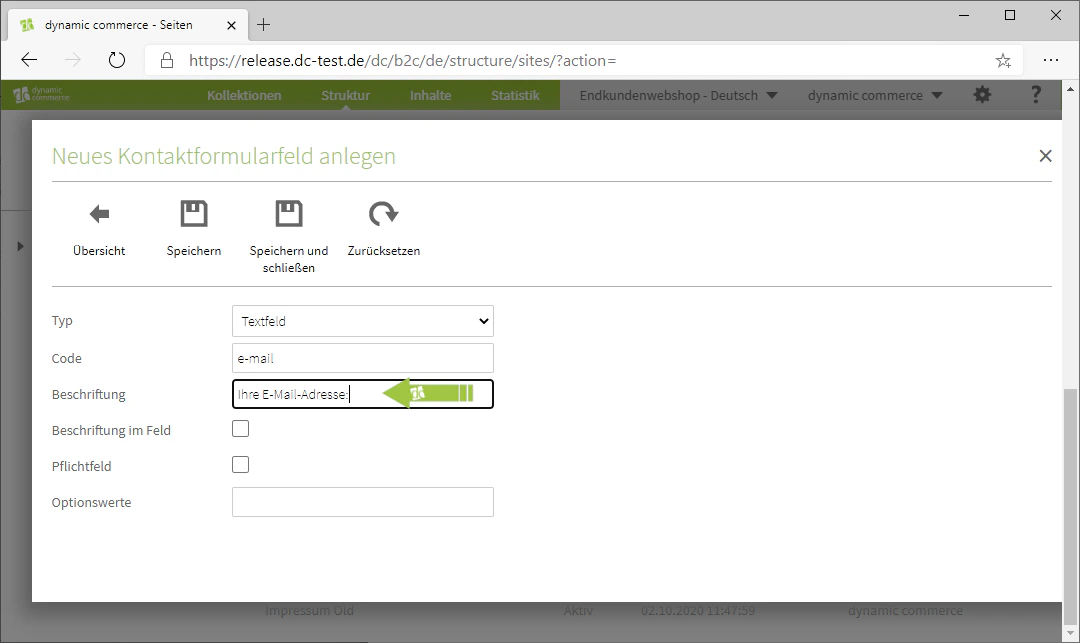
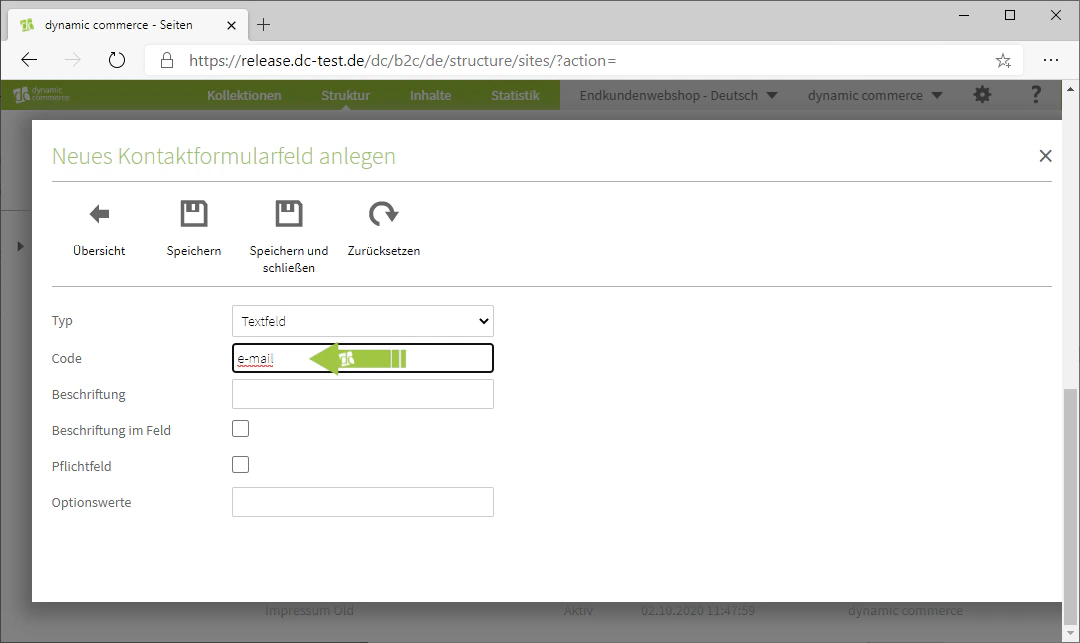
    ## Step 8: Choose Code and Label

    Next, define the code and the label of the field. The field code is only for organisational purposes and will not be displayed on the website.

    The label will then be displayed on the website directly in front of the field.
    <Columns cols={2}>
      <Column>
        <Frame>
          <img src="https://mintcdn.com/dcag/DlKD43HGX8h1zbMf/images/dynamic-content/inhaltsarten/kontaktformulare/code.png?fit=max&auto=format&n=DlKD43HGX8h1zbMf&q=85&s=4b5a345f761fa23c6ba68f68c17581db" alt="Define field code" width="1080" height="643" data-path="images/dynamic-content/inhaltsarten/kontaktformulare/code.png" />
        </Frame>
      </Column>

      <Column>
        <Frame>
          <img src="https://mintcdn.com/dcag/DlKD43HGX8h1zbMf/images/dynamic-content/inhaltsarten/kontaktformulare/beschriftung.png?fit=max&auto=format&n=DlKD43HGX8h1zbMf&q=85&s=278651b8c2934cfc1e5616810ac6b8b6" alt="Maintain field label" width="1080" height="643" data-path="images/dynamic-content/inhaltsarten/kontaktformulare/beschriftung.png" />
        </Frame>
      </Column>
    </Columns>
  </Step>

  <Step>
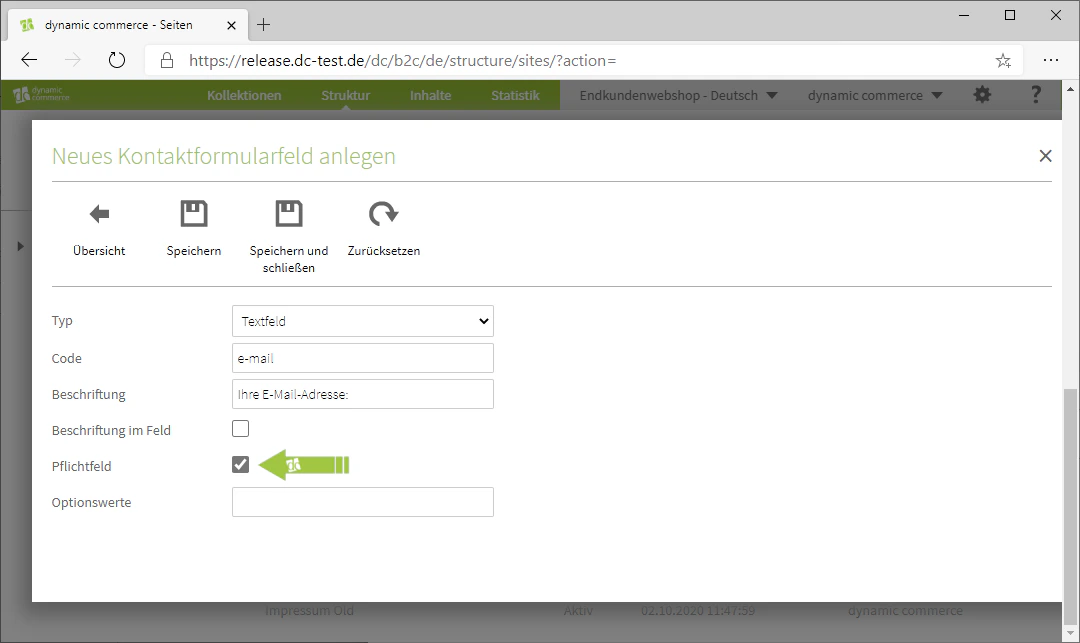
    ## Step 9: Create Required Fields and Choose Option Values

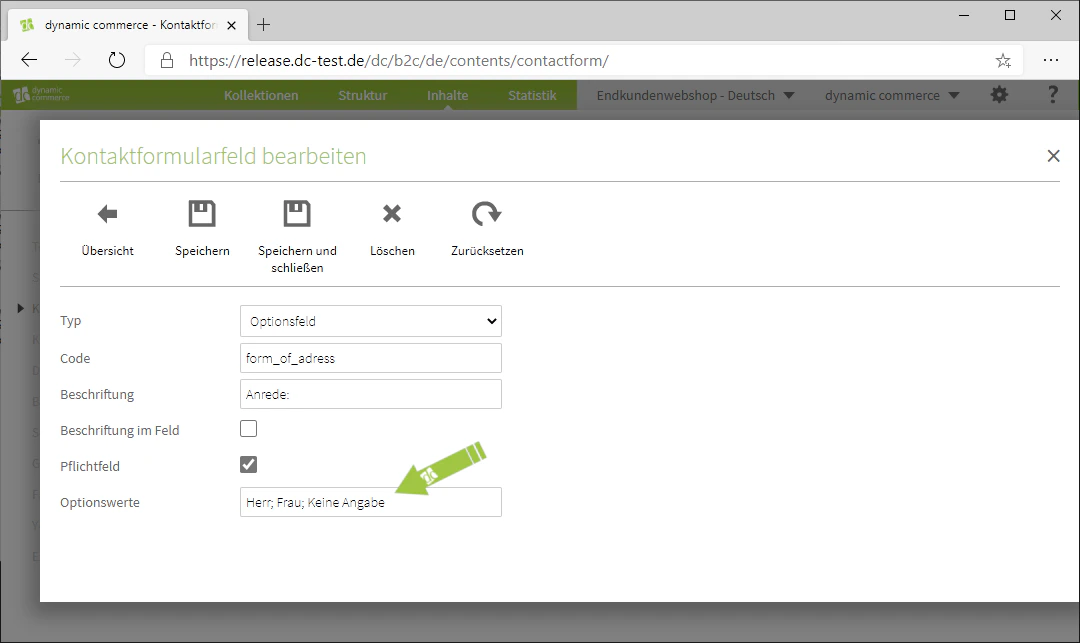
    You also have the option to mark a field as "Required". This means the visitor must fill it in or make a selection.

    Option values are only needed for the field type "Option field".
    <Columns cols={2}>
      <Column>
        <Frame>
          <img src="https://mintcdn.com/dcag/DlKD43HGX8h1zbMf/images/dynamic-content/inhaltsarten/kontaktformulare/pflichtfeld.png?fit=max&auto=format&n=DlKD43HGX8h1zbMf&q=85&s=9de63c22435d504ff8f5a85d211ed474" alt="Mark field as required" width="1080" height="643" data-path="images/dynamic-content/inhaltsarten/kontaktformulare/pflichtfeld.png" />
        </Frame>
      </Column>

      <Column>
        <Frame>
          <img src="https://mintcdn.com/dcag/DlKD43HGX8h1zbMf/images/dynamic-content/inhaltsarten/kontaktformulare/optionswerte.png?fit=max&auto=format&n=DlKD43HGX8h1zbMf&q=85&s=a14864065c45cac5c24a0f4c2df39353" alt="Maintain option values for an option field" width="1080" height="643" data-path="images/dynamic-content/inhaltsarten/kontaktformulare/optionswerte.png" />
        </Frame>
      </Column>
    </Columns>

    <Columns cols={2}>
      <Column>
        <Frame>
          <img src="https://mintcdn.com/dcag/DlKD43HGX8h1zbMf/images/dynamic-content/inhaltsarten/kontaktformulare/beispiel-1.png?fit=max&auto=format&n=DlKD43HGX8h1zbMf&q=85&s=0afeb9e073c1ed1a37c6fb59bee412ce" alt="Example of a contact form in the frontend" width="1080" height="643" data-path="images/dynamic-content/inhaltsarten/kontaktformulare/beispiel-1.png" />
        </Frame>
      </Column>

      <Column>
        <Frame>
          <img src="https://mintcdn.com/dcag/DlKD43HGX8h1zbMf/images/dynamic-content/inhaltsarten/kontaktformulare/beispiel-2.png?fit=max&auto=format&n=DlKD43HGX8h1zbMf&q=85&s=a9fe76eecf8d98a6447da511672b2041" alt="Further example of a contact form" width="1080" height="643" data-path="images/dynamic-content/inhaltsarten/kontaktformulare/beispiel-2.png" />
        </Frame>
      </Column>
    </Columns>
  </Step>
</Steps>

## Related Topics

<CardGroup cols={2}>
  <Card title="Content Types" icon="shapes" href="/docs/en/dynamic-content/user-guide/inhaltsarten">
    Overview of all available modules.
  </Card>

  <Card title="Create and Edit Content" icon="pen-to-square" href="/docs/en/dynamic-content/user-guide/inhalte-erstellen">
    Create content on pages.
  </Card>

  <Card title="Newsletter" icon="envelope-open-text" href="/docs/en/dynamic-content/user-guide/inhaltsarten/newsletter">
    Collect newsletter sign-ups via a form.
  </Card>
</CardGroup>