> ## Documentation Index
> Fetch the complete documentation index at: https://docs.dc.ag/llms.txt
> Use this file to discover all available pages before exploring further.
# dynamic content - Display Collections
> Display created collections on a page using the Collection module.
Here we show you how the Collection module works. Using this content type, you can assign your created collections to a page.
This guide is part of the [Content Types](/docs/en/dynamic-content/user-guide/inhaltsarten). We show you how to create content in general under [Create and Edit Content](/docs/en/dynamic-content/user-guide/inhalte-erstellen).
The prerequisite is that you have created a page on which the collection is to be displayed, and that you are already in the content creation window.
## Step 1: Select the "Collection" Content Type
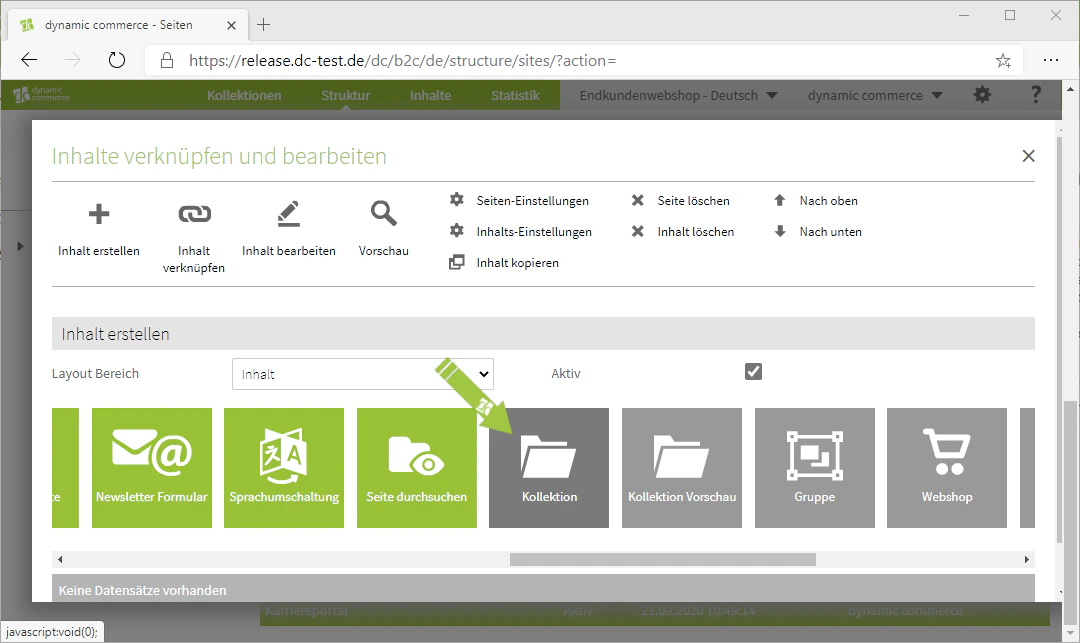
On the page to which you want to assign the collection, select the content type "Collection" during content creation. A dialog with the title "Link Collection" will then open, where you can make the necessary settings.
 ## Step 2: Choose the Collection Type and Number of Entries
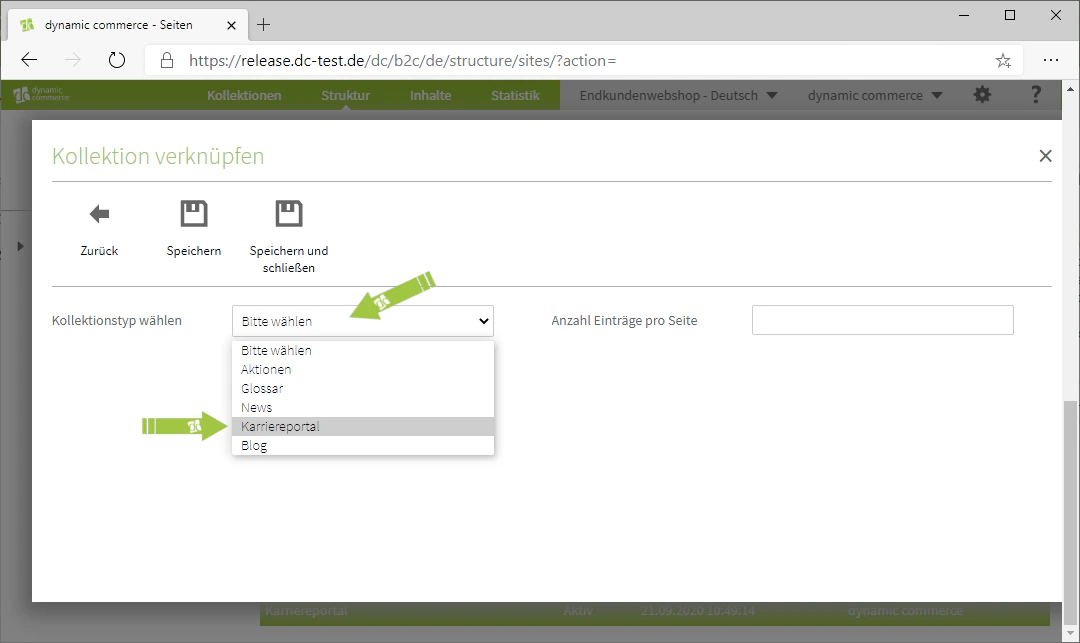
Now use the "Select Collection Type" drop-down to select the desired collection and additionally specify how many entries should be displayed per page.
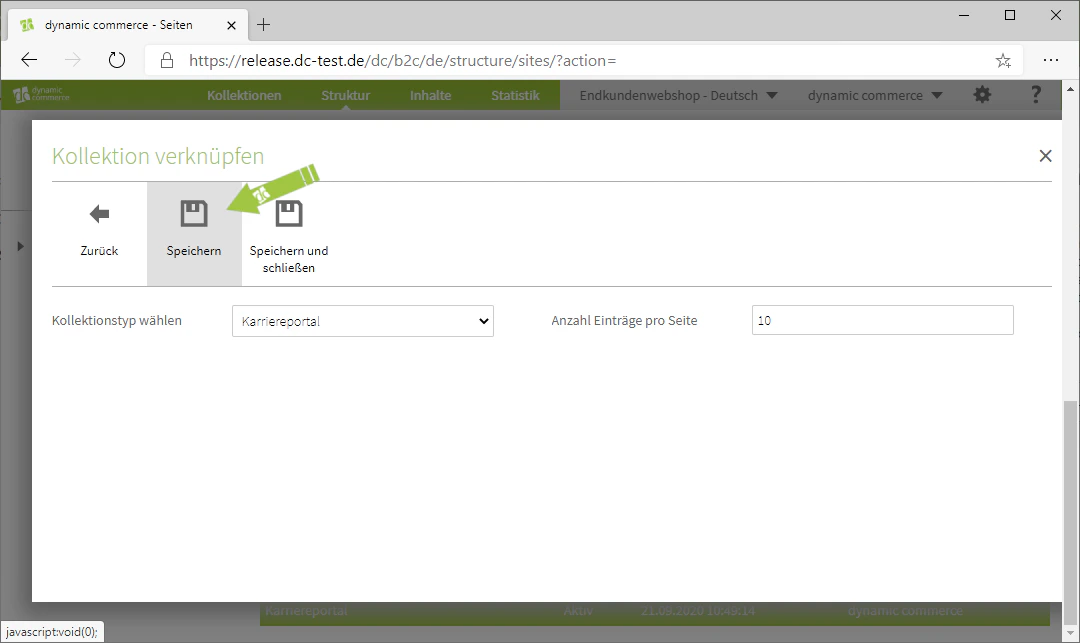
In our example, we link a collection from a career portal and display ten entries per page.
Save your settings to complete the linking of the collection.
## Step 2: Choose the Collection Type and Number of Entries
Now use the "Select Collection Type" drop-down to select the desired collection and additionally specify how many entries should be displayed per page.
In our example, we link a collection from a career portal and display ten entries per page.
Save your settings to complete the linking of the collection.
 ## Related Topics
Overview of all available modules.
Create content on pages.
Display a preview of individual collection entries.
Create and configure new collections.
## Related Topics
Overview of all available modules.
Create content on pages.
Display a preview of individual collection entries.
Create and configure new collections.