> ## Documentation Index
> Fetch the complete documentation index at: https://docs.dc.ag/llms.txt
> Use this file to discover all available pages before exploring further.

# dynamic content - Create Accordion Texts

> Create texts with a heading that can be expanded and collapsed with a click – ideal for FAQ pages.

In the following, we show you how to create accordion texts. This content type allows you to create a text with a heading.

Visitors to your page initially see only the heading. The associated text is only revealed when they click on it. This module helps maintain the clarity of your page by initially hiding less important information.

<Note>
  This guide is part of the [Content Types](/docs/en/dynamic-content/user-guide/inhaltsarten). We show you how to create content in general under [Creating and Editing Content](/docs/en/dynamic-content/user-guide/inhalte-erstellen).
</Note>

<Steps>
  <Step>
    ## Step 1: Select the Content Type "Accordion Texts"

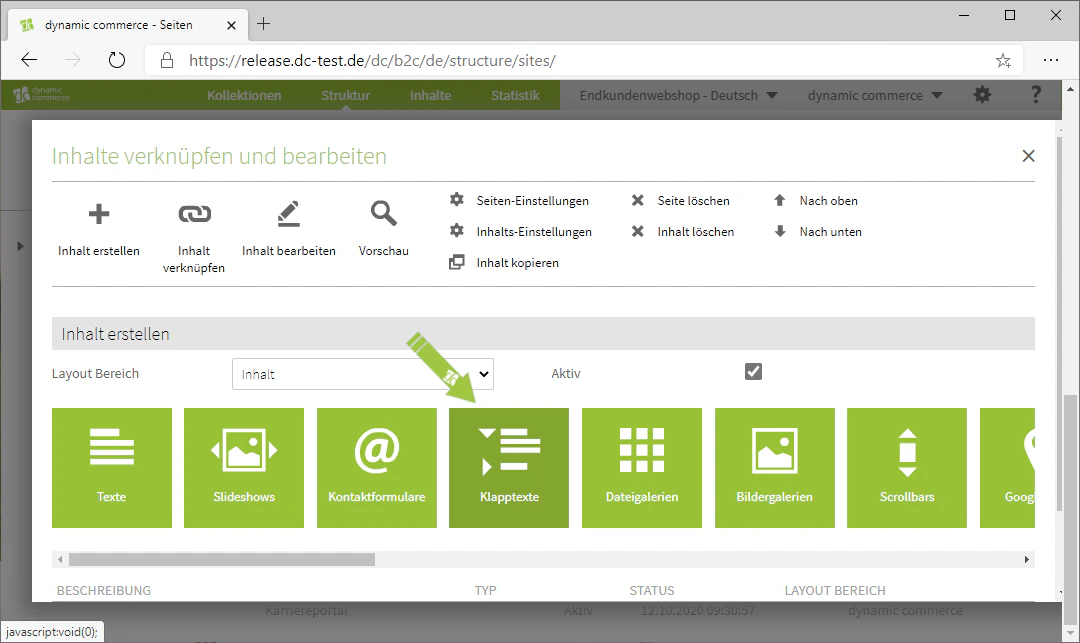
    First, select the content type "Accordion Texts" when creating a content item. A window titled "Create New Accordion Text" should open, where you can configure the settings and manage your texts.
    <Frame>
      <img src="https://mintcdn.com/dcag/DlKD43HGX8h1zbMf/images/dynamic-content/inhaltsarten/klapptexte/inhaltsart-klapptexte.png?fit=max&auto=format&n=DlKD43HGX8h1zbMf&q=85&s=fcf4f8197d3840a24bcd49caaf5440d3" alt="Selecting the content type Accordion Texts" width="1080" height="643" data-path="images/dynamic-content/inhaltsarten/klapptexte/inhaltsart-klapptexte.png" />
    </Frame>
  </Step>

  <Step>
    ## Step 2: Choose a Description and Save

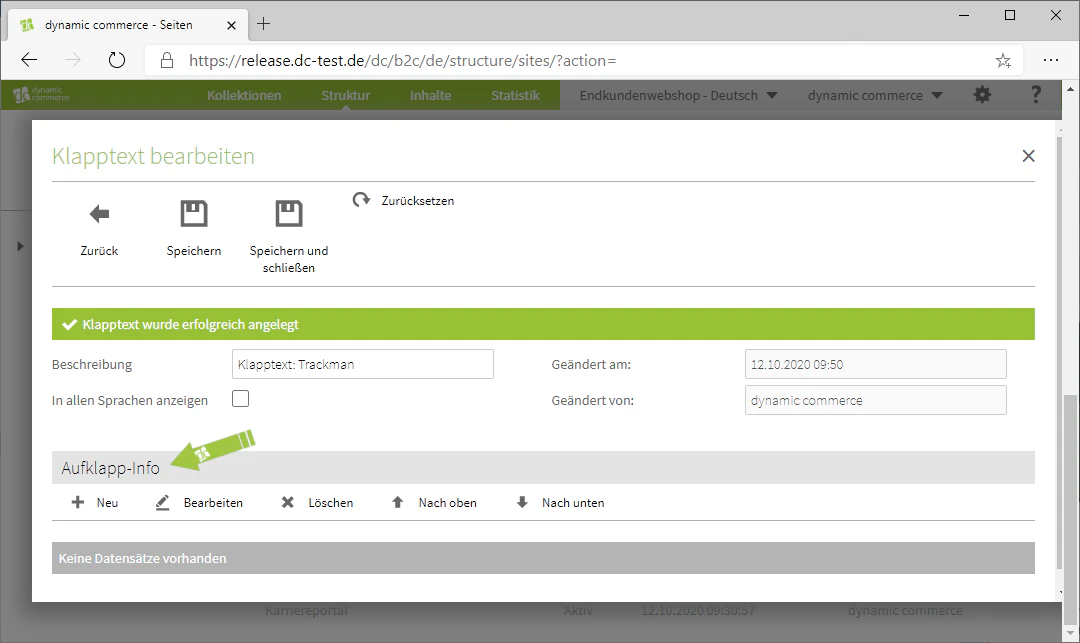
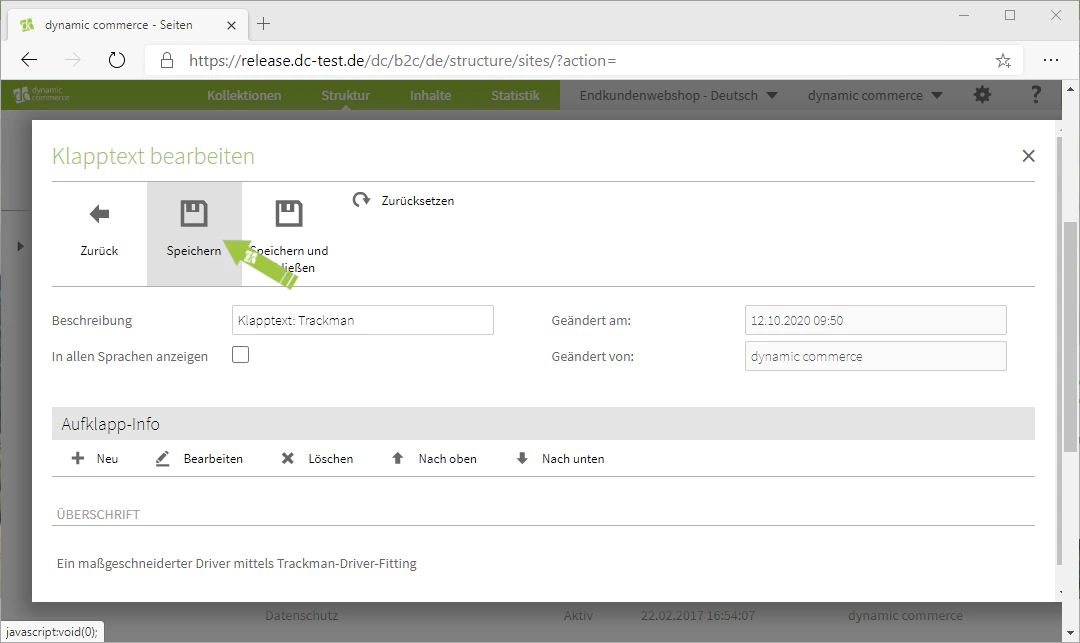
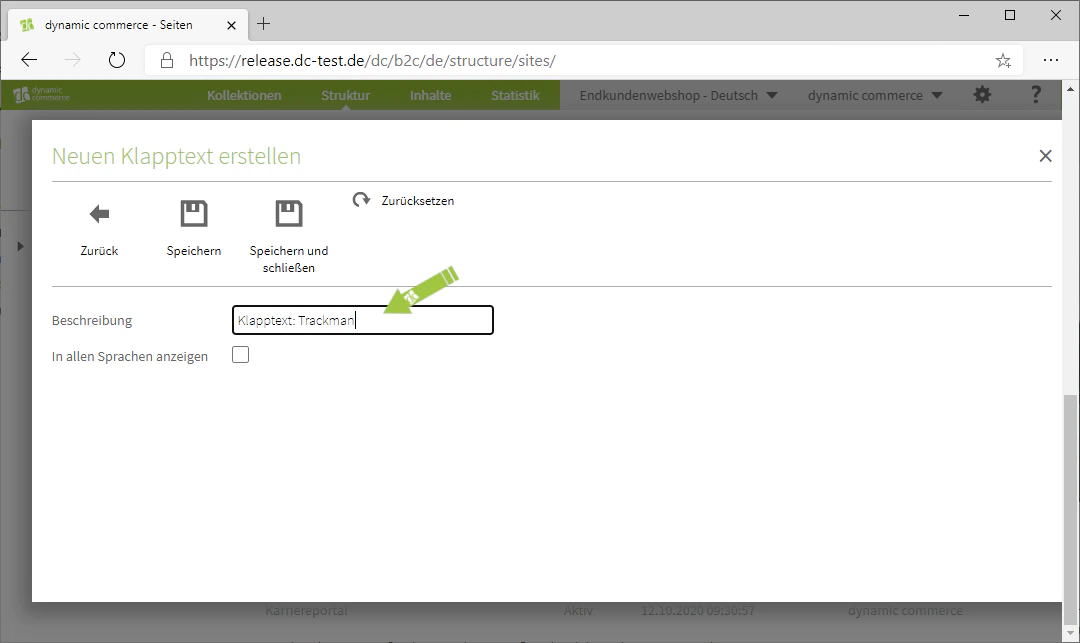
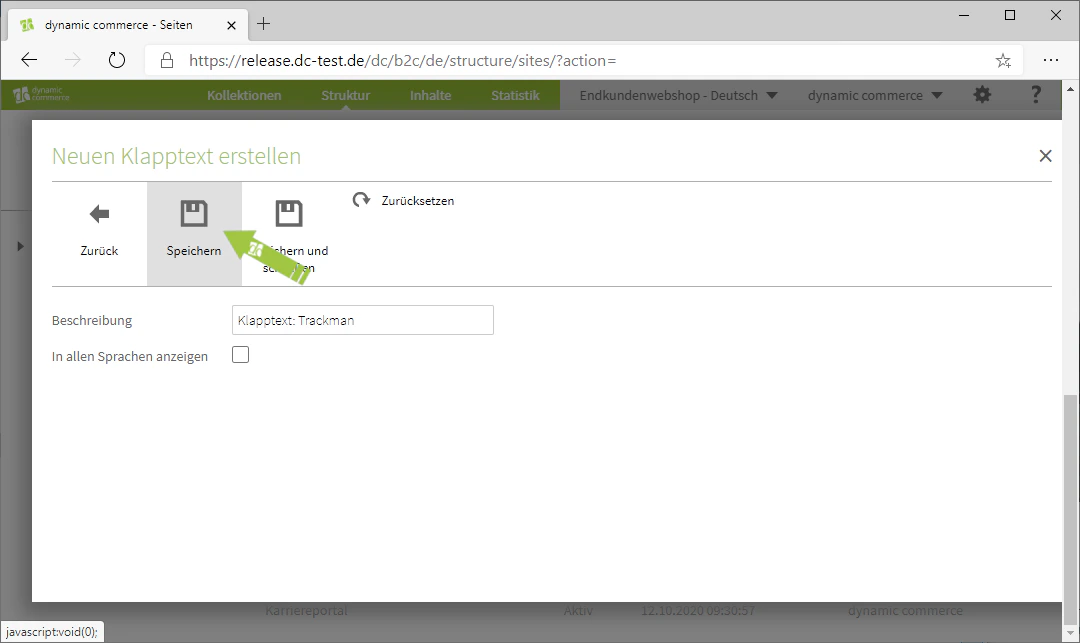
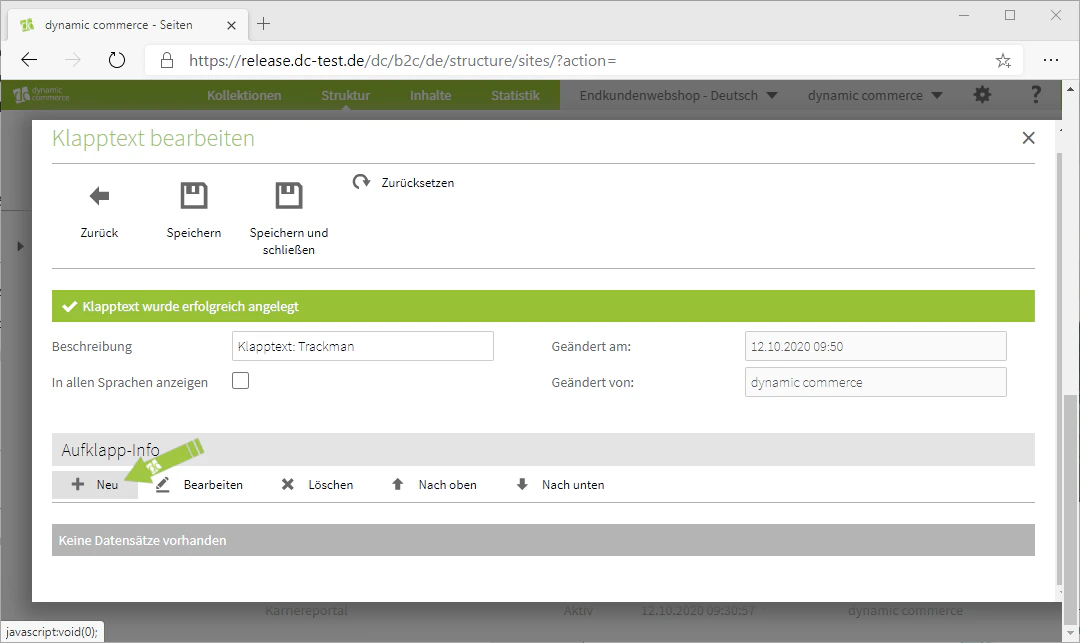
    Choose a description. This is only for organisational purposes and will not be displayed on the selected page. Then save your entries so that the options for the "Accordion Info" are shown.
    <Columns cols={3}>
      <Column>
        <Frame>
          <img src="https://mintcdn.com/dcag/DlKD43HGX8h1zbMf/images/dynamic-content/inhaltsarten/klapptexte/beschreibung.png?fit=max&auto=format&n=DlKD43HGX8h1zbMf&q=85&s=531375b018b7c119be3dd99e53bcd152" alt="Maintaining the description of the accordion text" width="1080" height="643" data-path="images/dynamic-content/inhaltsarten/klapptexte/beschreibung.png" />
        </Frame>
      </Column>

      <Column>
        <Frame>
          <img src="https://mintcdn.com/dcag/DlKD43HGX8h1zbMf/images/dynamic-content/inhaltsarten/klapptexte/speichern.png?fit=max&auto=format&n=DlKD43HGX8h1zbMf&q=85&s=90a7a58838aa525ff2867bf3d1fd72be" alt="Saving the accordion text" width="1080" height="643" data-path="images/dynamic-content/inhaltsarten/klapptexte/speichern.png" />
        </Frame>
      </Column>

      <Column>
        <Frame>
          <img src="https://mintcdn.com/dcag/DlKD43HGX8h1zbMf/images/dynamic-content/inhaltsarten/klapptexte/aufklapp-info.png?fit=max&auto=format&n=DlKD43HGX8h1zbMf&q=85&s=a97cd2151e17eaf14863ec502b5f99e2" alt="The Accordion Info section appears after saving" width="1080" height="643" data-path="images/dynamic-content/inhaltsarten/klapptexte/aufklapp-info.png" />
        </Frame>
      </Column>
    </Columns>
  </Step>

  <Step>
    ## Step 3: Create a New Accordion Info

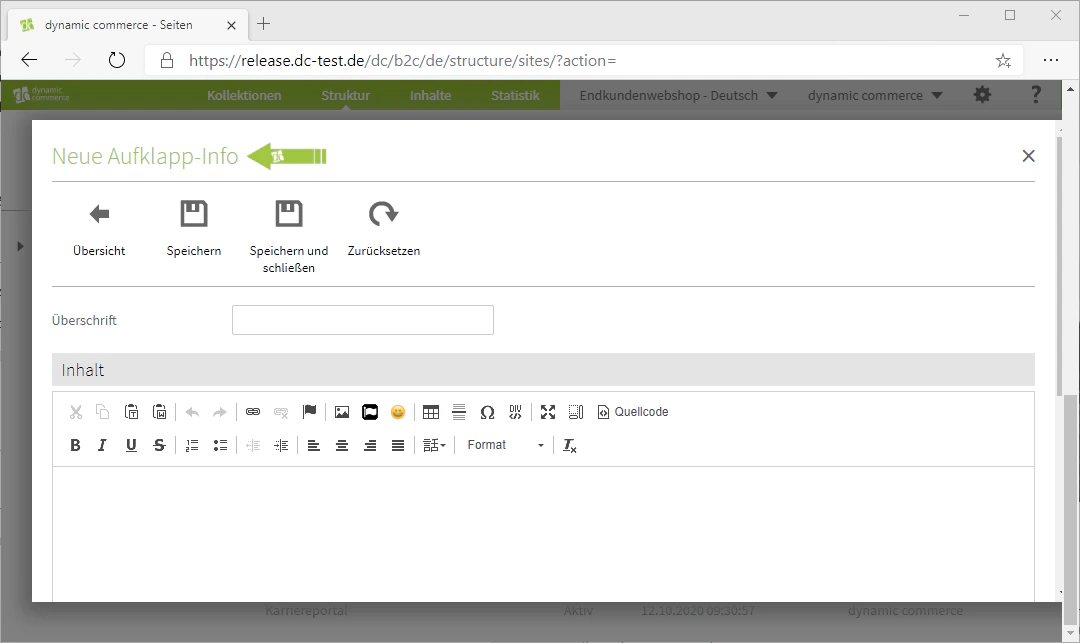
    Under "Accordion Info", click the plus symbol with the adjacent label "New". A new window will open for maintaining the accordion info. Existing entries can be edited by double-clicking.
    <Columns cols={2}>
      <Column>
        <Frame>
          <img src="https://mintcdn.com/dcag/DlKD43HGX8h1zbMf/images/dynamic-content/inhaltsarten/klapptexte/neue-aufklapp-info.png?fit=max&auto=format&n=DlKD43HGX8h1zbMf&q=85&s=60d73e7175e83dd12d17e1e82d4aa33a" alt="Creating a new Accordion Info" width="1080" height="643" data-path="images/dynamic-content/inhaltsarten/klapptexte/neue-aufklapp-info.png" />
        </Frame>
      </Column>

      <Column>
        <Frame>
          <img src="https://mintcdn.com/dcag/DlKD43HGX8h1zbMf/images/dynamic-content/inhaltsarten/klapptexte/aufklapp-info-fenster.png?fit=max&auto=format&n=DlKD43HGX8h1zbMf&q=85&s=6ab325ac86c994a1139f9fea7760f595" alt="Window for editing the Accordion Info" width="1080" height="643" data-path="images/dynamic-content/inhaltsarten/klapptexte/aufklapp-info-fenster.png" />
        </Frame>
      </Column>
    </Columns>
  </Step>

  <Step>
    ## Step 4: Maintain Heading and Text

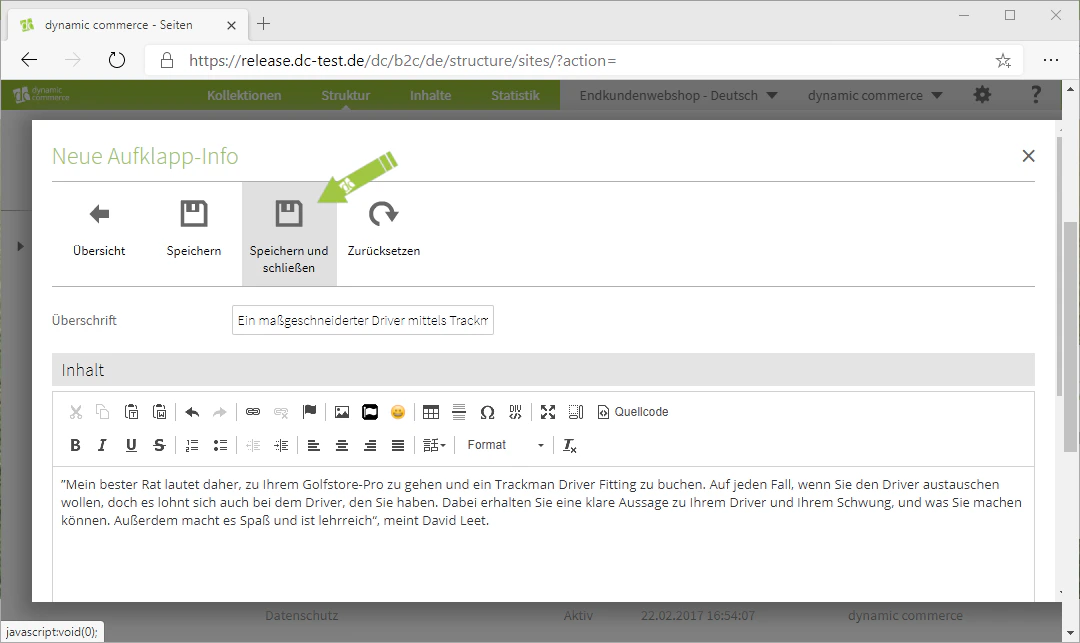
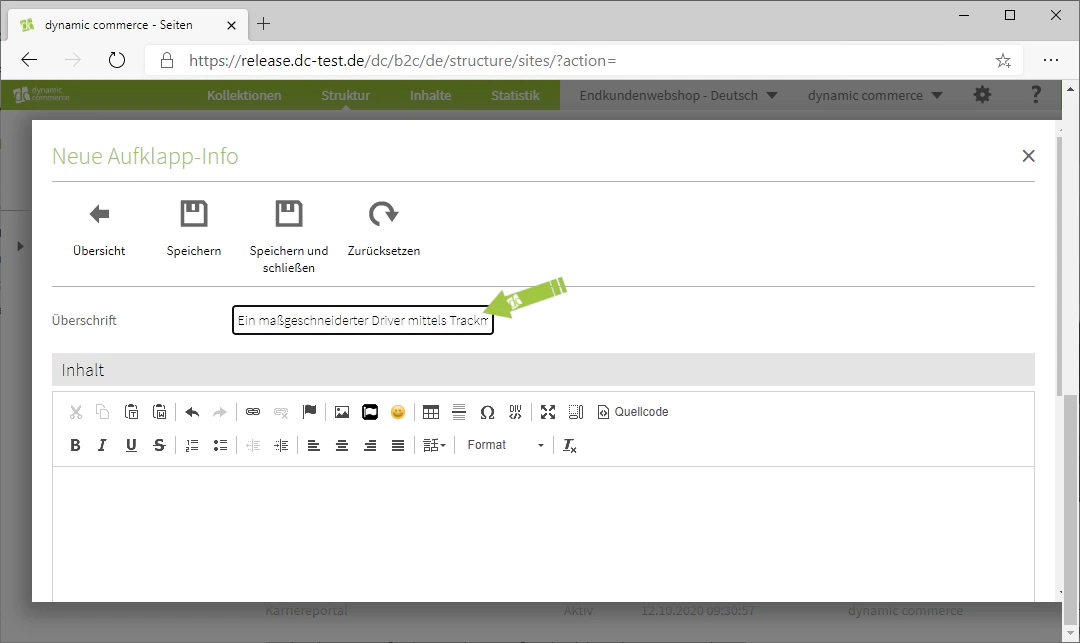
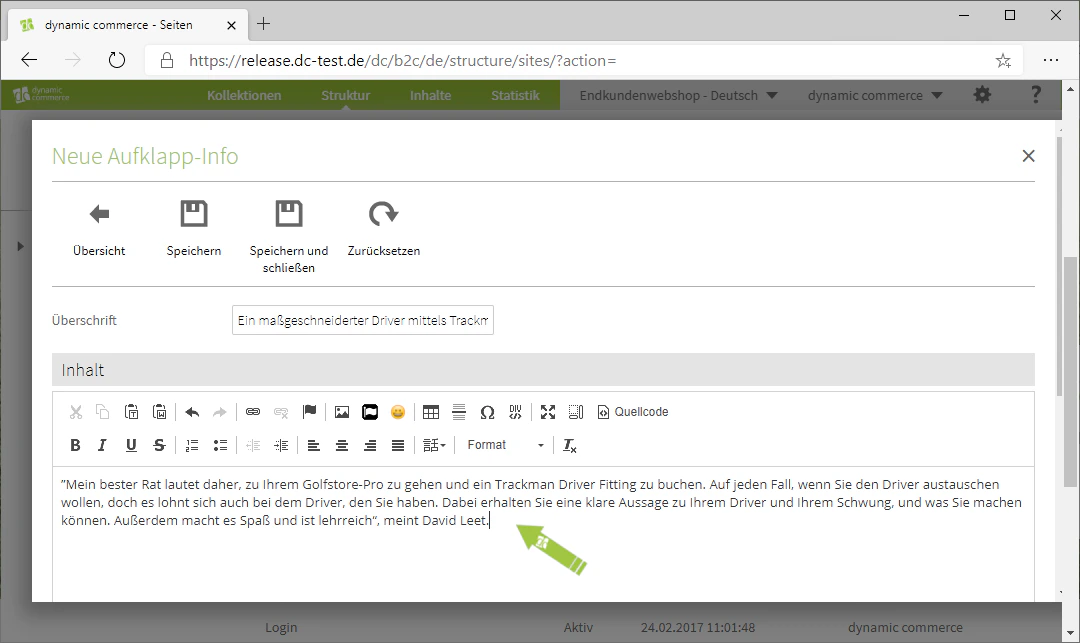
    First enter the heading, then edit the text in the editor. Via "Save and Close" you return to the overview. Multiple accordion info entries will later be displayed one below the other – making this ideal for FAQ pages.
    <Columns cols={2}>
      <Column>
        <Frame>
          <img src="https://mintcdn.com/dcag/DlKD43HGX8h1zbMf/images/dynamic-content/inhaltsarten/klapptexte/ueberschrift.png?fit=max&auto=format&n=DlKD43HGX8h1zbMf&q=85&s=d433221b6c4514f9177d787af93885f2" alt="Entering the heading of the Accordion Info" width="1080" height="643" data-path="images/dynamic-content/inhaltsarten/klapptexte/ueberschrift.png" />
        </Frame>
      </Column>

      <Column>
        <Frame>
          <img src="https://mintcdn.com/dcag/DlKD43HGX8h1zbMf/images/dynamic-content/inhaltsarten/klapptexte/text-pflegen.png?fit=max&auto=format&n=DlKD43HGX8h1zbMf&q=85&s=e716779dacd40dabcd85d5e7434f1cba" alt="Maintaining the text of the Accordion Info in the editor" width="1080" height="643" data-path="images/dynamic-content/inhaltsarten/klapptexte/text-pflegen.png" />
        </Frame>
      </Column>
    </Columns>

    <Columns cols={2}>
      <Column>
        <Frame>
          <img src="https://mintcdn.com/dcag/DlKD43HGX8h1zbMf/images/dynamic-content/inhaltsarten/klapptexte/speichern-und-schliessen.png?fit=max&auto=format&n=DlKD43HGX8h1zbMf&q=85&s=9239ccb6789e8766c9fe972ea0356e1f" alt="Saving and closing the Accordion Info" width="1080" height="643" data-path="images/dynamic-content/inhaltsarten/klapptexte/speichern-und-schliessen.png" />
        </Frame>
      </Column>

      <Column>
        <Frame>
          <img src="https://mintcdn.com/dcag/DlKD43HGX8h1zbMf/images/dynamic-content/inhaltsarten/klapptexte/beispiel-klapptext.png?fit=max&auto=format&n=DlKD43HGX8h1zbMf&q=85&s=fc41aeecec1803ecd449b03171b7e19f" alt="Example view of a completed accordion text" width="1080" height="643" data-path="images/dynamic-content/inhaltsarten/klapptexte/beispiel-klapptext.png" />
        </Frame>
      </Column>
    </Columns>
  </Step>
</Steps>

## Related Topics

<CardGroup cols={2}>
  <Card title="Content Types" icon="shapes" href="/docs/en/dynamic-content/user-guide/inhaltsarten">
    Overview of all available modules.
  </Card>

  <Card title="Creating and Editing Content" icon="pen-to-square" href="/docs/en/dynamic-content/user-guide/inhalte-erstellen">
    Creating content on pages.
  </Card>

  <Card title="Creating Texts" icon="font" href="/docs/en/dynamic-content/user-guide/inhaltsarten/texte">
    Maintaining classic text content with the editor.
  </Card>
</CardGroup>