> ## Documentation Index
> Fetch the complete documentation index at: https://docs.dc.ag/llms.txt
> Use this file to discover all available pages before exploring further.

# dynamic content - Display Facebook Content

> Embed Facebook posts or profiles directly into your pages.

Our CMS gives you the ability to embed content such as Facebook posts on your pages.

<Note>
  This guide is part of the [Content Types](/docs/en/dynamic-content/user-guide/inhaltsarten). We show you how to create content in general under [Create and Edit Content](/docs/en/dynamic-content/user-guide/inhalte-erstellen).
</Note>

<Info>
  In order for external content such as Facebook to be displayed, it must first be enabled via [CSP Management](/docs/en/dynamic-content/user-guide/csp-management).
</Info>

<Steps>
  <Step>
    ## Step 1: Select the Content Type

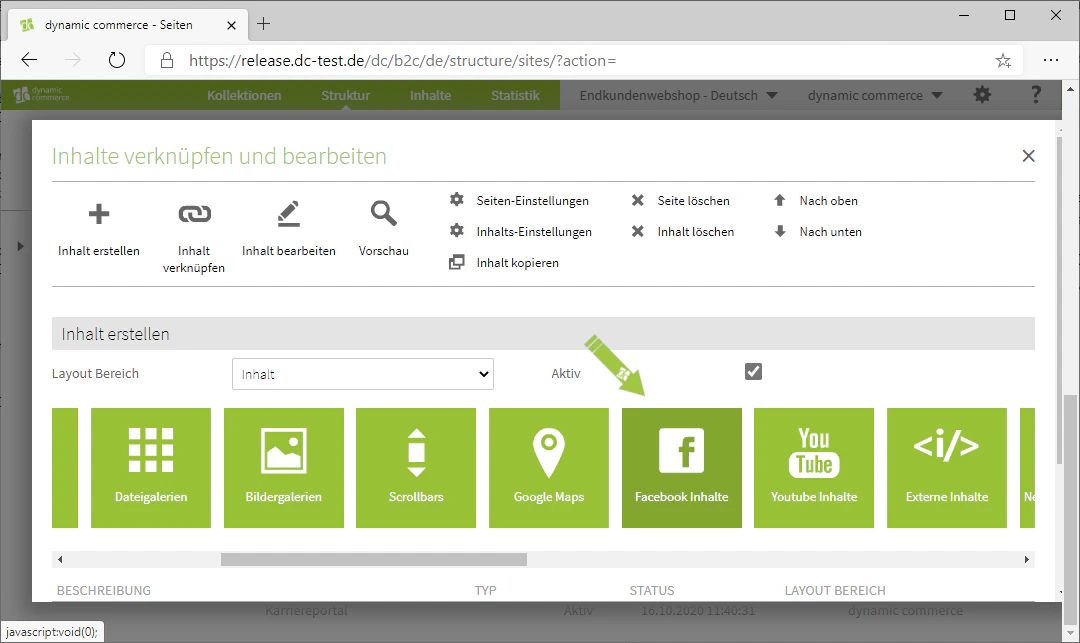
    At the beginning of creating new content, select the "Facebook Content" module. A new window with the heading "New Facebook Content" should then open.
    <Frame>
      <img src="https://mintcdn.com/dcag/NHJ2s69sWhUfX2Ig/images/dynamic-content/inhaltsarten/facebook/auswahl-inhaltsart.png?fit=max&auto=format&n=NHJ2s69sWhUfX2Ig&q=85&s=4390af2c3f1db2fd5fb9d2de8dbe1287" alt="Select the content type Facebook Content" width="1080" height="643" data-path="images/dynamic-content/inhaltsarten/facebook/auswahl-inhaltsart.png" />
    </Frame>
  </Step>

  <Step>
    ## Step 2: Choose a Description

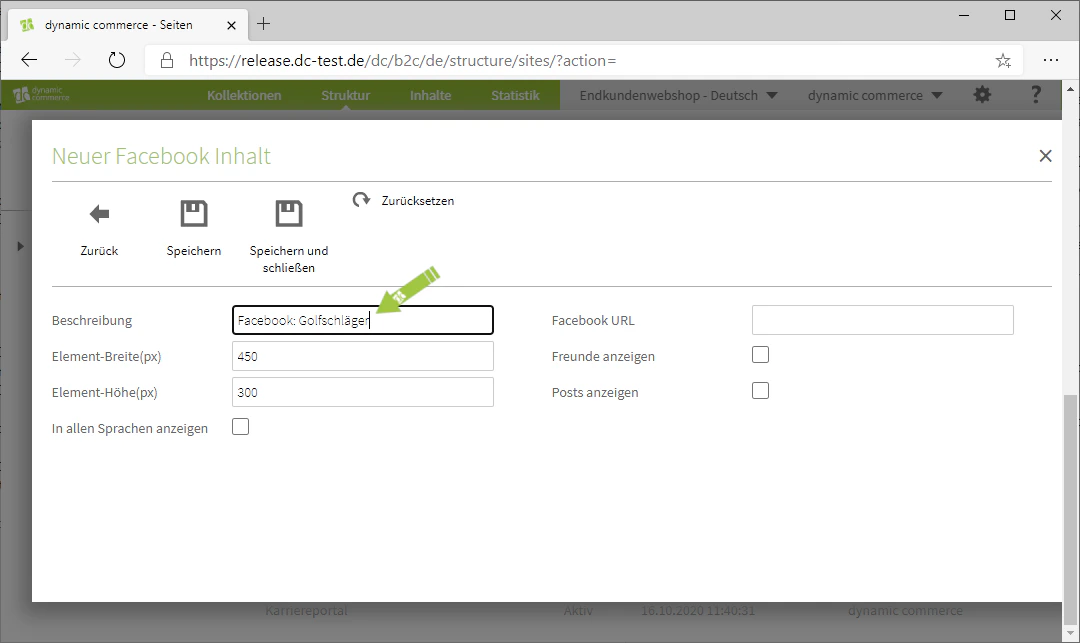
    In the window that just opened, define a description. This is only for organisational purposes and will not be displayed on the selected page.
    <Frame>
      <img src="https://mintcdn.com/dcag/NHJ2s69sWhUfX2Ig/images/dynamic-content/inhaltsarten/facebook/beschreibung.png?fit=max&auto=format&n=NHJ2s69sWhUfX2Ig&q=85&s=3fa0d5980c9ba99701de293b4caf6904" alt="Define the description of the Facebook content" width="1080" height="643" data-path="images/dynamic-content/inhaltsarten/facebook/beschreibung.png" />
    </Frame>
  </Step>

  <Step>
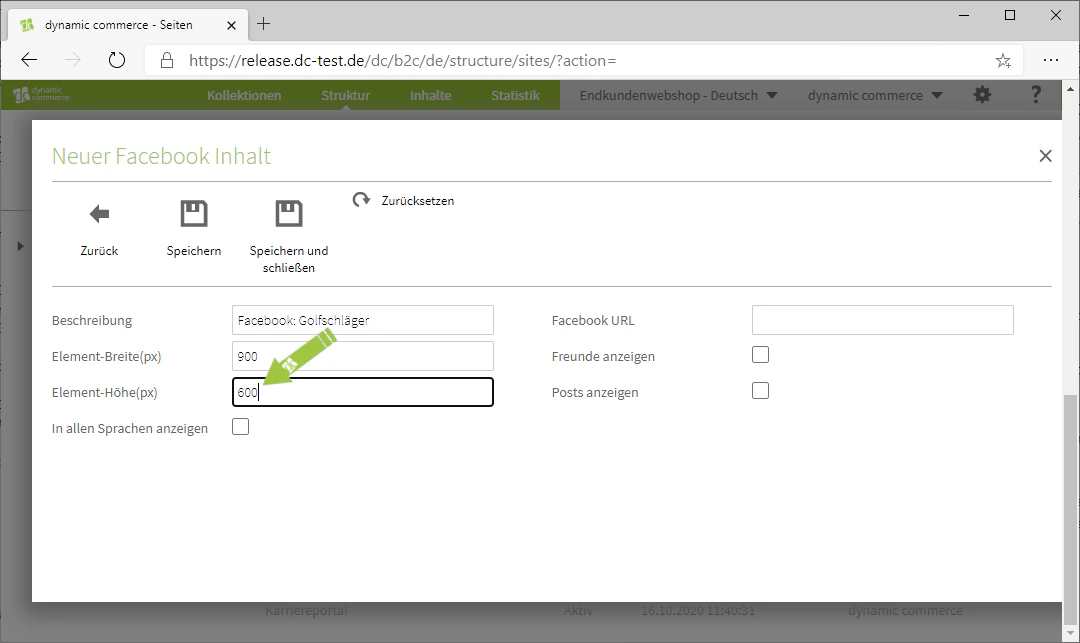
    ## Step 3: Choose Height and Width

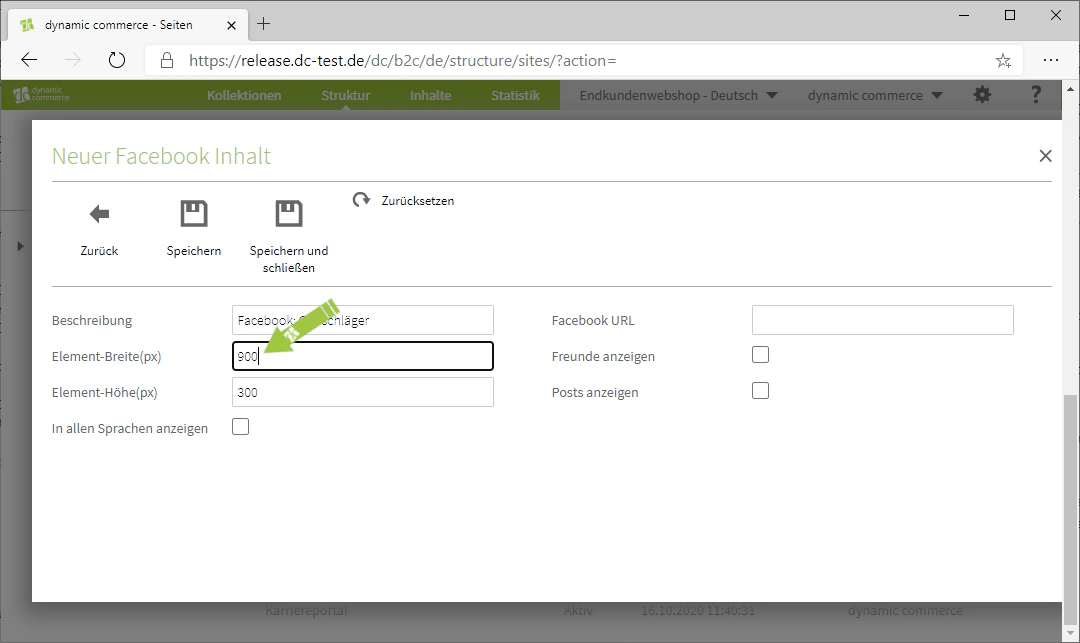
    Next, set the height and width of the content in pixels. This affects the size of the window in which the Facebook content is embedded.
    <Columns cols={2}>
      <Column>
        <Frame>
          <img src="https://mintcdn.com/dcag/NHJ2s69sWhUfX2Ig/images/dynamic-content/inhaltsarten/facebook/element-breite.png?fit=max&auto=format&n=NHJ2s69sWhUfX2Ig&q=85&s=ee7cfe26a31b65f4a344844dd864dbe6" alt="Set element width" width="1080" height="643" data-path="images/dynamic-content/inhaltsarten/facebook/element-breite.png" />
        </Frame>
      </Column>

      <Column>
        <Frame>
          <img src="https://mintcdn.com/dcag/NHJ2s69sWhUfX2Ig/images/dynamic-content/inhaltsarten/facebook/element-hoehe.png?fit=max&auto=format&n=NHJ2s69sWhUfX2Ig&q=85&s=4daf907c876a0125783c1bd63c288db1" alt="Set element height" width="1080" height="643" data-path="images/dynamic-content/inhaltsarten/facebook/element-hoehe.png" />
        </Frame>
      </Column>
    </Columns>
  </Step>

  <Step>
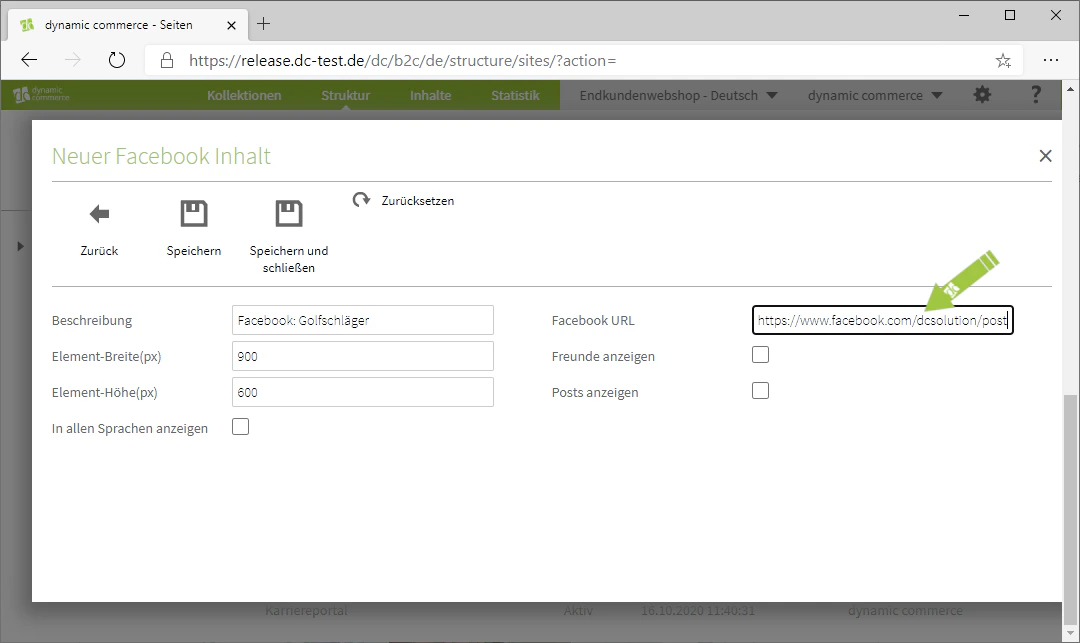
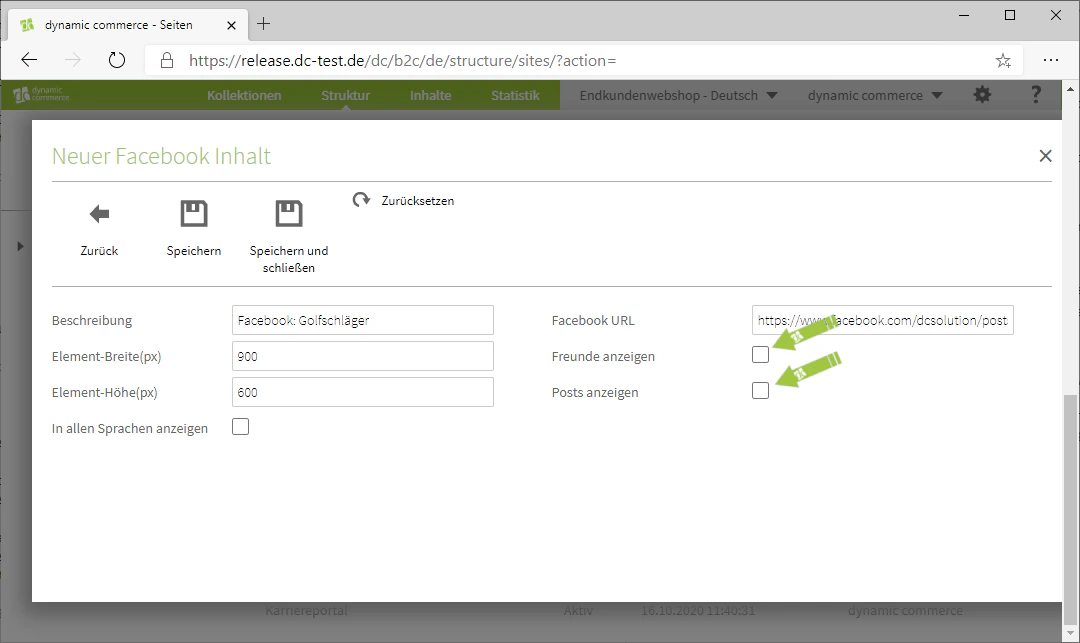
    ## Step 4: Insert Facebook URL

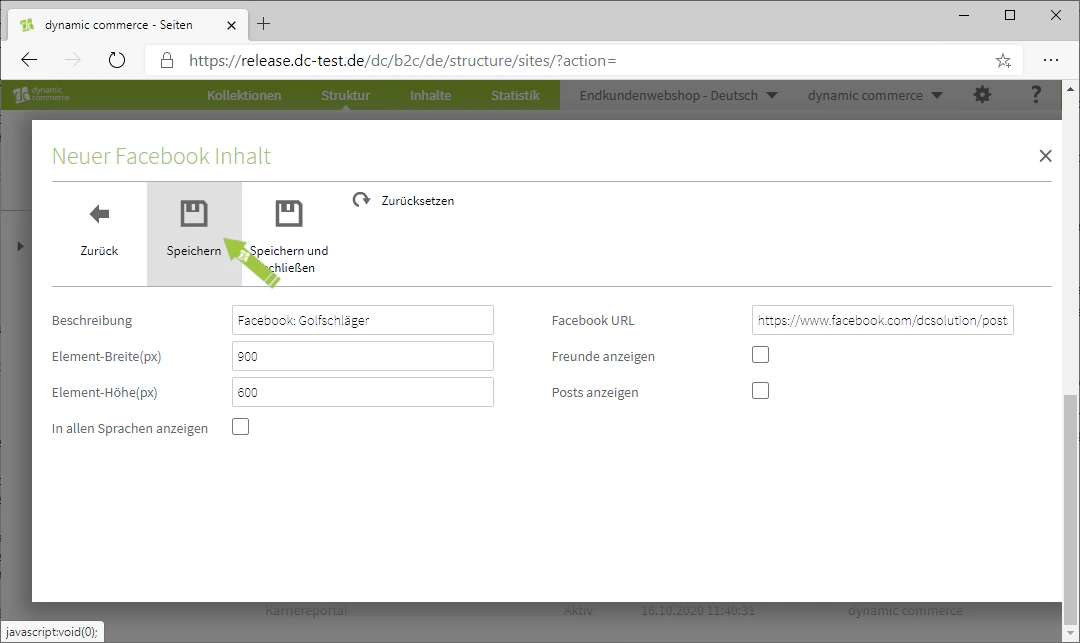
    Finally, enter the URL of the Facebook content you wish to embed. If it is not a post but a Facebook profile, you can use the respective checkboxes to specify whether friends or posts of the profile should also be displayed.
    <Columns cols={3}>
      <Column>
        <Frame>
          <img src="https://mintcdn.com/dcag/NHJ2s69sWhUfX2Ig/images/dynamic-content/inhaltsarten/facebook/facebook-url.png?fit=max&auto=format&n=NHJ2s69sWhUfX2Ig&q=85&s=b4a0f92e0cf534a6dcef25db41bb64fe" alt="Insert Facebook URL" width="1080" height="643" data-path="images/dynamic-content/inhaltsarten/facebook/facebook-url.png" />
        </Frame>
      </Column>

      <Column>
        <Frame>
          <img src="https://mintcdn.com/dcag/NHJ2s69sWhUfX2Ig/images/dynamic-content/inhaltsarten/facebook/freunde-posts.png?fit=max&auto=format&n=NHJ2s69sWhUfX2Ig&q=85&s=c0e4ffa1a980c76ad517a9f552d710c3" alt="Show friends or posts" width="1080" height="643" data-path="images/dynamic-content/inhaltsarten/facebook/freunde-posts.png" />
        </Frame>
      </Column>

      <Column>
        <Frame>
          <img src="https://mintcdn.com/dcag/NHJ2s69sWhUfX2Ig/images/dynamic-content/inhaltsarten/facebook/speichern.png?fit=max&auto=format&n=NHJ2s69sWhUfX2Ig&q=85&s=37fe8efaae0ee6b47b987fc5b751dba2" alt="Save Facebook content" width="1080" height="643" data-path="images/dynamic-content/inhaltsarten/facebook/speichern.png" />
        </Frame>
      </Column>
    </Columns>
  </Step>
</Steps>

## Related Topics

<CardGroup cols={2}>
  <Card title="Content Types" icon="shapes" href="/docs/en/dynamic-content/user-guide/inhaltsarten">
    Overview of all available modules.
  </Card>

  <Card title="Create and Edit Content" icon="pen-to-square" href="/docs/en/dynamic-content/user-guide/inhalte-erstellen">
    Create content on pages.
  </Card>

  <Card title="YouTube" icon="youtube" href="/docs/en/dynamic-content/user-guide/inhaltsarten/youtube">
    Embed YouTube videos on your pages.
  </Card>

  <Card title="External Content" icon="square-arrow-up-right" href="/docs/en/dynamic-content/user-guide/inhaltsarten/externe-inhalte">
    Embed any external content.
  </Card>
</CardGroup>