> ## Documentation Index
> Fetch the complete documentation index at: https://docs.dc.ag/llms.txt
> Use this file to discover all available pages before exploring further.
# dynamic content - Display External Content
> Embed any external websites and content via a URL directly on your page.
In addition to Facebook and YouTube content, you also have the option to embed any external content on your page. The external content is displayed in a window directly on the page and is not merely linked.
This guide is part of the [Content Types](/docs/en/dynamic-content/user-guide/inhaltsarten). We show you how to create content in general under [Creating and Editing Content](/docs/en/dynamic-content/user-guide/inhalte-erstellen).
The prerequisite is that you have created a page on which the content is to be displayed, and that you observe the relevant settings in the CSP management.
## Step 1: Select the Content Type
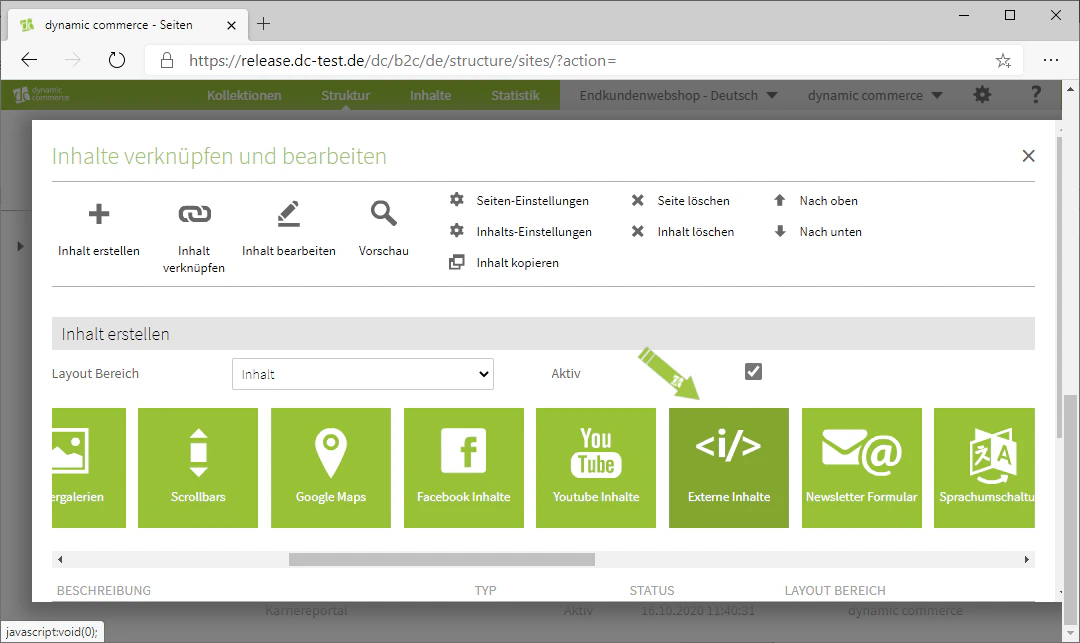
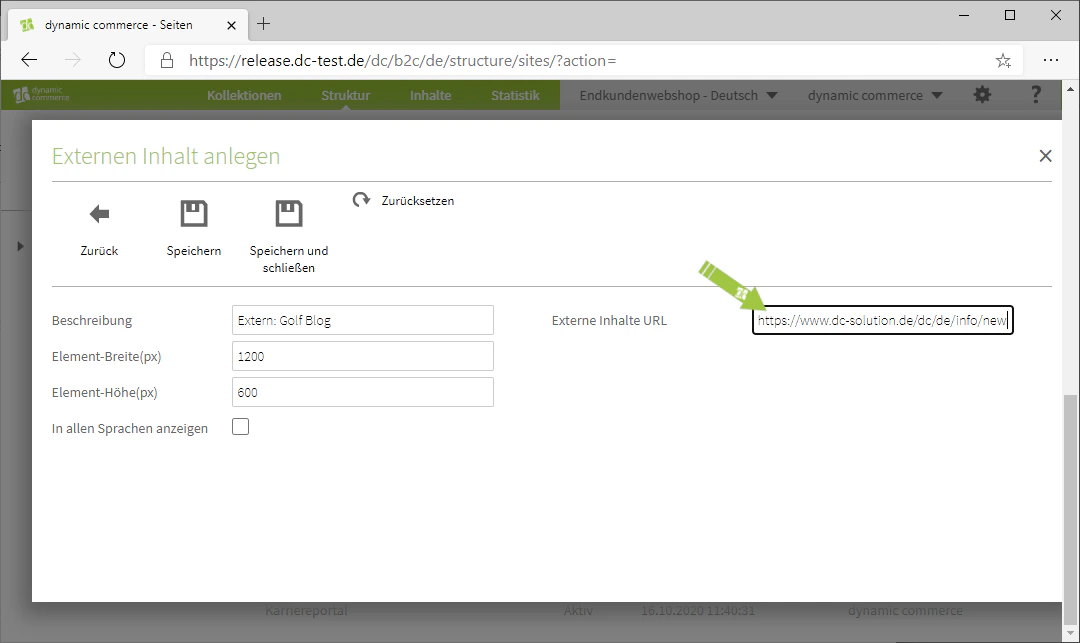
When creating new content, select the "External Content" module. A window titled "Create External Content" will open, in which you can define the display settings and the URL.
In our example, we are embedding a golf blog on a content page of a golf club.
 ## Step 2: Choose a Description
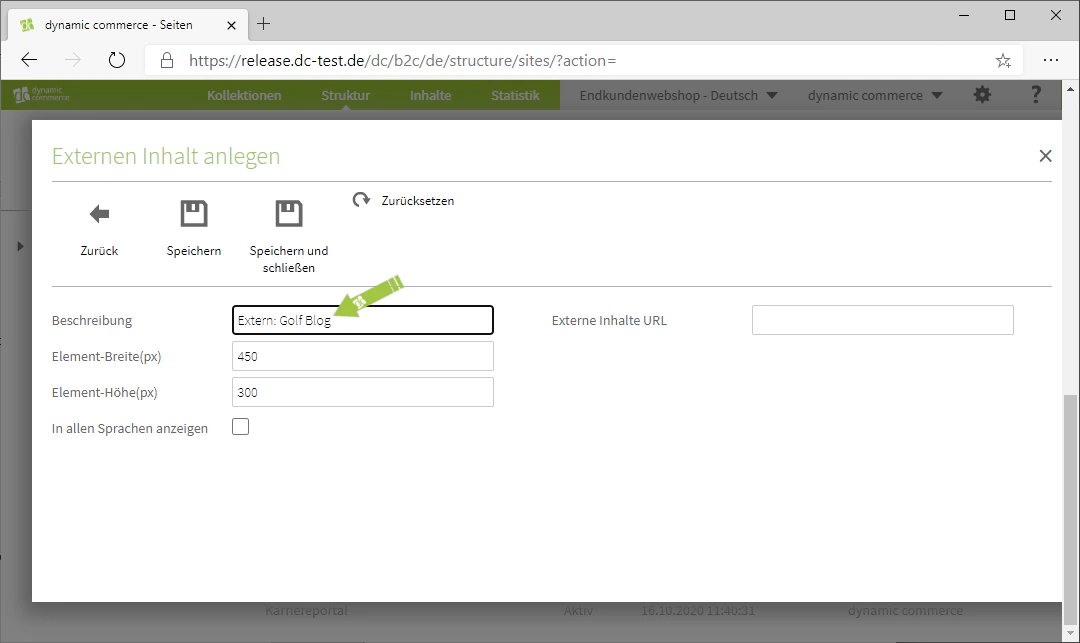
In the window that has just opened, define a description. This is for organisational purposes only and will not be displayed on the selected page.
In our example, we use the description "External: Golf Blog".
## Step 2: Choose a Description
In the window that has just opened, define a description. This is for organisational purposes only and will not be displayed on the selected page.
In our example, we use the description "External: Golf Blog".
 ## Step 3: Choose Height and Width
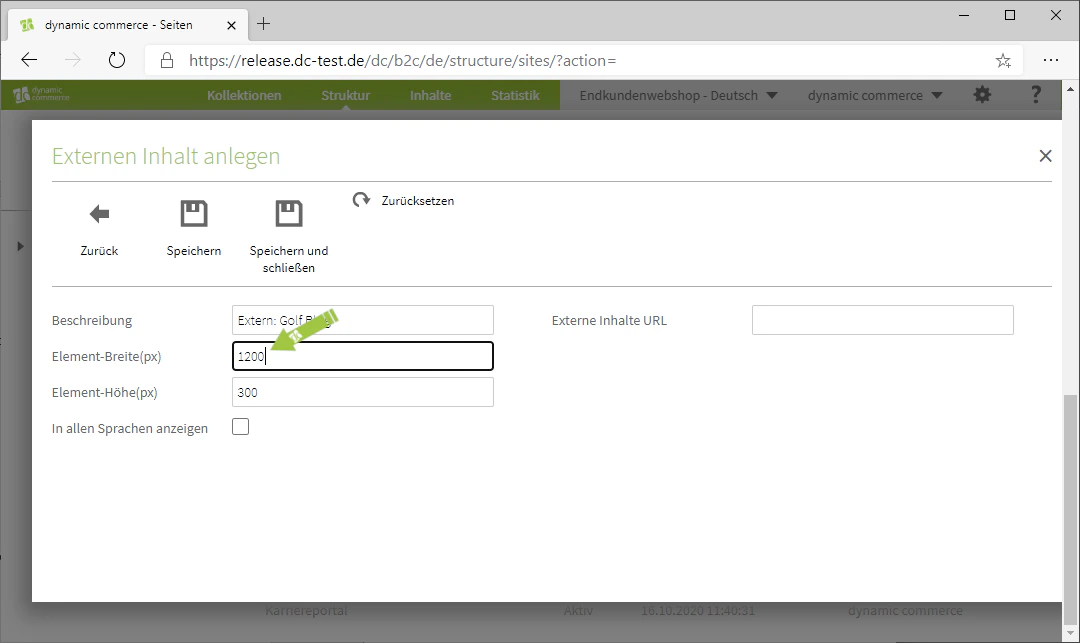
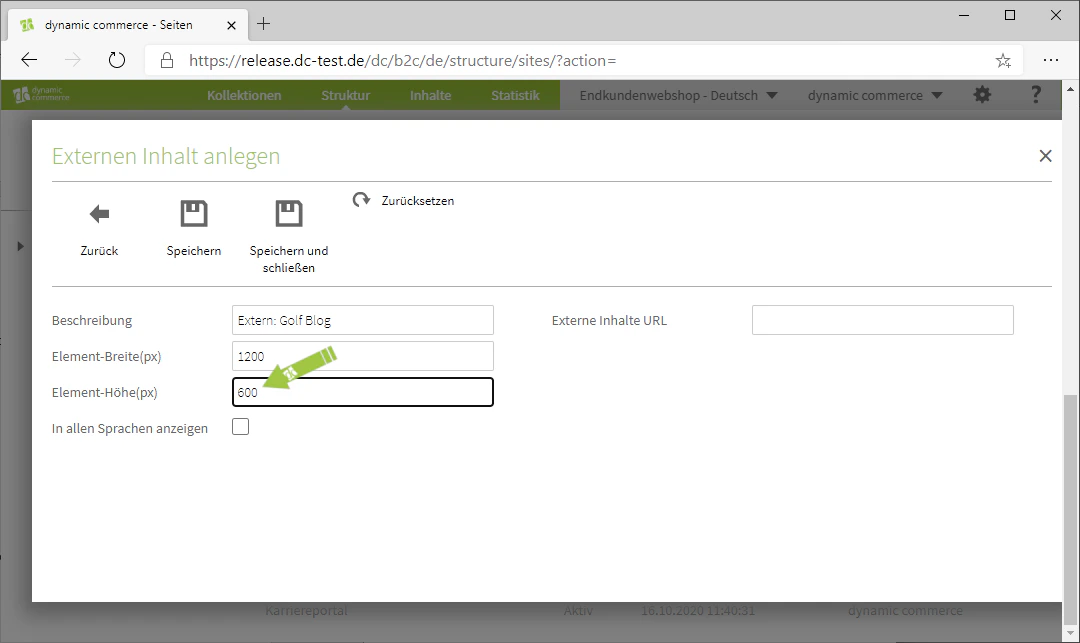
Next, define the height and width in pixels. These values determine the size of the embedded content window on the page and should be adjusted to the requirements of the respective content. In our example, we use a width of 1200 pixels and a height of 600 pixels for the blog.
## Step 3: Choose Height and Width
Next, define the height and width in pixels. These values determine the size of the embedded content window on the page and should be adjusted to the requirements of the respective content. In our example, we use a width of 1200 pixels and a height of 600 pixels for the blog.
 ## Step 4: Insert the External URL
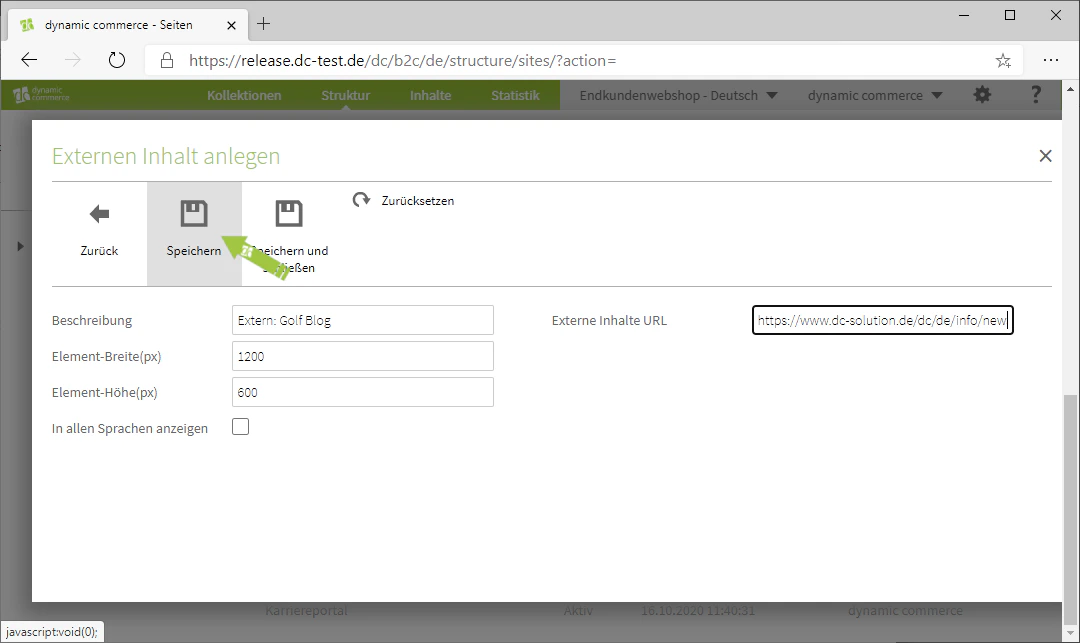
Finally, enter the URL of the content you wish to embed.
You can use any URL here. Should connection errors occur, these are generally related to the settings in the CSP management.
## Step 4: Insert the External URL
Finally, enter the URL of the content you wish to embed.
You can use any URL here. Should connection errors occur, these are generally related to the settings in the CSP management.
 ## Related Topics
Overview of all available modules.
Create content on pages.
Embed YouTube videos directly.
Embed Facebook content.
## Related Topics
Overview of all available modules.
Create content on pages.
Embed YouTube videos directly.
Embed Facebook content.