> ## Documentation Index
> Fetch the complete documentation index at: https://docs.dc.ag/llms.txt
> Use this file to discover all available pages before exploring further.

# dynamic content - Create File Galleries

> Provide files such as PDFs or images as a link list for viewing and downloading.

Here we show you how to create file galleries.

File galleries give you the ability to make files available to your visitors. These are then displayed as a link and point to the file. If the files are images or PDFs, clicking the "link" will open them in a new browser tab.

Furthermore, a visitor to your site can easily download and save these files in order to view them at any time.

<Note>
  This guide is part of the [Content Types](/docs/en/dynamic-content/user-guide/inhaltsarten). We show you how to create content in general under [Create and Edit Content](/docs/en/dynamic-content/user-guide/inhalte-erstellen).
</Note>

<Steps>
  <Step>
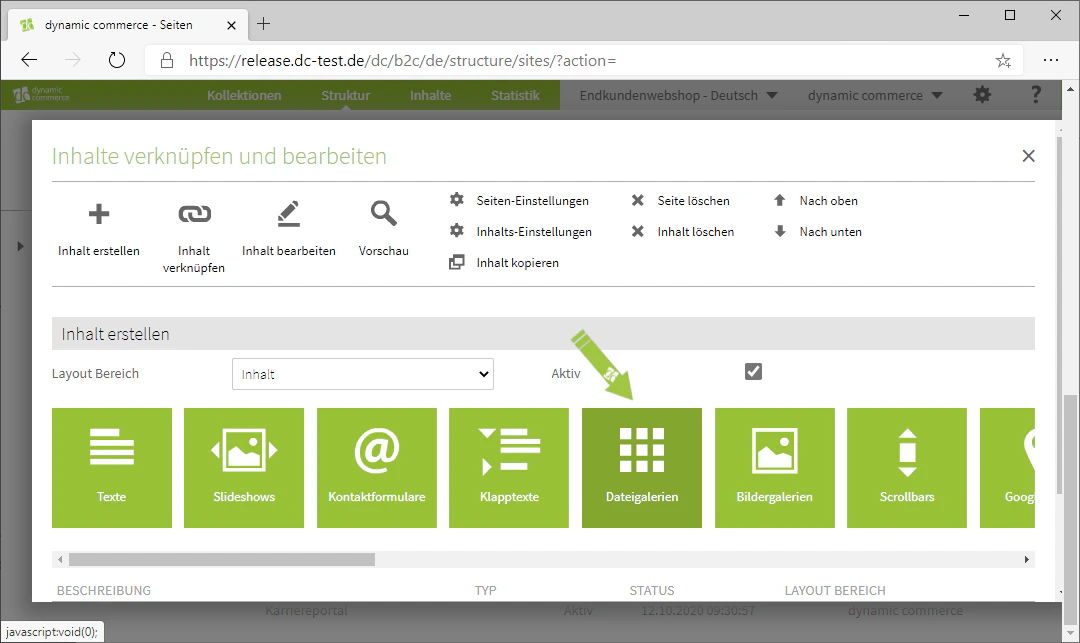
    ## Step 1: Select the Content Type "File Galleries"

    First, select the content type "File Galleries". This should open a window with the heading "New File Gallery".
    <Frame>
      <img src="https://mintcdn.com/dcag/NHJ2s69sWhUfX2Ig/images/dynamic-content/inhaltsarten/dateigalerien/inhaltsart-dateigalerien.png?fit=max&auto=format&n=NHJ2s69sWhUfX2Ig&q=85&s=01710a7cf9a7130127378ee6c648bbd7" alt="Selecting the File Galleries content type" width="1080" height="643" data-path="images/dynamic-content/inhaltsarten/dateigalerien/inhaltsart-dateigalerien.png" />
    </Frame>
  </Step>

  <Step>
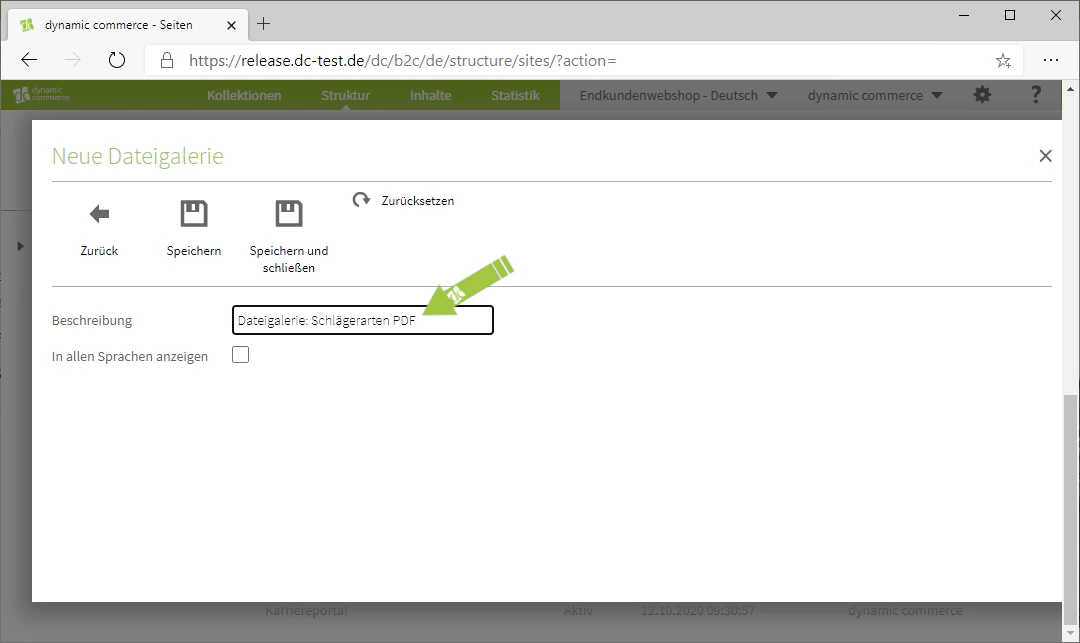
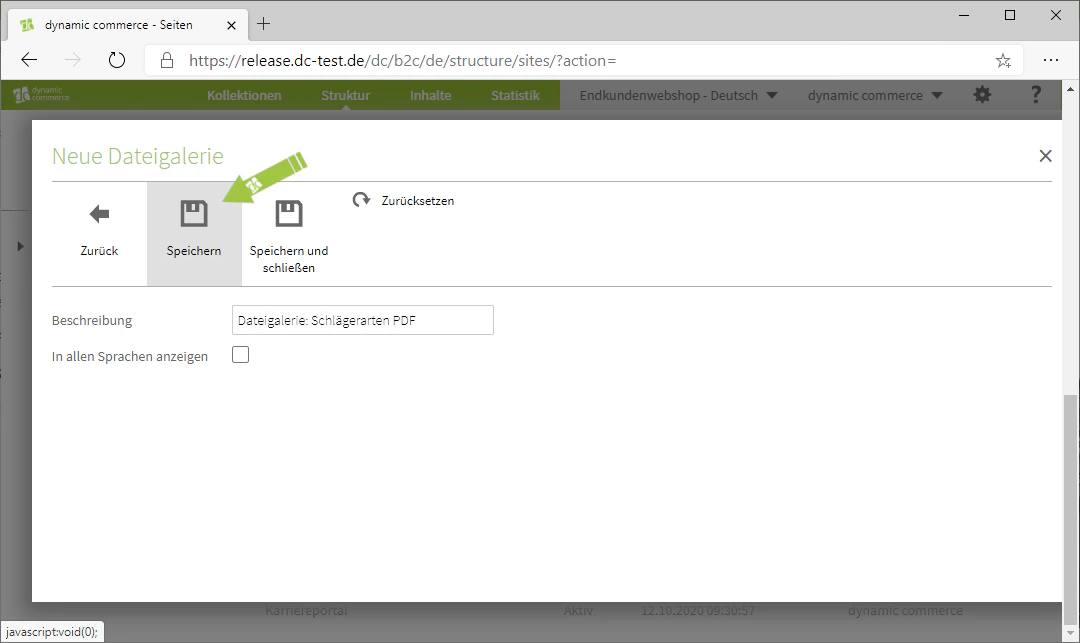
    ## Step 2: Choose a Description and Save

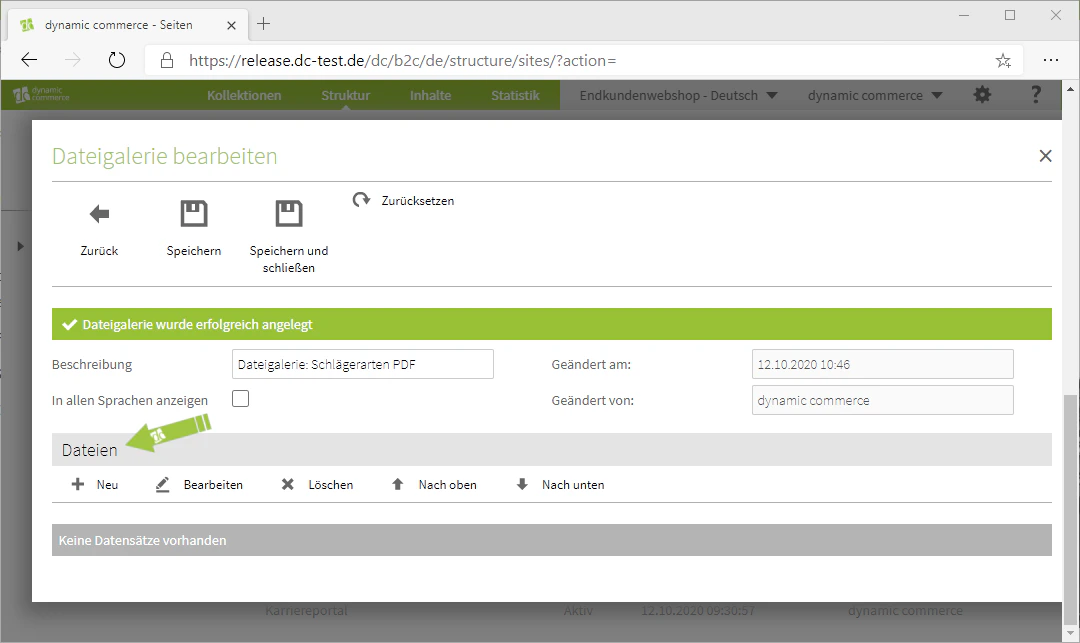
    Now choose a description. This is only for organisational purposes and will not be displayed on the selected page. Then save so that the area for managing files is shown.
    <Columns cols={3}>
      <Column>
        <Frame>
          <img src="https://mintcdn.com/dcag/NHJ2s69sWhUfX2Ig/images/dynamic-content/inhaltsarten/dateigalerien/beschreibung.png?fit=max&auto=format&n=NHJ2s69sWhUfX2Ig&q=85&s=2f5b249fb25f77315f58035a0dcd2dce" alt="Maintain the description of the file gallery" width="1080" height="643" data-path="images/dynamic-content/inhaltsarten/dateigalerien/beschreibung.png" />
        </Frame>
      </Column>

      <Column>
        <Frame>
          <img src="https://mintcdn.com/dcag/NHJ2s69sWhUfX2Ig/images/dynamic-content/inhaltsarten/dateigalerien/speichern.png?fit=max&auto=format&n=NHJ2s69sWhUfX2Ig&q=85&s=3fe26a046d536dba2de72152dd6346f3" alt="Save the file gallery" width="1080" height="643" data-path="images/dynamic-content/inhaltsarten/dateigalerien/speichern.png" />
        </Frame>
      </Column>

      <Column>
        <Frame>
          <img src="https://mintcdn.com/dcag/NHJ2s69sWhUfX2Ig/images/dynamic-content/inhaltsarten/dateigalerien/dateien-pflegen.png?fit=max&auto=format&n=NHJ2s69sWhUfX2Ig&q=85&s=954e7b6369de6e5ce67b946f56d54ada" alt="Area for managing files" width="1080" height="643" data-path="images/dynamic-content/inhaltsarten/dateigalerien/dateien-pflegen.png" />
        </Frame>
      </Column>
    </Columns>
  </Step>

  <Step>
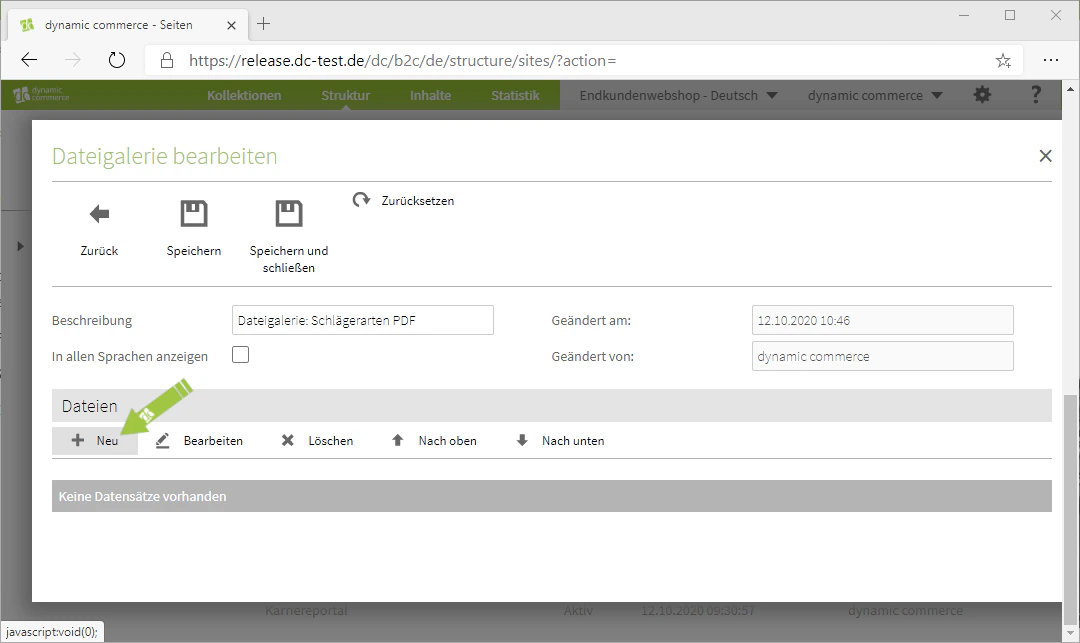
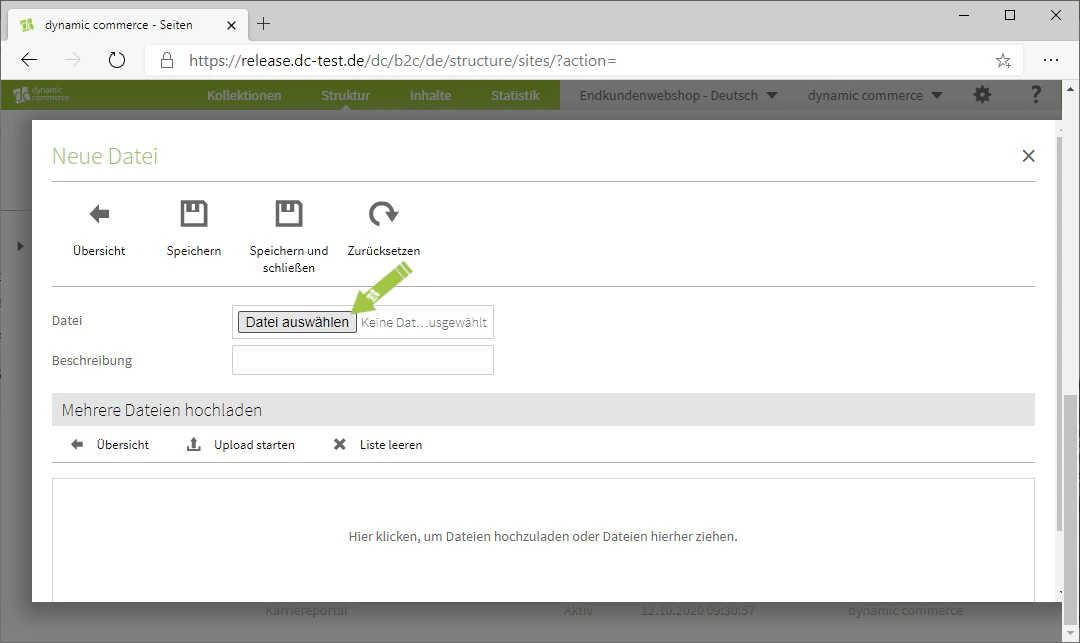
    ## Step 3: Manage Files

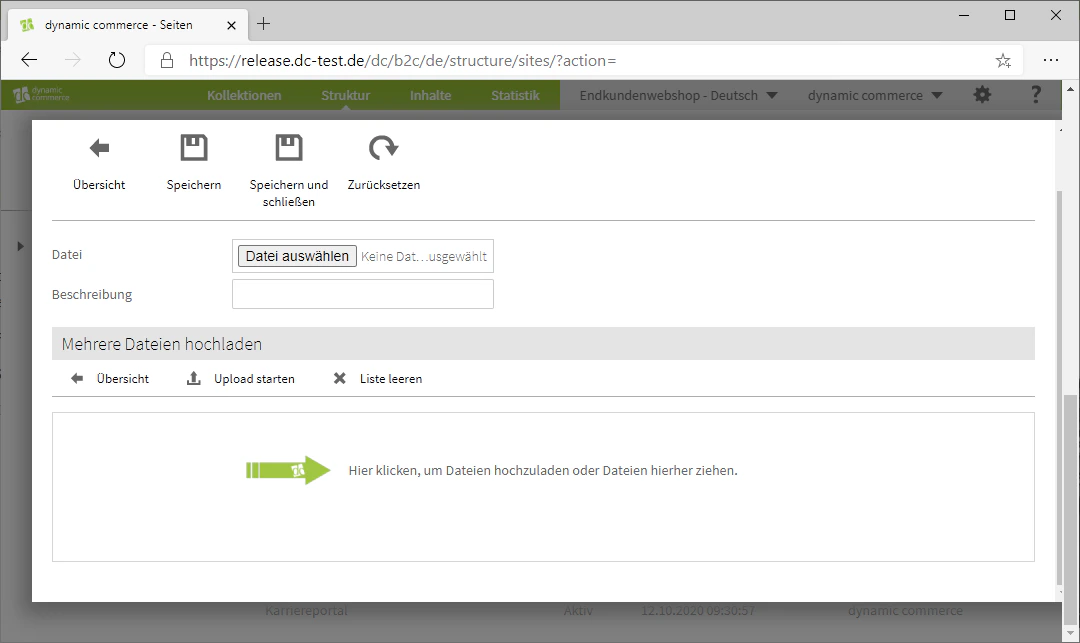
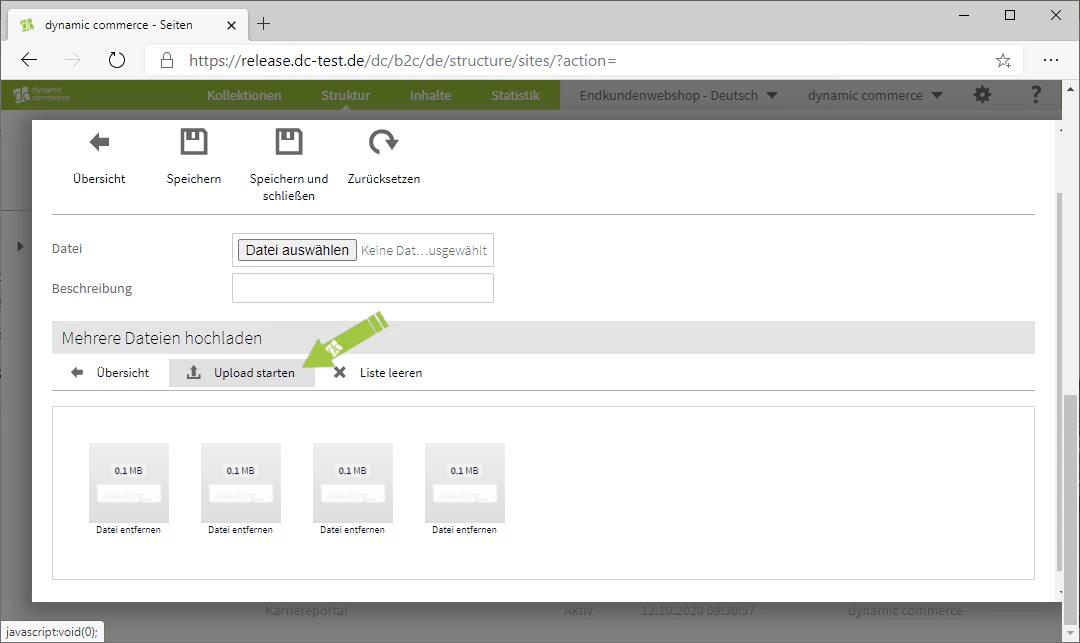
    You can now upload new files by clicking the "Plus" icon with the adjacent label "New". Two methods of uploading are available: you can select files individually or upload multiple files via drag & drop.
    <Columns cols={3}>
      <Column>
        <Frame>
          <img src="https://mintcdn.com/dcag/NHJ2s69sWhUfX2Ig/images/dynamic-content/inhaltsarten/dateigalerien/neue-datei.png?fit=max&auto=format&n=NHJ2s69sWhUfX2Ig&q=85&s=5ba26164c275bd087d1cdffd8a1a2151" alt="Add a new file to the gallery" width="1080" height="643" data-path="images/dynamic-content/inhaltsarten/dateigalerien/neue-datei.png" />
        </Frame>
      </Column>

      <Column>
        <Frame>
          <img src="https://mintcdn.com/dcag/NHJ2s69sWhUfX2Ig/images/dynamic-content/inhaltsarten/dateigalerien/datei-hochladen.png?fit=max&auto=format&n=NHJ2s69sWhUfX2Ig&q=85&s=0e86860d1f27d9dd3b68ddd6d1b4c122" alt="Upload a single file" width="1080" height="643" data-path="images/dynamic-content/inhaltsarten/dateigalerien/datei-hochladen.png" />
        </Frame>
      </Column>

      <Column>
        <Frame>
          <img src="https://mintcdn.com/dcag/NHJ2s69sWhUfX2Ig/images/dynamic-content/inhaltsarten/dateigalerien/drag-and-drop.png?fit=max&auto=format&n=NHJ2s69sWhUfX2Ig&q=85&s=5a7c6c355f99f1685e7e330fb327bcbf" alt="Upload files via drag and drop" width="1080" height="643" data-path="images/dynamic-content/inhaltsarten/dateigalerien/drag-and-drop.png" />
        </Frame>
      </Column>
    </Columns>

    <Columns cols={2}>
      <Column>
        <Frame>
          <img src="https://mintcdn.com/dcag/NHJ2s69sWhUfX2Ig/images/dynamic-content/inhaltsarten/dateigalerien/mehrere-dateien.png?fit=max&auto=format&n=NHJ2s69sWhUfX2Ig&q=85&s=6fc7cfb15aff43bf8df12ba3013354d1" alt="Upload multiple files simultaneously" width="1080" height="643" data-path="images/dynamic-content/inhaltsarten/dateigalerien/mehrere-dateien.png" />
        </Frame>
      </Column>

      <Column>
        <Frame>
          <img src="https://mintcdn.com/dcag/NHJ2s69sWhUfX2Ig/images/dynamic-content/inhaltsarten/dateigalerien/uebersicht-dateien.png?fit=max&auto=format&n=NHJ2s69sWhUfX2Ig&q=85&s=0cb7ef80e78e3ce0cefa03e3aa3c8829" alt="Overview of uploaded files" width="1080" height="643" data-path="images/dynamic-content/inhaltsarten/dateigalerien/uebersicht-dateien.png" />
        </Frame>
      </Column>
    </Columns>
  </Step>

  <Step>
    ## Step 4: Edit Descriptions

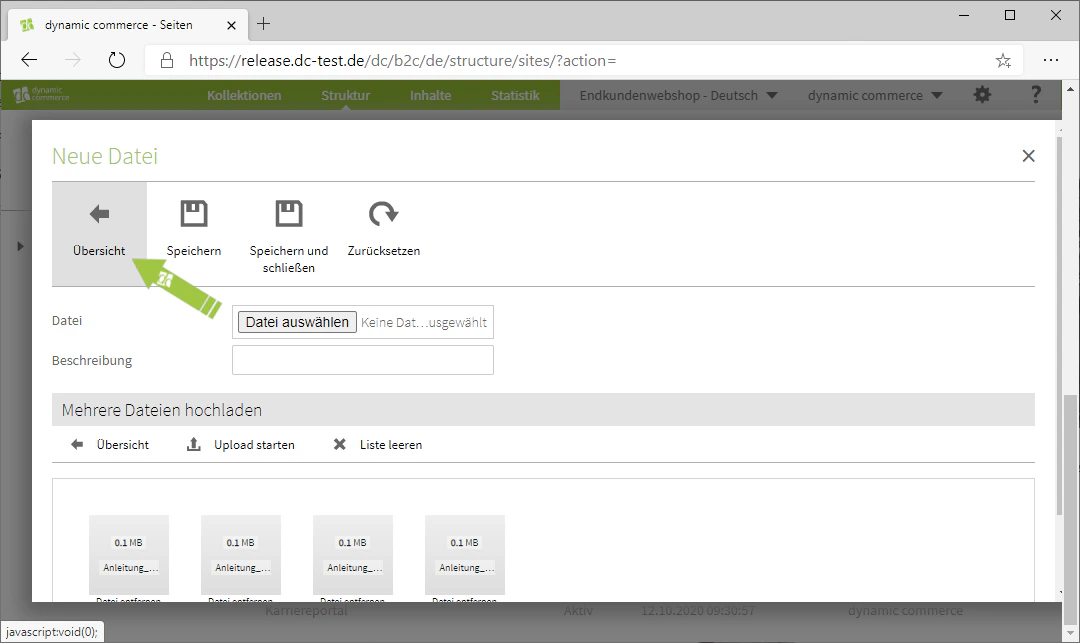
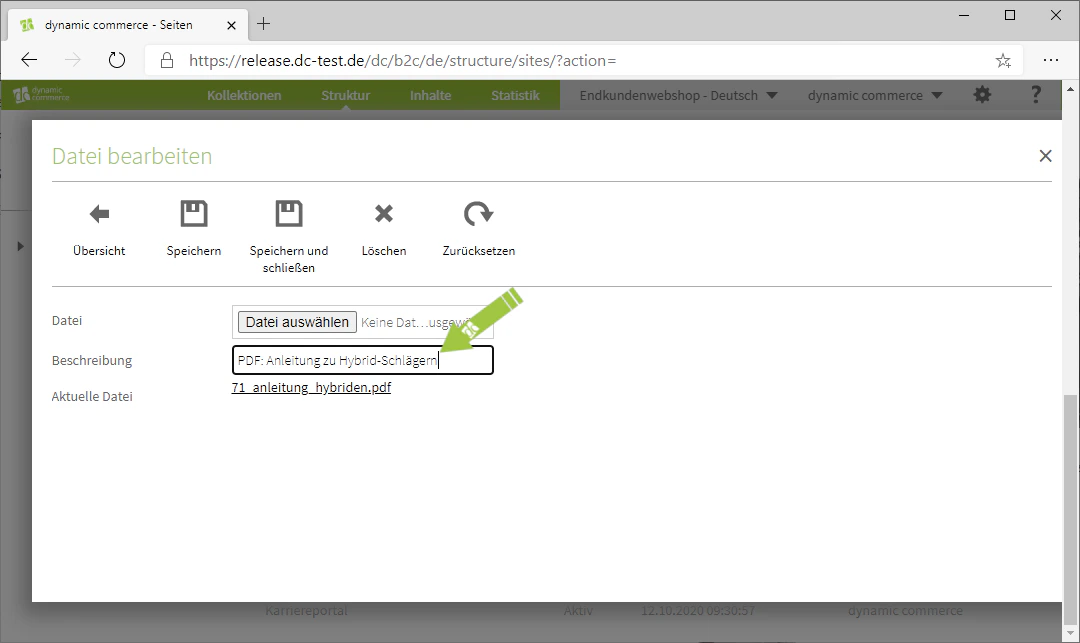
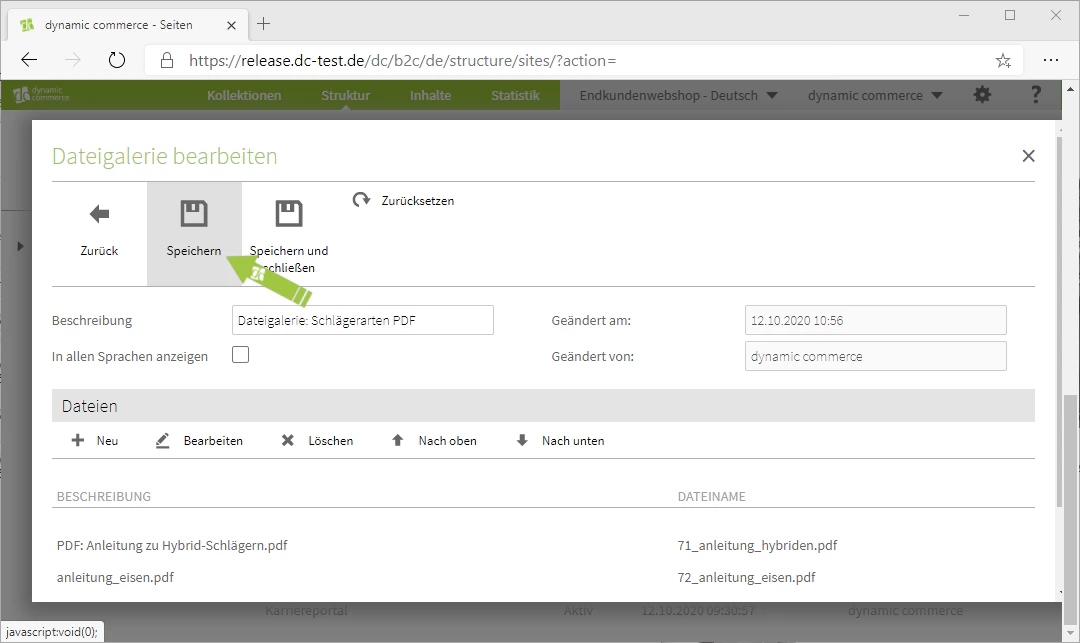
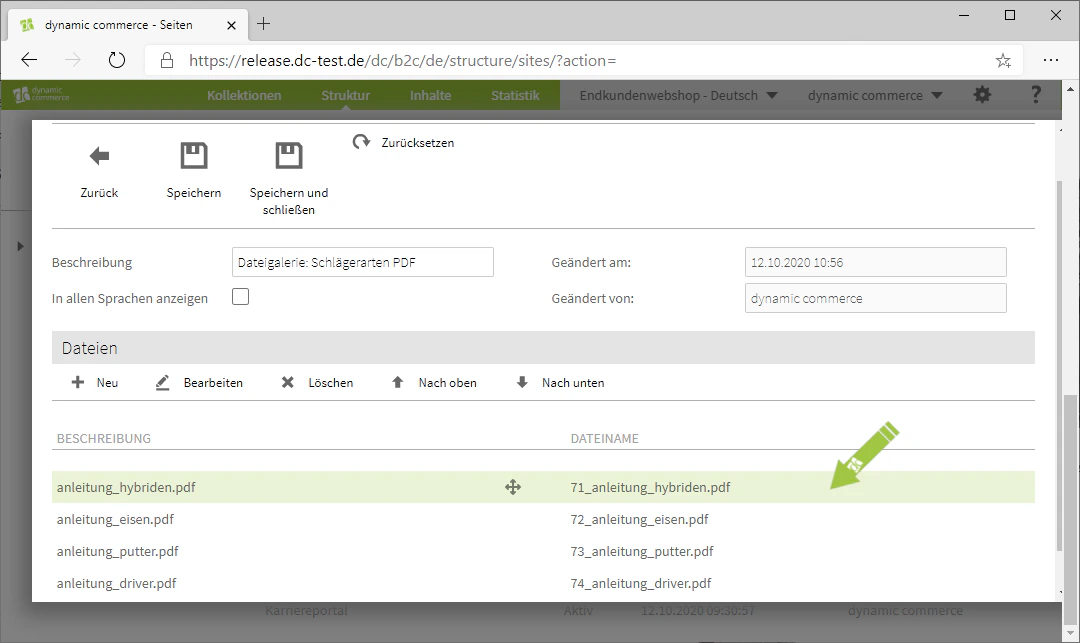
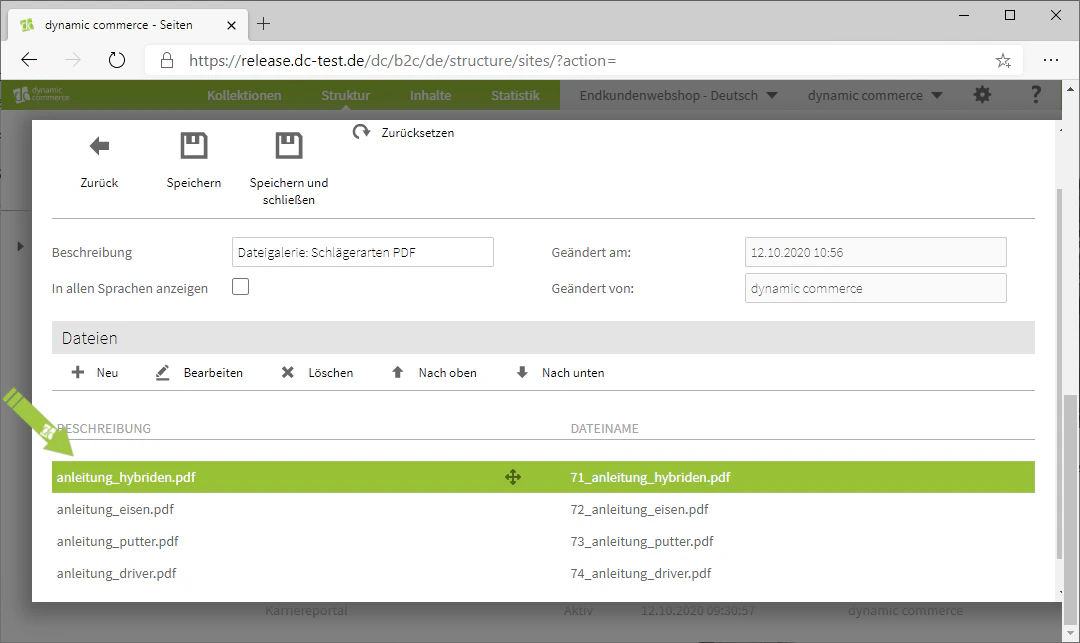
    In the overview you will then see the files you have uploaded. An automatic description has already been generated for each file based on the file name.

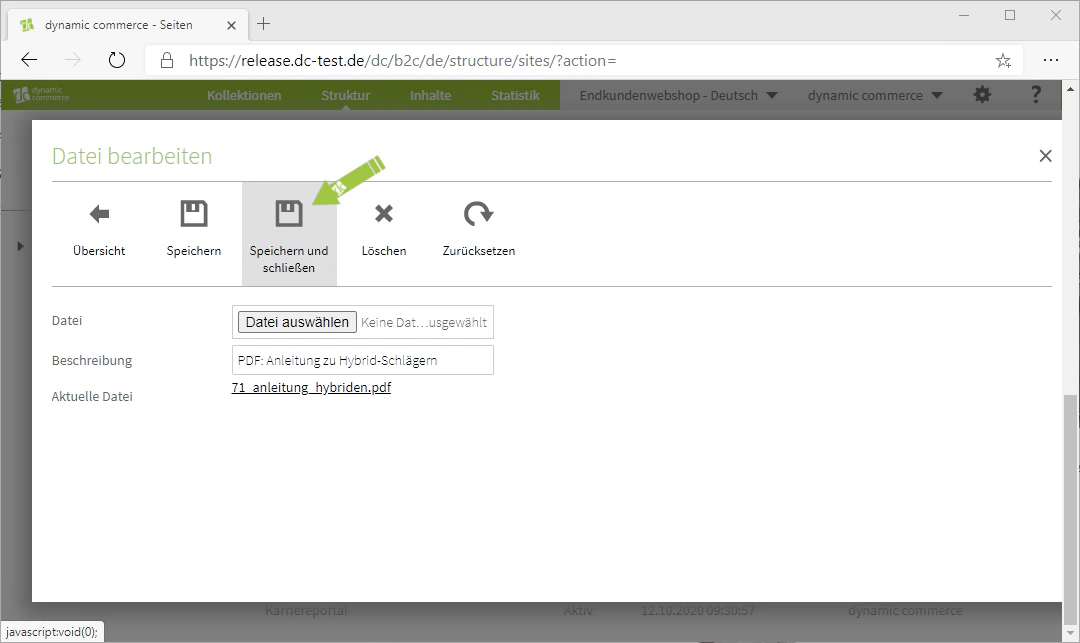
    By double-clicking on the respective file, you can edit it. This gives you the ability to adjust the individual descriptions.
    <Columns cols={3}>
      <Column>
        <Frame>
          <img src="https://mintcdn.com/dcag/NHJ2s69sWhUfX2Ig/images/dynamic-content/inhaltsarten/dateigalerien/automatische-beschreibung.png?fit=max&auto=format&n=NHJ2s69sWhUfX2Ig&q=85&s=3512416046d24f4dbe5d116acaee45ea" alt="Automatically generated description of the file" width="1080" height="643" data-path="images/dynamic-content/inhaltsarten/dateigalerien/automatische-beschreibung.png" />
        </Frame>
      </Column>

      <Column>
        <Frame>
          <img src="https://mintcdn.com/dcag/NHJ2s69sWhUfX2Ig/images/dynamic-content/inhaltsarten/dateigalerien/doppelklick-bearbeiten.png?fit=max&auto=format&n=NHJ2s69sWhUfX2Ig&q=85&s=5a19960f0fb109ff3302b9028c0d49b9" alt="Edit a file by double-clicking" width="1080" height="643" data-path="images/dynamic-content/inhaltsarten/dateigalerien/doppelklick-bearbeiten.png" />
        </Frame>
      </Column>

      <Column>
        <Frame>
          <img src="https://mintcdn.com/dcag/NHJ2s69sWhUfX2Ig/images/dynamic-content/inhaltsarten/dateigalerien/beschreibung-aendern.png?fit=max&auto=format&n=NHJ2s69sWhUfX2Ig&q=85&s=ede53a17742a52ba3ac3a80fa4c0c232" alt="Change the description of the file" width="1080" height="643" data-path="images/dynamic-content/inhaltsarten/dateigalerien/beschreibung-aendern.png" />
        </Frame>
      </Column>
    </Columns>

    <Columns cols={2}>
      <Column>
        <Frame>
          <img src="https://mintcdn.com/dcag/NHJ2s69sWhUfX2Ig/images/dynamic-content/inhaltsarten/dateigalerien/speichern-aenderung.png?fit=max&auto=format&n=NHJ2s69sWhUfX2Ig&q=85&s=f9ccdad42221e22e81b6ba1638d7e9bb" alt="Save the changed description" width="1080" height="643" data-path="images/dynamic-content/inhaltsarten/dateigalerien/speichern-aenderung.png" />
        </Frame>
      </Column>

      <Column>
        <Frame>
          <img src="https://mintcdn.com/dcag/NHJ2s69sWhUfX2Ig/images/dynamic-content/inhaltsarten/dateigalerien/beispiel-dateigalerie.png?fit=max&auto=format&n=NHJ2s69sWhUfX2Ig&q=85&s=75a485fba1616aee8008e556e5e5b6cf" alt="Example view of a completed file gallery" width="1080" height="643" data-path="images/dynamic-content/inhaltsarten/dateigalerien/beispiel-dateigalerie.png" />
        </Frame>
      </Column>
    </Columns>
  </Step>
</Steps>

## Related Topics

<CardGroup cols={2}>
  <Card title="Content Types" icon="shapes" href="/docs/en/dynamic-content/user-guide/inhaltsarten">
    Overview of all available modules.
  </Card>

  <Card title="Create and Edit Content" icon="pen-to-square" href="/docs/en/dynamic-content/user-guide/inhalte-erstellen">
    Create content on pages.
  </Card>

  <Card title="Image Galleries" icon="image" href="/docs/en/dynamic-content/user-guide/inhaltsarten/bildergalerien">
    Display images as a classic gallery.
  </Card>
</CardGroup>