> ## Documentation Index
> Fetch the complete documentation index at: https://docs.dc.ag/llms.txt
> Use this file to discover all available pages before exploring further.
# dynamic content - Create Shopping Worlds
> Declare pages as shopping worlds and replace category pages of your web shop as desired.
In the following, we will show you how to create a shopping world.
Shopping worlds are nothing more than regular pages, such as your created content pages. We already show you how to create a regular page here. If you declare a page as a shopping world, you can use it to replace one of the category pages automatically generated by your web shop.
The advantage of this is that you can also customise the category pages — which normally only contain an overview of subcategories — according to your wishes, or even fill them with content.
Typically, these pages are filled with content relating to the individual subcategories, with links within the respective content pointing to the subcategories. You can then fill this shopping world with content, just like any other page.
## Step 1: Navigate to the Shopping Worlds Menu
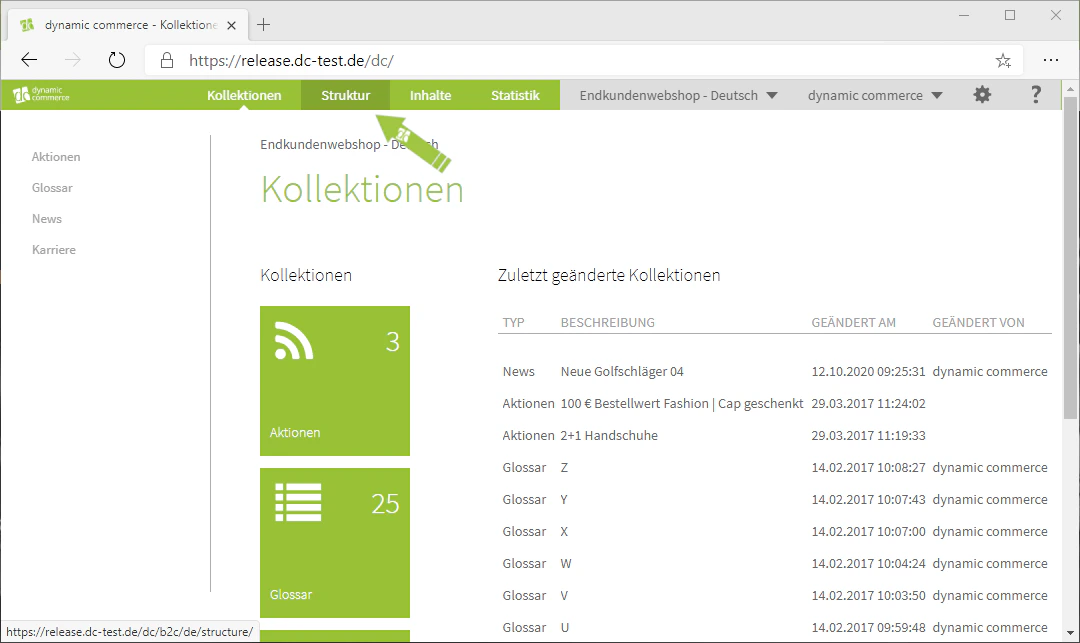
First, navigate to the shopping worlds menu by opening the Structure tab by clicking on "Structure" in the top bar.
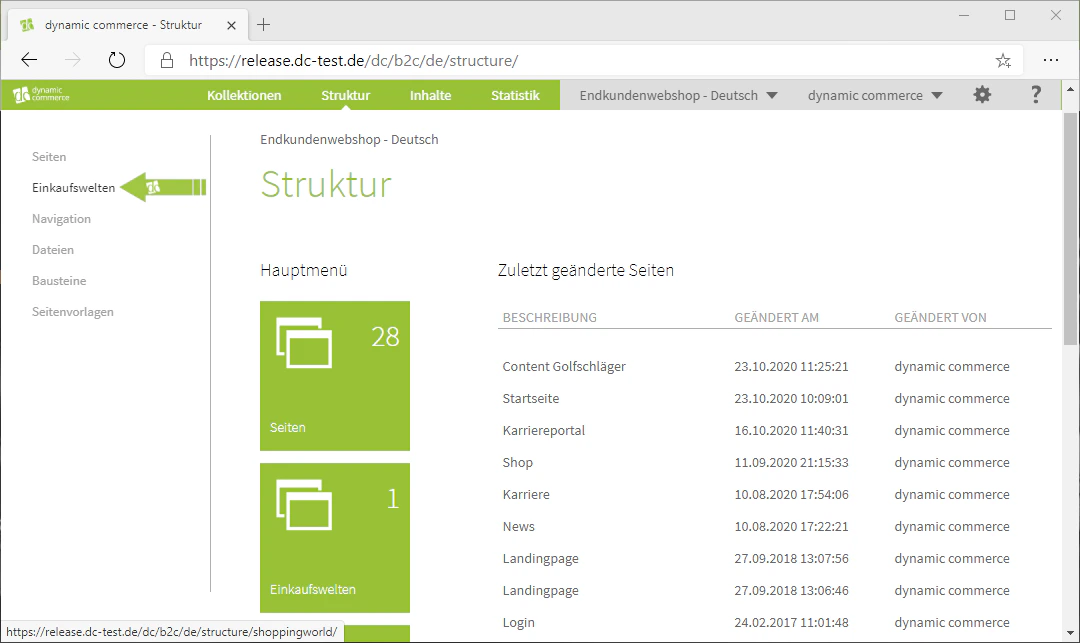
From there, you can access the shopping worlds menu via the "Shopping Worlds" item in the list on the left-hand side.
 ## Step 2: Create a New Shopping World
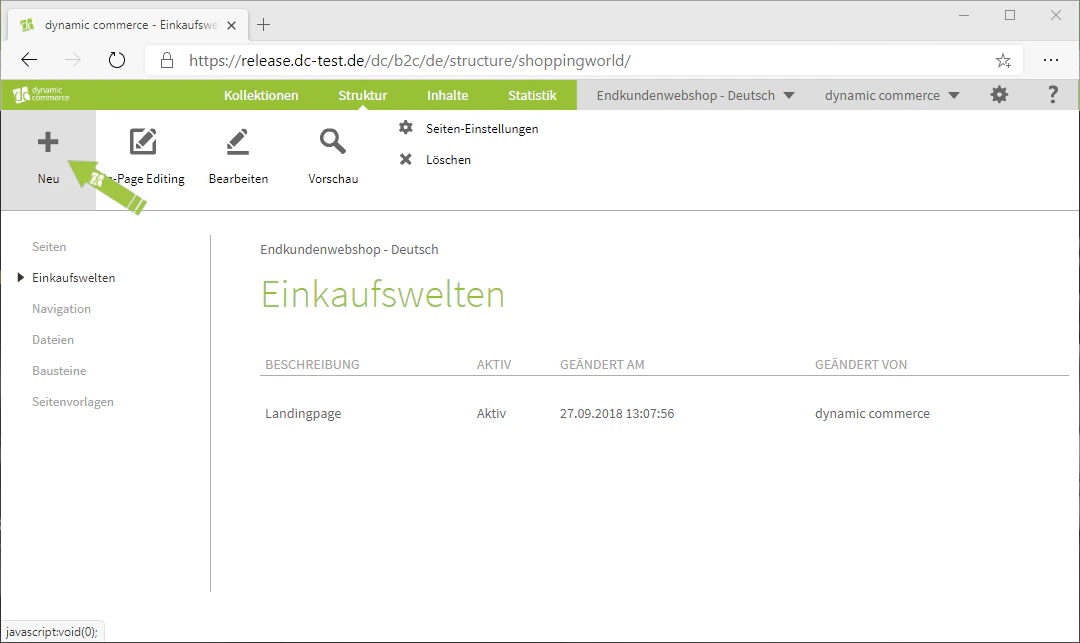
You can now create a new page by clicking the "Plus" icon with the label "New" beneath it in the upper left corner.
A window with the heading "Create New Page" should then open.
In addition, you can see already created shopping worlds in a list in the centre. These can be edited by double-clicking. Furthermore, you can directly manage content this way.
## Step 2: Create a New Shopping World
You can now create a new page by clicking the "Plus" icon with the label "New" beneath it in the upper left corner.
A window with the heading "Create New Page" should then open.
In addition, you can see already created shopping worlds in a list in the centre. These can be edited by double-clicking. Furthermore, you can directly manage content this way.
 ## Step 3: Choose a Description
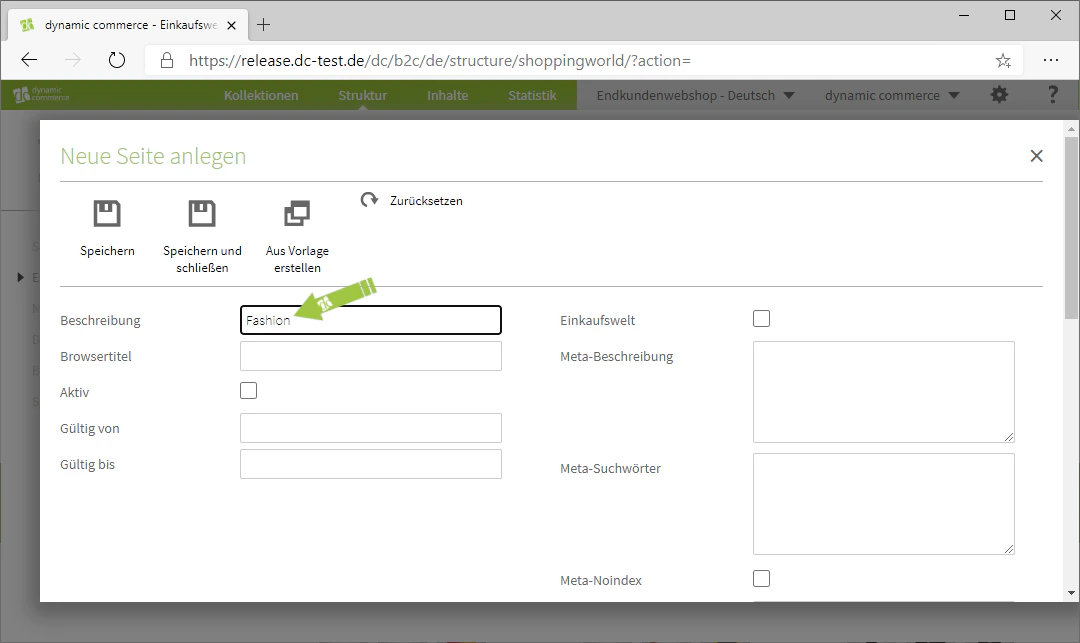
Here you first choose a description. You can choose this freely, as it is only used for clarity and is not displayed on your page.
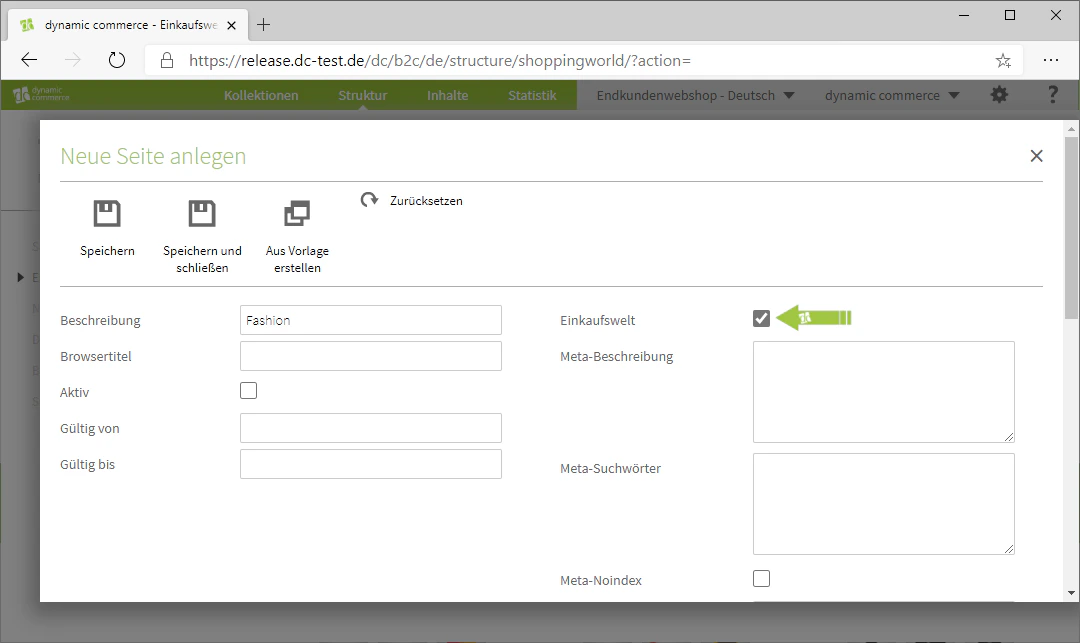
In our example, we choose "Fashion" as the description, as we want to replace the category page for the "Fashion" category.
## Step 3: Choose a Description
Here you first choose a description. You can choose this freely, as it is only used for clarity and is not displayed on your page.
In our example, we choose "Fashion" as the description, as we want to replace the category page for the "Fashion" category.
 ## Step 4: Declare the Page as a Shopping World and Save
Next, declare the page as a shopping world. This is done by checking the "Shopping World" checkbox.
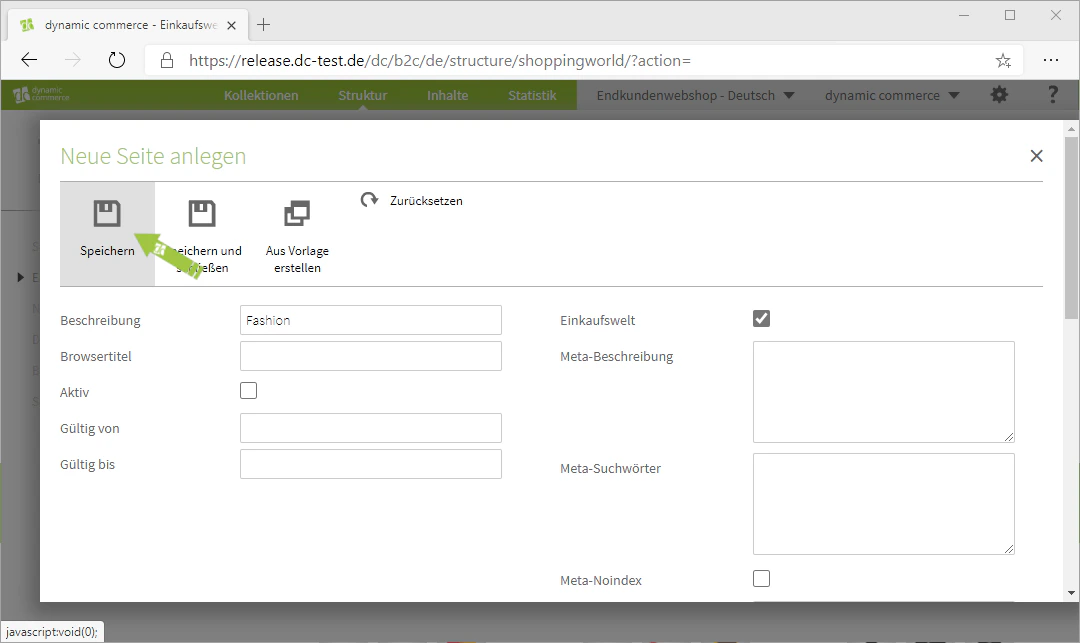
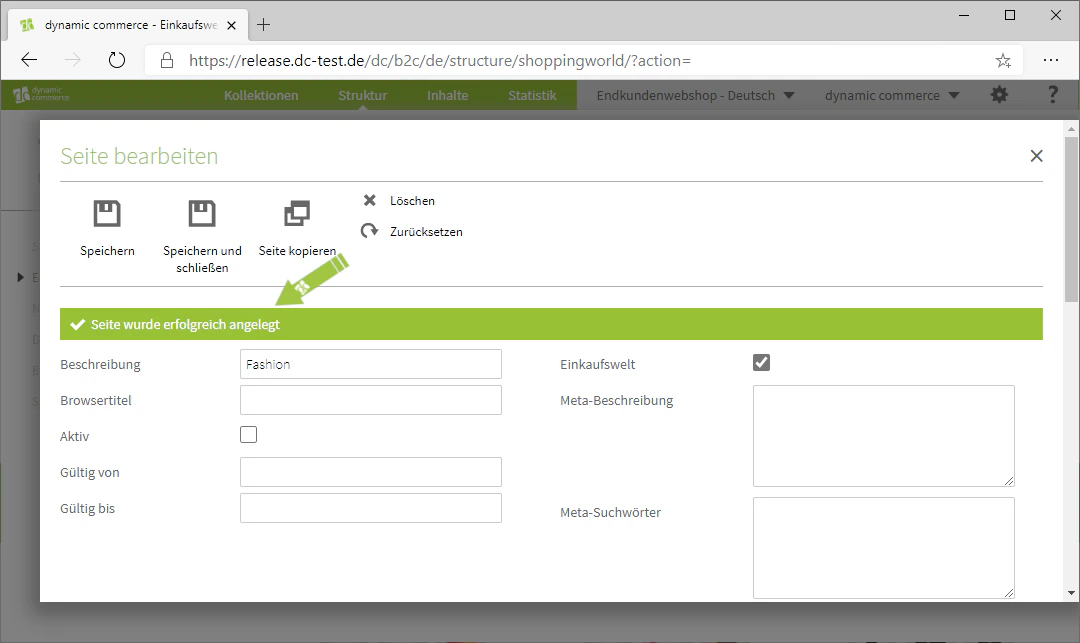
Now save this page to reveal further settings for the shopping world. You can then see these further down on the right-hand side once the page has been successfully created.
## Step 4: Declare the Page as a Shopping World and Save
Next, declare the page as a shopping world. This is done by checking the "Shopping World" checkbox.
Now save this page to reveal further settings for the shopping world. You can then see these further down on the right-hand side once the page has been successfully created.
 ## Step 5: Choose a Category
You now have the option to select a category.
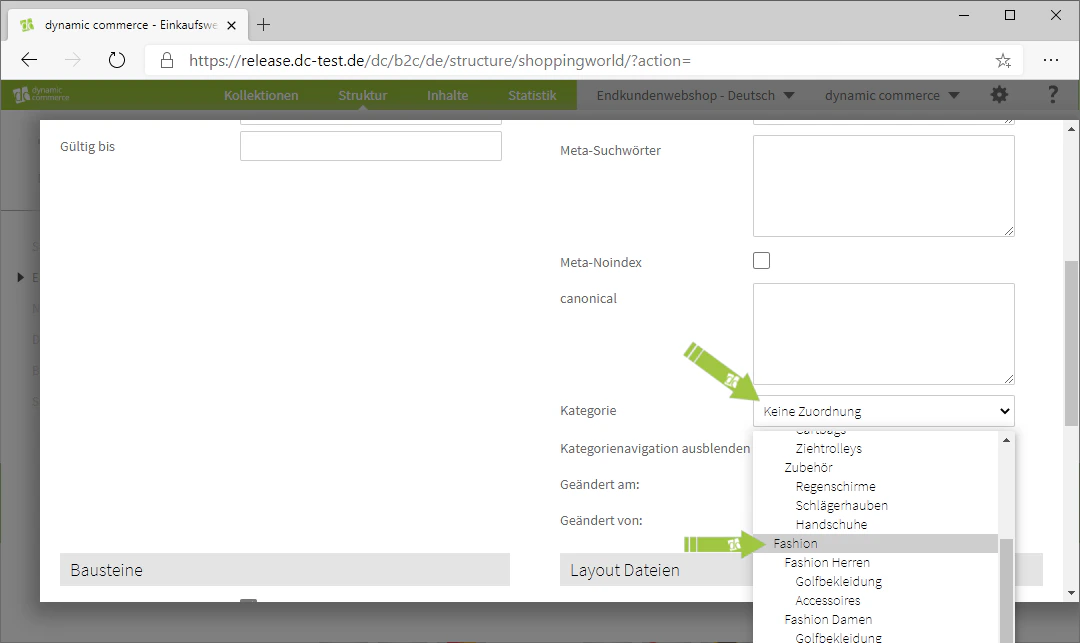
Using the drop-down, you can select which of your web shop categories you want to replace with this page.
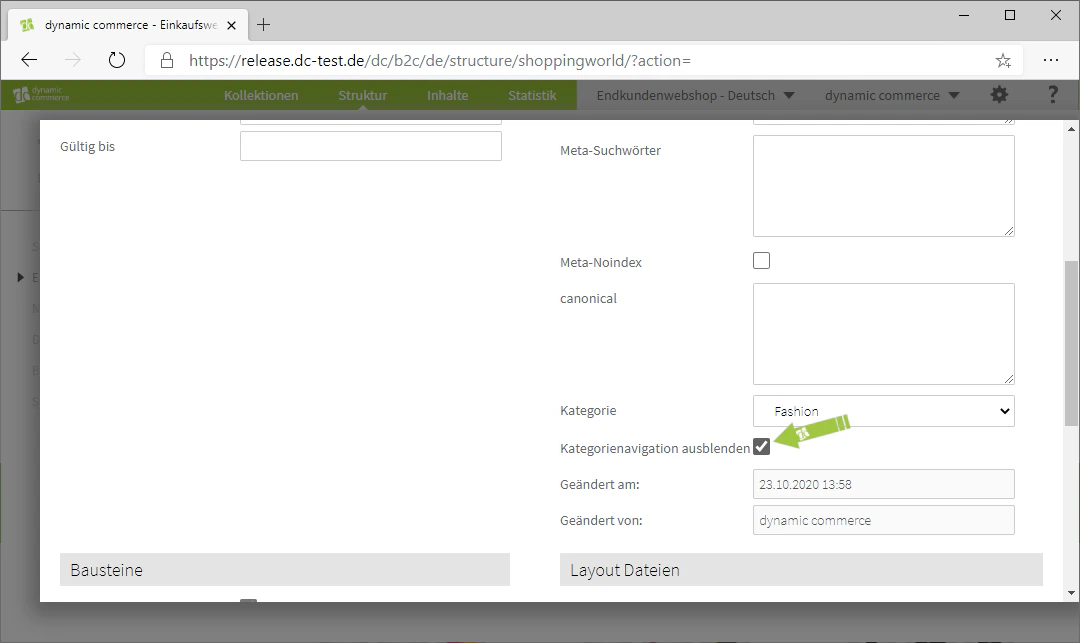
You also have the option to hide the navigation that would be displayed on the left-hand side of this page by checking the "Hide category navigation" checkbox. This is useful if you want to fill the entire width of your page with content.
In our example, we select the "Fashion" category and also hide the category navigation.
You have now already declared the page as a shopping world. We explain the other settings in the context of page creation here.
## Step 5: Choose a Category
You now have the option to select a category.
Using the drop-down, you can select which of your web shop categories you want to replace with this page.
You also have the option to hide the navigation that would be displayed on the left-hand side of this page by checking the "Hide category navigation" checkbox. This is useful if you want to fill the entire width of your page with content.
In our example, we select the "Fashion" category and also hide the category navigation.
You have now already declared the page as a shopping world. We explain the other settings in the context of page creation here.
 ## Related Topics
Fundamentals for creating regular pages as the basis for shopping worlds.
Integrate shopping worlds into the navigation of your website.
Fill shopping worlds with your own content.
## Related Topics
Fundamentals for creating regular pages as the basis for shopping worlds.
Integrate shopping worlds into the navigation of your website.
Fill shopping worlds with your own content.