> ## Documentation Index
> Fetch the complete documentation index at: https://docs.dc.ag/llms.txt
> Use this file to discover all available pages before exploring further.
# dynamic commerce - Set Up Webshop Subscription
> Create subscription models and assign them to items so that customers can subscribe in the webshop.
We will show you here how to set up webshop subscriptions. Fundamentally, there are 2 different types of subscriptions: the savings subscription and the sequence subscription.
With the savings subscription, a payment is made per delivery. With the sequence subscription, it is possible to pay in different intervals, such as monthly or annually.
## Step 1: Open Webshop Subscription Overview
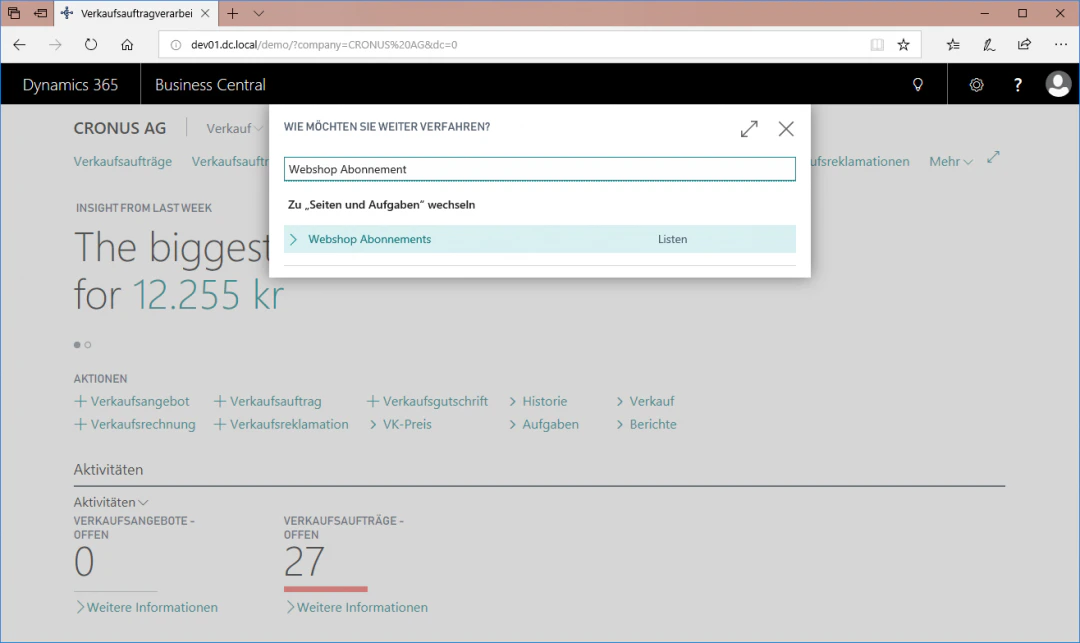
Navigate to the Webshop Subscriptions area by entering "Webshop Subscription" in the search.
 ## Step 2: Create Subscription
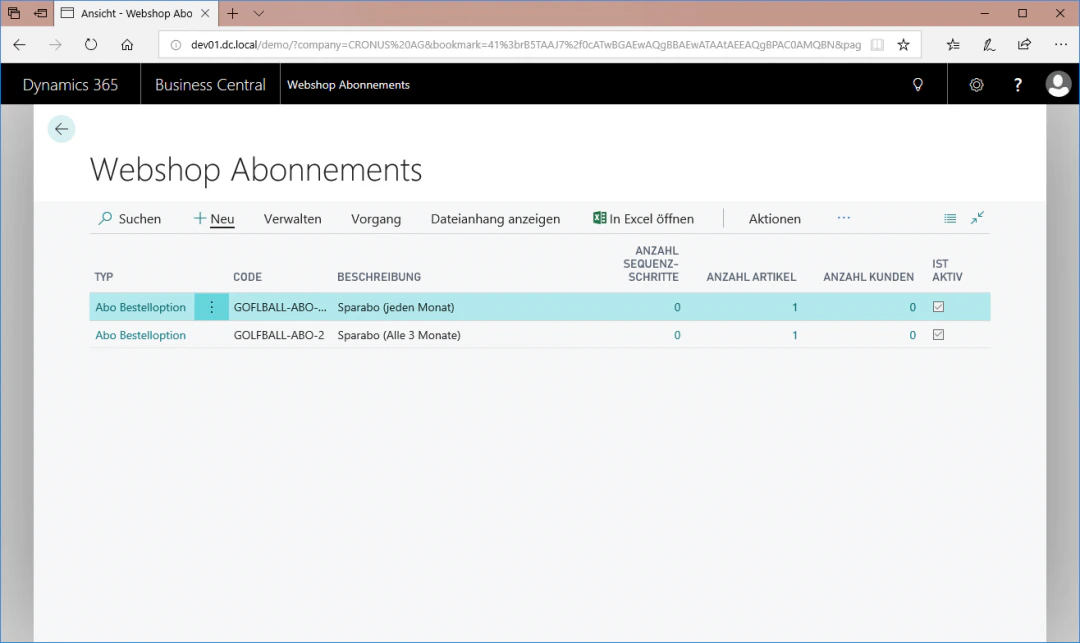
To create a new subscription, click the FastTab "New".
## Step 2: Create Subscription
To create a new subscription, click the FastTab "New".
 ## Step 3: Select Subscription
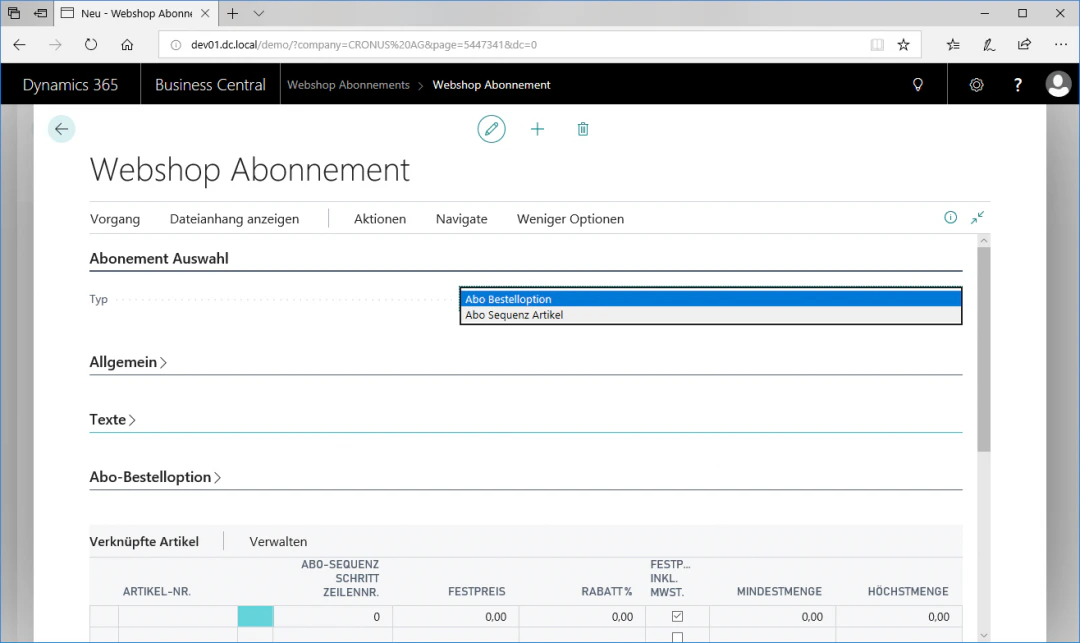
To create a new savings subscription, navigate to the menu item "Subscription Selection" and select "Subscription Order Option" as the type.
## Step 3: Select Subscription
To create a new savings subscription, navigate to the menu item "Subscription Selection" and select "Subscription Order Option" as the type.
 ## Step 4: General Data
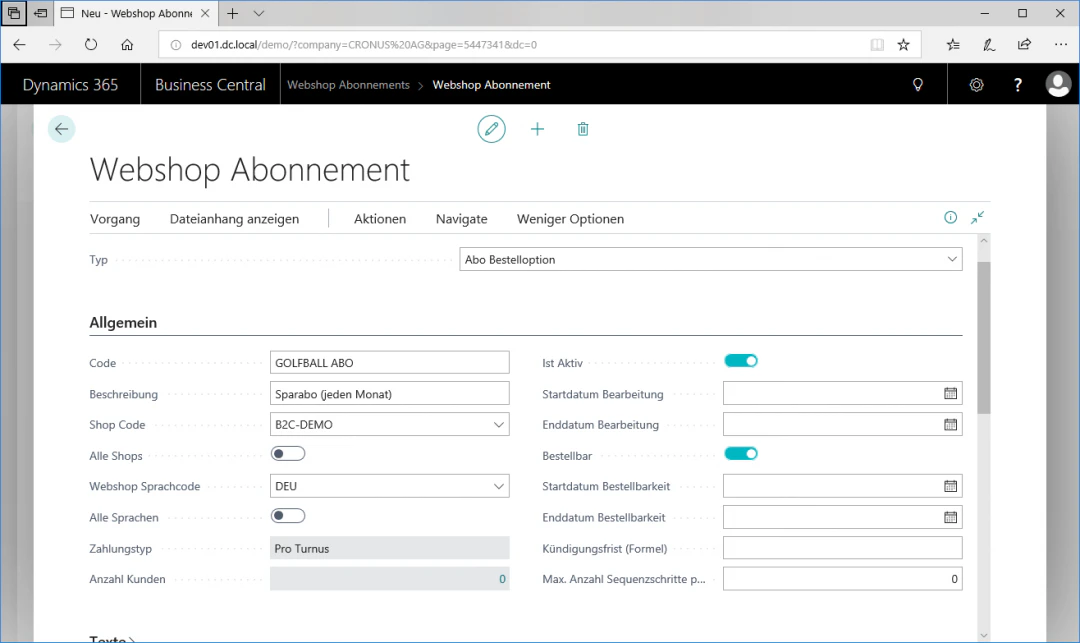
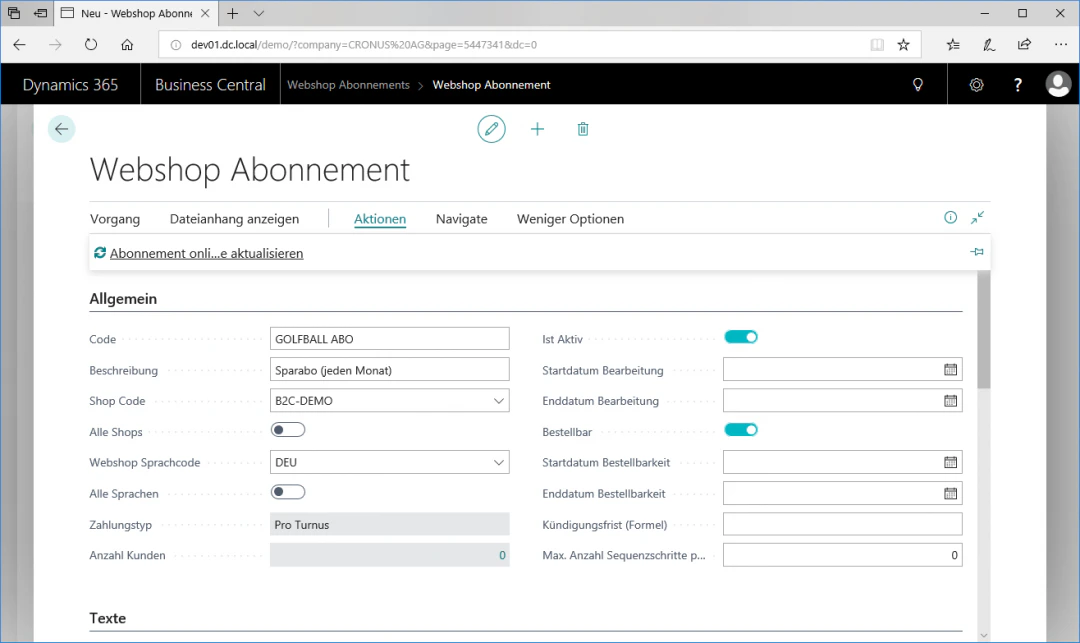
Via the menu item "General", we want to create a golf ball savings subscription in our example, which should be valid for a B2C shop. In addition, it should be orderable online and active in the webshop.
For this example configuration, we select the following settings:
* Code: GOLFBALL ABO 1M
* Description: Savings subscription (every month)
* Shop Code: B2C-DEMO
* Webshop Language Code: DEU
* Payment Type: Per Cycle
* Is Active: Check the box
* Orderable: Check the box
## Step 4: General Data
Via the menu item "General", we want to create a golf ball savings subscription in our example, which should be valid for a B2C shop. In addition, it should be orderable online and active in the webshop.
For this example configuration, we select the following settings:
* Code: GOLFBALL ABO 1M
* Description: Savings subscription (every month)
* Shop Code: B2C-DEMO
* Webshop Language Code: DEU
* Payment Type: Per Cycle
* Is Active: Check the box
* Orderable: Check the box
 ## Step 5: Texts
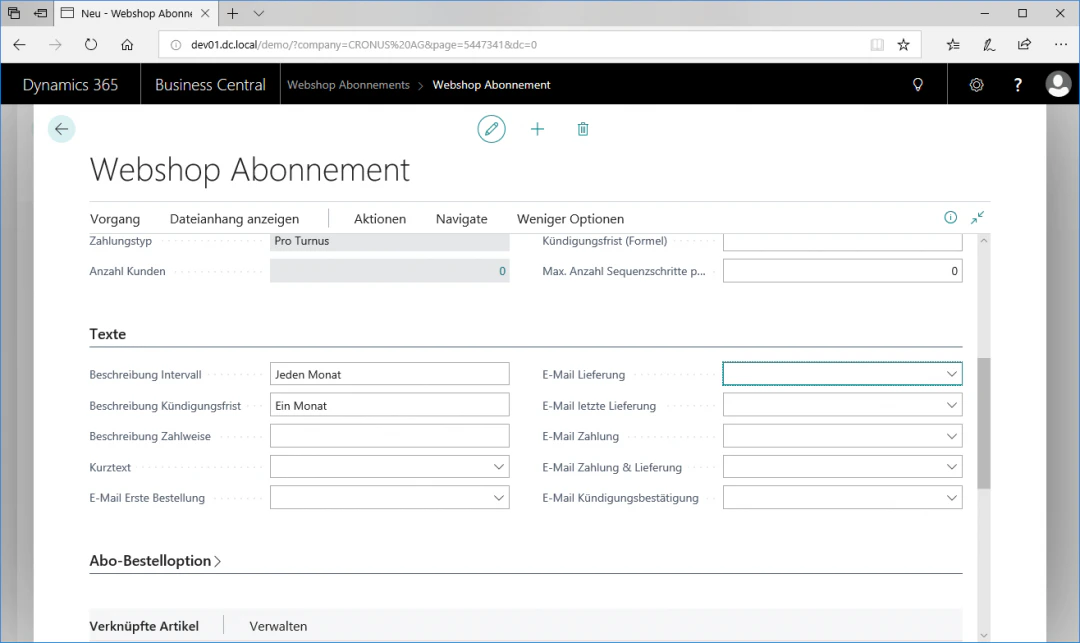
To add descriptions to the subscription, open the menu item "Texts" and write "Every Month" in the Description Interval field.
Also write "One Month" in the Description Cancellation Period field.
## Step 5: Texts
To add descriptions to the subscription, open the menu item "Texts" and write "Every Month" in the Description Interval field.
Also write "One Month" in the Description Cancellation Period field.
 ## Step 6: Subscription Order Option
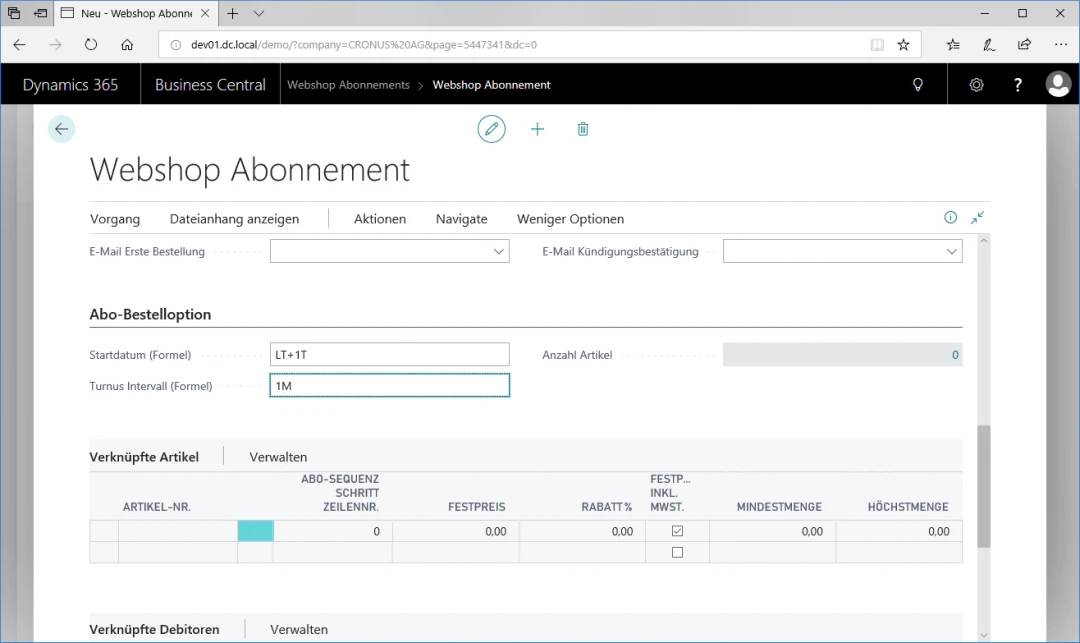
To define a start date for the subscription, navigate to the menu item "Subscription Order Option". The subscription should start one day after the order and a delivery should take place once a month. For this example configuration, we select the following settings:
* Start Date (Formula): LT + 1T
* Cycle Interval (Formula): 1M
## Step 6: Subscription Order Option
To define a start date for the subscription, navigate to the menu item "Subscription Order Option". The subscription should start one day after the order and a delivery should take place once a month. For this example configuration, we select the following settings:
* Start Date (Formula): LT + 1T
* Cycle Interval (Formula): 1M
 ## Step 7: Add Items
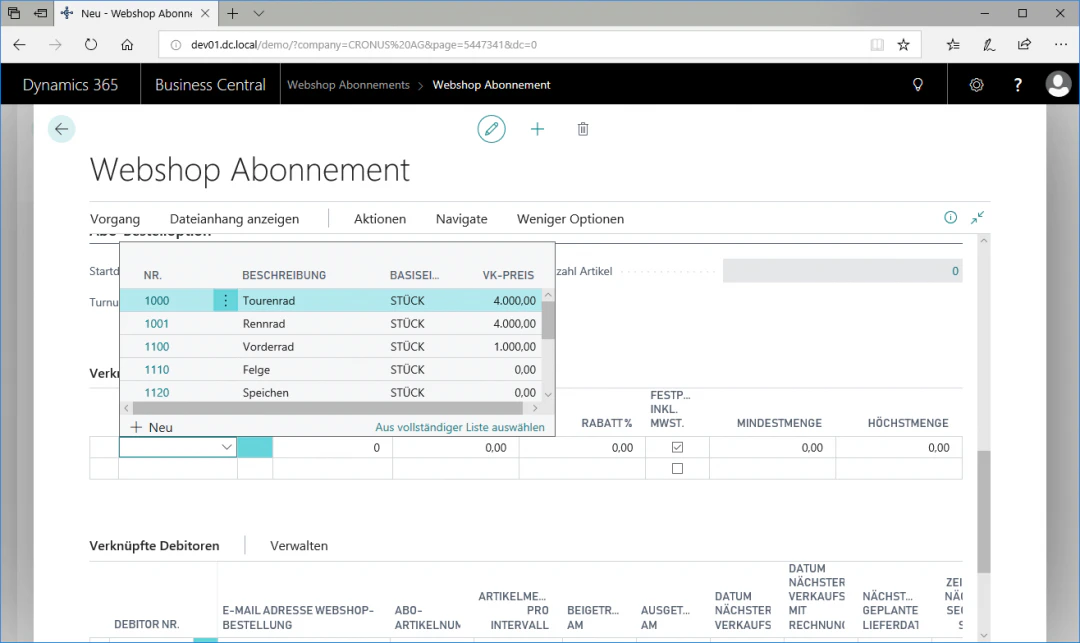
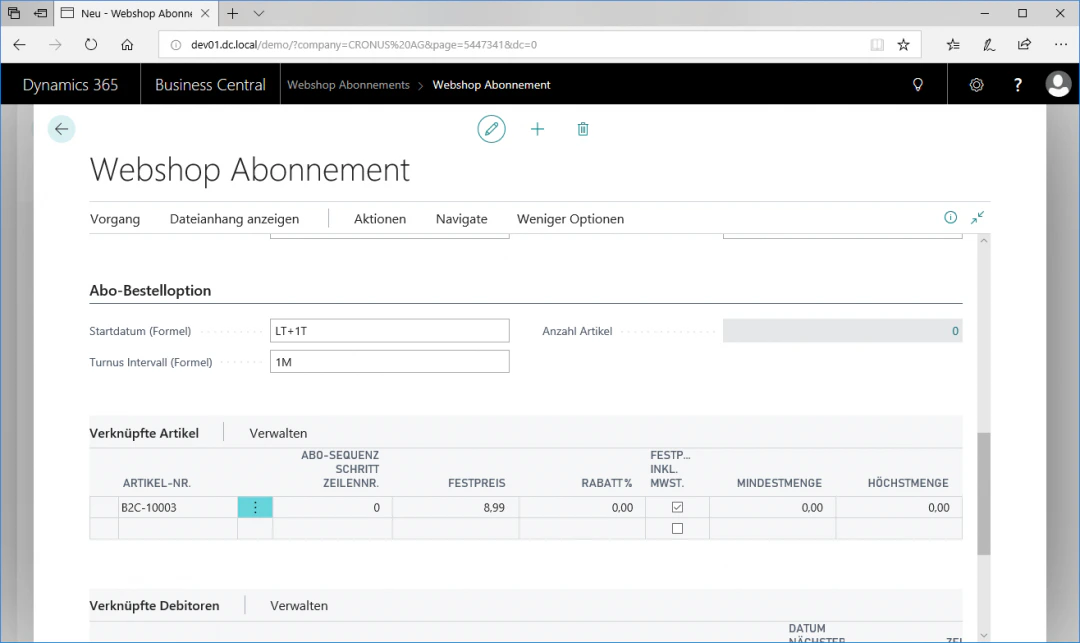
To add items to the savings subscription, navigate to the menu item "Linked Items" and click in the first empty row under the Item Number column.
Select your desired item and enter a fixed price. In our example, we select golf balls with item number "B2C-10003" and set a fixed price of "8.99".
## Step 7: Add Items
To add items to the savings subscription, navigate to the menu item "Linked Items" and click in the first empty row under the Item Number column.
Select your desired item and enter a fixed price. In our example, we select golf balls with item number "B2C-10003" and set a fixed price of "8.99".
 ## Step 8: Update Subscription
To synchronise the webshop subscription with the webshop system, click the FastTab "Update Subscription" in the "Actions" ribbon. This updates all webshop subscriptions that have been changed since the last update.
## Step 8: Update Subscription
To synchronise the webshop subscription with the webshop system, click the FastTab "Update Subscription" in the "Actions" ribbon. This updates all webshop subscriptions that have been changed since the last update.
 ## Related Topics
Maintain items for the webshop.
Configure payment methods in the webshop.
## Related Topics
Maintain items for the webshop.
Configure payment methods in the webshop.