> ## Documentation Index
> Fetch the complete documentation index at: https://docs.dc.ag/llms.txt
> Use this file to discover all available pages before exploring further.
# dynamic commerce - Activate Customer for Web Shop
> Activate existing customers for login and purchasing in the web shop.
We show you here how to activate a customer for a web shop.
It is fundamentally important to note that you must first create a customer in the system before you can activate them for the web shop.
The customer selected here as an example is created by default in NAV and is called "Gilde Jupiter Versicherungs AG" with the number "30000".
## Step 1: Open Customer List
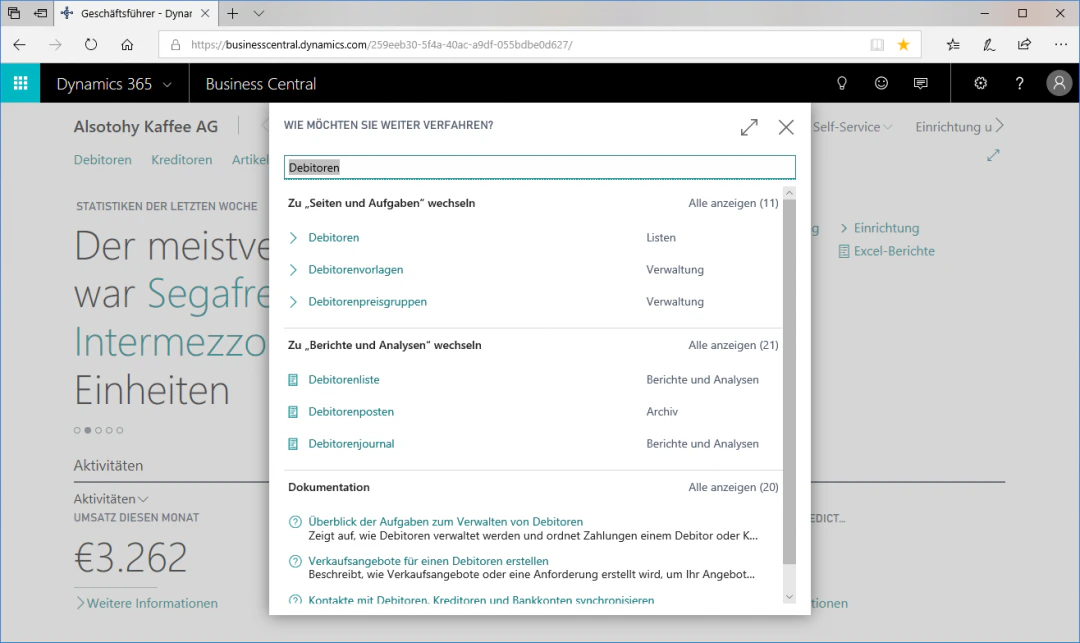
Navigate to the Customers area by entering "Customers" in the search.
 ## Step 2: Open Customer Card
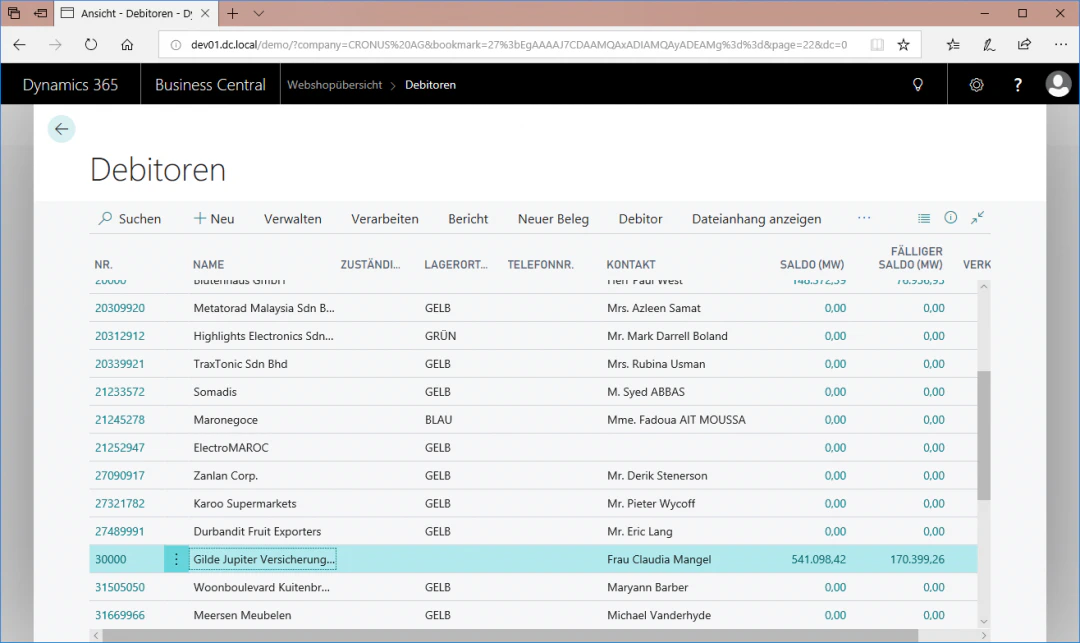
Select the row with the desired customer you want to activate for the web shop, in this case "Gilde Jupiter Versicherungs AG".
Click the FastTab "Edit" in the "Manage" ribbon to open the customer card.
## Step 2: Open Customer Card
Select the row with the desired customer you want to activate for the web shop, in this case "Gilde Jupiter Versicherungs AG".
Click the FastTab "Edit" in the "Manage" ribbon to open the customer card.
 ## Step 3: Define E-Commerce Data
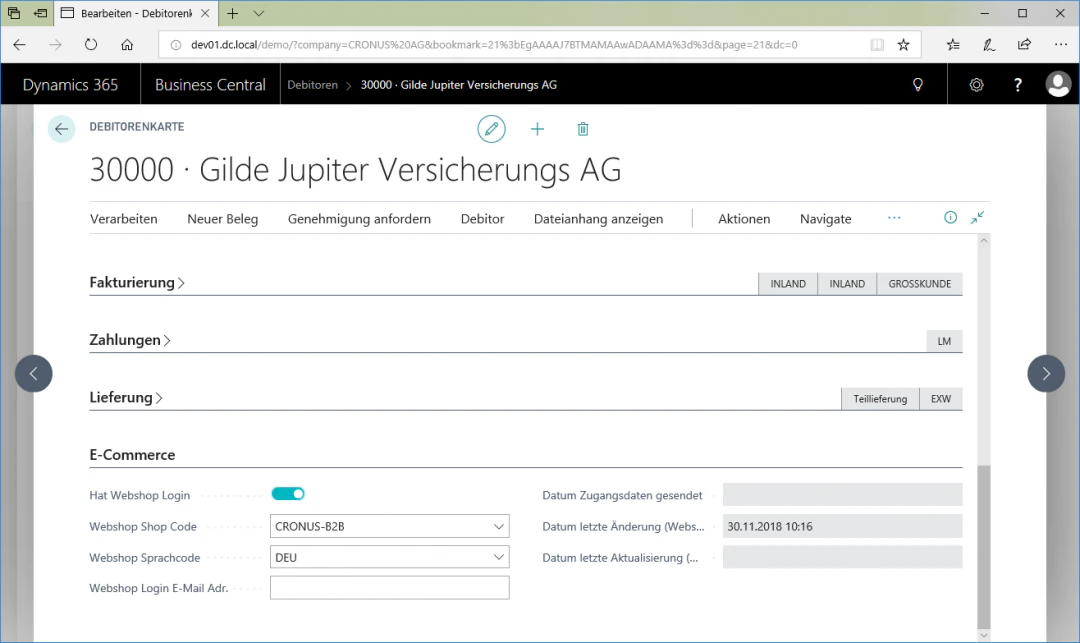
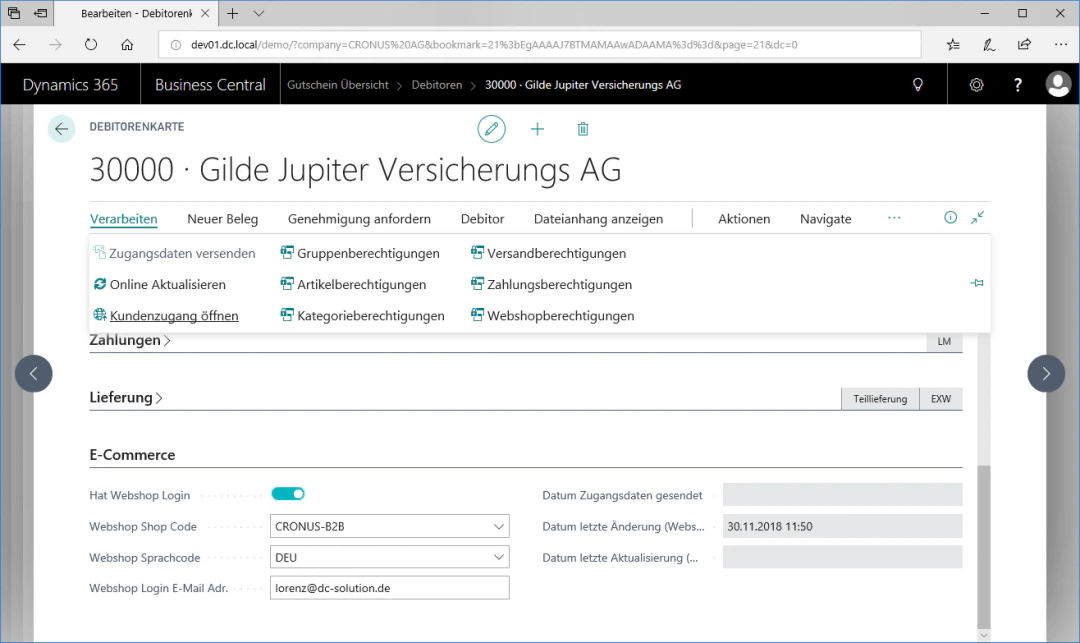
Scroll all the way down in the customer card and click on the menu item "E-Commerce". In our example, we want to activate the customer for a B2B shop with a German language code.
For this example configuration, we select the following settings:
Web Shop Code: "CRONUS-B2B"
Web Shop Language Code: "DEU"
## Step 3: Define E-Commerce Data
Scroll all the way down in the customer card and click on the menu item "E-Commerce". In our example, we want to activate the customer for a B2B shop with a German language code.
For this example configuration, we select the following settings:
Web Shop Code: "CRONUS-B2B"
Web Shop Language Code: "DEU"
 ## Step 4: Send E-Mail
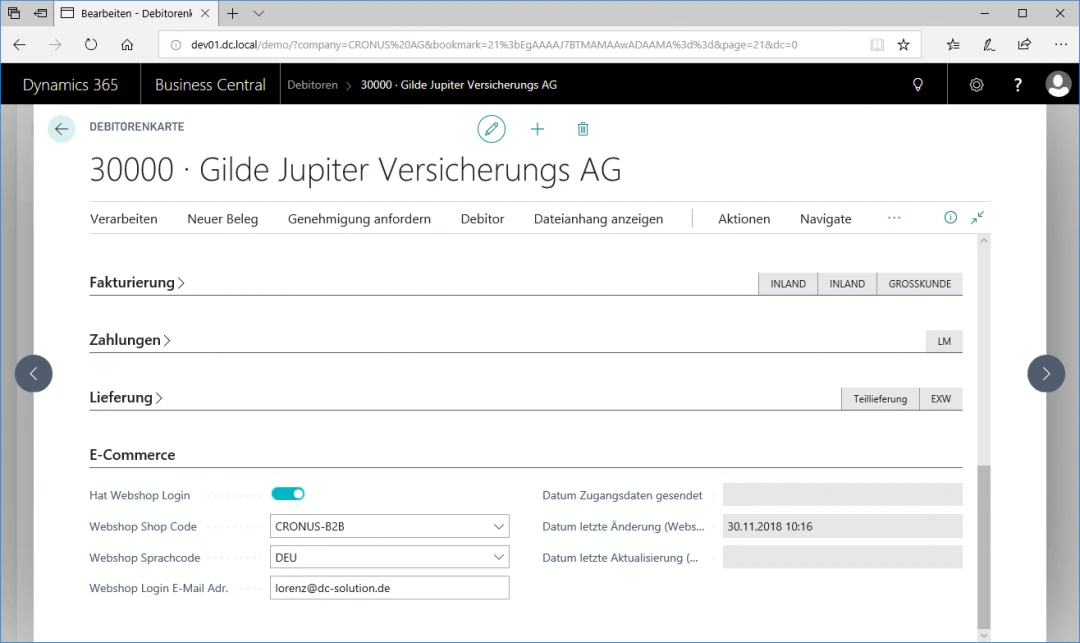
In order to send the web shop access credentials to the customer, you must enter the customer's e-mail address in the field "Web Shop Login E-Mail Addr.". In our example, we enter [lorenz@contoso.com](mailto:lorenz@contoso.com) and click on the FastTab "Send Access Credentials" in the "Process" ribbon.
## Step 4: Send E-Mail
In order to send the web shop access credentials to the customer, you must enter the customer's e-mail address in the field "Web Shop Login E-Mail Addr.". In our example, we enter [lorenz@contoso.com](mailto:lorenz@contoso.com) and click on the FastTab "Send Access Credentials" in the "Process" ribbon.
 ## Step 5: Test Customer Access
To verify that the sent access credentials and the customer access for the web shop are working correctly, click on the FastTab "Open Customer Access" in the "Process" ribbon. If you are taken to the customer area of the web shop, you have successfully activated the customer.
## Step 5: Test Customer Access
To verify that the sent access credentials and the customer access for the web shop are working correctly, click on the FastTab "Open Customer Access" in the "Process" ribbon. If you are taken to the customer area of the web shop, you have successfully activated the customer.
 ## Related Topics
Activate salespersons for the web shop.
Control item visibility per customer.
## Related Topics
Activate salespersons for the web shop.
Control item visibility per customer.