> ## Documentation Index
> Fetch the complete documentation index at: https://docs.dc.ag/llms.txt
> Use this file to discover all available pages before exploring further.
# dynamic commerce - Set Up Item Category
> Create item categories and attributes in Business Central to logically structure items.
Here we show you how to set up various item categories. Item categories are fundamentally used for the internal grouping of items.
Per webshop, a category tree with any number of categories can be created, which can be nested up to 5 levels deep. Any number of items can be assigned to each category, and an item can in turn belong to any number of categories.
## Step 1: Open Item Category Overview
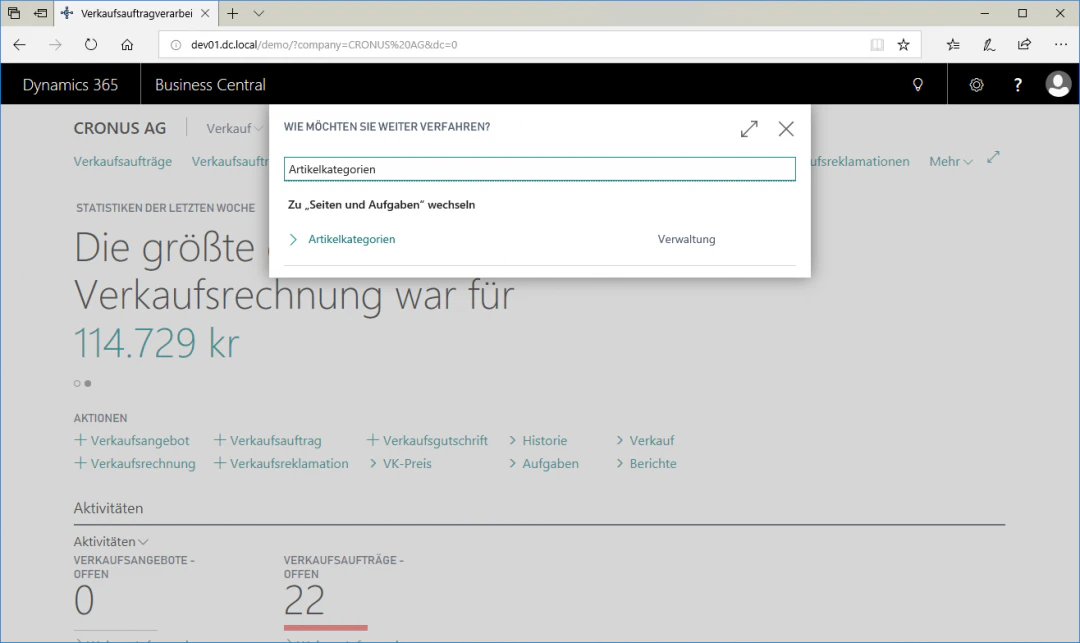
Navigate to the Item Categories area by entering "Item Categories" in the search.
 ## Step 2: Create Item Category Level 1
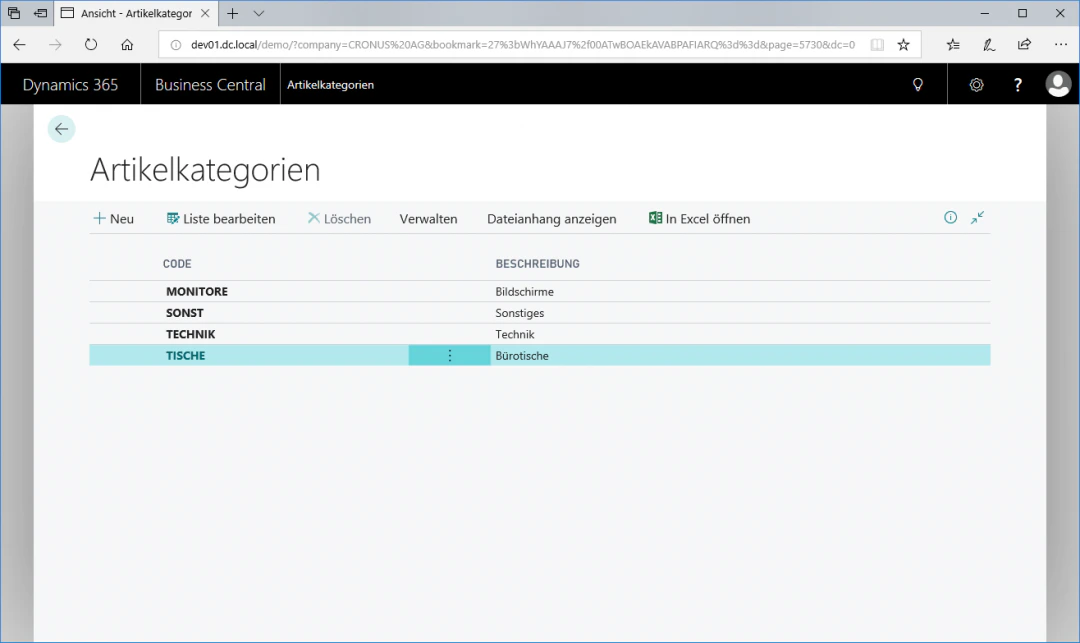
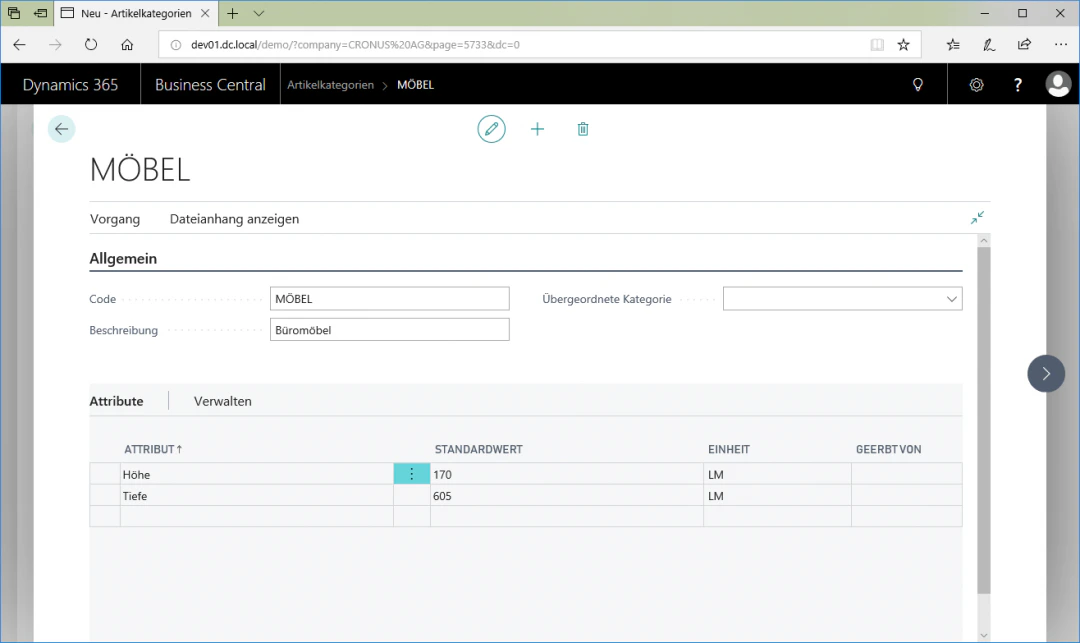
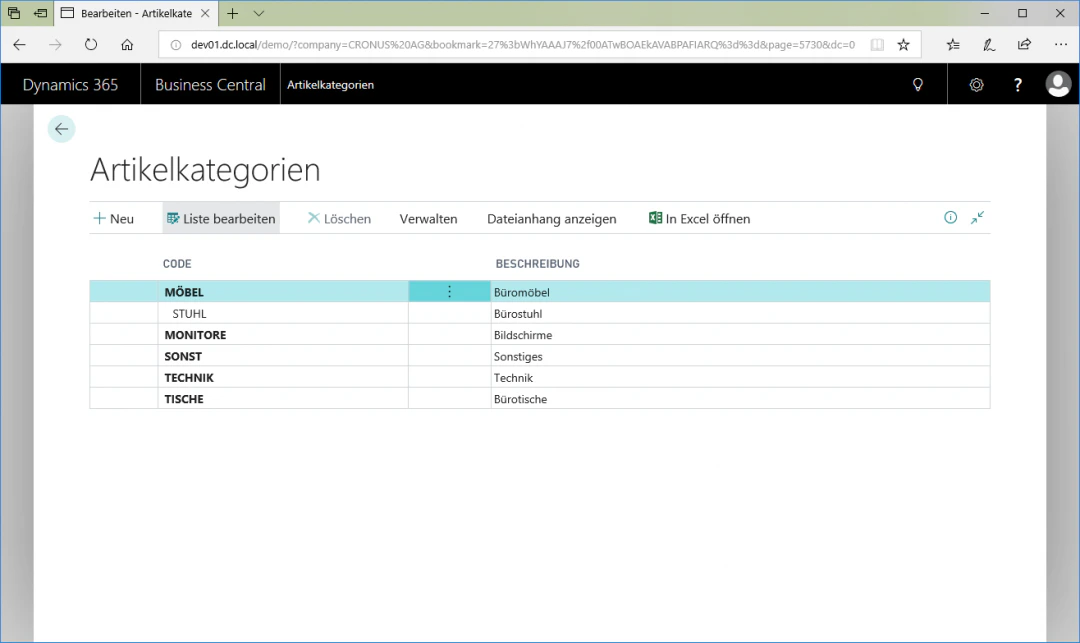
To create a first-level category, click the FastTab "New". The new entry is inserted as the first row. To enable quick editing of a category, the category overview is already editable in the list. The categories can therefore be edited directly in the list by clicking "Edit List". In our example, we name the first-level item category "Furniture". It is also recommended to use "Office Furniture" as the description and to create the attributes "Height" and "Depth". You can create the attributes by clicking on an empty row in the "Attributes" menu item and selecting the corresponding attributes. The default value for Height should be "170" and for Depth "605".
## Step 2: Create Item Category Level 1
To create a first-level category, click the FastTab "New". The new entry is inserted as the first row. To enable quick editing of a category, the category overview is already editable in the list. The categories can therefore be edited directly in the list by clicking "Edit List". In our example, we name the first-level item category "Furniture". It is also recommended to use "Office Furniture" as the description and to create the attributes "Height" and "Depth". You can create the attributes by clicking on an empty row in the "Attributes" menu item and selecting the corresponding attributes. The default value for Height should be "170" and for Depth "605".
 ## Step 3: Create Item Category Level 2
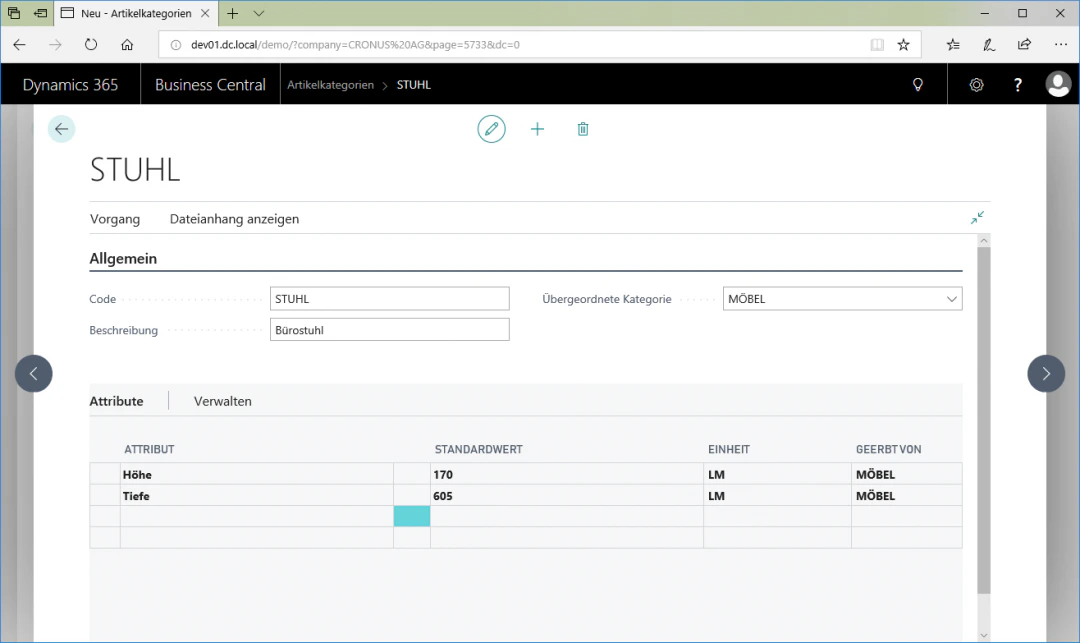
To create a second-level category, select the FastTab "New" again. The new entry is inserted below the currently selected parent item category. In our example, we name the category "Chair". We also use "Office Chair" as the description and assign the category to the parent category "Furniture". As a result, the new item category "Chair" inherits all attributes of the parent item category.
## Step 3: Create Item Category Level 2
To create a second-level category, select the FastTab "New" again. The new entry is inserted below the currently selected parent item category. In our example, we name the category "Chair". We also use "Office Chair" as the description and assign the category to the parent category "Furniture". As a result, the new item category "Chair" inherits all attributes of the parent item category.
 ## Step 4: Update Item Categories
To synchronise the categories with the webshop system, click the FastTab "Update" in the "Home" ribbon. This updates all categories that have been changed since the last update.
All changed item categories are also automatically updated with the next full data update.
## Related Topics
Build the category tree for the webshop.
Maintain items for the webshop.
## Step 4: Update Item Categories
To synchronise the categories with the webshop system, click the FastTab "Update" in the "Home" ribbon. This updates all categories that have been changed since the last update.
All changed item categories are also automatically updated with the next full data update.
## Related Topics
Build the category tree for the webshop.
Maintain items for the webshop.