> ## Documentation Index
> Fetch the complete documentation index at: https://docs.dc.ag/llms.txt
> Use this file to discover all available pages before exploring further.
# dynamic commerce - Set Up Item Personalization
> Configure personalization options such as texts or images for webshop items.
Here we show you how to personalize a webshop item.
It is important to note that a master item must first be created before a webshop item can be set up or personalized. The master item used as an example here is created by default in NAV and is a "touring bicycle" with item number "1000".
An item can be configured so that it can be ordered either without personalization only, with personalization only, or with both.
The personalization options can be short texts (e.g. for ribbon bands), free-form texts (e.g. for greeting cards), or images (e.g. for printed mugs).
## Step 1: Open the Webshop Item Overview
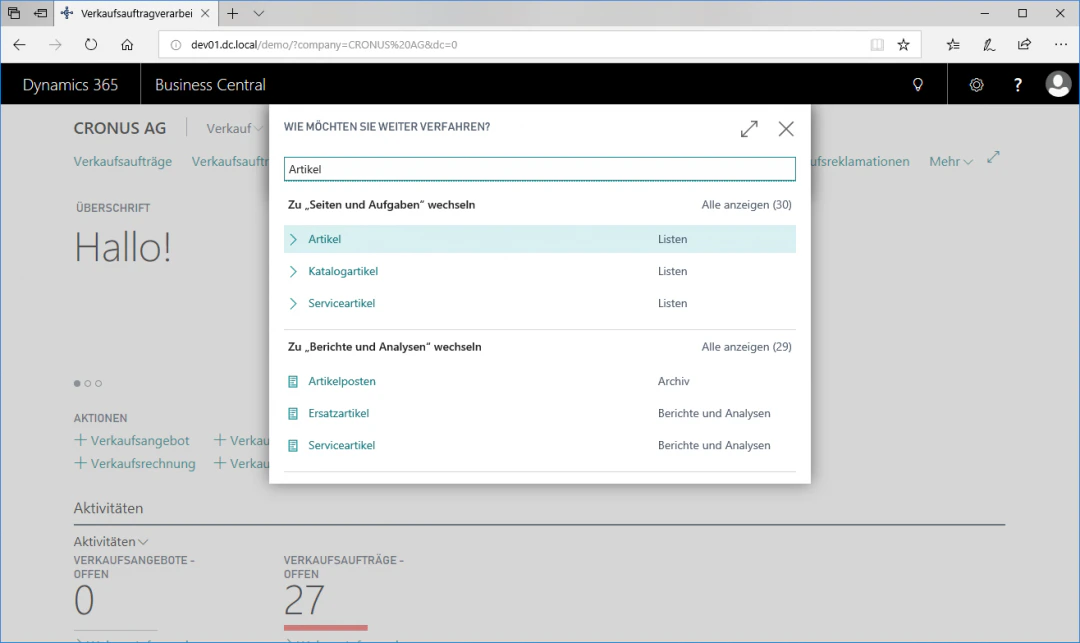
Navigate to the Items section by entering "Items" in the search.
 ## Step 2: Open the Webshop Item Card
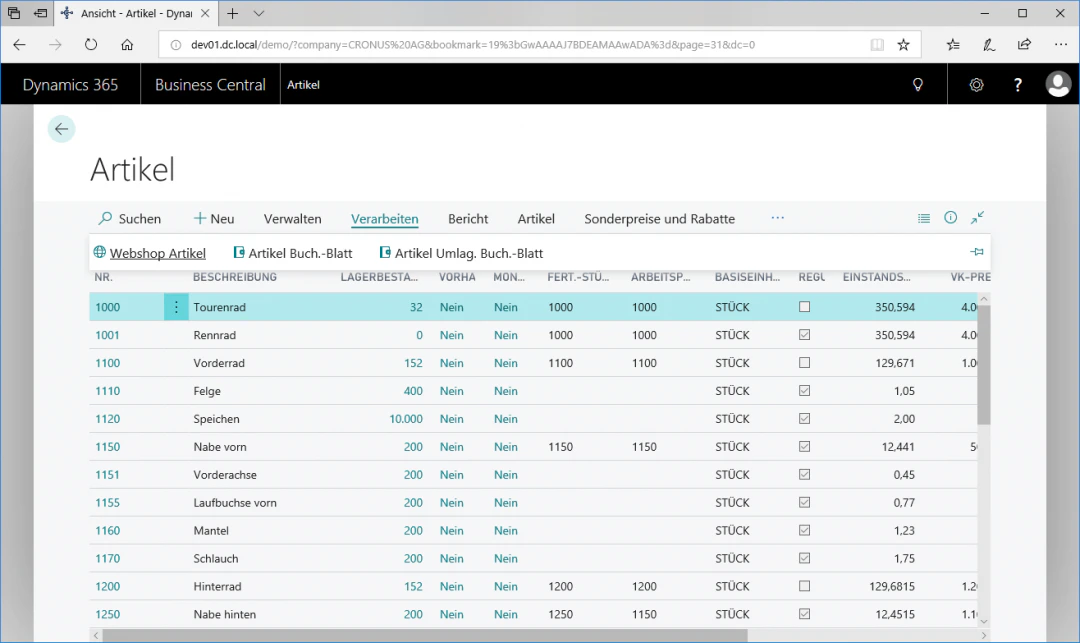
Select the row with the desired item you want to personalize, in this case the touring bicycle 1000.
Click the FastTab "Webshop Item" in the "Process" ribbon to open the webshop item card.
## Step 2: Open the Webshop Item Card
Select the row with the desired item you want to personalize, in this case the touring bicycle 1000.
Click the FastTab "Webshop Item" in the "Process" ribbon to open the webshop item card.
 ## Step 3: Define Personalizability
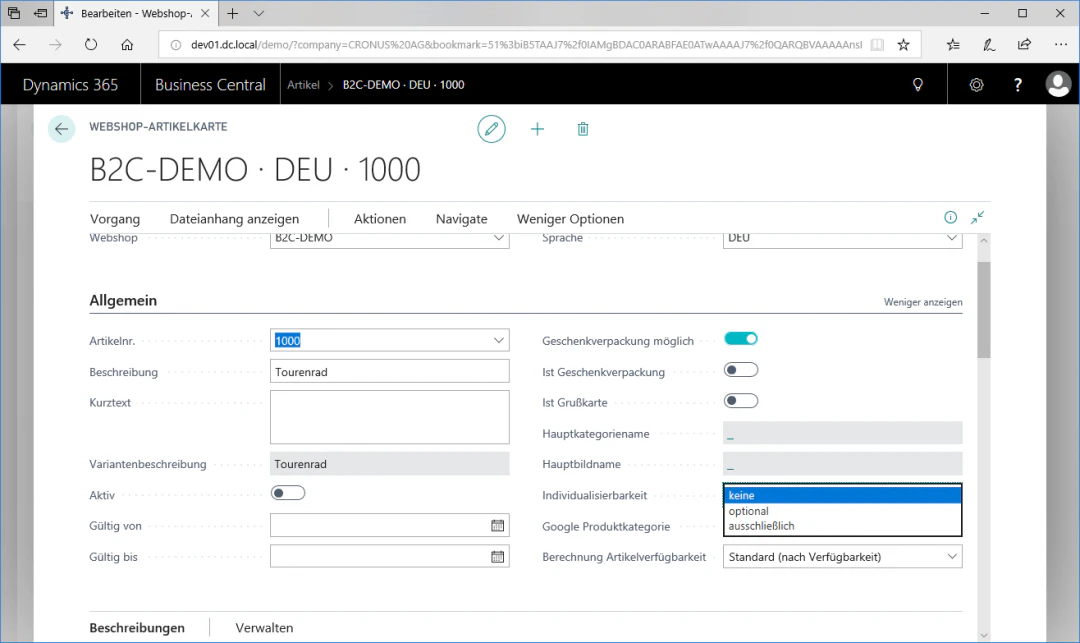
In the "General" menu item, you can now use the "Personalizability" field to specify whether and how an item should be personalized.
The available options are "none", "optional", and "exclusively", and they mean the following:
* "none": the item can only be ordered without personalization
* "optional": the item can be ordered with or without personalization
* "exclusively": the item can only be ordered with personalization
## Step 3: Define Personalizability
In the "General" menu item, you can now use the "Personalizability" field to specify whether and how an item should be personalized.
The available options are "none", "optional", and "exclusively", and they mean the following:
* "none": the item can only be ordered without personalization
* "optional": the item can be ordered with or without personalization
* "exclusively": the item can only be ordered with personalization
 ## Step 4: Open the Personalization Menu
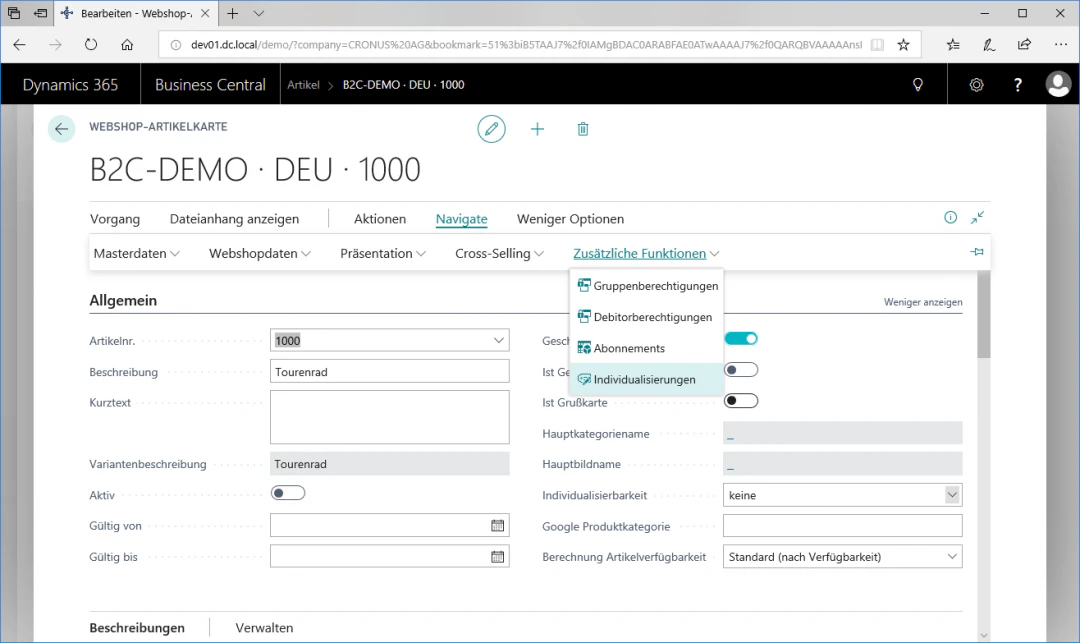
If you have decided to personalize your item, you can access the webshop personalization menu by navigating via the "Navigate" ribbon to the "Additional Functions" FastTab and then clicking the "Personalizations" FastTab.
## Step 4: Open the Personalization Menu
If you have decided to personalize your item, you can access the webshop personalization menu by navigating via the "Navigate" ribbon to the "Additional Functions" FastTab and then clicking the "Personalizations" FastTab.
 ## Step 5: Configure the Personalization
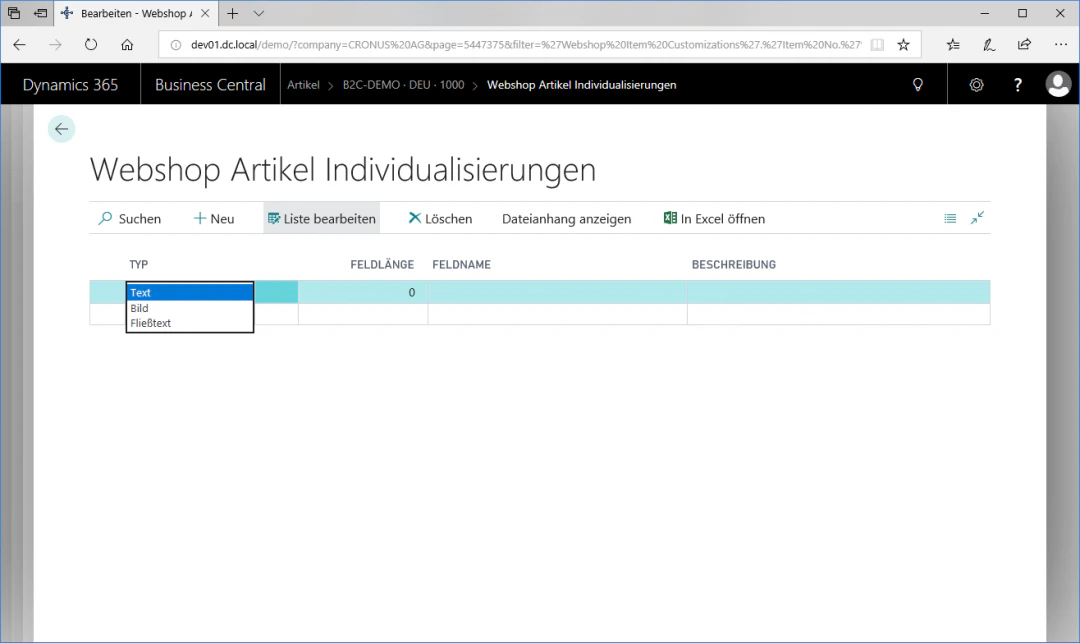
To add a personalized text to your item, select the desired type in the "Type" column. You can choose between Text, Image, and Free-form Text. Finally, you can enter your desired text in the "Description" column.
## Step 5: Configure the Personalization
To add a personalized text to your item, select the desired type in the "Type" column. You can choose between Text, Image, and Free-form Text. Finally, you can enter your desired text in the "Description" column.
 ## Related Topics
Maintain items for the webshop.
Set up an item as a digital product.
## Related Topics
Maintain items for the webshop.
Set up an item as a digital product.