> ## Documentation Index
> Fetch the complete documentation index at: https://docs.dc.ag/llms.txt
> Use this file to discover all available pages before exploring further.
# Shipping Costs - Setting Up Personal Delivery
> Set up a personal delivery for a specific postal code area
With our extension, you have the option to define shipping options — see [Shipping Options](/docs/en/bc-shipping-costs/user-guide/versandoptionen).
You can also maintain special shipping options, such as a **personal delivery** for a specific postal code area. We will show you how to create such a shipping option in the following steps.
Basic knowledge of the extension is required for this guide. Links to detailed explanations are provided at the relevant points.
## Step 1: Create a Shipping Zone
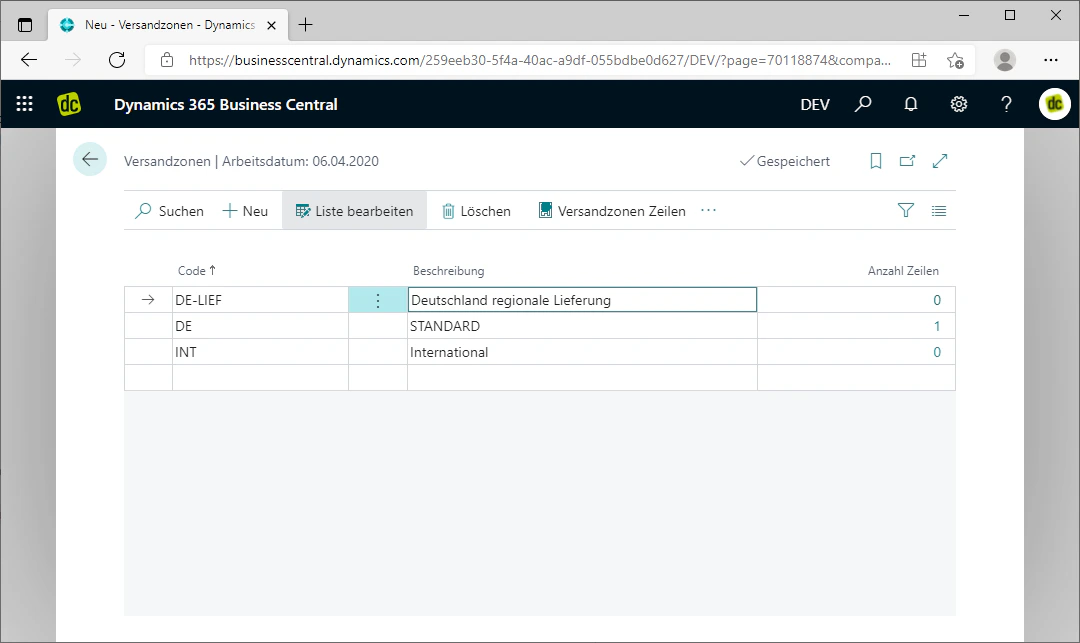
First, we create a new shipping zone for the desired postal code area.
A detailed explanation of shipping zones can be found under [Shipping Zones](/docs/en/bc-shipping-costs/user-guide/versandzonen).
In our example, we name the shipping zone "DE-LIEF" and assign the description "Germany regional delivery".
 ## Step 2: Create a Postal Code Area
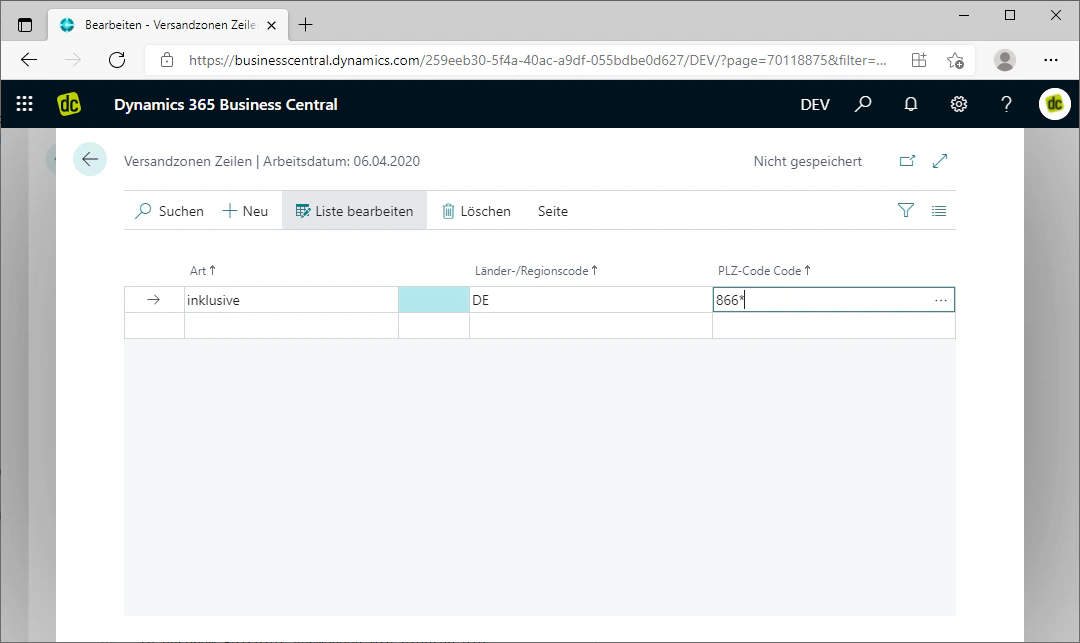
For the shipping zone just created, we now create a new **inclusive** line for the desired postal code area.
To include larger areas, a wildcard `*` can be used after any number of characters.
In our example, we use the postal code area `866*`.
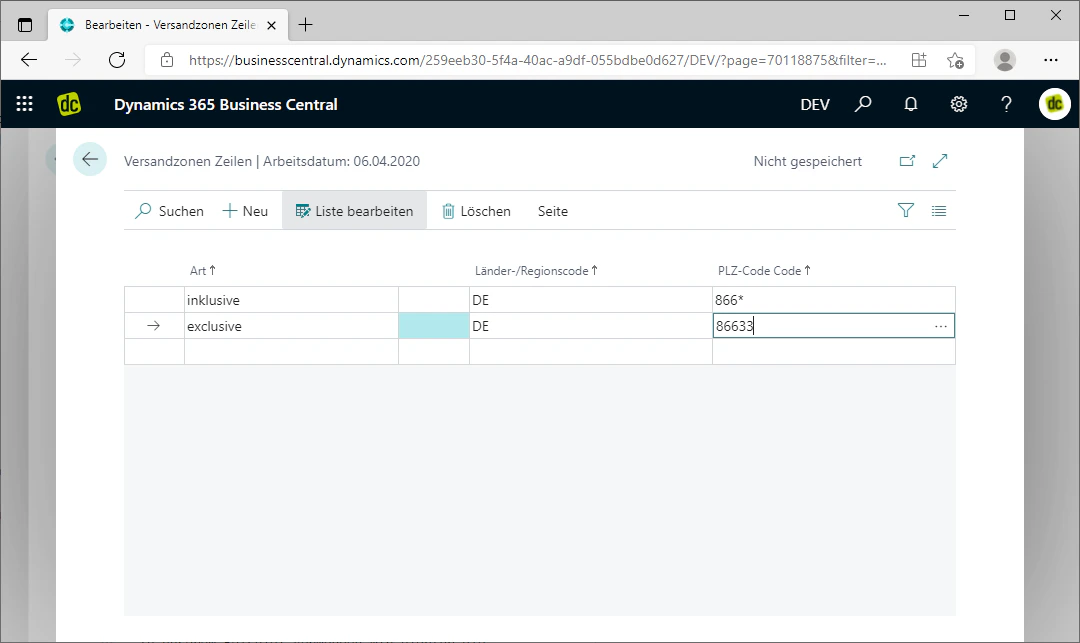
In addition, we create an **exclusive** line for a specific postal code within the previously defined area, for which personal delivery should not apply. In our example, we use the postal code `86633` for this purpose.
## Step 2: Create a Postal Code Area
For the shipping zone just created, we now create a new **inclusive** line for the desired postal code area.
To include larger areas, a wildcard `*` can be used after any number of characters.
In our example, we use the postal code area `866*`.
In addition, we create an **exclusive** line for a specific postal code within the previously defined area, for which personal delivery should not apply. In our example, we use the postal code `86633` for this purpose.
 ## Step 3: Create a New Shipping Option
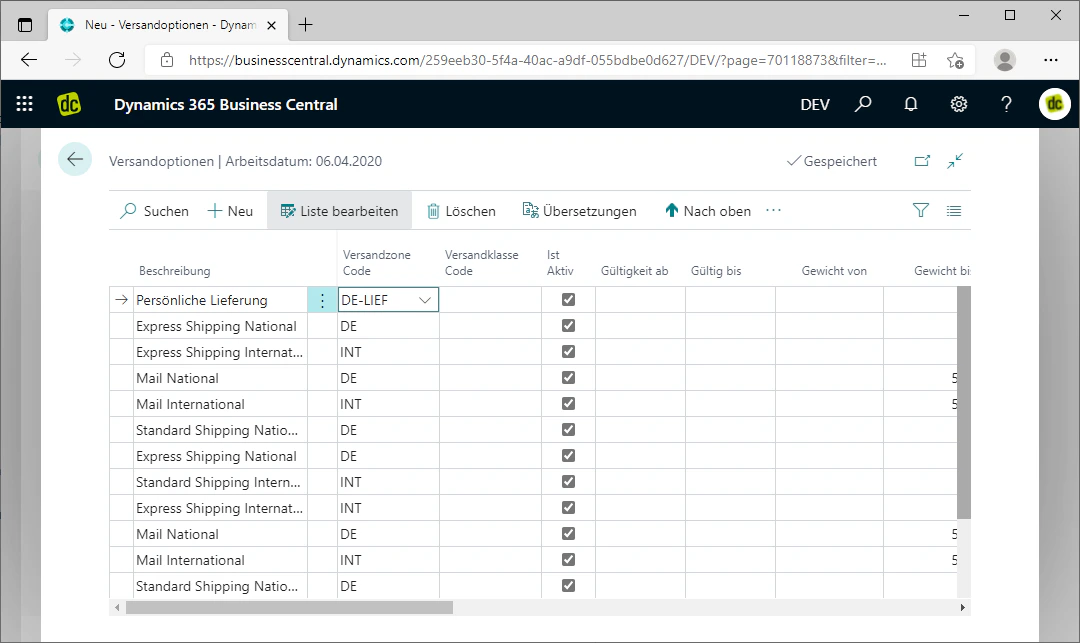
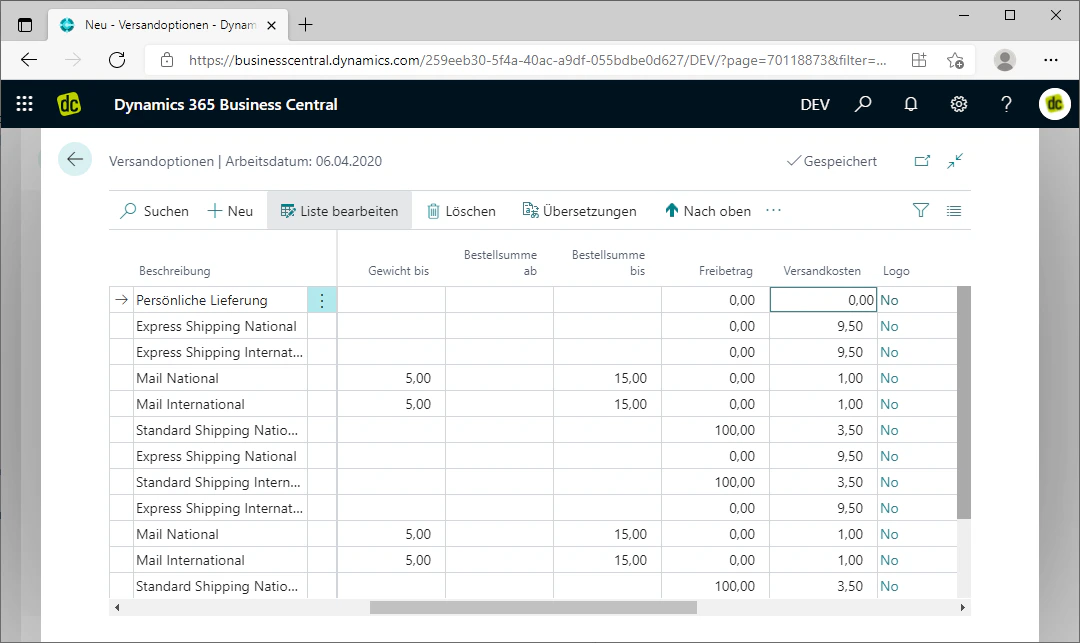
Now we create a new shipping option for personal delivery.
A detailed explanation of how to create a shipping option can be found under [Shipping Options](/docs/en/bc-shipping-costs/user-guide/versandoptionen).
In our example, we use the description "Personal Delivery".
To link the new shipping option to our shipping zone, our newly created shipping zone "DE-LIEF" must be selected in the "Shipping Zone Code" column.
If necessary, the shipping option can also be assigned shipping costs. In addition, all other conditions offered by our extension can be applied.
In our example, we offer personal delivery free of charge, which is why we enter "0" for shipping costs.
## Step 3: Create a New Shipping Option
Now we create a new shipping option for personal delivery.
A detailed explanation of how to create a shipping option can be found under [Shipping Options](/docs/en/bc-shipping-costs/user-guide/versandoptionen).
In our example, we use the description "Personal Delivery".
To link the new shipping option to our shipping zone, our newly created shipping zone "DE-LIEF" must be selected in the "Shipping Zone Code" column.
If necessary, the shipping option can also be assigned shipping costs. In addition, all other conditions offered by our extension can be applied.
In our example, we offer personal delivery free of charge, which is why we enter "0" for shipping costs.
 ## Step 4: Apply the Shipping Option to the Order
The shipping option only applies if the customer in the order has a delivery address that falls within the defined postal code area.
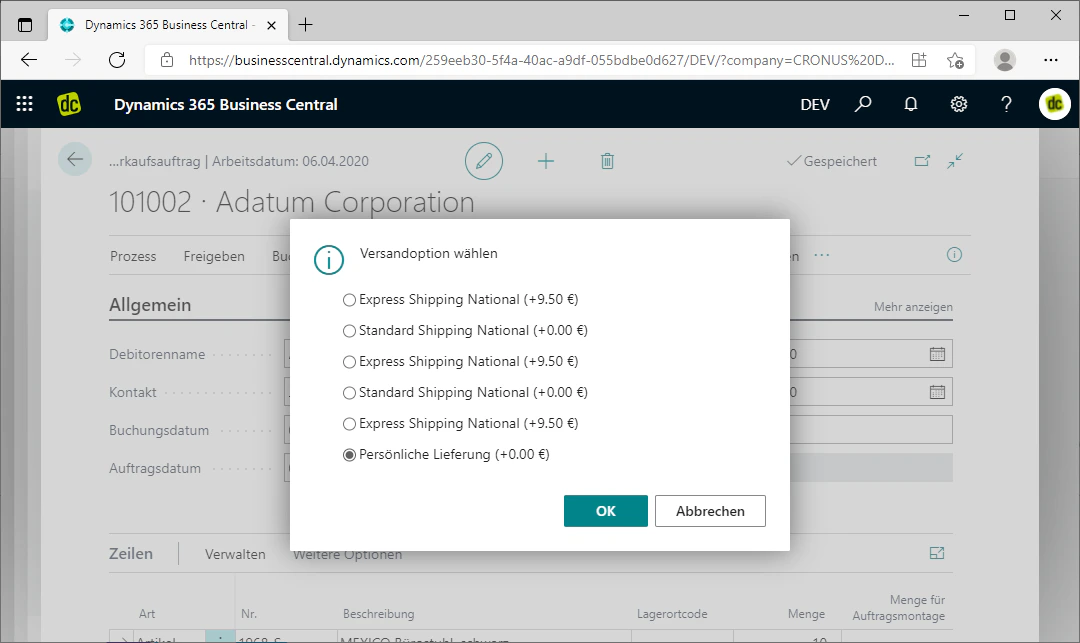
If the delivery address is within the postal code area designated for personal delivery, this shipping option will automatically be offered for selection in the order and can be inserted as a line.
We show you how the calculation of shipping costs in the order works and how to select or add a shipping option for the order under [Calculation in the Order](/docs/en/bc-shipping-costs/user-guide/berechnung-im-auftrag).
## Step 4: Apply the Shipping Option to the Order
The shipping option only applies if the customer in the order has a delivery address that falls within the defined postal code area.
If the delivery address is within the postal code area designated for personal delivery, this shipping option will automatically be offered for selection in the order and can be inserted as a line.
We show you how the calculation of shipping costs in the order works and how to select or add a shipping option for the order under [Calculation in the Order](/docs/en/bc-shipping-costs/user-guide/berechnung-im-auftrag).
 ## Related Topics
Create shipping zones for countries or postal code areas.
Create and configure shipping options.
Calculate shipping costs on the order and record shipping lines.
## Related Topics
Create shipping zones for countries or postal code areas.
Create and configure shipping options.
Calculate shipping costs on the order and record shipping lines.