> ## Documentation Index
> Fetch the complete documentation index at: https://docs.dc.ag/llms.txt
> Use this file to discover all available pages before exploring further.
# Shipping Costs - Customer-Specific Shipping Options
> Assign individual shipping groups to a customer
The extension also allows you to assign individual or specific shipping groups to each customer. This can be done conveniently directly on the customer record.
In the following, we will show you how to assign shipping options to a customer.
For this guide, shipping groups should already have been created. We show you how to do this under [Shipping Groups](/docs/en/bc-shipping-costs/user-guide/versandgruppen).
## Step 1: Navigate to the Customer
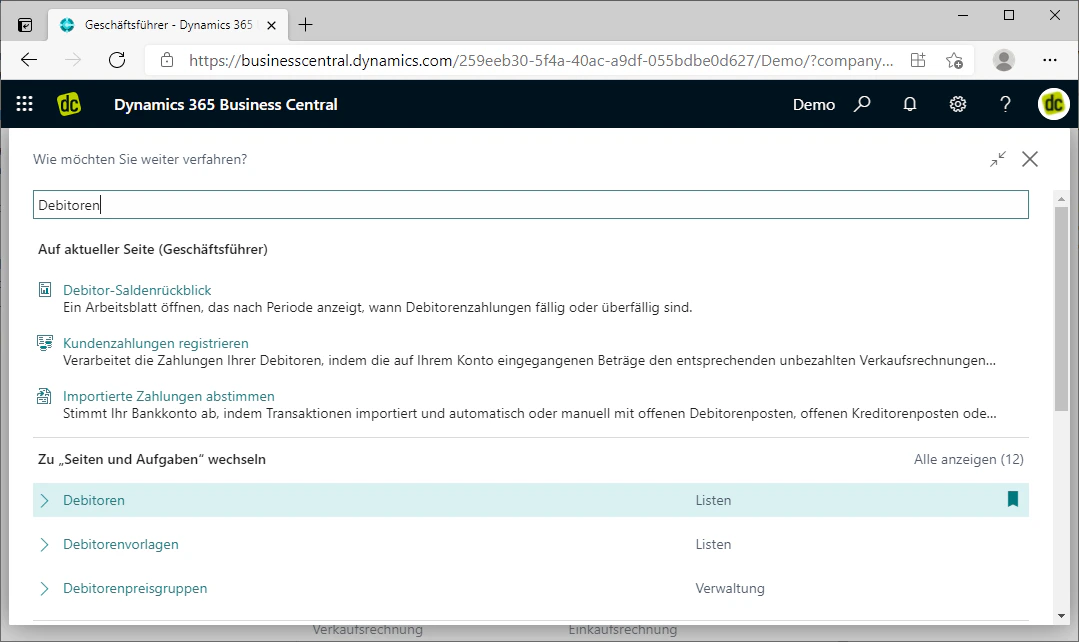
To do this, first navigate to the customer of your choice. You can access the customer overview by searching for "Customers" and clicking on the list of the same name.
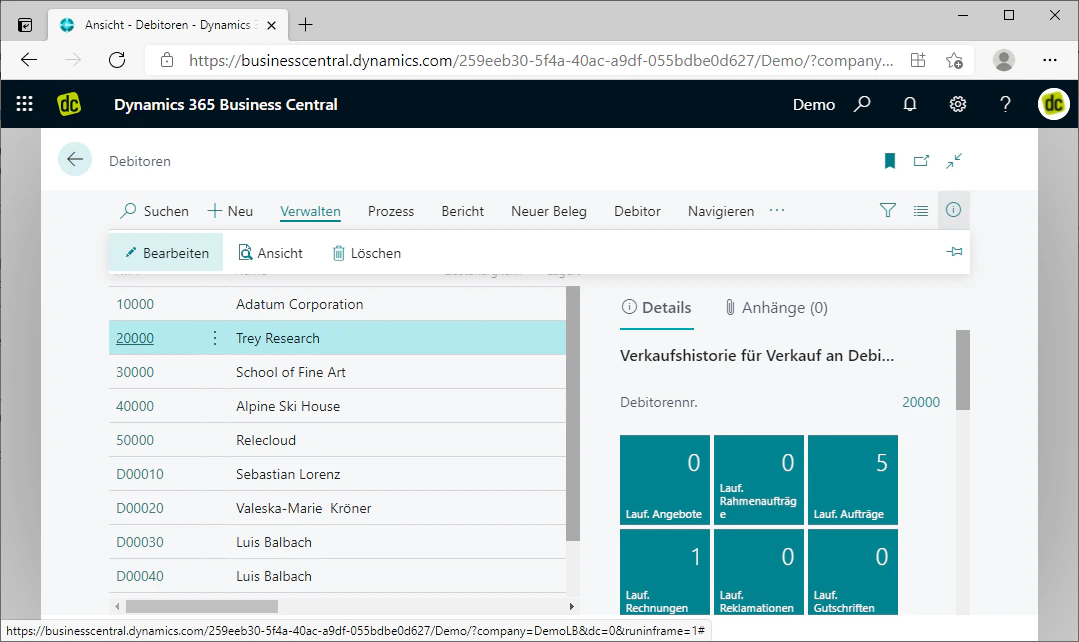
This opens an overview of the created customers.
Select the desired customer by clicking on them in the list and then clicking "Edit" via the "Manage" menu. This opens the customer card.
 ## Step 2: Assign a Shipping Group
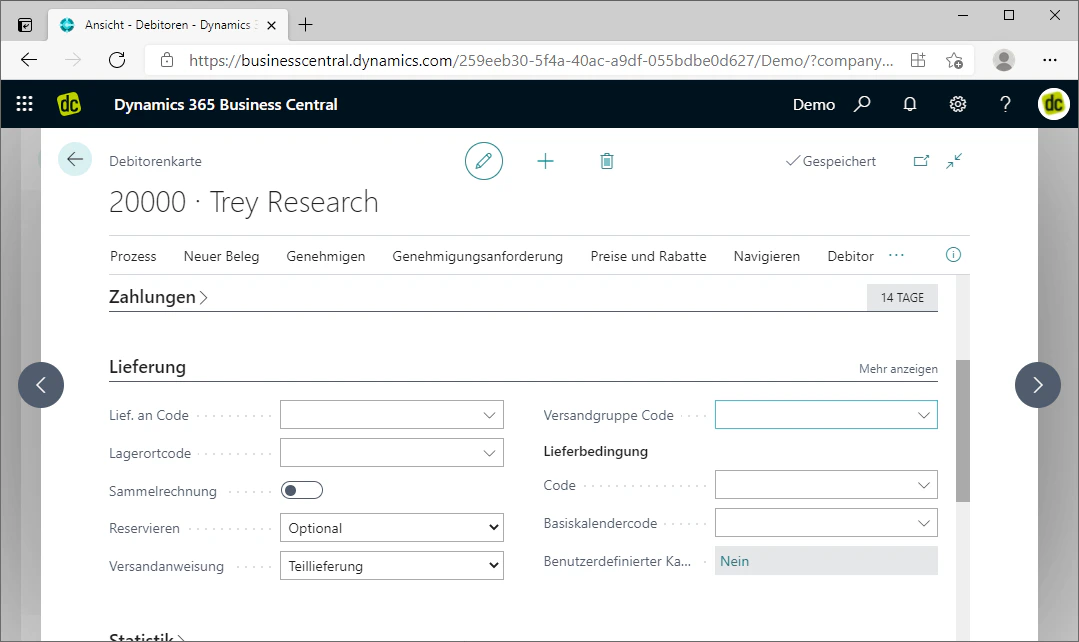
In the customer card, you will find the field "Shipping Group Code" in the Shipping menu.
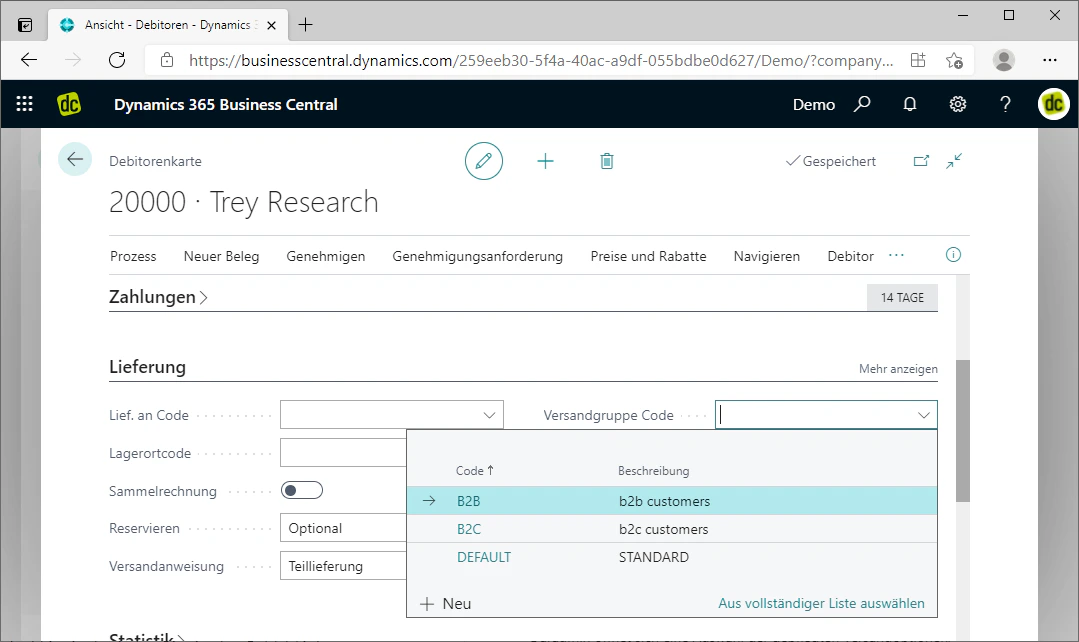
There you can individually assign a shipping group to the customer, which then contains the individual shipping options for this customer. This works by clicking on the field. A selection of the maintained shipping options will then open, which can be selected with a simple click.
## Step 2: Assign a Shipping Group
In the customer card, you will find the field "Shipping Group Code" in the Shipping menu.
There you can individually assign a shipping group to the customer, which then contains the individual shipping options for this customer. This works by clicking on the field. A selection of the maintained shipping options will then open, which can be selected with a simple click.
 ## Related Topics
Create shipping groups that you can assign to a customer here.
Have shipping costs calculated on the customer's order.
## Related Topics
Create shipping groups that you can assign to a customer here.
Have shipping costs calculated on the customer's order.