> ## Documentation Index
> Fetch the complete documentation index at: https://docs.dc.ag/llms.txt
> Use this file to discover all available pages before exploring further.
# Shipping Costs - Setup
> Basic setup of the dynamic commerce Shipping Costs extension
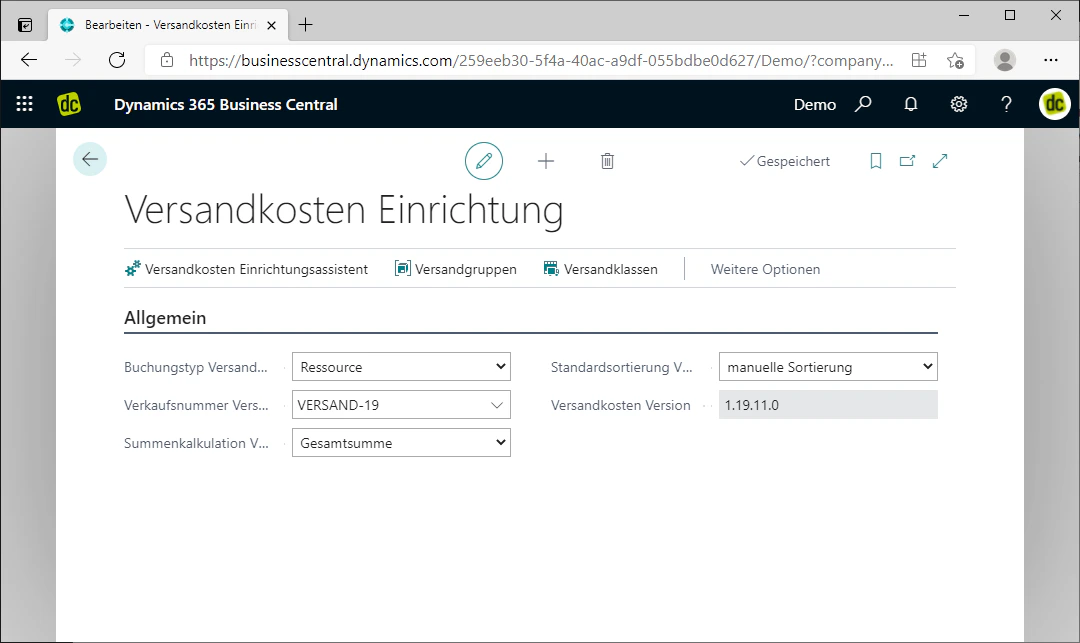
After installing the "dynamic commerce Shipping Costs" extension, some basic settings must first be configured. The following provides a brief overview of how this setup works and what options are available.
You can also use our setup wizard, which guides you through these settings step by step.
## Step 1: Navigate to the Setup
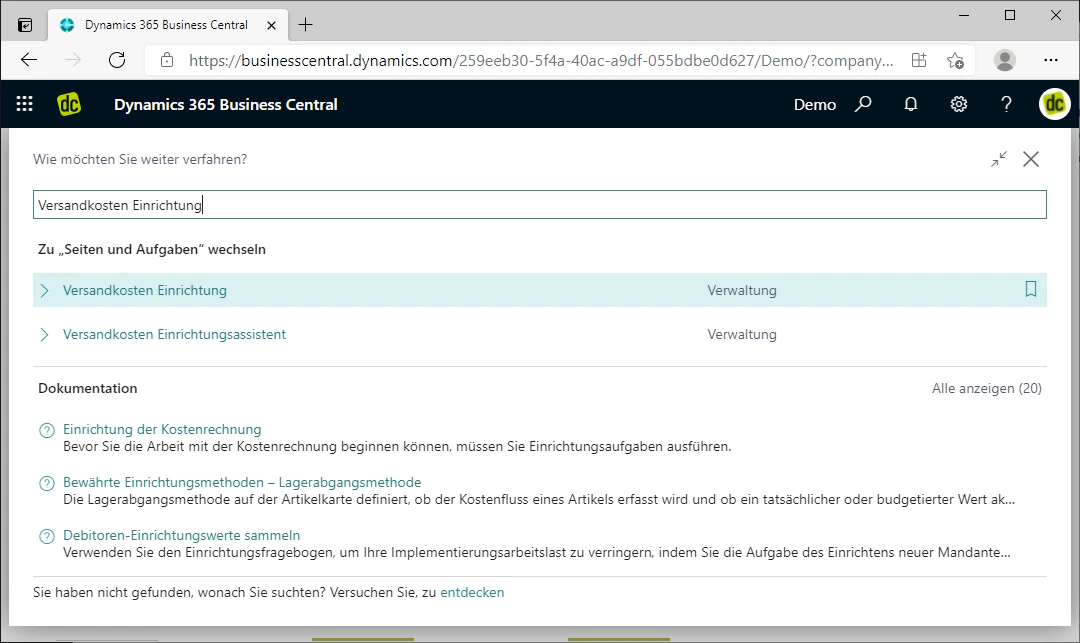
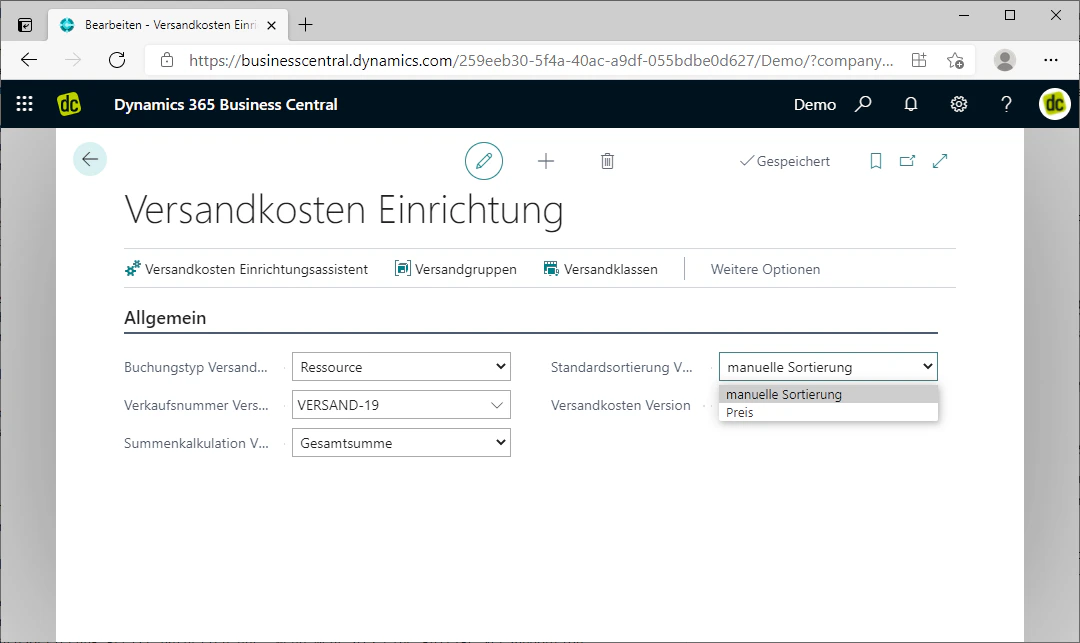
You can access the setup by entering "Shipping Costs Setup" in the search bar and clicking on the corresponding entry. The associated tab should then open.
 ## Step 2: Define the Posting Type
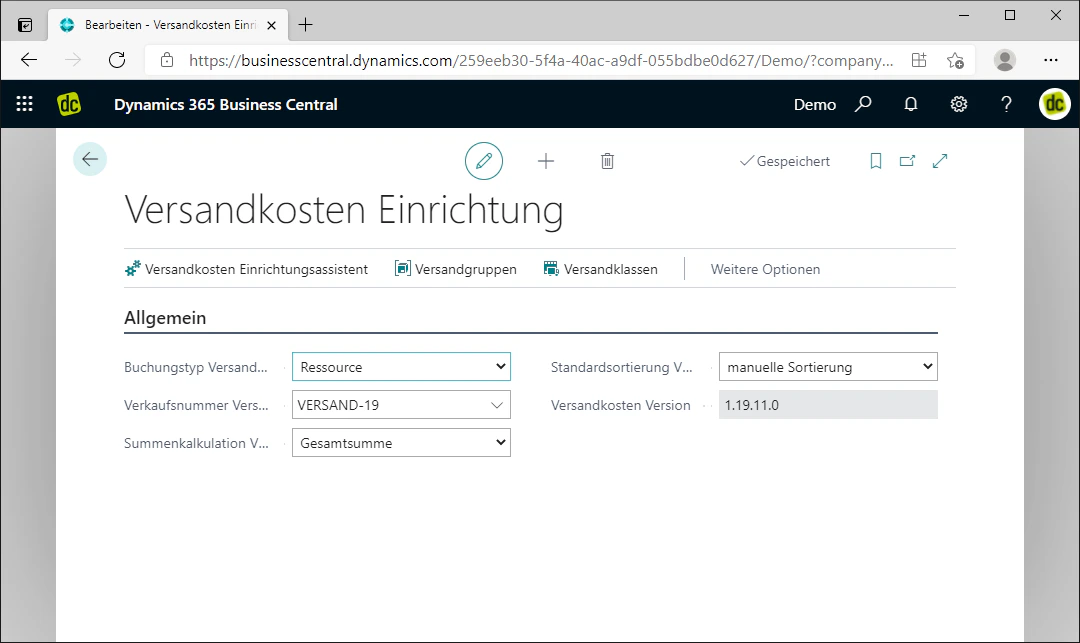
First, select a posting type. The posting type determines how shipping options will be posted in individual orders in the future.
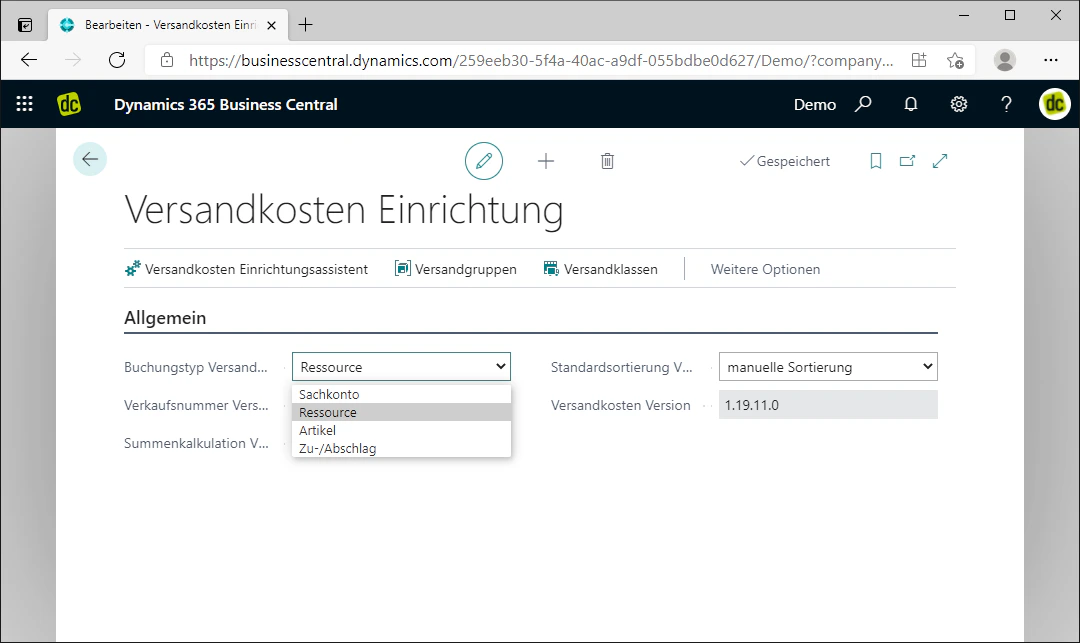
To select the posting type, click on the drop-down menu labelled "Posting Type Shipping Costs". This allows you to choose one of the following options:
* G/L Account
* Resource
* Item
* Charge (Item)
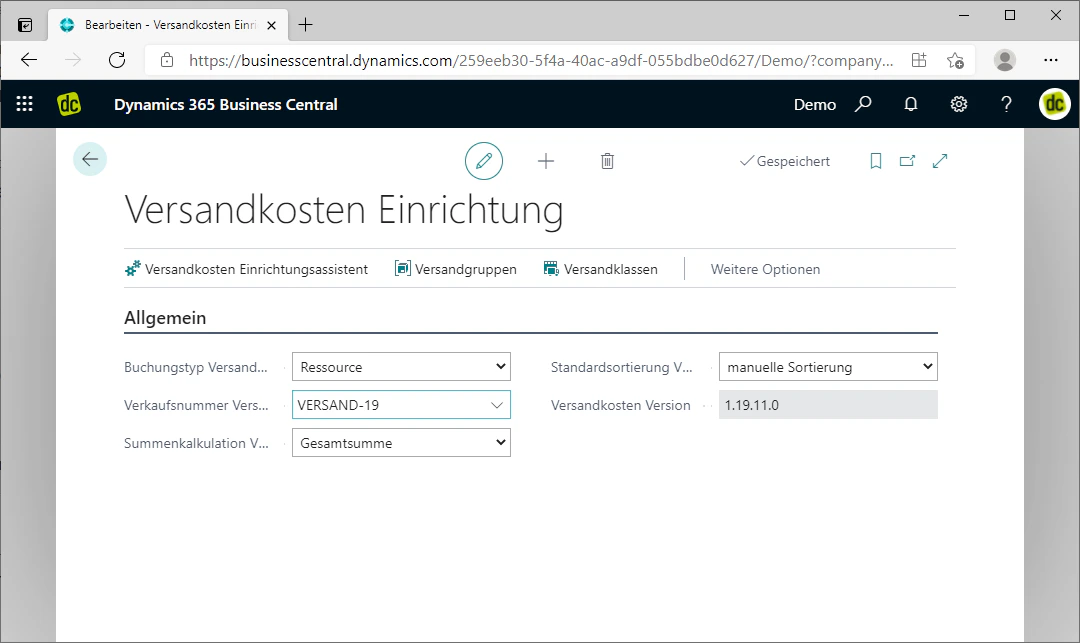
In our example, we will post the shipping costs as a resource. You can then specify the sales number (Sales No.) for the posting in the field below, provided you have already created sales numbers.
## Step 2: Define the Posting Type
First, select a posting type. The posting type determines how shipping options will be posted in individual orders in the future.
To select the posting type, click on the drop-down menu labelled "Posting Type Shipping Costs". This allows you to choose one of the following options:
* G/L Account
* Resource
* Item
* Charge (Item)
In our example, we will post the shipping costs as a resource. You can then specify the sales number (Sales No.) for the posting in the field below, provided you have already created sales numbers.
 ## Step 3: Define the Total Calculation
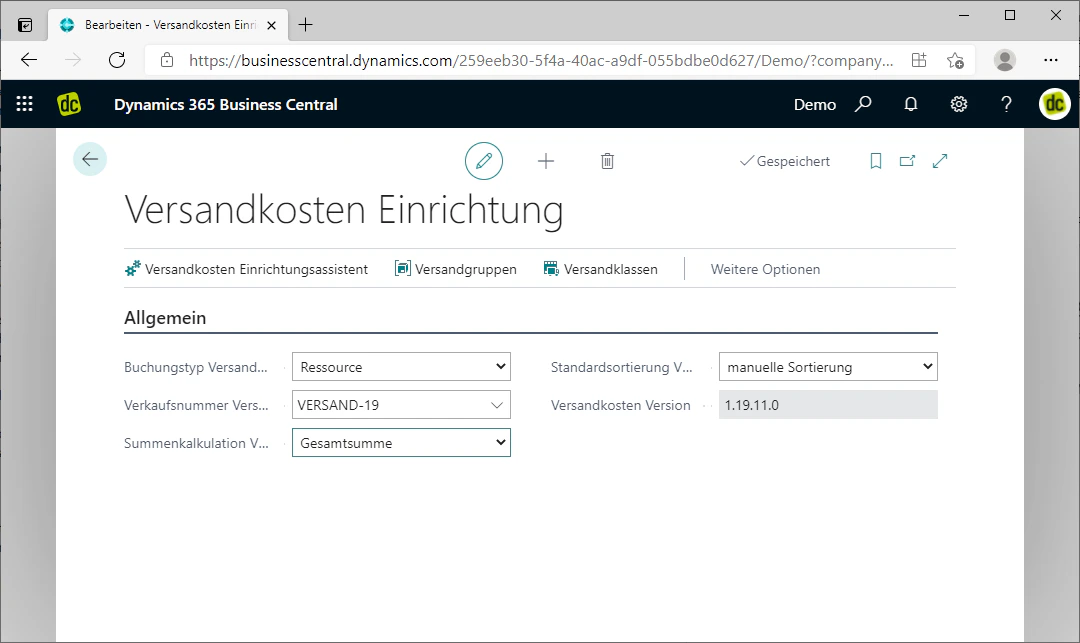
The "Total Calculation Sales Pool" field determines how the order total used for the automatic selection of shipping options is calculated.
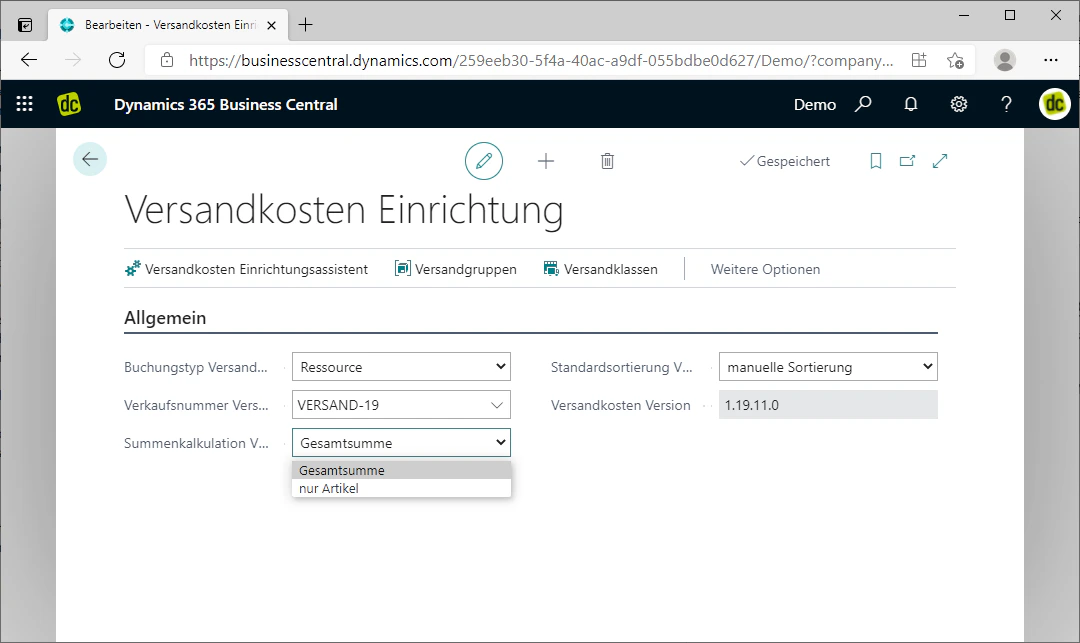
By clicking on the associated drop-down menu, you can choose whether the entire order or only the sum of the items should be used for the calculation.
In our example, we select "Grand Total" here.
## Step 3: Define the Total Calculation
The "Total Calculation Sales Pool" field determines how the order total used for the automatic selection of shipping options is calculated.
By clicking on the associated drop-down menu, you can choose whether the entire order or only the sum of the items should be used for the calculation.
In our example, we select "Grand Total" here.
 ## Step 4: Define the Default Sorting of Shipping Options
Finally, you should specify how the shipping options are to be sorted, i.e. in what order they will ultimately be displayed.
This default sorting only applies when more than one valid shipping option has been found.
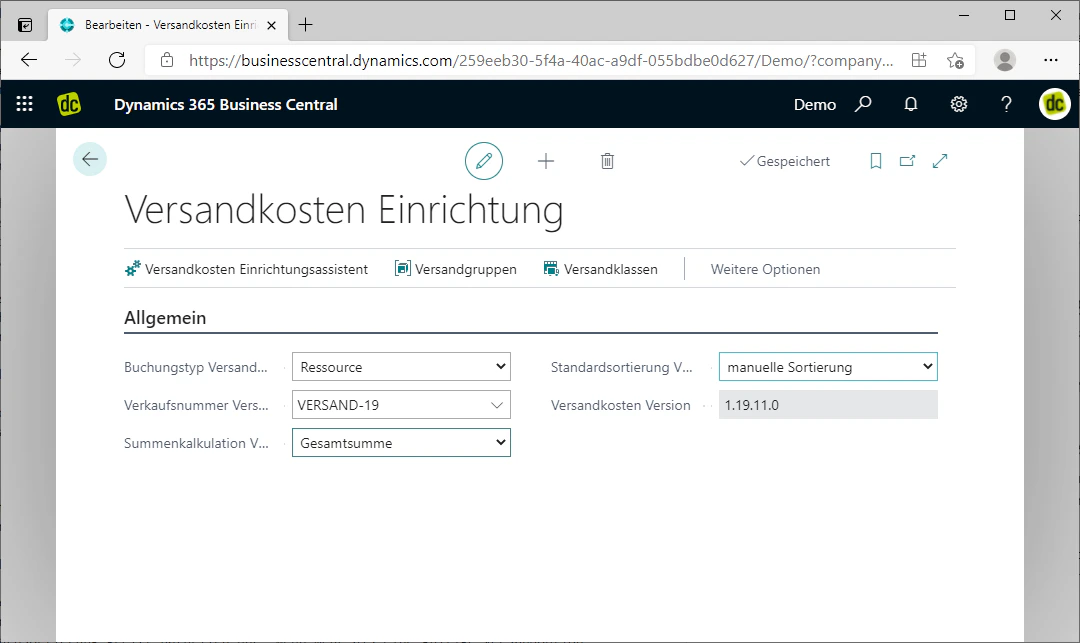
To do this, click on the "Default Sorting Shipping Costs" drop-down menu. There you can choose between manual sorting or automatic price-based sorting.
In our example, we opt for manual sorting.
## Step 4: Define the Default Sorting of Shipping Options
Finally, you should specify how the shipping options are to be sorted, i.e. in what order they will ultimately be displayed.
This default sorting only applies when more than one valid shipping option has been found.
To do this, click on the "Default Sorting Shipping Costs" drop-down menu. There you can choose between manual sorting or automatic price-based sorting.
In our example, we opt for manual sorting.
 ## Related Topics
Bundle shipping options logically and assign them to customers.
Create and configure specific shipping options such as "DHL Standard".
## Related Topics
Bundle shipping options logically and assign them to customers.
Create and configure specific shipping options such as "DHL Standard".