> ## Documentation Index
> Fetch the complete documentation index at: https://docs.dc.ag/llms.txt
> Use this file to discover all available pages before exploring further.
# Shipping Costs - Calculation in Order
> Calculate shipping costs on an order and record shipping lines
Our Shipping Costs extension gives you the ability to conveniently calculate the shipping costs for an order.
You can also record them as shipping lines in the order with just a few clicks.
In the following, we will show you how to calculate the shipping costs on an order and generate the corresponding shipping lines.
## Step 1: Open an Order
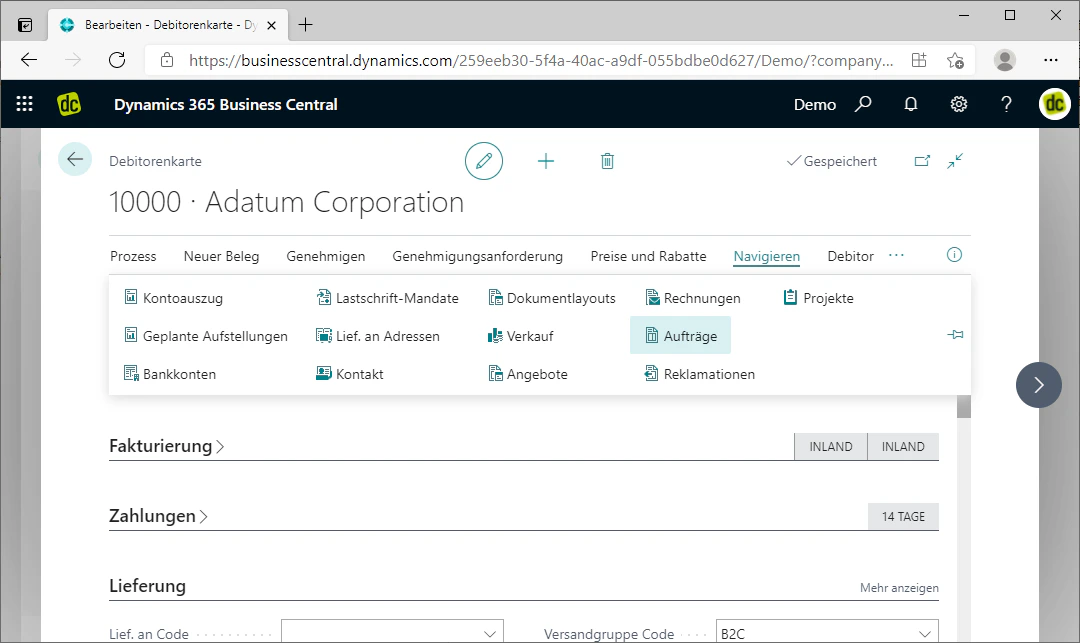
You can access a customer's orders via the customer card. You can find this using the search function.
In the customer card, you can open the order overview for the respective customer via the FastTab "Orders", which is located in the "Navigate" menu.
In our example, we have opened the order overview of "Adatum Corporation".
 ## Step 2: Create or Edit an Order
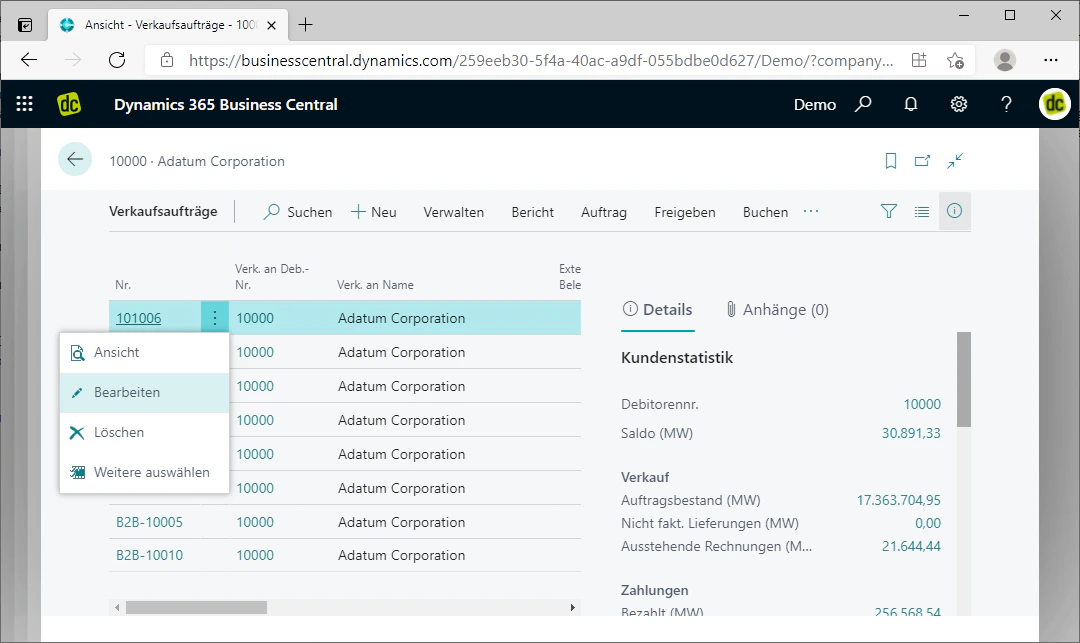
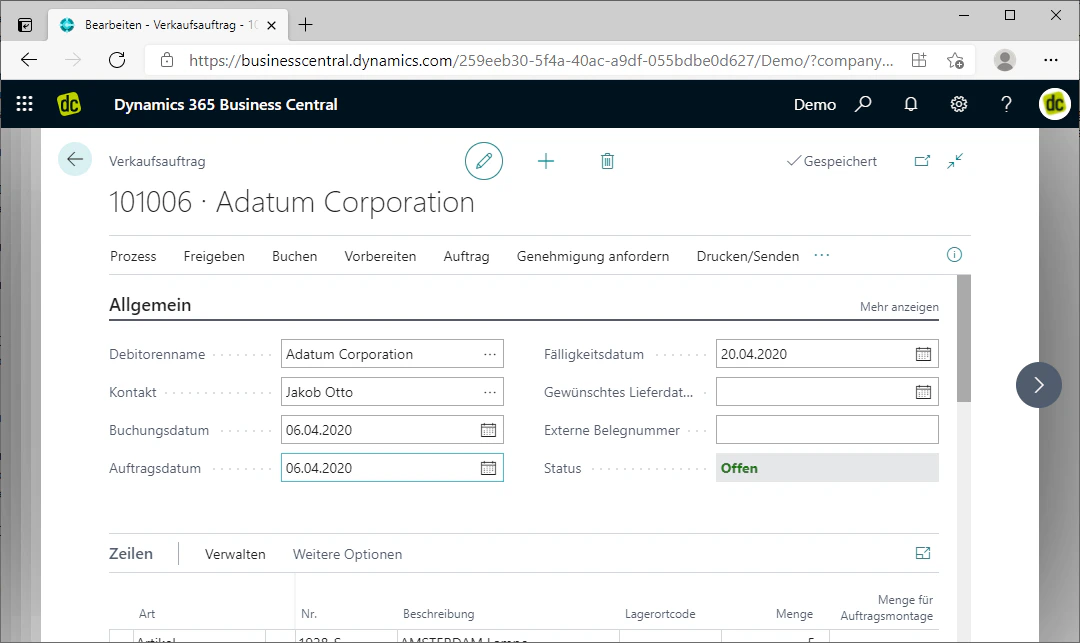
There, you open the card of a sales order. This works either by creating a new order or by editing an existing one.
In our example, we are editing an arbitrary order.
## Step 2: Create or Edit an Order
There, you open the card of a sales order. This works either by creating a new order or by editing an existing one.
In our example, we are editing an arbitrary order.
 ## Step 3: Calculate Shipping Costs
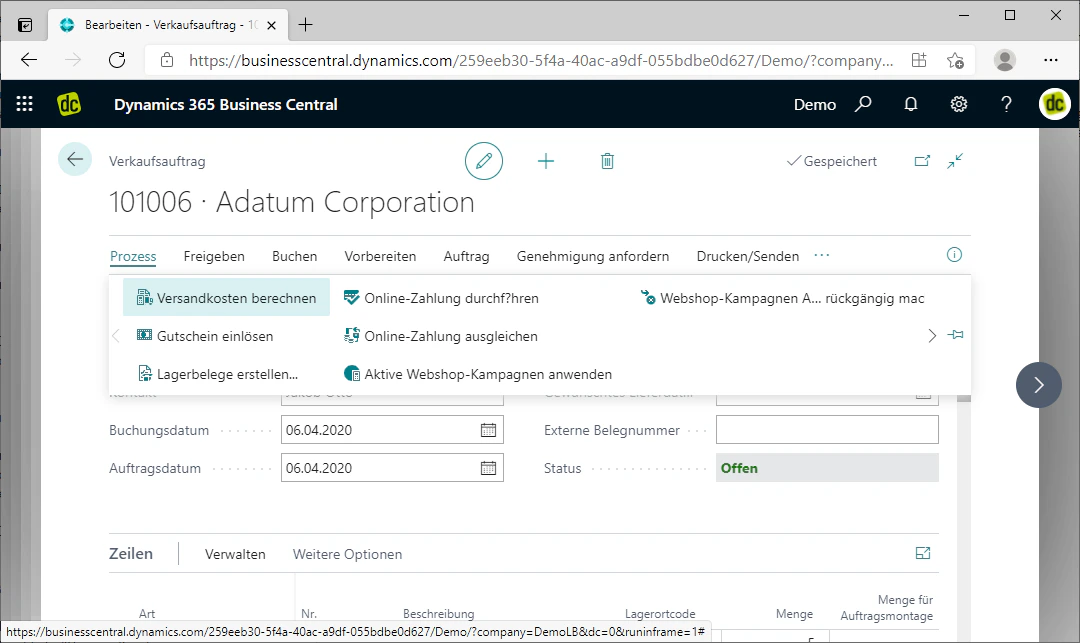
You can now have the shipping costs calculated via the "Process" menu and the FastTab "Calculate Shipping Costs".
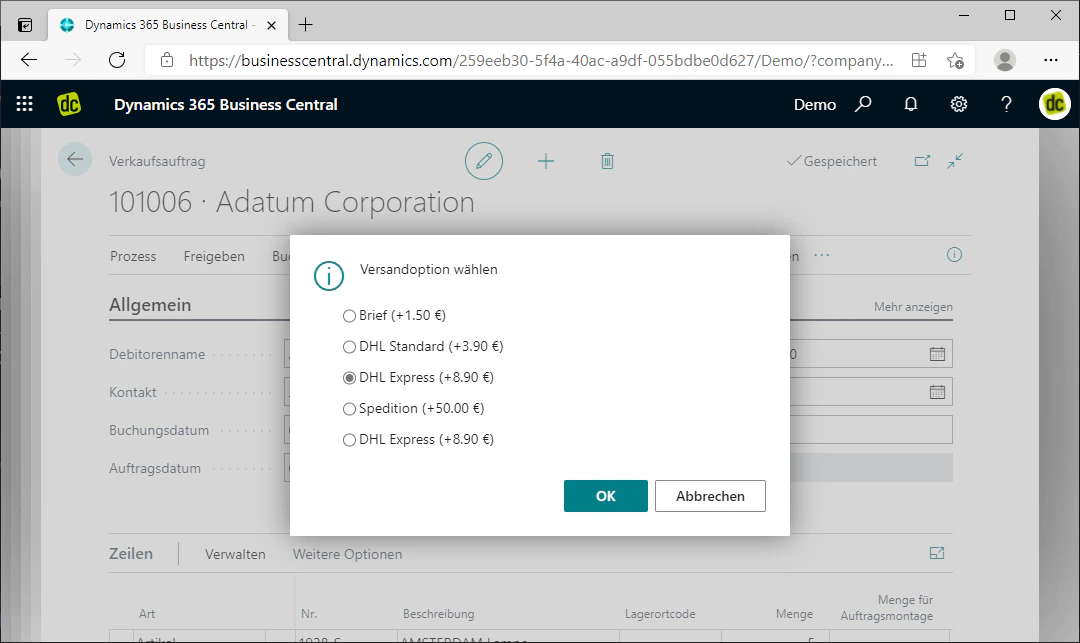
If there is only one valid shipping option, it will be automatically inserted as a line in the order. If multiple shipping options are valid, you can select the desired option directly afterwards and confirm it by clicking "OK".
In our example, multiple shipping options are available, which is why we select "DHL Express" and confirm this.
## Step 3: Calculate Shipping Costs
You can now have the shipping costs calculated via the "Process" menu and the FastTab "Calculate Shipping Costs".
If there is only one valid shipping option, it will be automatically inserted as a line in the order. If multiple shipping options are valid, you can select the desired option directly afterwards and confirm it by clicking "OK".
In our example, multiple shipping options are available, which is why we select "DHL Express" and confirm this.
 ## Step 4: Review Shipping Lines
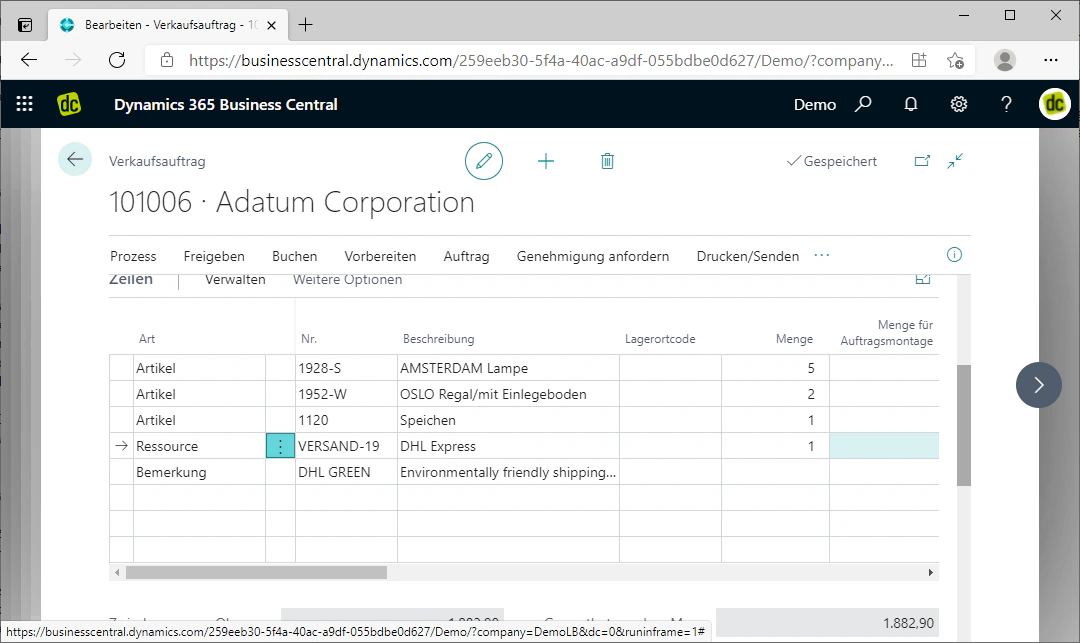
Finally, you can review and adjust the inserted shipping lines in the order.
The shipping costs for the order have now been calculated and added. You can therefore directly post, release, or perform similar actions on the order.
## Step 4: Review Shipping Lines
Finally, you can review and adjust the inserted shipping lines in the order.
The shipping costs for the order have now been calculated and added. You can therefore directly post, release, or perform similar actions on the order.
 ## Related Topics
Create shipping options that are available for selection on the order.
Assign individual shipping groups to a customer.
## Related Topics
Create shipping options that are available for selection on the order.
Assign individual shipping groups to a customer.