> ## Documentation Index
> Fetch the complete documentation index at: https://docs.dc.ag/llms.txt
> Use this file to discover all available pages before exploring further.
# Coupon Codes - Orders
> Redeem and validate a coupon code in a sales quote or sales order
With our extension, you can conveniently apply coupon codes provided by customers to orders.
This works both when creating sales quotes and when creating sales orders.
In the following, we will show you how to redeem a coupon code on an order.
For this purpose, we are already in a sales order. You can access sales orders via the customer.
## Step 1: Navigation
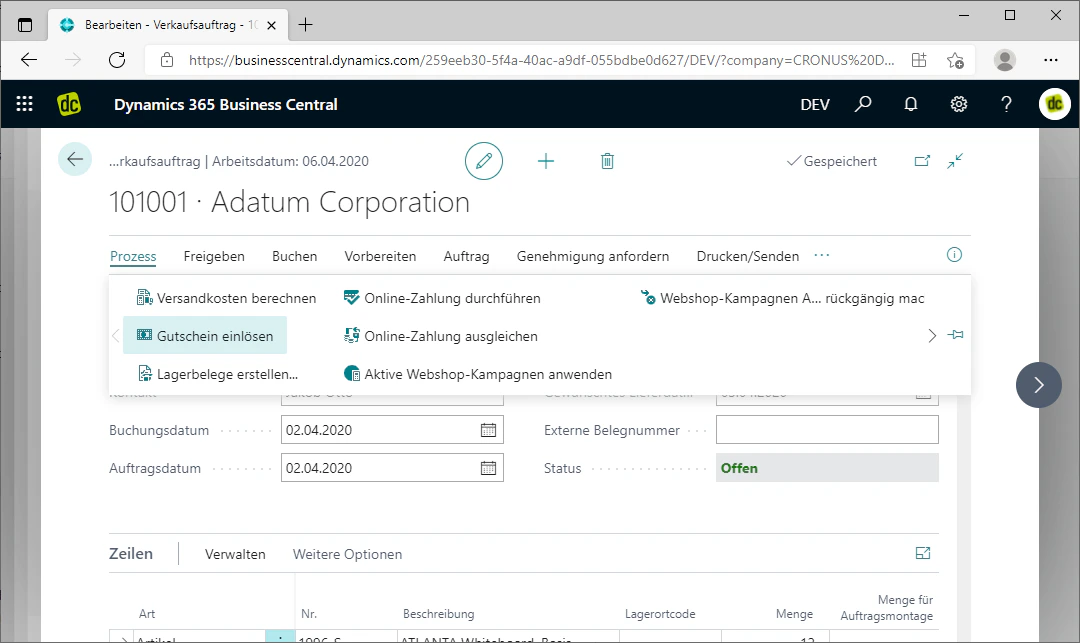
In the order, you can navigate to the "Redeem Coupon" FastTab via the "Process" menu.
By clicking on this FastTab, you open the window in which coupons can be redeemed.
 ## Step 2: Redeem Coupon
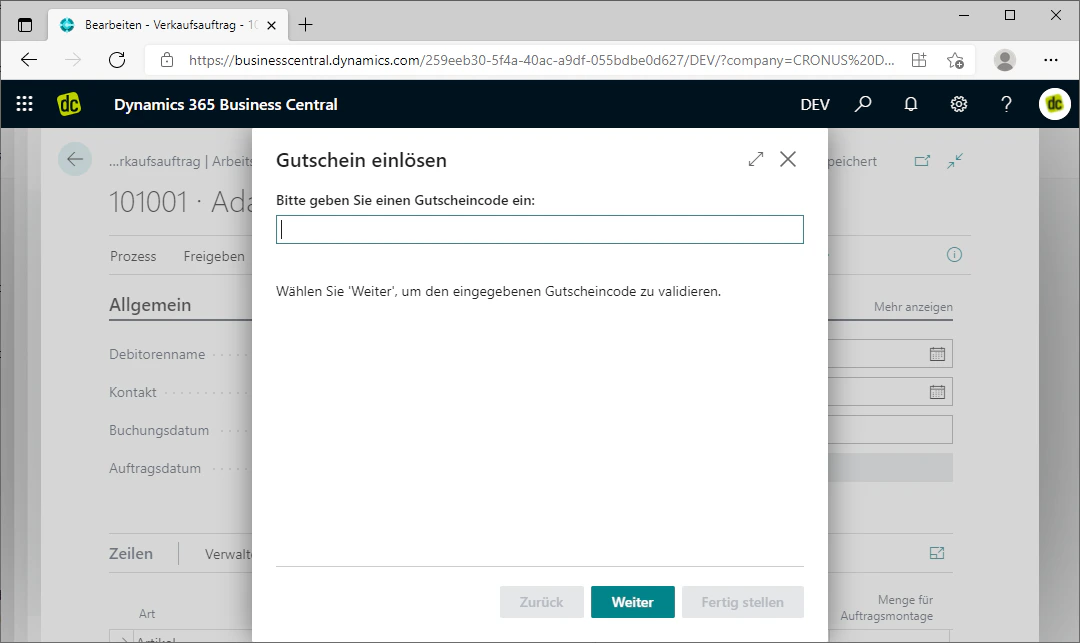
In this window, you can conveniently enter the coupon code that was provided to you by the customer.
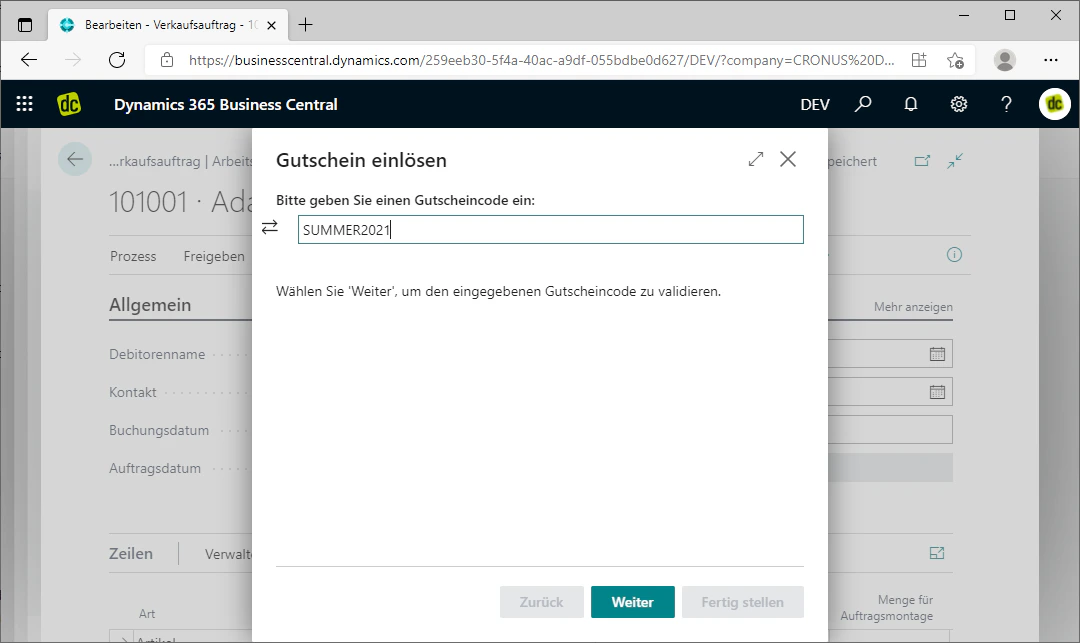
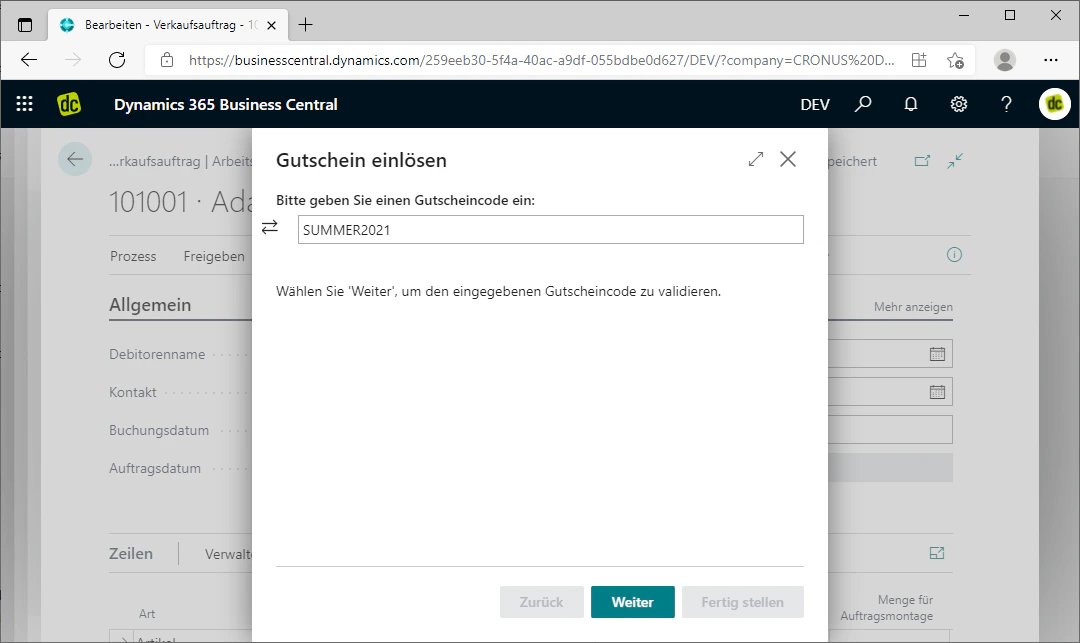
In our example, this is the coupon code "SUMMER2021".
Confirm this entry by clicking "Next".
You have now redeemed the coupon. It must still be validated by you so that it is added to the order.
## Step 2: Redeem Coupon
In this window, you can conveniently enter the coupon code that was provided to you by the customer.
In our example, this is the coupon code "SUMMER2021".
Confirm this entry by clicking "Next".
You have now redeemed the coupon. It must still be validated by you so that it is added to the order.
 ## Step 3: Activate Coupon
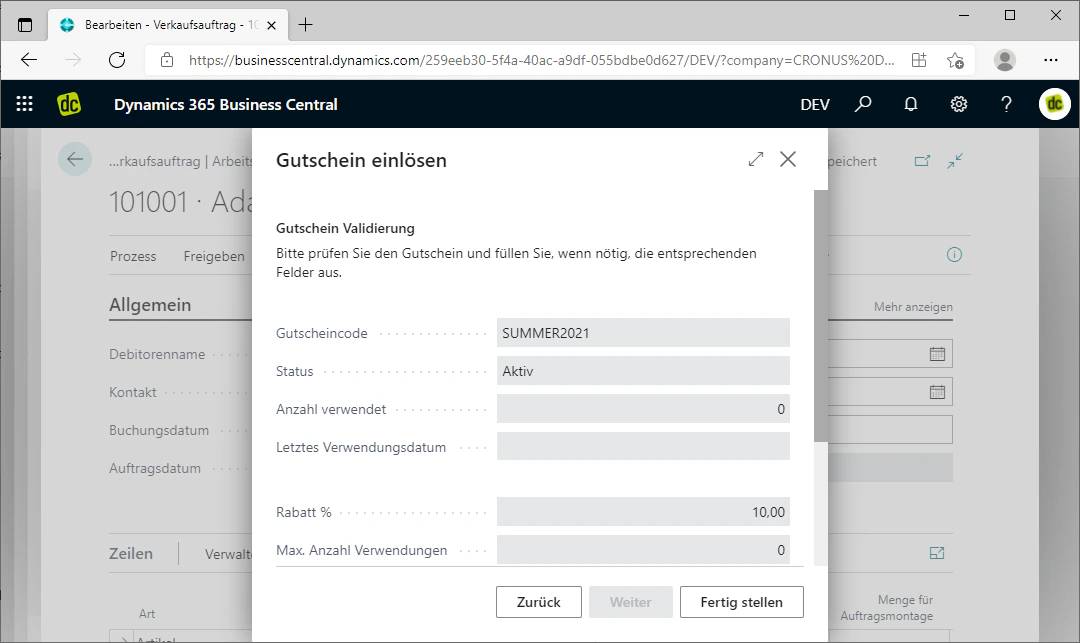
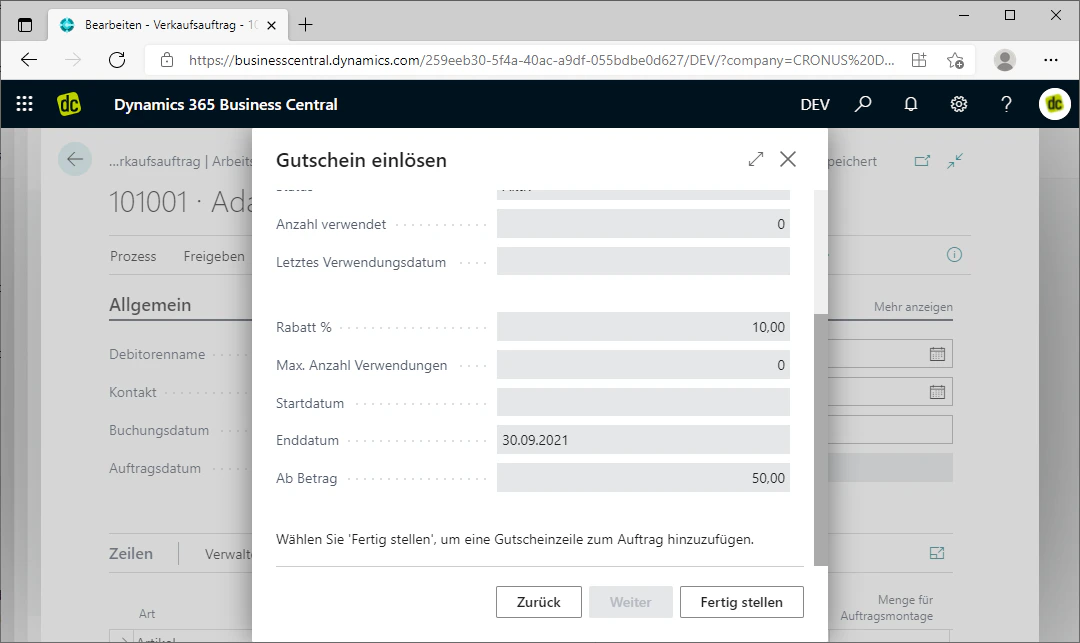
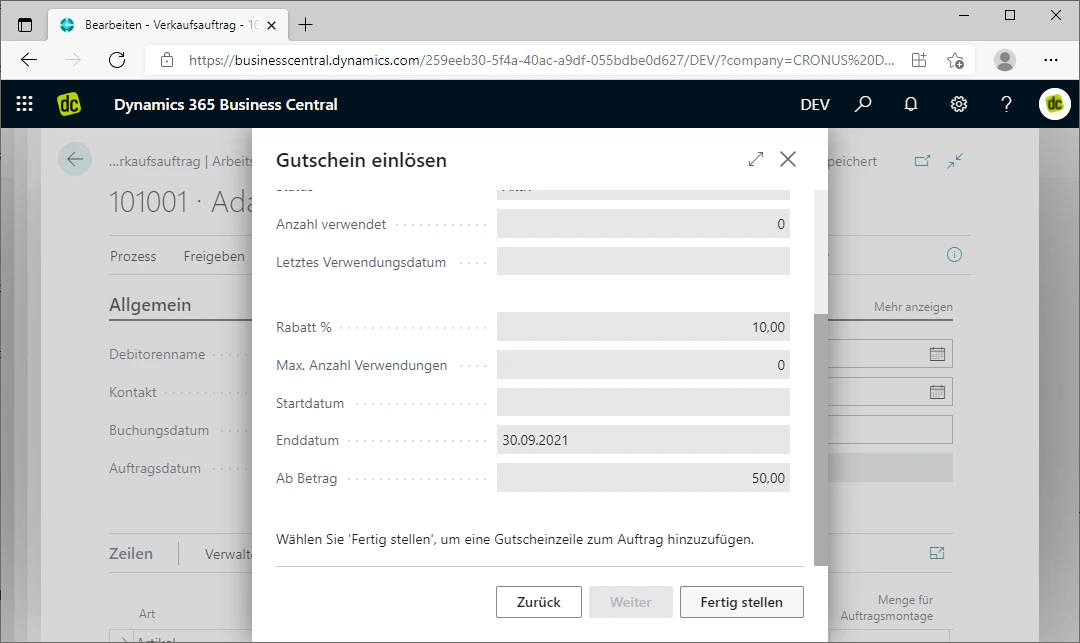
After you have redeemed the coupon as described in the previous step, a window for validating the coupon opens. There, the most important information about the entered coupon code is displayed once more.
You should briefly check this for accuracy. If this coupon code is the correct one, you can confirm this by clicking "Finish" at the bottom of the window.
The coupon code has now been applied to the order.
## Step 3: Activate Coupon
After you have redeemed the coupon as described in the previous step, a window for validating the coupon opens. There, the most important information about the entered coupon code is displayed once more.
You should briefly check this for accuracy. If this coupon code is the correct one, you can confirm this by clicking "Finish" at the bottom of the window.
The coupon code has now been applied to the order.
 ## Step 4: Check the Coupon on the Order
Finally, it is advisable to check once more, for safety, whether the coupon has been correctly stored in the order lines.
As shown in the image, you can see that the coupon code "SUMMER2021" has been applied in the order lines. You can now briefly verify whether the correct discount has also been applied.
## Step 4: Check the Coupon on the Order
Finally, it is advisable to check once more, for safety, whether the coupon has been correctly stored in the order lines.
As shown in the image, you can see that the coupon code "SUMMER2021" has been applied in the order lines. You can now briefly verify whether the correct discount has also been applied.
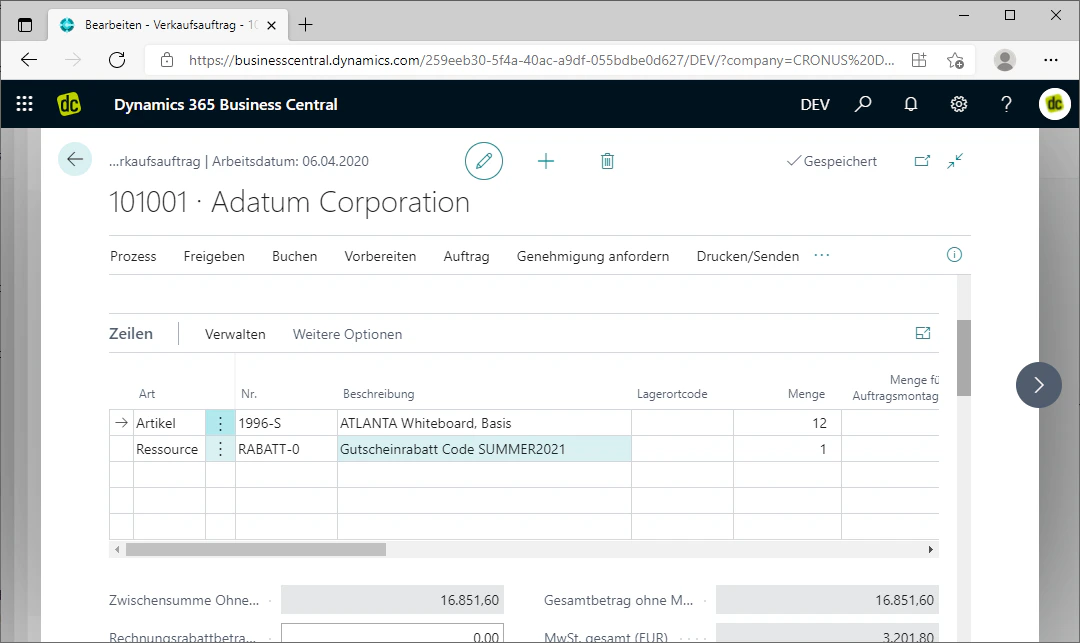 The coupon has been redeemed correctly and you can now complete the order.
## Related Topics
Create a new coupon code and define the value type.
View and manage the status, amount, and usage of generated coupon lines.
The coupon has been redeemed correctly and you can now complete the order.
## Related Topics
Create a new coupon code and define the value type.
View and manage the status, amount, and usage of generated coupon lines.